How to Send Each Volunteer Their Shift by Email
By Proximatic
Suppose you're organizing a community book sale on November 14. Doors open at 9 AM, but Priya needs to arrive at 8:45 for the welcome-desk briefing. Eli is packing up from 11 AM to noon. An email giving everyone the sale's 9–11 opening hours misses both commitments.
Each volunteer needs their own job and full shift time, plus a way to find the details again. Proximatic sends those details from the saved roster. Publishing a staffed event starts individual assignment notices; volunteers who choose an open place receive their own signup receipt.
The next step depends on who chose the shift. Someone who signed up has already agreed to it. Someone you assigned still needs to tell you they can do the job.
Put the hours you need in the shift
Create a free Standard event, then add the jobs, times and number of people needed. For the book sale, that includes:
- Welcome desk, 8:45–11 AM. Include the briefing in the shift itself. The job description tells volunteers to meet Morgan inside the main entrance, then greet visitors and direct them to the book tables.
- Pack up, 11 AM–noon. The job description explains that volunteers will box the unsold books and return the tables to storage. They report to Morgan at the same entrance at 11.
Save the location and Morgan's contact details with the event. The automatic assignment notice lists the person's roles and times; the event details carry the fuller instructions. That gives Priya the early start she needs without making Eli read through the welcome team's briefing.
If a job needs more explanation, the shift-description guide shows how to describe the work and meeting point.
If you assign the crew, publish to send their shifts
For volunteers already in your organization, check that they've accepted their invitations and verified their email. Assign Priya to Welcome desk and Eli to Pack up in your draft roster. You can place people manually or use Auto-Schedule, which is free and works from approved roles, saved availability and scheduling rules. Review the assignments before publishing.
If you're still building the roster from event notes, describe the jobs and hours in AI setup. It uses your prepared crew and their availability to create and open a staffed draft for review. The individual emails come from the assignments you publish, whichever setup route you use. Pricing explains the included AI allowance and additional use.
When you Publish, Proximatic queues the first assignment email for each assigned volunteer with a verified account. The message's subject begins Your assigned shifts and includes the event and organization names. Its list comes from that person's assignments, so Priya receives Welcome desk, November 14, 8:45–11 AM; Eli receives Pack up, November 14, 11 AM–noon. If someone has several shifts at the event, their notice lists those shifts together.
Priya's Welcome desk assignment email
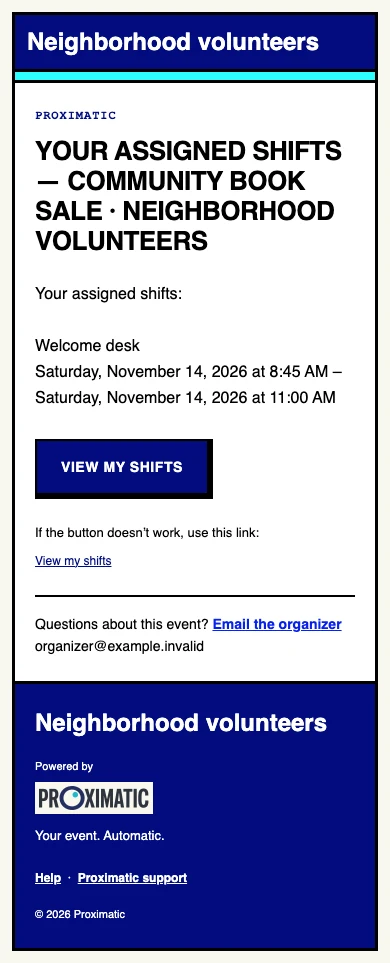
There's no individual email to compose for each row.
The email's View my shifts link opens My Shifts in Proximatic. The volunteer signs in with the account you assigned, opens the event and checks their work, hours and location. Priya can choose Confirm Welcome desk to record her agreement to that assignment. If the hours won't work, she should contact Morgan so the assignment can be corrected.
An assignment notice tells someone what you scheduled. Sending it doesn't establish that they've accepted. The same distinction applies if you give someone a place after the event is already published: their first assignment can trigger the notice, but their agreement is still theirs to give.
For the roster setup, follow the free Auto-Schedule walkthrough.
If volunteers choose their places, the email is a receipt
You can also leave the book sale's places open for volunteers to choose. Publish the public Standard event and copy its link from Share Event. Send that public link to the people you're inviting.
On an open, unrestricted shift, Priya chooses Welcome desk, enters her name and email, and selects Sign up. Her place is reserved immediately. Proximatic emails her a receipt whose subject begins Your signup is confirmed, with her selected job and hours and a View my signup link. She doesn't need a participant account or another email-confirmation step to hold that place.
Eli chooses Pack up and receives his own receipt. Neither has to search a whole-crew message to work out which shift belongs to them.
The receipt's link lets each person view or cancel their own signup. If Priya loses it, Email me a new link recovers access. Keep these links individual; share the public event URL when you're inviting more people. Private events and roles with team or approval requirements use their applicable participation flow.
The time-slot signup guide covers setting up those open places.
Use Pro when you want individual requests to accept the roster
For a prepared crew whose availability you still need to collect, Pro's email-assisted scheduling can take the work through availability replies, a private draft roster and individual shift-confirmation requests.
In the event draft, choose Request availability, review Recipients, then select Send request. Proximatic emails those volunteers to ask when they can help. It uses their responses to prepare the draft assignments. Review the names and any open places, then publish.
Publication starts each assigned person's Confirm your shifts request. For the book sale, Priya's request lists her 8:45–11 AM Welcome desk assignment. The email's Respond online link takes her to that request; she signs in with the matching account and chooses Confirm offered shifts. She then selects I agree to work this shift or I cannot work this shift, confirms that the choices describe her response, and chooses Confirm response.
Eli answers his own Pack up request. If both accept, you have their agreement to those specific jobs and hours. If Priya cannot take the early start, review that response and arrange cover before treating the welcome desk as settled. Her earlier availability reply hasn't accepted an assignment for her.
Pro is a paid option, and its coordination messages use email credits. The ordinary Standard signup receipt and first assignment notice above don't require this workflow. See pricing for current email allowances; the availability guide covers collecting replies in more detail.
Keep shared instructions separate from personal assignments
Use the event's Email Blast for something the whole assigned crew needs, such as directions to the main entrance. It sends the same message body to each recipient and uses email credits. It doesn't insert each volunteer's shift or private signup link into your message.
For a later change to Priya's hours, update the roster and contact her with the revised commitment. If you need wording for a follow-up, use the confirmation and reminder examples. The first assignment email isn't a promise that every later edit sends another notice.
For the book sale, the useful result is straightforward: Priya receives the early welcome shift, Eli receives the later pack-up shift, and each knows where to review it and how to respond. Start by creating the event and its shifts, then let those saved assignments supply the individual emails.