Volunteer attendance for in-person events
Check volunteers in and out with QR codes.
Use a rolling QR code to record attendance for volunteers already on your roster. A signed-in volunteer scans the code for their role and sees that check-in is recorded. Arrival, departure, and hours stay with the event.
Standard events are free to publish. No credit card required.
The complete attendance flow
Keep attendance with your event roster.
Prepare the kiosk, help volunteers scan, and review their hours afterward. Use the optional printed-sign step when you need a reusable entrance sign or an eligible walk-in path.
Start with a confirmed roster.
Publish a free Standard event with the roles and shifts you need. Volunteers choose a role and confirm their signup before they arrive. Check the roster before opening the kiosk: a pending application is not a confirmed signup. Follow the event signup guide if you still need to prepare the event.
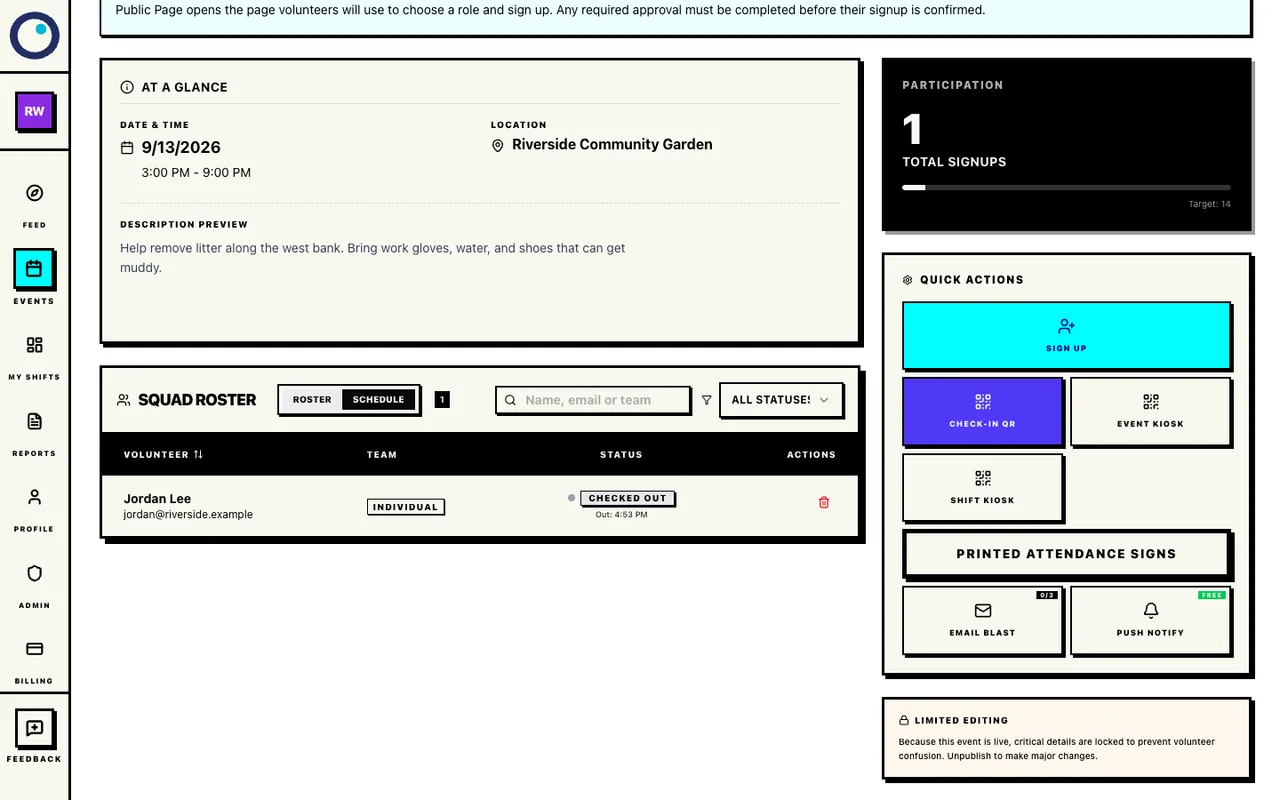
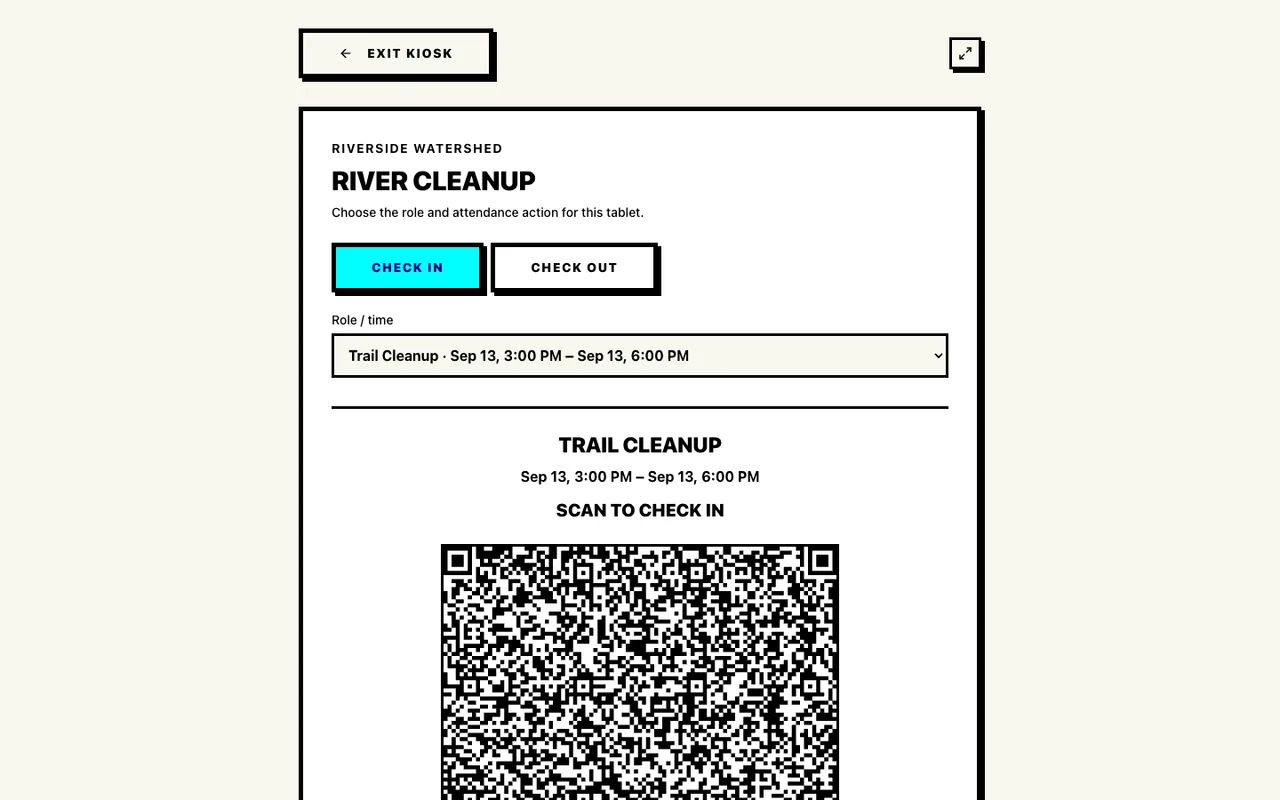
In event management, check the Volunteer roster (labeled Squad Roster in the screenshot), then open Event Kiosk from Quick Actions. Select the Role / time and Check In. Keep that screen open on a tablet at the entrance for volunteers already registered for that role.
- Choose a role that is open for check-in. The attendance window opens one hour before that shift starts and check-in closes when it ends.
- The rolling code refreshes after use or expiry. Keep it on screen; it is not a reusable printed sign.
- There is no app to install. The volunteer uses the phone camera and a browser.
Ready to scan: The kiosk displays a rolling check-in code for the selected role and time.
The event roster
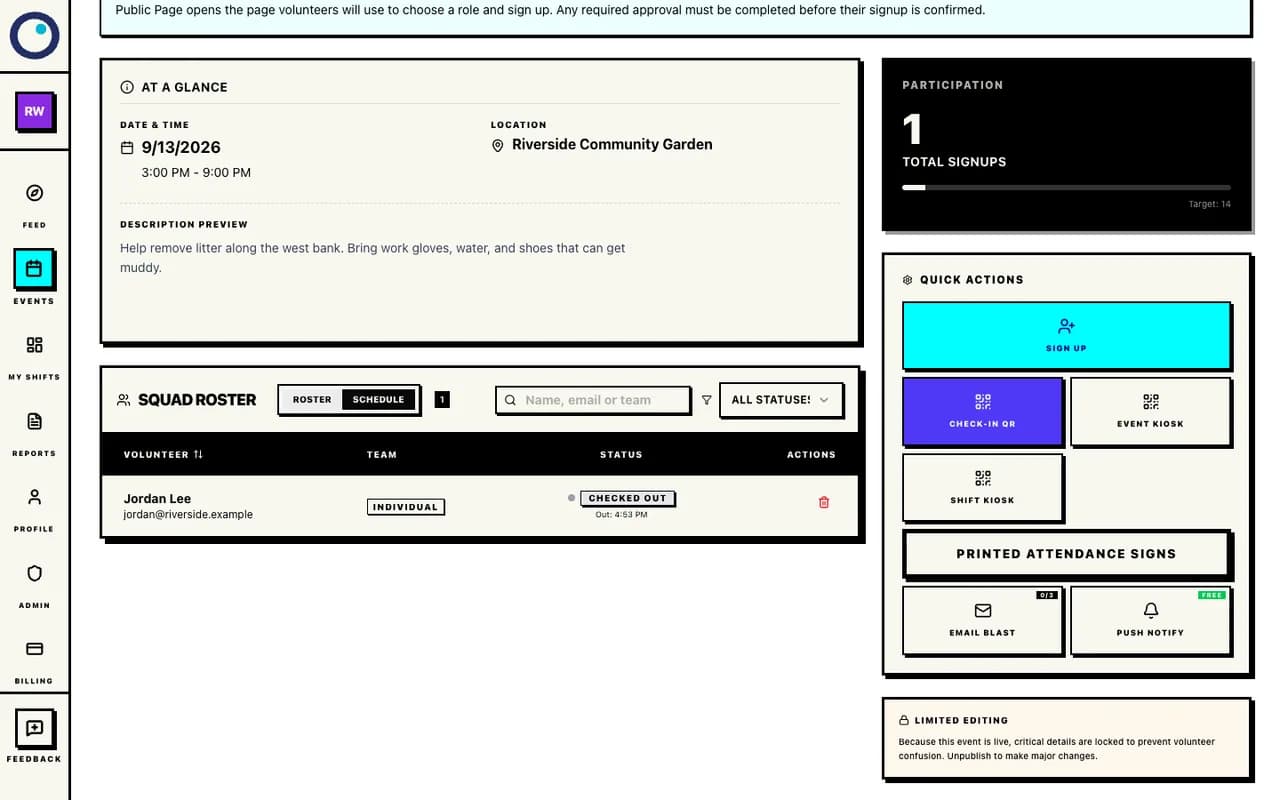
Open Event Kiosk beside the roster, then return here to check attendance. Event attendance kiosk
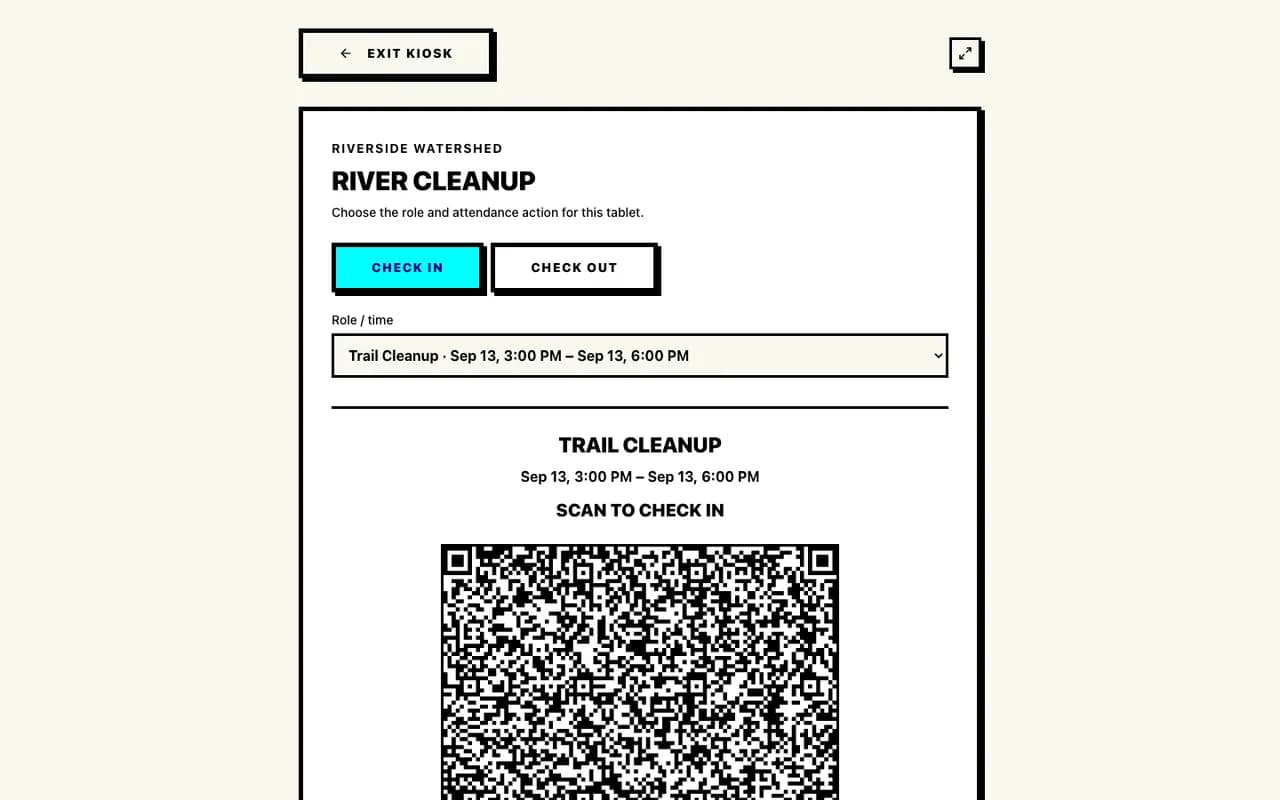
Select the role and time, then choose Check In or Check Out. The rolling QR is the fast path for volunteers with a confirmed signup for the selected role. The code already carries the event, role, and action. It records attendance for that signup; it does not enroll walk-ins or approve team applications.
Already signed in
Scan the code with the phone camera. The selected action records immediately, with no second confirmation or role selection.
Signed out on the day
Enter the email used for the signup and select Send Email Code. Enter the six-digit code sent to that email, then select Verify & Check In or Verify & Check Out. The scanned role and action are preserved, and attendance resumes after verification. No app download or password setup is required for this rolling QR path.
Check the result: Wait for the success screen: “You’re In” for check-in or “Until Next Time” for checkout.
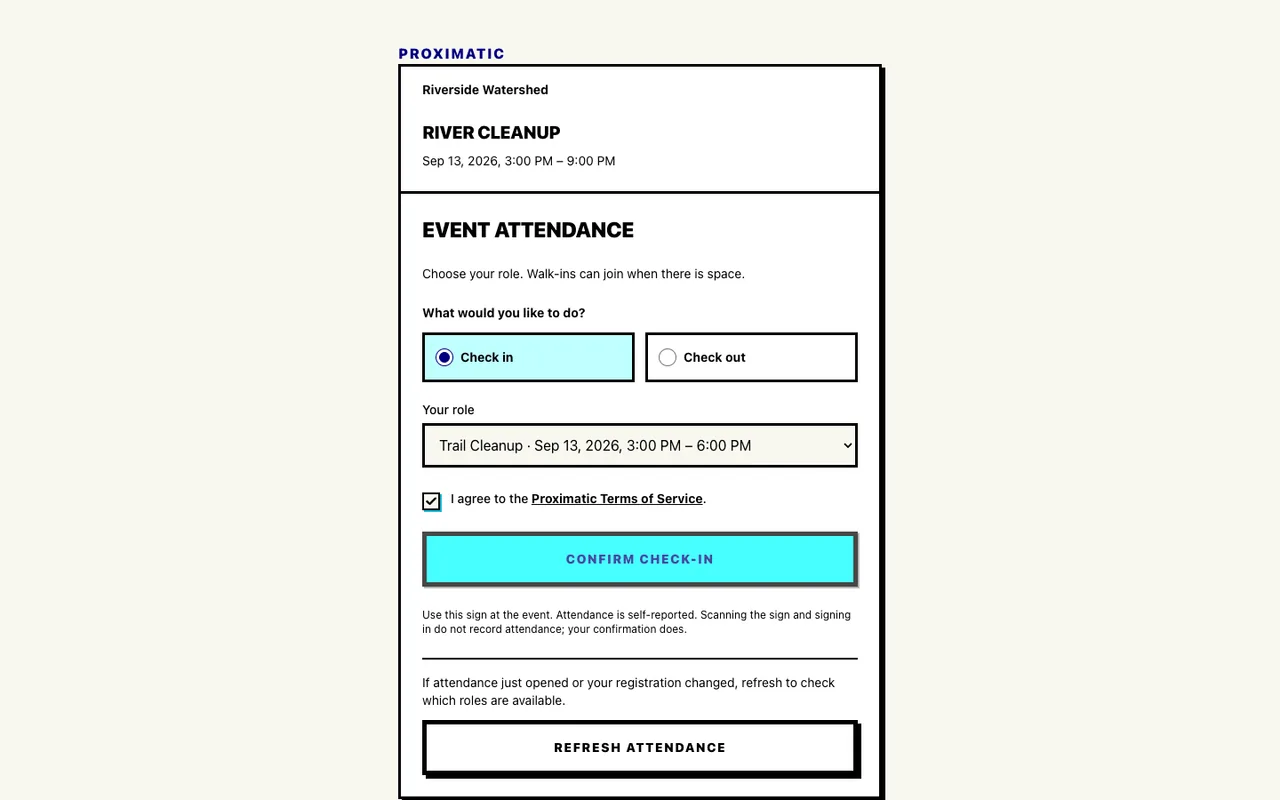
Printed signs use a separate attendance page where the volunteer chooses an action and eligible role, then confirms. Both printed signs and the rolling kiosk record attendance in the same event.
If the rolling kiosk covers your entrance, continue to departures and scheduled closeout.
Create the printed sign
Open Printed Attendance Signs from your published Standard event. Create a whole-event sign or a fixed-role sign, then print it. A whole-event sign offers eligible roles to choose from; a fixed-role sign covers one role.
Signs are for registered volunteers by default. An organization owner or admin can turn on Allow walk-ins to join available roles only for an open Standard event with unrestricted roles. Available spaces and overlapping commitments are checked before a walk-in joins.
Scan, choose, and confirm
Choose Check in or Check out and an eligible role. For check-in, accept the displayed Proximatic terms and select Confirm check-in. For checkout, select Confirm check-out; a prior check-in is required.
If signed out, sign in or create an account and verify your email as needed. You return to this sign to choose and confirm the action.
After confirmation: Attendance is recorded for the selected role. Scanning the printed sign or signing in alone does not record attendance.
Optional printed-sign flow
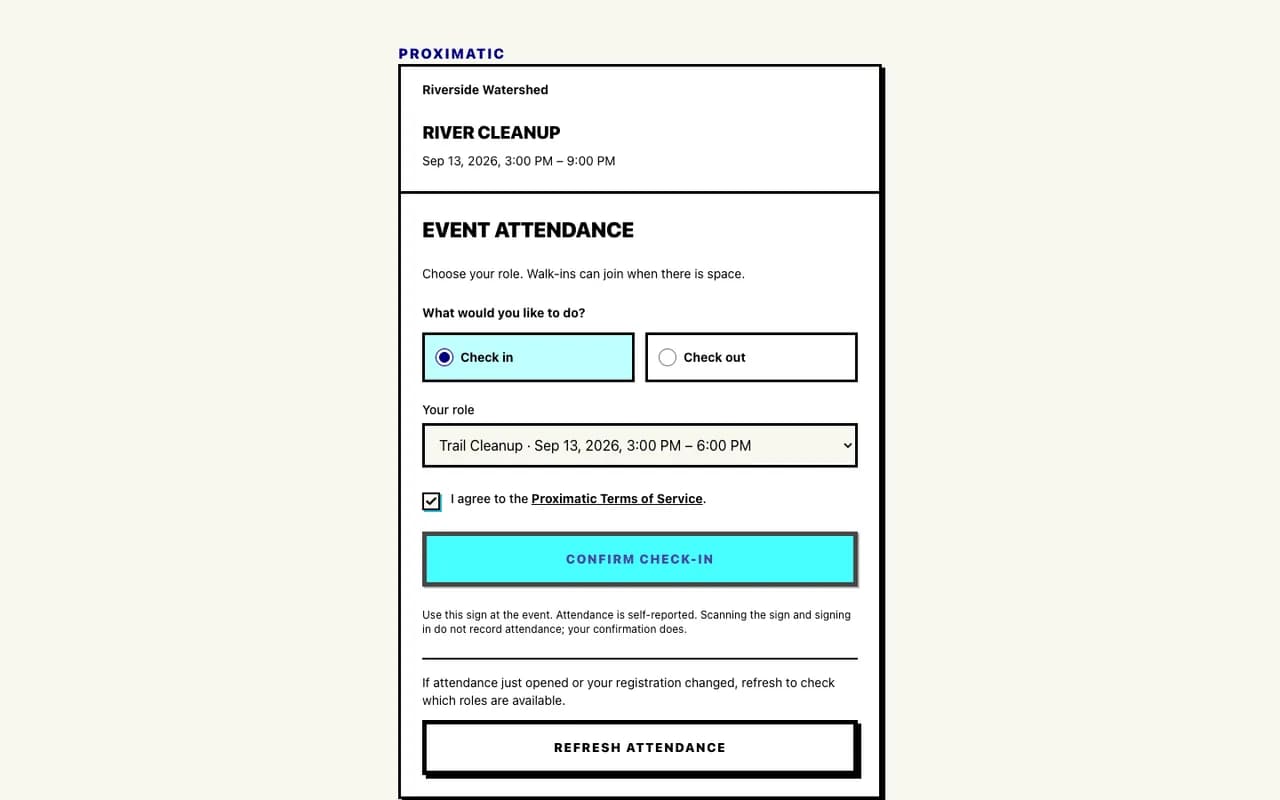
Select a role and action, accept the terms, and confirm. If a checked-in volunteer leaves early, switch the kiosk to Check Out and have them scan the new code. A signed-in checkout records immediately and keeps that departure time.
After the shift end, or event end if earlier, Proximatic automatically closes still-open attendance when you next open the roster or report. It uses the scheduled finish, not the time you open the report. An early checkout keeps its recorded time; scheduled closeout uses the event plan rather than a departure scan.
At closeout: Only checked-in volunteers have attendance to close. A confirmed signup alone does not add volunteer hours.
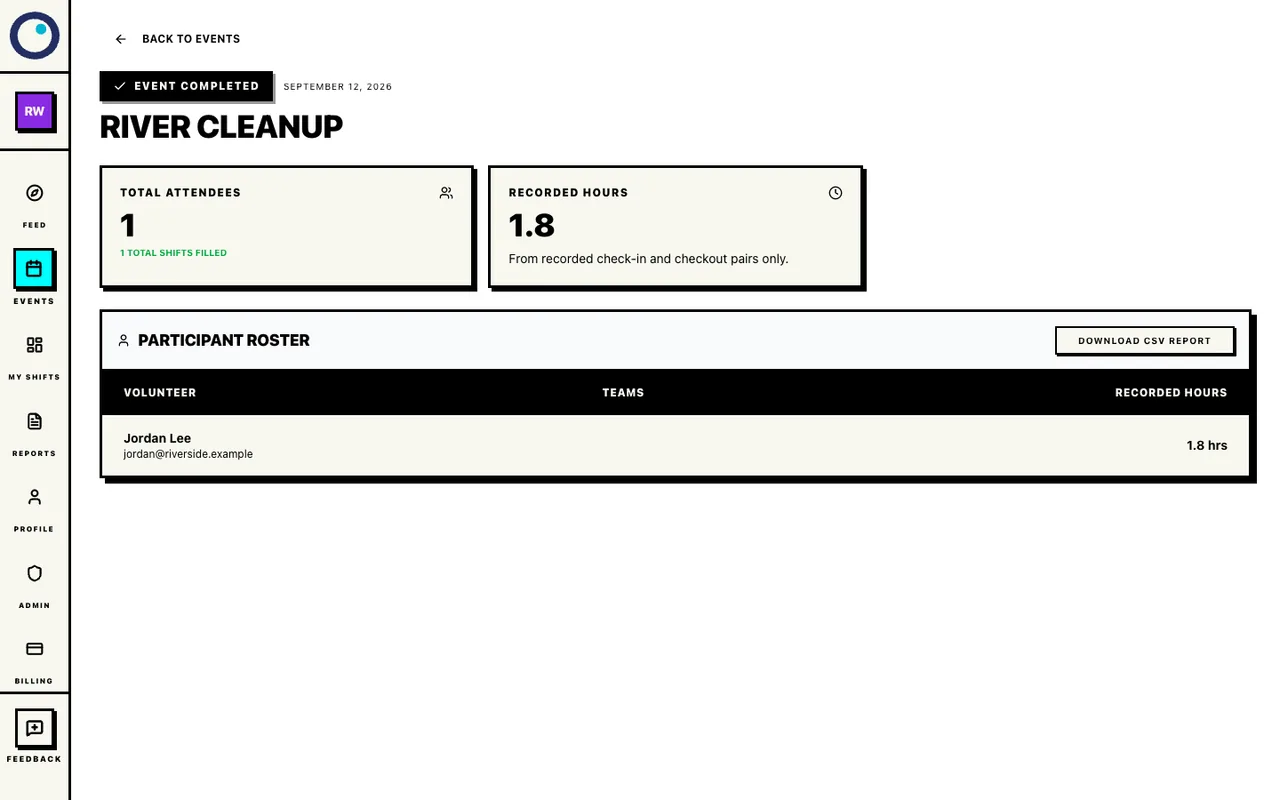
Open the completed event summary to see attendees and recorded hours per volunteer. The Participant Roster lists volunteers, their teams, and hours. Select Download CSV Report for names, emails, teams, hours, and any attendance notes.
Hours come from recorded check-in and checkout times, including scheduled closeout. If a row says Review time or includes an attendance note, check it before sharing the file.
Ready to share: The downloaded CSV keeps volunteer details, recorded hours, and attendance notes together.
Completed event report
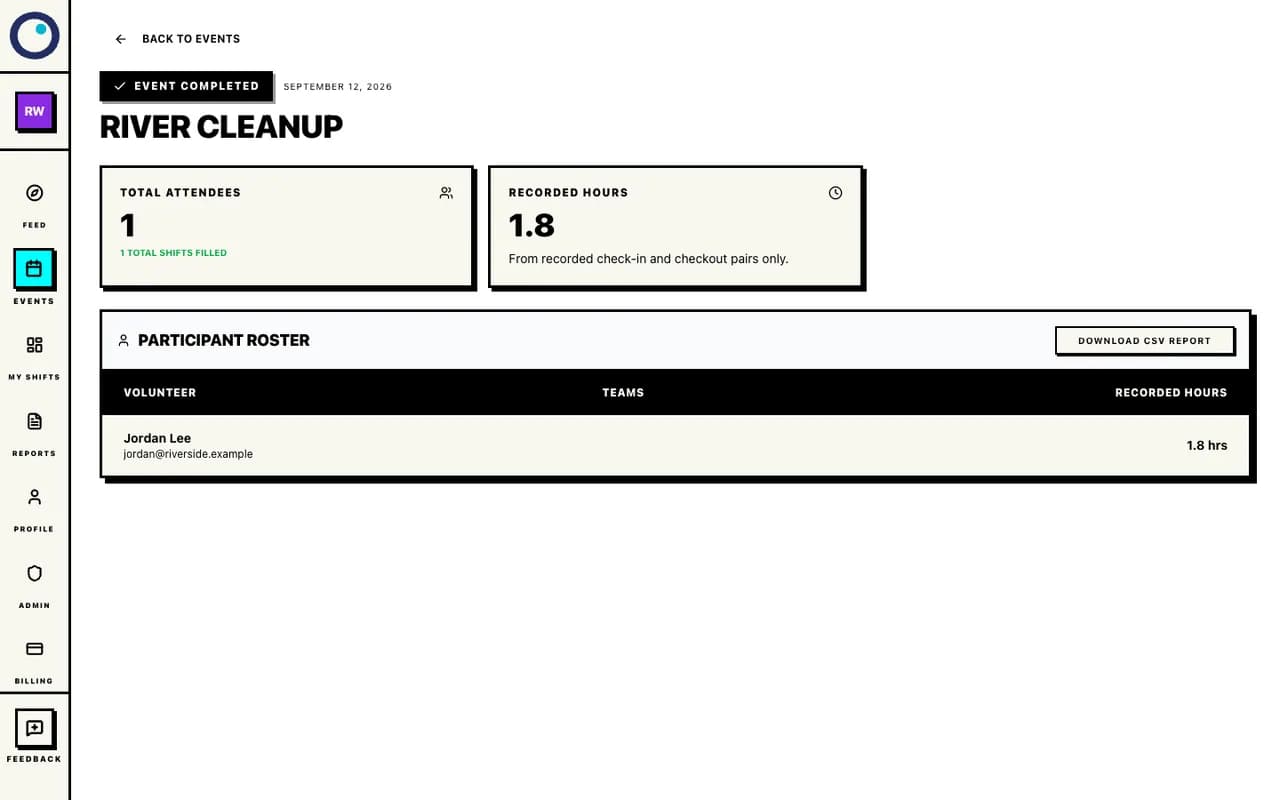
The report shows one attendee and 1.8 recorded hours.
Make the next event easy to staff.
Start with one event, the roles you need, and a signup page you can share with your community. Free Standard events include the signup roster and QR attendance.
Create an eventRead the full event signup and attendance guide or see pricing for free core tools, AI usage, Pro for accepting payments, included email credits, and extra email packs.
For a practical venue checklist, read the volunteer check-in and checkout plan. For a full scheduling example, see the two-week food pantry schedule.