Volunteer shift scheduling · food pantry example
20 volunteers.
Find the shift that needs help.
Set the staffing rule, see who can cover dinner and find the one place still open. Follow the change after Sam confirms they can stay until 7pm.
14 days
one multi-day event
42 shifts
breakfast · lunch · dinner
20 people
approved volunteer pool
The problem this solves
The same work. Different availability.
The pantry already knows the work: three meal-service windows, every day, for the next two weeks. The hard part is fitting real people into it without double-booking anyone or ignoring the times they said they could help.
Open the calendar to see who is assigned and which shift still needs help. The example below follows one open dinner place through to a confirmed availability change. To start from your own event notes, see AI event setup.
See what needs your attention.
This pantry has 20 volunteers and 42 shifts over 14 days, with 126 places to fill. In Proximatic, the calendar keeps the shifts and confirmed names together. Availability on file tells you who can cover each meal. Start with the jobs and times, then look for the place that still needs someone.
Event brief
Staff breakfast (7–10am), lunch (11am–2pm), and dinner (4–7pm) every day from October 5–18, 2026. Each shift needs three approved Meal Service volunteers whose availability covers the whole shift. Use at most one new member per shift.
Use the canvas to set a team limit.
Here's another way to plan the mix of people on a shift: limit places from a New volunteers team. Include that approved team among the shift's eligible teams alongside your experienced team. On the rules canvas, choose New volunteers, set At most to 1, connect the cards and save. Apply the rule to the meal-service shifts.
Build the staffing rule on the canvas
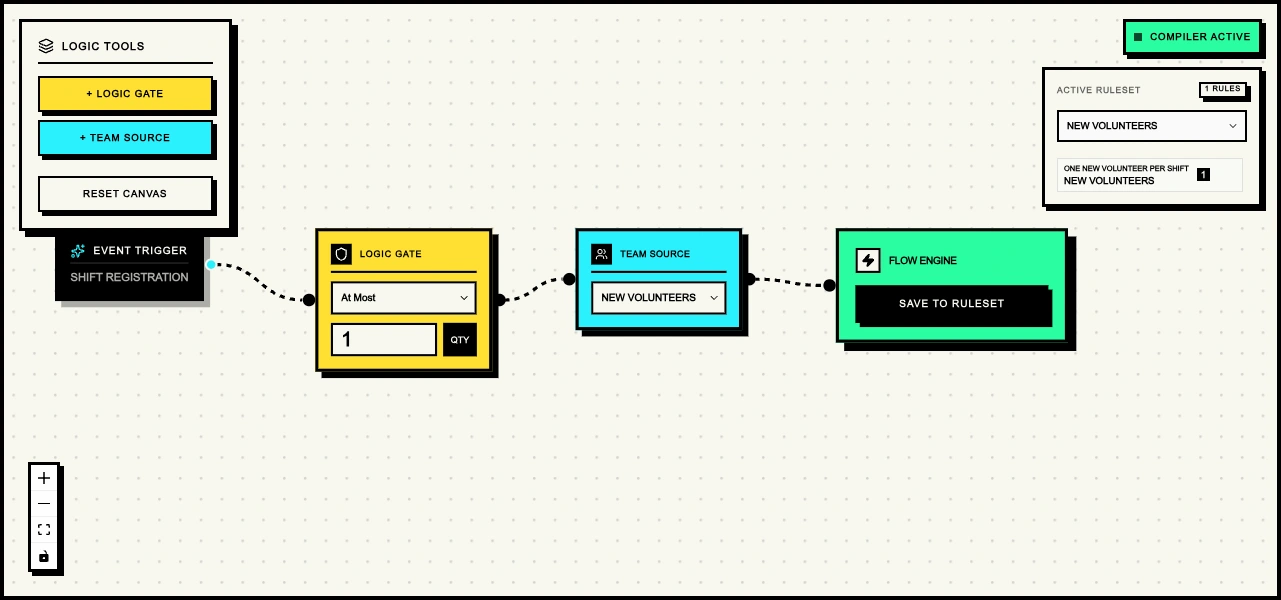
Before scheduling, check which teams can fill each shift and whether their members are available for its full duration.
Start with the meal shifts covered
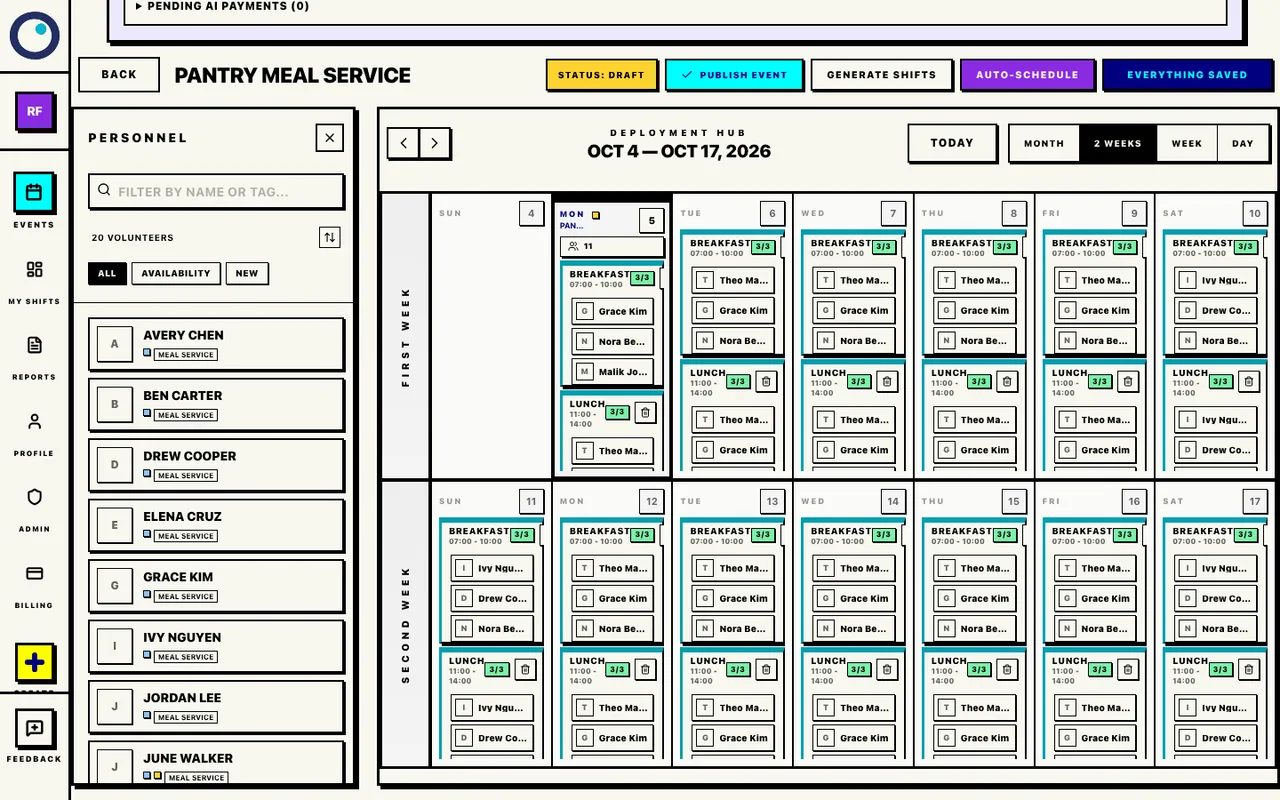
With volunteers available for the full meal shifts, the pantry has the people it needs for breakfast, lunch and dinner. Open each shift to check the names and times.
Monday dinner, 4–7pm: Theo Martin, Grace Kim, Nora Bennett. All three places are filled.
Start with the meal shifts covered
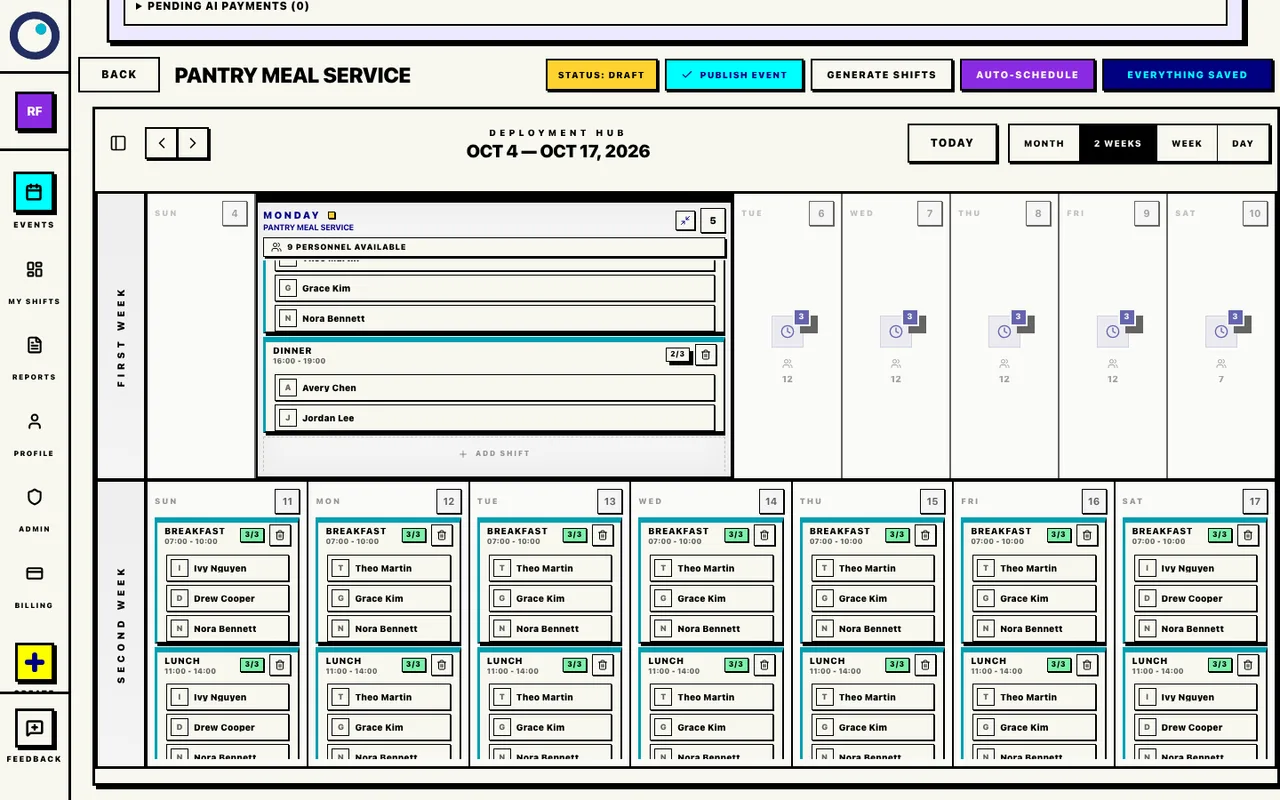
Find the dinner shift that needs one more person
On Monday, Avery and Jordan can cover dinner from 4–7pm. The other available volunteers finish at 4pm, so one place stays open.
Monday dinner, 4–7pm: Avery Chen, Jordan Lee. One place remains open.
Find the dinner shift that needs one more person
Your next step: contact someone approved for Meal Service who can stay until 7pm. Confirm their available time before changing the assignment.
Confirm Sam's time and review the change
Sam confirms they can stay until 7pm on Monday. Update that available time, then run Auto-Schedule and review the new roster.
Monday dinner, 4–7pm: Avery Chen, Jordan Lee, Sam Rivera. All three places are filled.
Confirm Sam's time and review the change
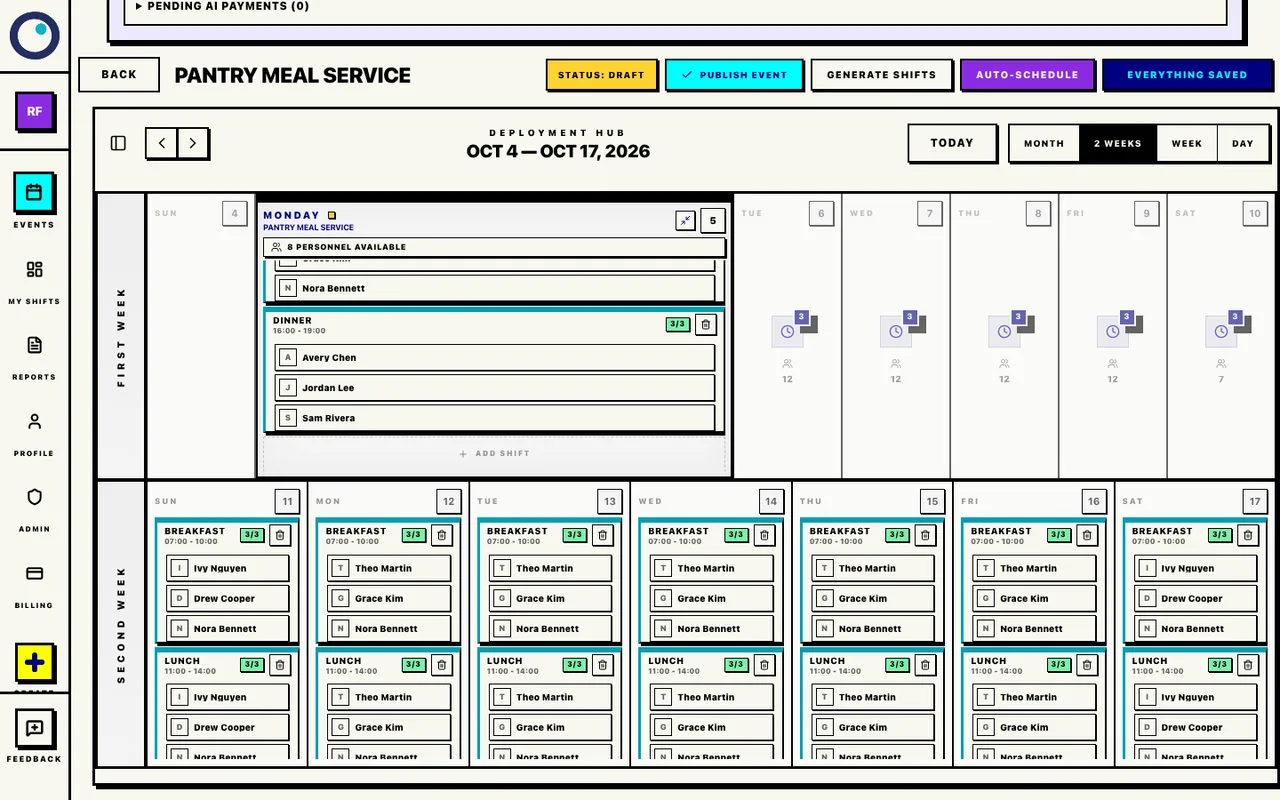
Each run replaces the saved assignments immediately. Review the other shifts and each person's workload after a change, then publish when the roster is ready. Scheduled hours are planned work; check actual arrivals and departures after the event.
Prepare your team and use Auto-ScheduleThe important bit
Repeat shifts are fine. Guessing is not.
One volunteer can cover breakfast on Monday, lunch on Wednesday, and dinner the following Friday—provided those shifts are inside the availability they gave you and the times do not overlap.
Availability is checked for every assignment. A shift that falls outside the person’s declared window is not a valid placement, even if the person would otherwise be a good fit.
Non-overlapping shifts can repeat. The schedule is allowed to use the people who have the time to help more than once.
How the coordinator gets there
From empty schedule to ready-to-share roster.
The button is the quick part. The useful part is the whole handoff around it.
Create the event and add the shifts the pantry actually needs: breakfast, lunch, and dinner, each day.
Connect the approved volunteers who have told you when they can help. That availability is the guardrail.
Auto-Schedule uses the prepared pool, availability, and rules. A successful run immediately replaces the event’s saved assignments; there is no separate Apply step.
The coordinator still owns the roster. Review the saved draft, make any final changes, and publish when it looks right.
When you use Proximatic
The saved draft stays yours to review.
Auto-Schedule replaces the assignments in the draft event you have open, including manual placements. Review every shift and each person’s workload before publishing.
Have a real event to staff?
Create an event and add your people, shifts, and availability. Direct Auto-Schedule is free. See pricing for AI setup and other paid features.