How to Make a Free Sign-Up Sheet with Time Slots
To make a free online sign-up sheet with time slots, list each job, its start and end time, and the number of people needed. Publish one link so people can choose a place. A useful signup confirms the exact shift and gives the organizer a roster of who is doing what.
Proximatic keeps that workflow in one event: roles, shifts, signups, a roster, and attendance. On a published public Standard event with open, unrestricted self-signup shifts, participants choose their shifts, enter their name and email, and select Sign up. Their places are reserved immediately. No participant account or email-confirmation step is required; the receipt follows by email.
Event creation, signup pages, shifts, rosters, Auto-Schedule, and attendance are free, with no credit card needed. AI-assisted planning is available in the same product, with a monthly included allowance and separate pricing for additional AI work. See what's free and what has a price.
Create a free event signup, or use the template below to plan your slots first.
What should an event sign-up sheet include?
Give people enough information to choose a job they can actually do:
- Event name and date. Use a specific date, rather than just “Saturday.”
- Meeting place. Say which entrance, table, or location people should go to.
- Role and task. “Welcome table: greet arrivals and hand out supplies” is clearer than “Help needed.”
- Start and end time. Show the commitment for each shift, including setup and cleanup.
- Number of places. Two welcome volunteers and twelve cleanup volunteers are different staffing needs.
- Name and email. Collect the details needed for the roster and signup receipt.
- Confirmation and cancellation. Tell people which place they have and how to release it if plans change.
Keep extra questions out of the signup unless the event needs them. If a role requires training or approval, explain that before someone chooses it. Restricted participation needs the appropriate account and approval flow.
For better role descriptions, use our volunteer shift description examples.
A copyable volunteer sign-up sheet template
Here is an example community cleanup plan. Replace the date, times, locations, and capacities with your own.
| Role | Time slot | Places | Where to report |
|---|---|---|---|
| Setup | 8:30–9:00 AM | 2 | Supply table |
| Welcome table | 9:00–11:00 AM | 2 | Park entrance |
| Trail cleanup | 9:00–11:00 AM | 12 | Supply table |
| Pack up | 11:00 AM–noon | 3 | Supply table |
Download the free time-slot planning template to open it in Excel or Google Sheets. It is a planning CSV, not a Proximatic import file. You can also copy the table directly into your event notes.
Put the event date, address, and arrival instructions above the slots. For example: “Meet at the north park entrance. Bring closed-toe shoes and a water bottle. Gloves and bags are provided.” Only promise supplies you will actually have.
The two 9:00 AM jobs happen at the same time. Someone can choose Setup followed by Trail cleanup; they cannot do Welcome table and Trail cleanup simultaneously. In Proximatic, signup checks capacity and overlapping shifts before reserving the selected places.
How do you create a sign-up sheet with limited slots?
In Proximatic, the organizer creates the event; participants join through its public link.
- Create a Standard event. Sign in, choose your organization, and enter the event name, date, meeting place, and work description. Save a private draft while you plan.
- Add roles and shifts. Use Customize roles and shifts, then Add Shift. Set each role's time and capacity. A two-person Welcome table gets two places.
- Allow the right signup path. For account-free participation, use public visibility and open, unrestricted self-signup shifts. Team-only and approval-required work keeps its existing requirements.
- Preview, then publish. Check the jobs, times, meeting point, and places before selecting Publish Now. A saved draft is not yet accepting public signups.
- Share the event link. Use Share Event for your website, group chat, or invitation. Open that link on a phone while signed out and follow the participant path.
- Review the roster. Check who signed up for each shift and which places are still open before event day.
The illustrated volunteer signup guide shows those screens and the attendance workflow. For an event-specific starting point, see the community cleanup guide or food pantry guide.
Capacity is checked again when a participant selects Sign up. If someone else took the last place, the participant must choose another available shift. They are not silently assigned to a different job. If they selected several shifts, all selected places must be available for the signup to succeed.
How do people sign up for a time slot without an account?
They open the public event link, choose their shifts, review the role and local time, enter their name and email, and select Sign up. Proximatic shows You're signed up! with the reserved shifts immediately, before the receipt email arrives.
The receipt links to the signup so the participant can view or cancel it from another browser without creating an account. If they lose the email, Email me a new link helps them recover it. They can link an account later if they want to.
This account-free path applies to published public Standard events with open, unrestricted self-signup shifts. It does not replace private-event, team, or approval requirements. The organizer still uses an account to manage the event.
No-account signup is also available in other established tools: SignUpGenius and SignUp.com both document it. The useful choice is the event workflow you need afterward. Proximatic connects signup, shift coverage, and attendance to the same event roster.
When does a sign-up sheet become a roster?
A sign-up sheet lets people claim jobs. A roster lets the organizer inspect the result: who is assigned to each shift, where places are still open, and what needs attention before the event starts.
After the cleanup signups above, twelve names on a list would not necessarily mean the work is covered. You need to check whether there are two people at the Welcome table, enough on the trail, and someone staying to pack up. Review the jobs separately rather than treating the total signup count as coverage.
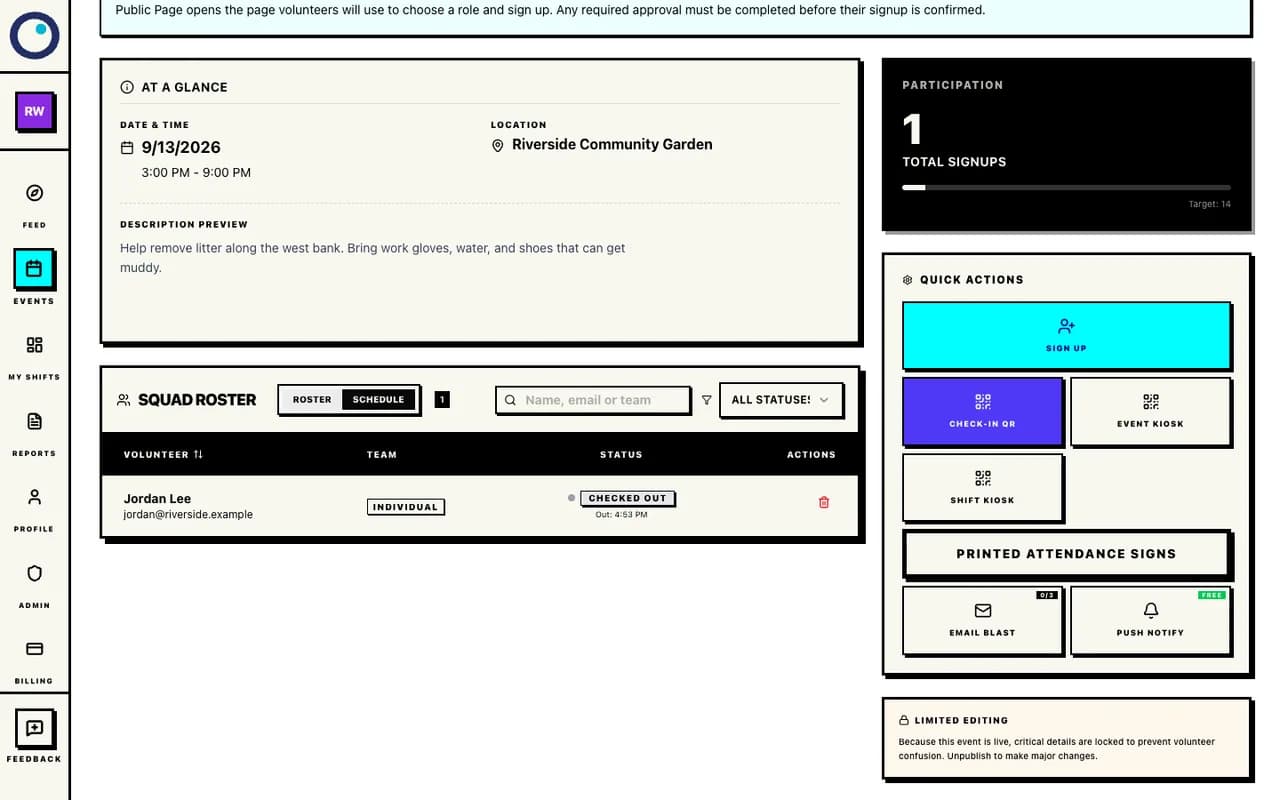
This is an illustrative product roster. Signup and attendance are separate facts: reserving a shift does not mean the person arrived. For guest participants, an organizer records attendance through the roster while online. Rolling and printed QR attendance use the account-based attendance flow. The signup and attendance guide explains both paths.
If your next job is assigning a prepared team rather than letting people pick shifts, Proximatic also supports availability-based scheduling. Its free Auto-Schedule uses eligible, approved team members, their availability, and supported rules. A successful direct run replaces saved assignments immediately, so review the Auto-Schedule instructions before using it.
Where does AI-powered rostering fit?
AI-assisted planning helps an organizer turn an event brief into a reviewable plan and roster. It is useful when the work includes structuring shifts, assigning prepared people around availability, or revising coverage. Assignments still need approved eligible people and their available times; AI does not supply volunteer consent or invent a staffed team.
Proximatic includes one AI-organized event per organization each UTC month. Additional AI work and Pro have separate pricing. You can create and run the core signup and roster without AI, and participants do not pay for Proximatic software or AI use. See current pricing for the included allowance and paid options.
Explore AI rostering if that is the next job you need help with. To see a staffed schedule, its open places, and a revision without an account, inspect the pantry roster example.
Questions about free event signups
Can I use a spreadsheet instead?
Yes. A spreadsheet can hold your roles, times, and names. The downloadable template above helps you plan those slots. Decide who can edit it, how you will limit places, and how people will know their chosen shift is confirmed. If you mainly need to collect interest or preferences, a form can also be enough; our Google Forms comparison explains the choice.
Is Proximatic a free event registration tool?
It is free for the core Standard event workflow: event creation, public signup pages, roles, shifts, rosters, scheduling, and attendance. It suits events where participants choose work or time slots. Additional AI usage, organizer email credits, and supported payment collection have their own pricing. It is not a general ticketing, waiver, or custom-question form builder.
Can one person choose more than one shift?
Yes, if the shifts are open, eligible, have room, and do not overlap. They review the selected shifts together before signing up. Proximatic reserves the selected places together; it does not substitute another role if one fills up.
Do signups automatically send event reminders?
The guest signup sends a receipt after reserving the place. That receipt is not a promise of an automatic reminder sequence. Organizer participant messages use email credits; check the email pricing and choose the communication your event needs.
Does signing up record attendance?
No. Signup reserves the shift. Attendance records arrival and departure separately. An organizer can record guest attendance online from the roster; participants using rolling or printed QR attendance need an account.
Start with the next event on your calendar
Write down the jobs, time slots, and number of people needed. Create the draft, check it, then publish one signup link. Judge the result by whether people understand their shifts and whether you can see the work still uncovered.
Create your free event signup, or follow the illustrated signup guide.