Volunteer Availability Form: Get Straight to Filled Shifts
Share your event now. Use saved availability to schedule the next one.
By Proximatic
A Google Forms availability form tells you who's free on Saturday. You still have to turn those answers into a schedule and keep track when someone's plans change. SignUpGenius lets people choose slots, but a signup for this Saturday doesn't tell you when that person can help next month.
Proximatic handles both: people can reserve a shift from your event link, then save their availability for future events. Guests need only their name and email to take an open place. Regular volunteers can save their usual days and times, block vacation dates, and let Auto-Schedule use that information when you build the next roster.
Start with the event you need to fill. You don't need everyone to create an account or complete a separate availability survey first.
Let guests choose shifts for your next event
1. Describe your event and let AI create the shifts
Describe your event in Proximatic. Include the date, location, jobs, times and how many people each job needs. For example:
Use this in Create
Describe your event
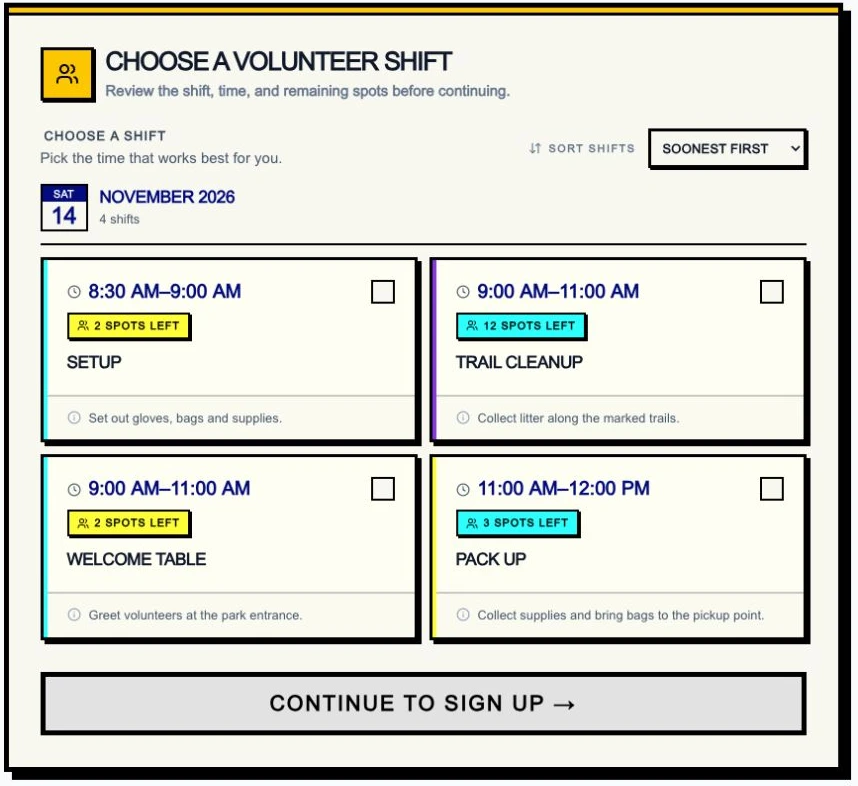
Plan River Park Cleanup on November 14, 2026, from 8:30 AM to noon at the north park entrance. We need 2 people for Setup, 8:30–9:00; 2 at the Welcome table, 9:00–11:00; 12 for Trail cleanup, 9:00–11:00; and 3 to Pack up, 11:00–noon. Gloves and bags are provided.
AI turns the description into an event plan with roles and shifts. Review the plan, then choose Claim this event and continue with Google to save your draft. The preview prepares the jobs; volunteers will fill them through signup.
You can also create a free event manually and add the shifts yourself.
2. Publish the event and share one link
Make the event public. For jobs anyone can take, keep self-signup enabled and Who can sign up set to Everyone. Check each shift's times and Capacity, then choose Publish Now. Use Share Event to copy the link into your group chat, email or website.
People opening the link see the jobs, times and places still available. They can choose the commitment that fits their day.
River Park Cleanup shifts and remaining places
3. Let each volunteer reserve a place
The volunteer selects a shift and chooses Sign up to open the signup form. They check the selected job and time, enter their name and email, then choose Confirm signup. The place is reserved immediately, without a participant account or an email-verification step. A receipt follows with a link to view or cancel the signup.
Guest signup for Trail cleanup, 9–11 AM
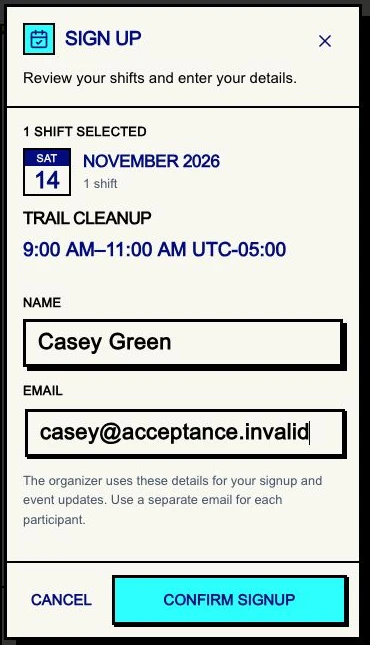
Choosing Trail cleanup from 9–11 AM answers the availability question for that event and adds the person to your roster. You don't have to turn a separate “Saturday morning” response into an assignment. Proximatic keeps track of capacity as people sign up and makes a place available again when someone cancels.
Save availability for future events
For your regular crew, go further. Invite returning volunteers to your organization and approve their team membership. They can save their usual availability in their accounts and update it when their plans change. Auto-Schedule can then use those hours for future events without another availability form each time.
Creating an account later is optional for the guest's existing reservation.
4. Ask volunteers to save their usual hours
Ask each volunteer to select your organization, open Profile → Availability and follow these steps:
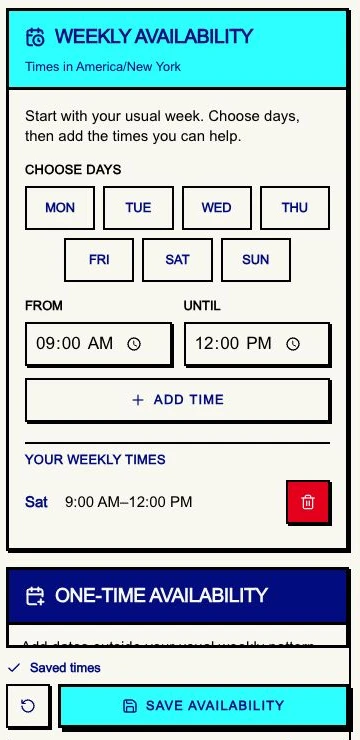
- Under Weekly availability, choose the days you can help and enter From and Until times.
- Choose Add time to put those hours in Your weekly times. Repeat for days with different hours.
- Choose Save availability at the bottom of the form.
Someone who usually volunteers on Saturday mornings can save Saturday from 9 AM to noon. For an extra date outside that weekly pattern, they use One-time availability → Add date, enter its start and finish, then Save availability.
Saved Saturday availability, 9 AM–noon
5. Block vacations and days off
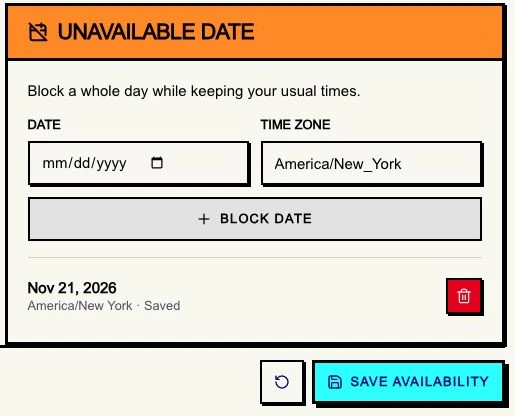
Volunteers keep their usual weekly hours and add the exceptions. Under Unavailable date, they choose the date they'll be away, check the time zone, select Block date, then Save availability. They add each day they need to block.
If the Saturday volunteer is away on November 21, they block that date. Proximatic excludes it from their availability while keeping the following Saturdays available.
Saved unavailable date: November 21
Match volunteers to the work
When you plan the next event, Auto-Schedule uses the saved hours and unavailable dates to match your crew to shifts. Each person's availability must cover the whole shift. For jobs needing an approved team, set that team under the shift's Who can sign up before scheduling.
Run Auto-Schedule on the draft, review the assignments and remaining open places, then publish when you're ready. The Auto-Schedule guide shows the full process. When you need a replacement for one shift, use Find cover.
See confirmed shifts in your calendar
Volunteers with accounts can open Profile → Add to my calendar, create a calendar link and subscribe in Google Calendar, Outlook or Apple Calendar. Their confirmed shifts appear beside their other plans, with schedule changes appearing when the calendar refreshes. Follow the calendar setup guide for each app.
Collect volunteer availability by email
If your crew prefers to reply by email, Pro includes Request availability. Volunteers reply with their hours, and Proximatic uses those replies to prepare the draft roster for your review. The email scheduling example follows that path.
Describe your next event, review the shifts and share the signup link. Let people choose their places now, then use your regular crew's saved availability to make the next schedule easier.