Volunteer Schedule Template: Describe It in Proximatic
One event description creates the shifts and roster for you to review.
By Proximatic
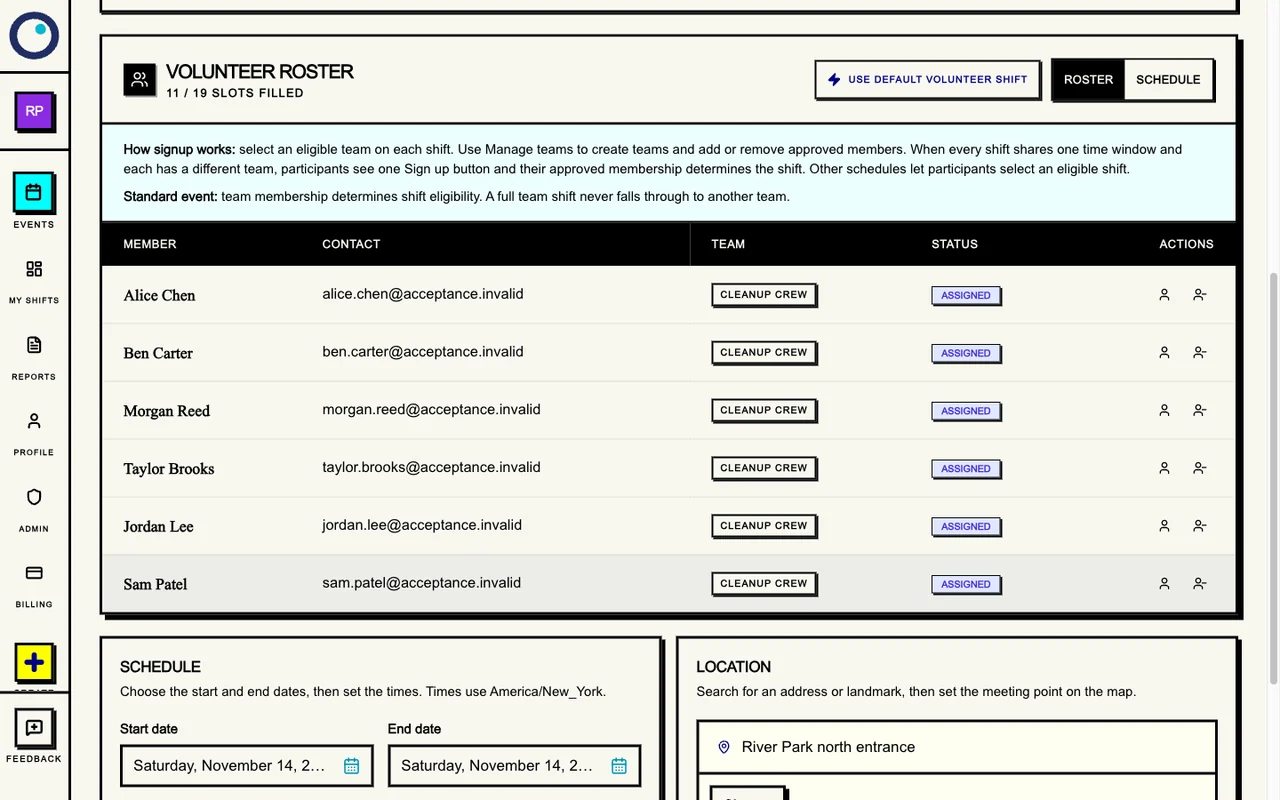
A volunteer schedule template turns event plans into jobs, times and names. In Proximatic, describe the event in one textbox. AI creates the event, shifts and assignments using your volunteers' saved availability, then opens the draft for you to review.
With Pro, a newly saved AI draft also emails the approved roster teams for current availability. Volunteers reply with their dates and hours; Proximatic prepares the draft roster from those replies. You review it before publishing and sending shift-confirmation requests.
The roster above shows the information you need to act on: assigned people and 11 of 19 places filled. Switch to Schedule to find the jobs and times still needing help.
Build my roster in Proximatic.
Describe the work once
A useful schedule starts with the work: what needs doing, when each job starts and finishes, and how many people it needs. Put those details into Describe your event.
Describe the cleanup jobs and times in Proximatic
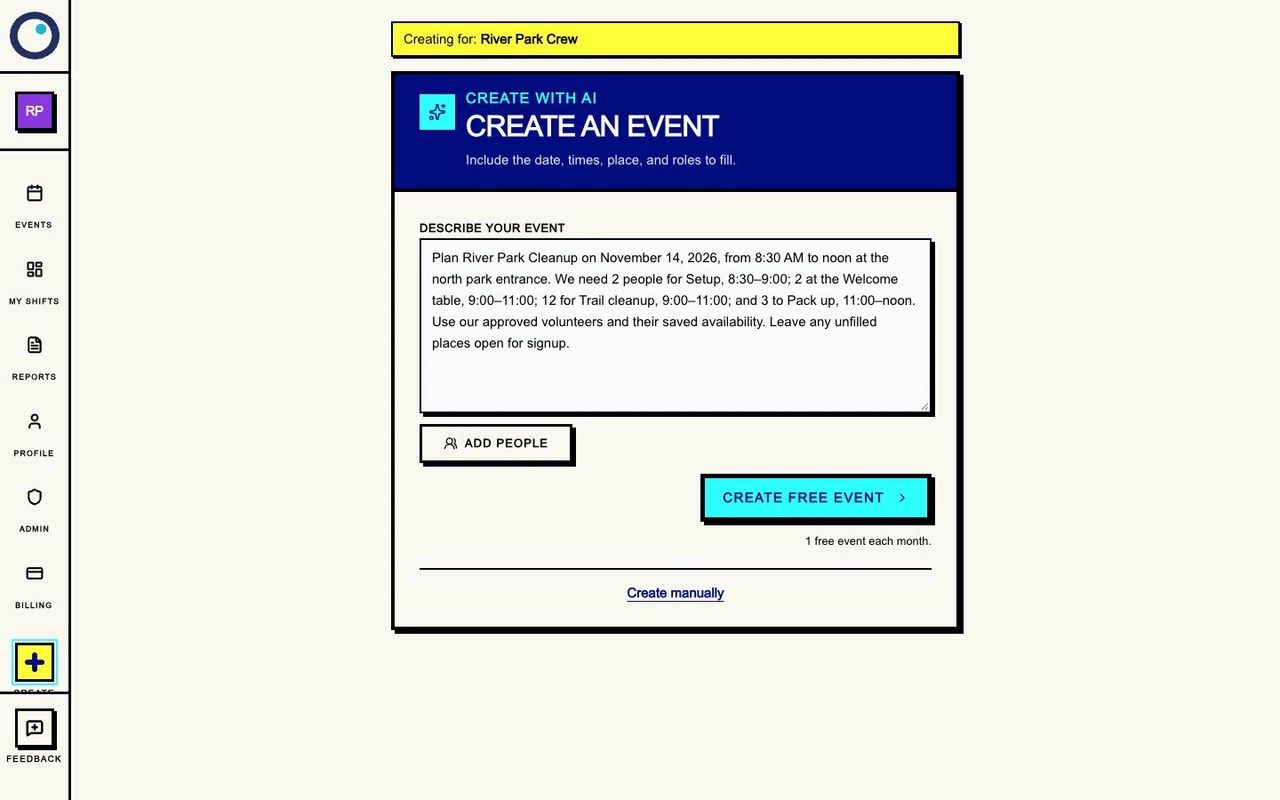
For River Park Cleanup, the description is:
Use this in Create
Describe your event
Plan River Park Cleanup on November 14, 2026, from 8:30 AM to noon at the north park entrance. We need 2 people for Setup, 8:30–9:00; 2 at the Welcome table, 9:00–11:00; 12 for Trail cleanup, 9:00–11:00; and 3 to Pack up, 11:00–noon. Use our approved volunteers and their saved availability. Leave any unfilled places open for signup.
Adapt the date, meeting point, jobs, times and number of people. Before submitting, check that your volunteers have approved team membership and saved availability in the organization you're using. Include briefing, travel or handover in the commitment when the work needs it.
Submit the description. Proximatic creates the draft and opens the roster, so your next step is reviewing the schedule.
Collect current availability without another form
A schedule needs the hours people can actually cover. With Pro, you can ask your crew by email and let Proximatic use their replies to prepare the draft assignments.
For an existing draft with custom shifts, choose Request availability, check the recipients and select Send request. A reply such as “November 14, 8:30 AM to noon” gives the complete window for the cleanup. Proximatic asks about unclear answers and shows how many people have replied.
If you need to collect hours before using one-box AI setup, prepare the draft and custom shifts first, then request availability. The availability guide shows both the email route and the profile fields.
See whether every job is covered
This cleanup needs 19 places across four shifts: two for Setup, two for Welcome, twelve for Trail cleanup and three for Pack up. The roster shows eleven filled, leaving eight to cover.
In Schedule, open each shift to see its assigned people and remaining places. A full Setup shift does not cover a gap at Trail cleanup. Ask for the job and full time that need help: “Can you join Trail cleanup from 9–11am?”
If your volunteers choose their own open places, publish and share the event link after reviewing it. The time-slot signup guide shows that participant path. If you assign the team, confirm the available person and review the revised roster.
Make the commitment clear before sharing
Check the assigned names and the full start and finish times. In Schedule, choose Edit shift, add the meeting point, lead contact and what to bring under Instructions, then select Save changes. The role-description examples help you explain the work clearly.
Review each person's commitments across the event, including preparation and cleanup. Someone available until 10am cannot cover a shift ending at 11am; overlapping jobs need different people.
When profile availability changes, update the saved hours before running Auto-Schedule. For your email audience, ask for an updated reply and review the processed event-specific hours before rebuilding the draft assignments. Review the whole roster afterward. Publish when the jobs, people and instructions are ready; Pro's email workflow then asks the assigned volunteers to confirm their shifts.
Signed-in volunteers can subscribe to their confirmed shifts in Google Calendar, Outlook or Apple Calendar. Schedule changes appear when their calendar app refreshes.
The scheduled times tell volunteers the full commitment you are asking them to confirm. On event day, use attendance to record when they actually arrive and leave. Those records stay with the event.
Run the same jobs on a new date
Open last week's standalone Standard event and choose Run again. Select the new date, check the event timezone and choose Review jobs. Proximatic keeps the jobs' local clock times and their relative days, including overnight work. Review any changed elapsed time across a clock change. If a clock time is skipped or repeated, choose another date or correct the original job first.
Review four cleanup jobs on the new date
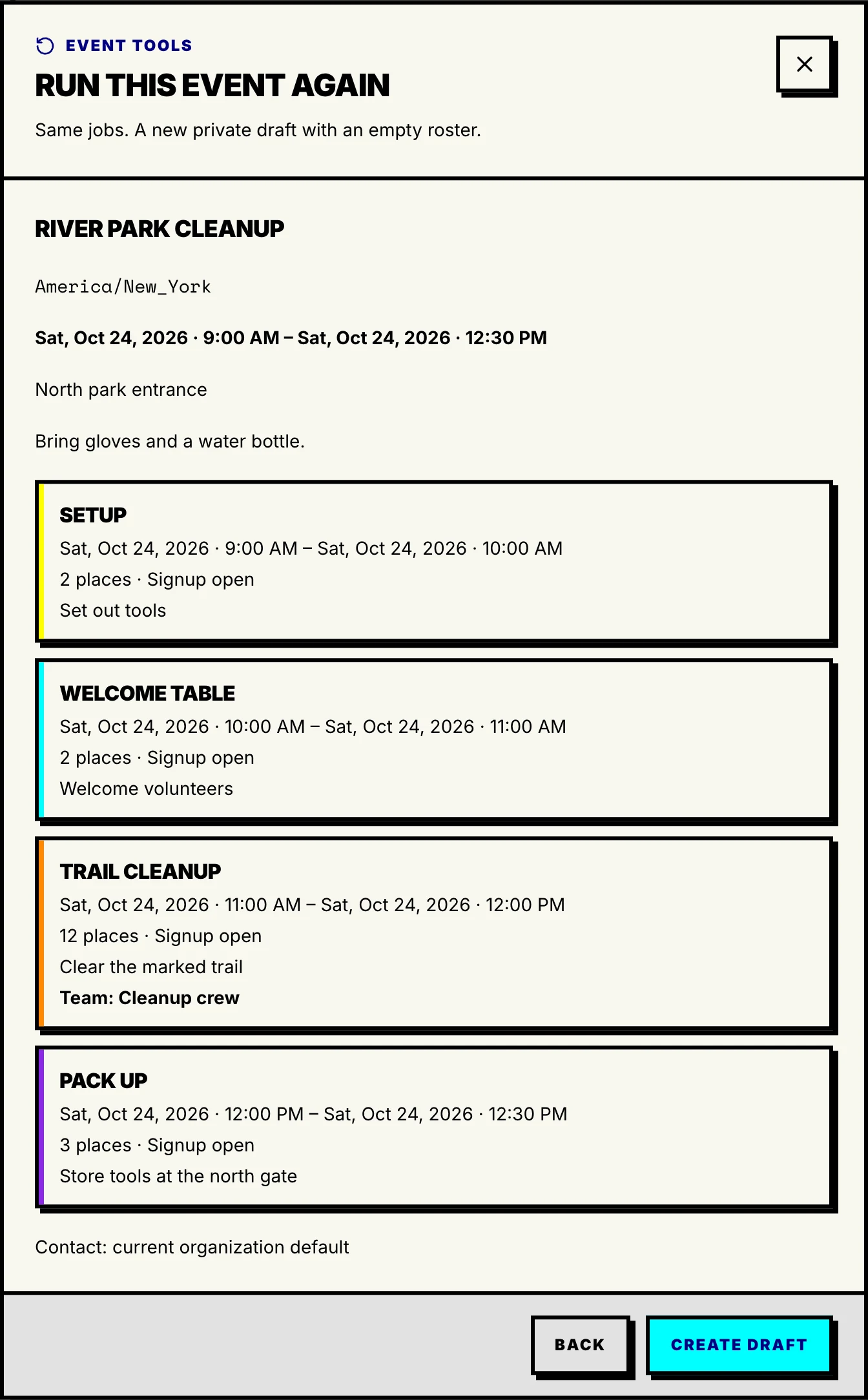
Choose Create draft. The new private event opens with fresh jobs and an empty roster. It keeps job capacities, signup settings and supported team rules. Review the contact choice if the original event uses its own contact override. The original signups and attendance stay with the original event.
New cleanup draft with the same four jobs and no people assigned
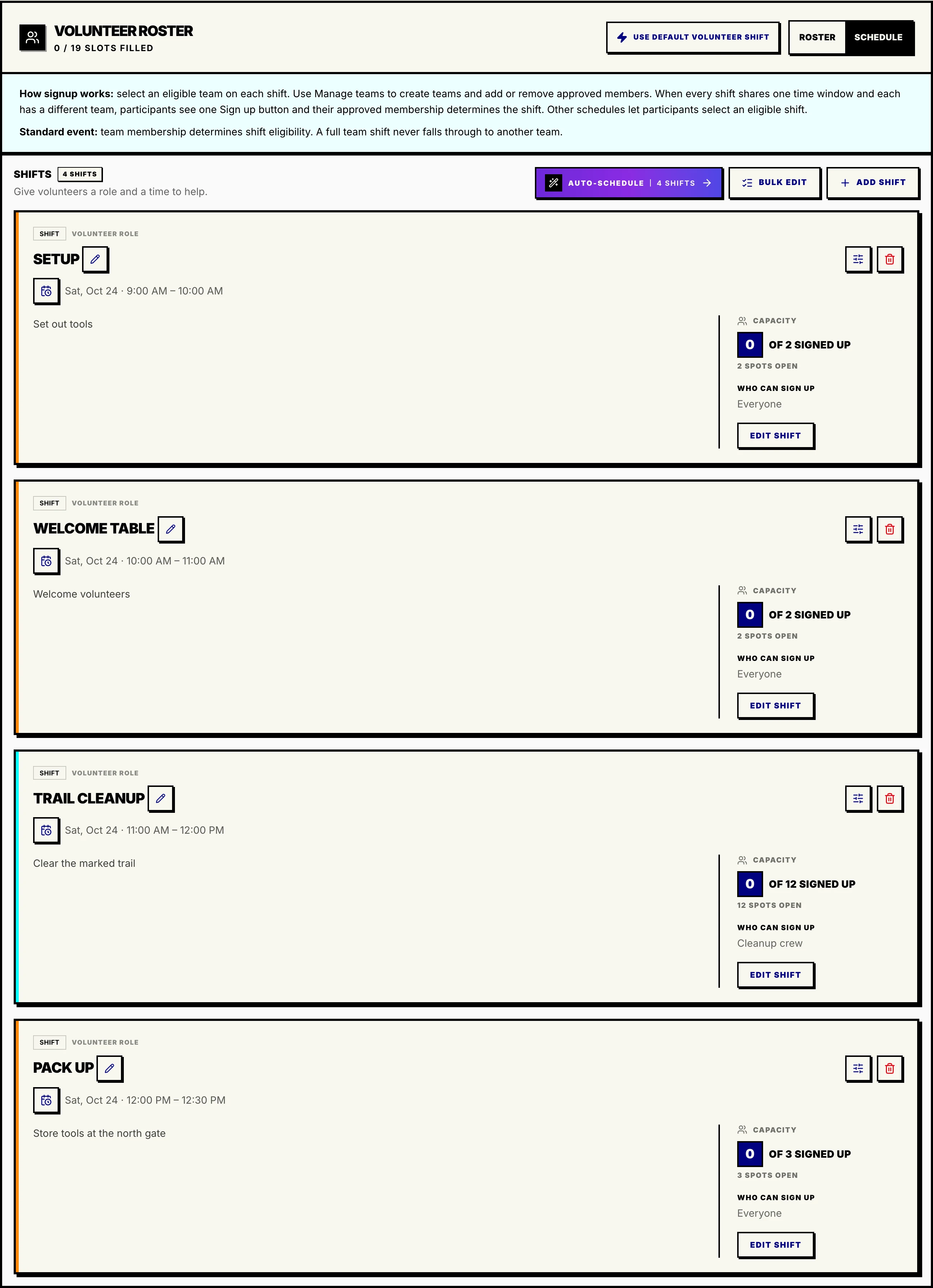
Run Auto-Schedule or Request availability as a separate action, then review the new roster and any gaps before publishing. Repeating an event creates its work; it does not enroll last week's people or send them messages. Series dates, Gala and Team Fundraiser events need a new setup.