Add volunteer shifts to Google Calendar, Outlook and Apple Calendar
By Joseph Rea
Your volunteer shift belongs beside the rest of your day. In Proximatic, open your Profile, choose Add to my calendar, and create a calendar link. Subscribe to that link in Google Calendar, Outlook or Apple Calendar. Your confirmed shifts appear in a separate calendar, which checks for schedule changes when it refreshes.
You add the subscription once for each organization. You don't need to copy every new shift by hand.
Watch the setup
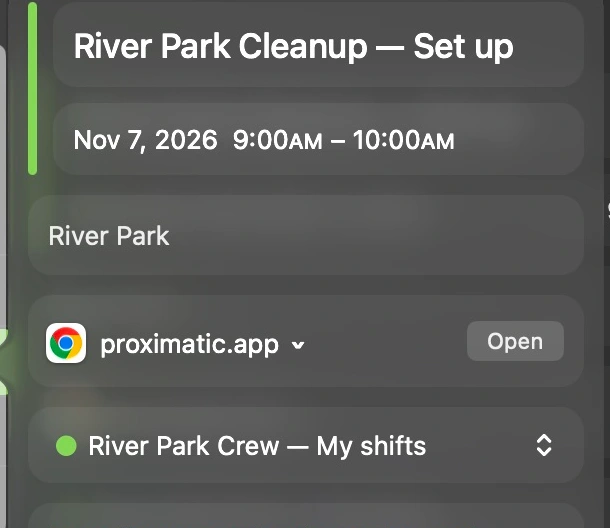
The walkthrough follows the actual profile and setup page into Apple Calendar. River Park Cleanup — Set up appears on Saturday, November 7, from 9–10 AM. The same subscription shows 9:30–10:30 AM after the shift time changes and Calendar refreshes.
Apple Calendar shows River Park Cleanup — Set up on November 7, 9–10 AM, at River Park.
Get your calendar link from Proximatic
- Sign in and select the organization whose shifts you want to add.
- Open Profile → Add to my calendar. The dedicated setup page opens in a new tab.
- Choose Create calendar link, then Copy calendar link.
- Follow the steps for your calendar app below. Choose a subscription, so later changes can appear too.
After a signed-in shift signup is confirmed, Add to my calendar takes you to the same setup page.
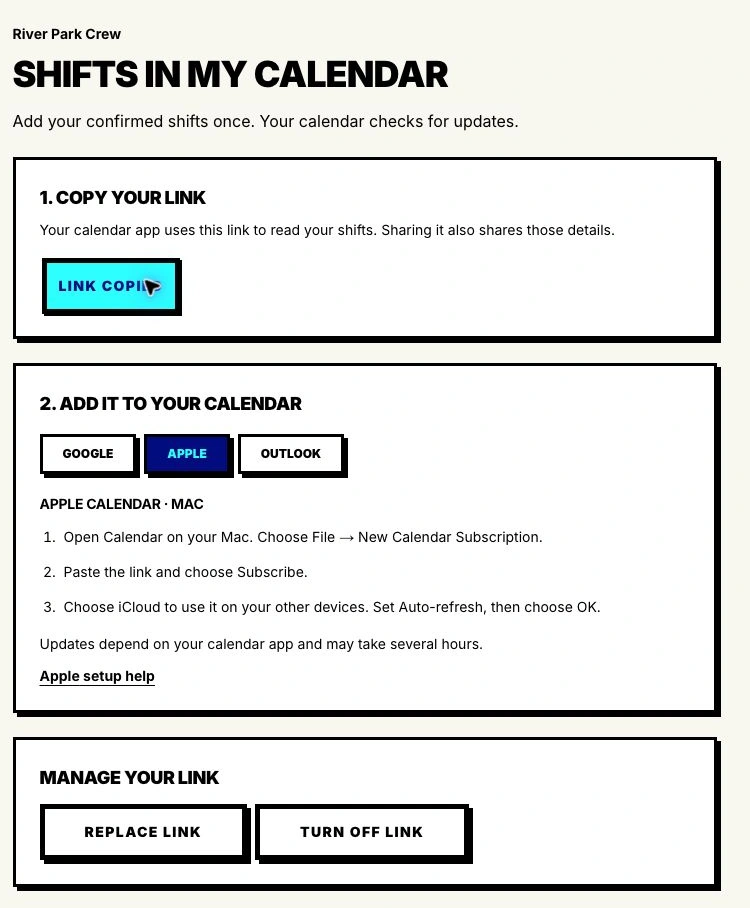
The dedicated calendar page shows Copy calendar link, calendar app choices, numbered setup instructions and link management.
Add volunteer shifts to Google Calendar
Open Google Calendar in a computer browser. Beside Other calendars, select + → From URL. Paste your Proximatic link, leave Make the calendar publicly accessible unchecked, and choose Add calendar.
Google lists the subscription under Other calendars. This setup starts on a computer; Google's mobile app doesn't add new URL subscriptions. Google's calendar instructions describe the desktop flow.
Add shifts to Outlook calendar
In Outlook.com or Outlook on the web, open Calendar → Add calendar → Subscribe from web. Paste your link, give the calendar a name, and choose Import or Save, as shown by your version.
Use Subscribe from web for ongoing updates. Uploading an .ics file imports a snapshot and doesn't follow later changes. Microsoft explains the difference between importing and subscribing.
Add shifts to Apple Calendar
On a Mac, open Calendar → File → New Calendar Subscription. Paste the link and choose Subscribe. Name the calendar, choose an Auto-refresh interval, then select OK.
Choose iCloud if you want the subscription on devices using that iCloud account. On My Mac keeps it on that computer. Apple's calendar subscription instructions cover both choices.
What stays up to date?
The subscription contains your own confirmed shifts from published events in the selected organization: the event, role, start and end times, location and a link back to the event. A pending application isn't a confirmed shift and won't appear. The feed doesn't include everyone else's roster.
For example, if Set up moves from 9–10 AM to 9:30–10:30 AM, the next refresh can update that calendar entry. If your assignment is removed, it leaves the subscription. Make signup and schedule changes in Proximatic; subscribed entries are read-only in your calendar app. Apple documents that subscription calendars are controlled by their provider.
Refresh timing belongs to the calendar app. Apple lets you choose an interval; Outlook notes that updates can take more than 24 hours. Check Proximatic for the latest details before you leave for a shift, especially after a last-minute change. Microsoft's refresh guidance explains the possible delay.
Manage the connection
The setup page also has Replace link and Turn off link. Replace blocks the old link; subscribe again using the replacement. Turn off stops future access. Remove the subscription from your calendar app when you no longer want its entries displayed.
Proximatic doesn't read your personal calendar. The link lets your calendar app read your shifts over HTTPS. If someone else has the link, Replace link gives you a fresh one and stops the old one working.
Open your profile to add your shifts. Organizing the event? See how self-signup and assigned shifts fit together, or use shift reminders for a separate heads-up before the event.