Fill Volunteer Shifts Without Rebuilding Your Roster
You’ve scheduled two volunteers to welcome guests at your event from 9–11am. One cancels, leaving Morgan to handle arrivals alone.
If you collected availability in Google Forms, finding a replacement means going back through the responses. Who offered those hours? Who can work Welcome? Who is already assigned somewhere else? A name that looks promising sends you into another tab to check the rest of their schedule.
Proximatic's Find cover does that matching for you. Open the vacancy, review the people who fit and fill the place. Morgan and the rest of your crew keep their assignments.
Create a free Standard event and add your crew’s roles and availability. Find cover is included free.
Find available people from Google Forms responses
The form did its job: it collected everyone's answers. Now you're doing the coordination around them.
Someone available that morning may already be working another station. Someone else can help for an hour, but you need two. When a volunteer changes their plans, you have to check the responses against the roster again before asking them to cover.
That gets old quickly. You're maintaining the connection between people's hours, the jobs they can do and the jobs you've already given them. Every cancellation makes you work through it again.
Keep that information with the event, and filling a vacancy becomes a much smaller job.
Let Proximatic find suitable cover
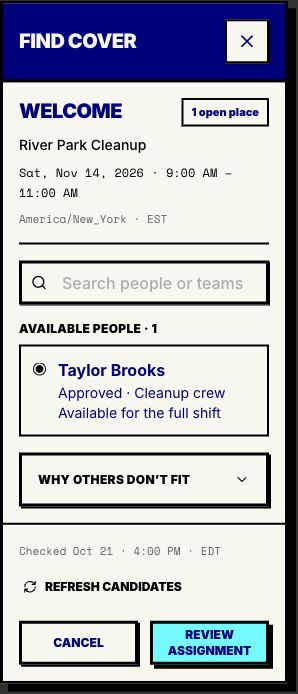
In your event’s scheduler, open the future Welcome shift and select Find cover for this shift. It checks your saved availability, approved roles, existing commitments and applicable rules against the open places. Use a Standard shift with a set number of places.
Taylor is available for 9–11am and can work Welcome. Once Taylor agrees to take it, choose their name and select Review assignment, then Assign.
Find someone who fits the open shift
Review Taylor's cover assignment
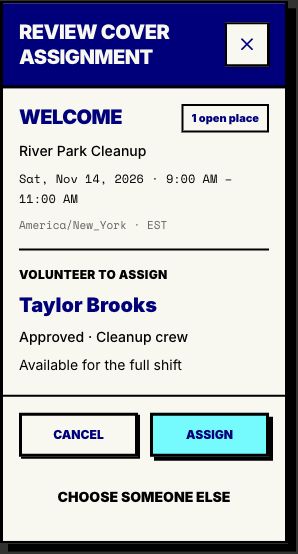
Welcome is now 2/2, with Morgan and Taylor. You filled the gap without shuffling the rest of the roster.
If nobody fits, Why others don't fit shows the current blockers. Review the saved hours or role approval it points to, then select Refresh candidates after a correction. If the crew really cannot cover those hours, ask another person or revise the shift.
Make the next cancellation easier
When the people, hours and assignments live together, you can deal with the change instead of rebuilding the shortlist. The same roster carries through to attendance on event day.
Create your event in Proximatic. Add your shifts, crew and available hours so you can find suitable cover when plans change. For a whole roster rather than one vacancy, follow the free Auto-Schedule walkthrough.