AI event setup · For organizers
Prepare your team, then review the roster.
Give Proximatic one message with your event, people and availability. Review the roster, then approve publishing, email and attendance signs.
One message starts the work
Send Proximatic one message with the event, people, shifts, teams and available times. It can prepare imports, build the event and schedule eligible people for your review.
Write it like you would explain it to a teammate. The agent can carry the plan through setup, scheduling, publication, participant email and attendance signs. You review changes and approve the actions.
Proximatic must be connected and signed in to your organization as an owner or admin. Public setup for external AI clients is not yet verified.
Put the useful details in one message.
Messy notes are fine. Give the agent the facts you know and call out anything that still needs an answer.
- The event name, date, time zone, hours and place.
- People or email addresses, including a pasted list or CSV text.
- Jobs, shift ideas and how many people each needs.
- Teams and the times people have said they can work.
- Any supported rules, such as a total-hours limit or keeping two people off the same shift.
Availability must come from you or the participant. The scheduler uses approved team members who can work the whole shift. If no one can be assigned, preparation stops before creating the draft.
Starting in the web app?
In the web app, Create starts with an event brief. Proximatic uses people already set up in your organization; it does not import a people list from that box. Use Invite Members for CSV or list imports, Volunteer teams for membership, and each person’s profile for availability. Then describe the event in Create; the app opens the draft when the roster is ready.
The workflow
From one message to a working roster.
Send the details, review the changes, then approve the roster and next actions. These screenshots show the event screens in Proximatic; the agent conversation depends on your connected client.
Paste your event notes into Proximatic. Include the date, time zone, place, people or email list, shift ideas, teams, available times and supported rules. Pasted CSV text can be part of the message.
The agent prepares changes for your review: import people, set up teams, record the availability you supplied and plan one Standard event. New invitees must accept and verify their email before they can be scheduled.
Send one message
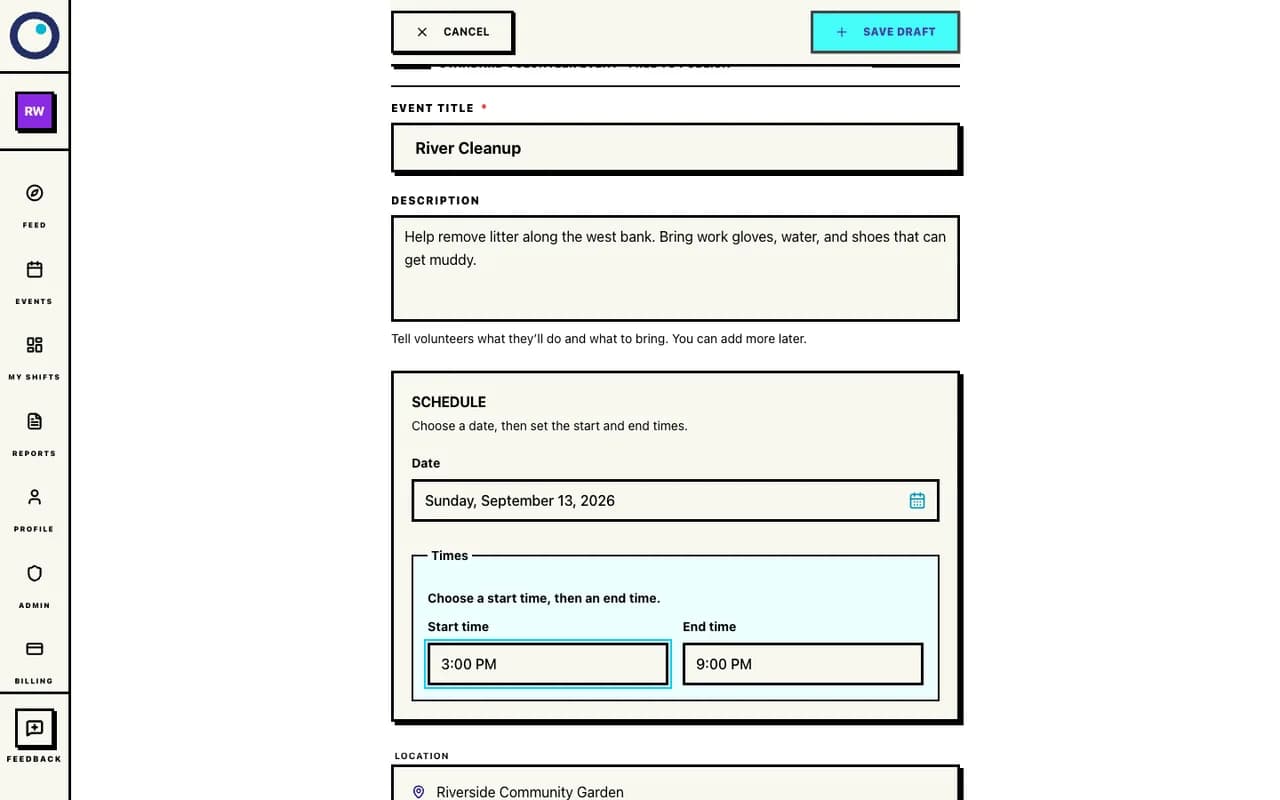
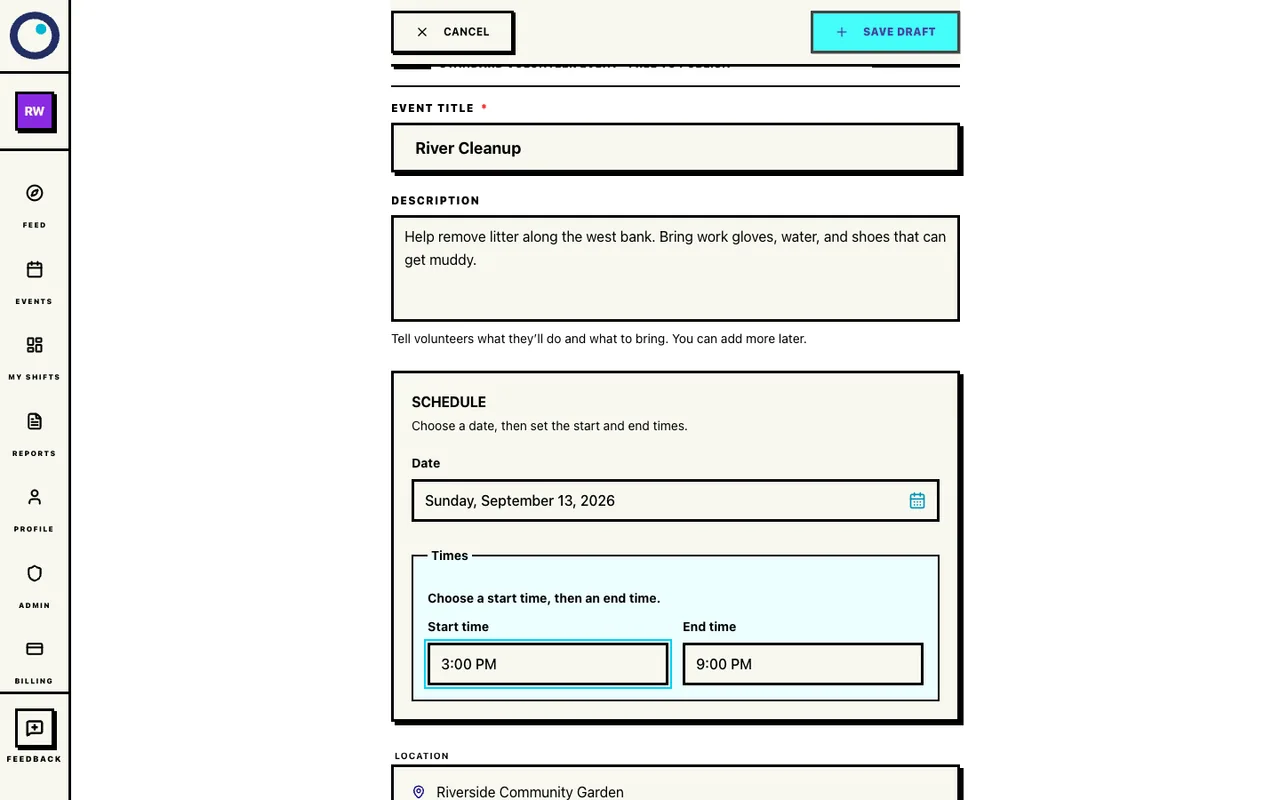
Proximatic’s web event form shows the basic details your message needs: name, date, time and place. The app checks the event details, approved people, teams and availability, then builds the shifts and schedule.
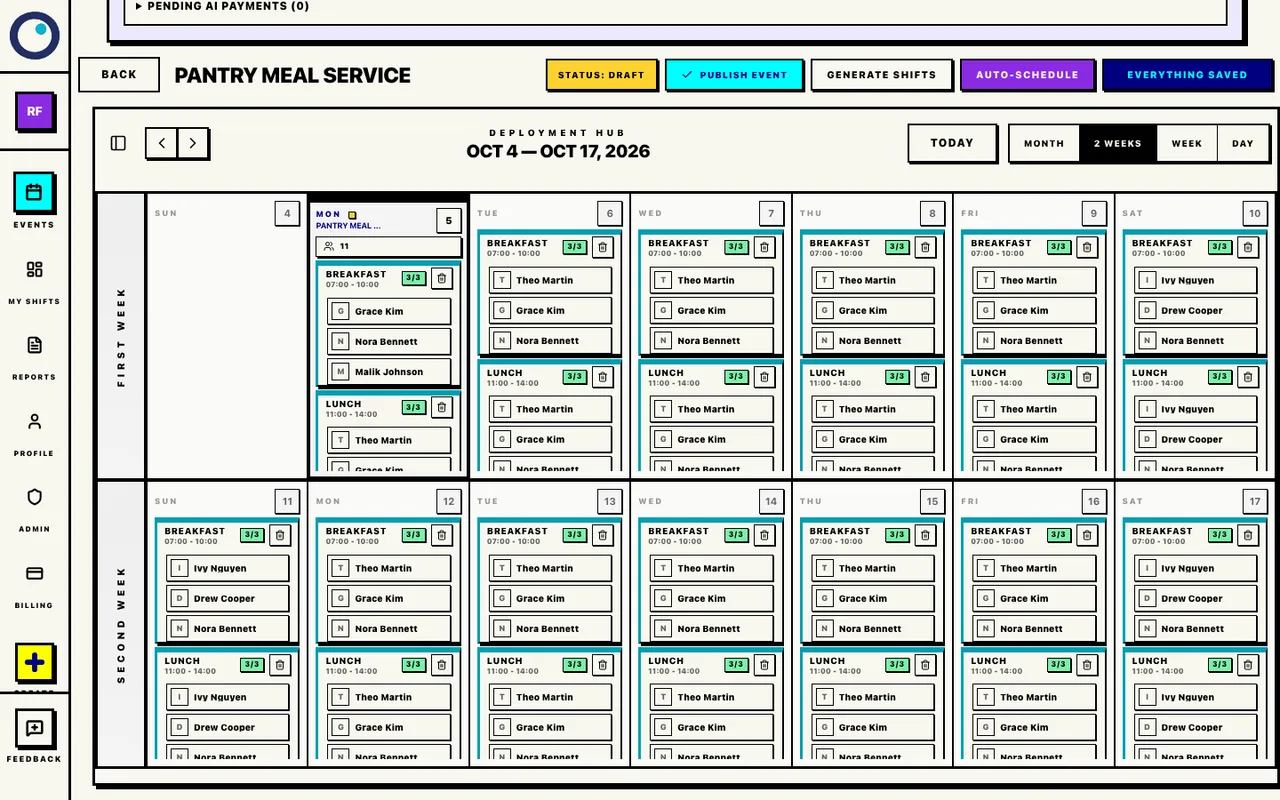
The event, shifts and assignments are prepared together so you can open one complete draft.
Build the roster
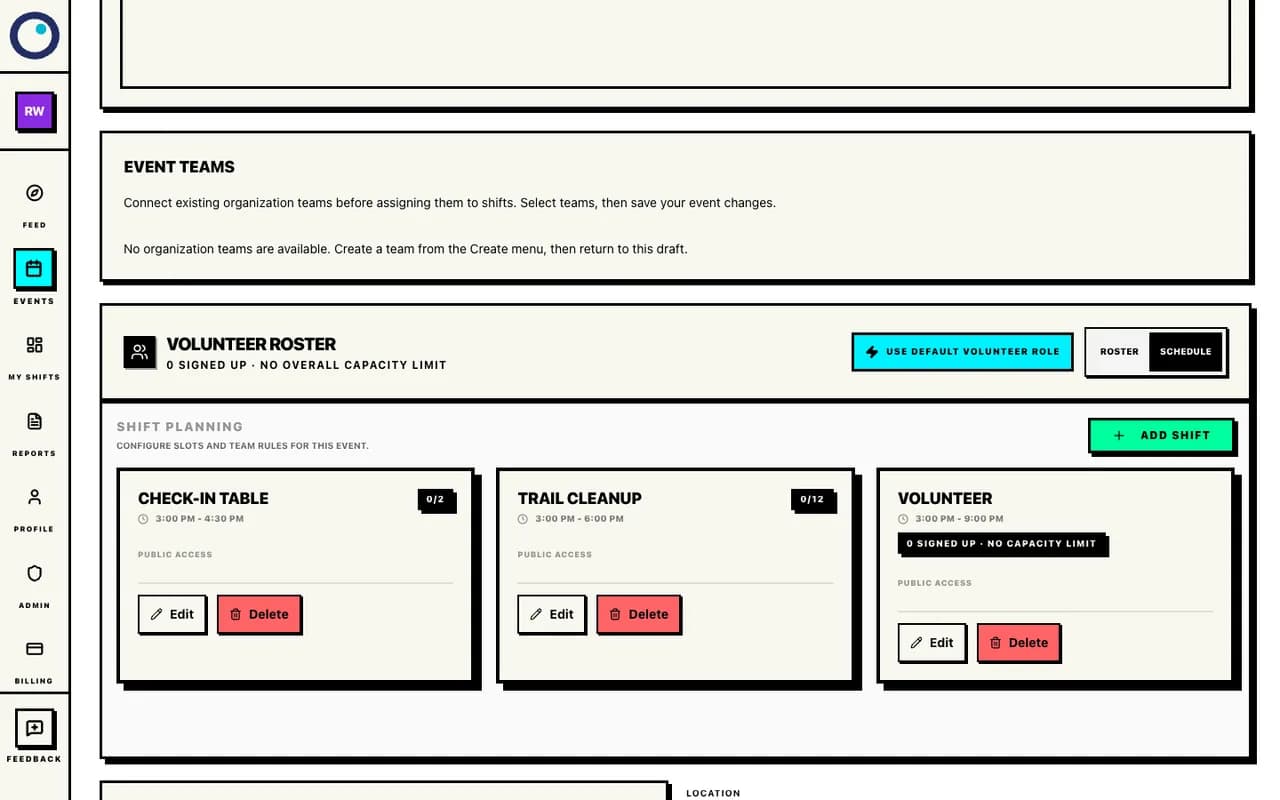
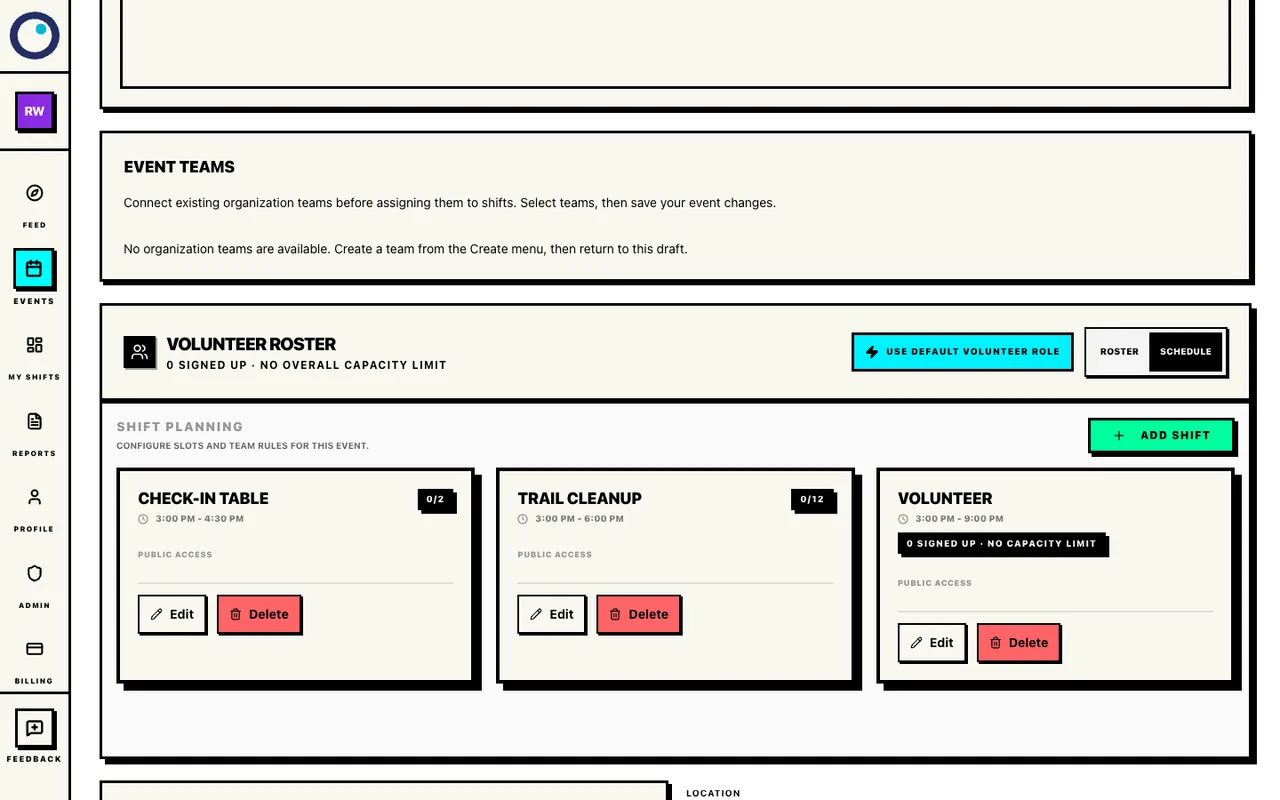
Roles and shifts give volunteers a job and a time. Check the number of places for each. When the roster is ready, Proximatic opens the draft event with its shifts and assignments already filled in. You can adjust the details before publishing.
You see how many places are filled and what remains open. If the schedule is out of date, the draft is not opened until the setup is refreshed.
Open the draft
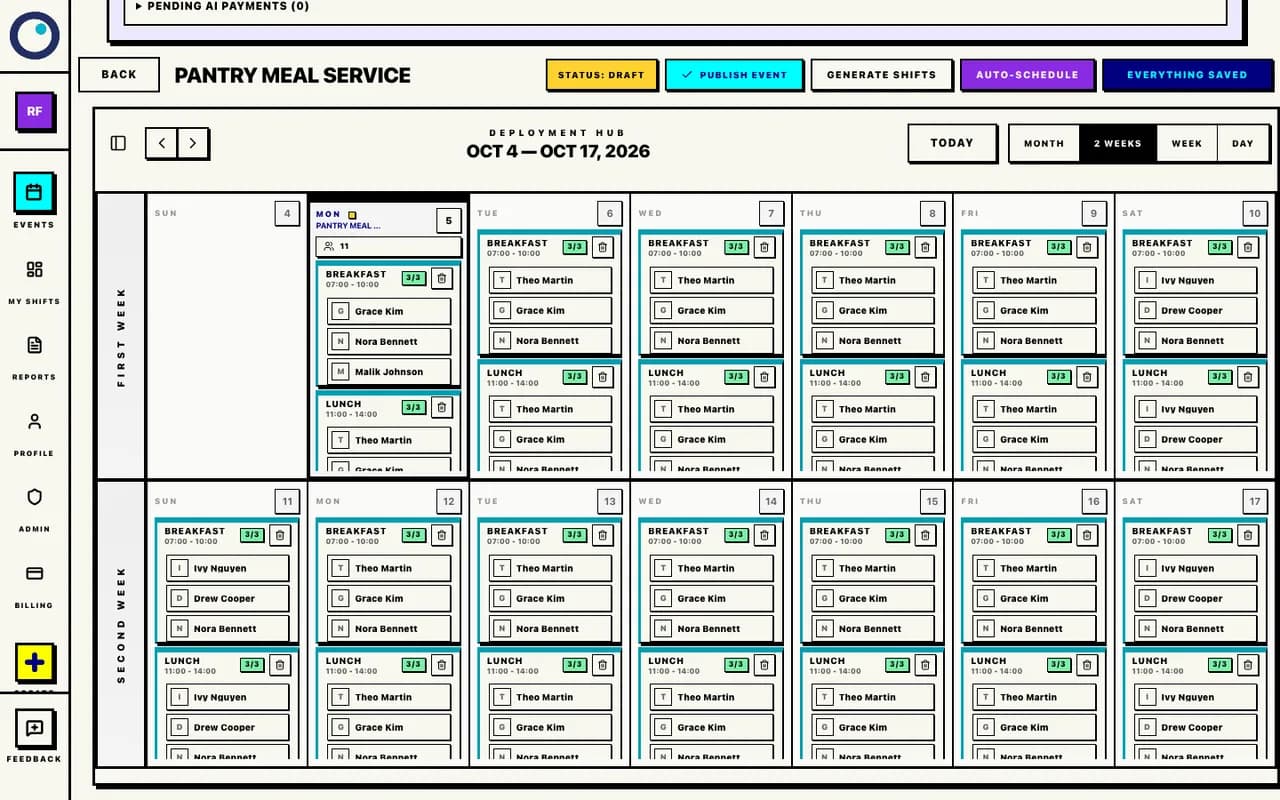
See who is assigned and which shifts still need people. Approve publication when the draft is ready. The agent can also prepare an email to assigned people and create attendance signs. Review the message and recipients before sending; email uses existing credits.
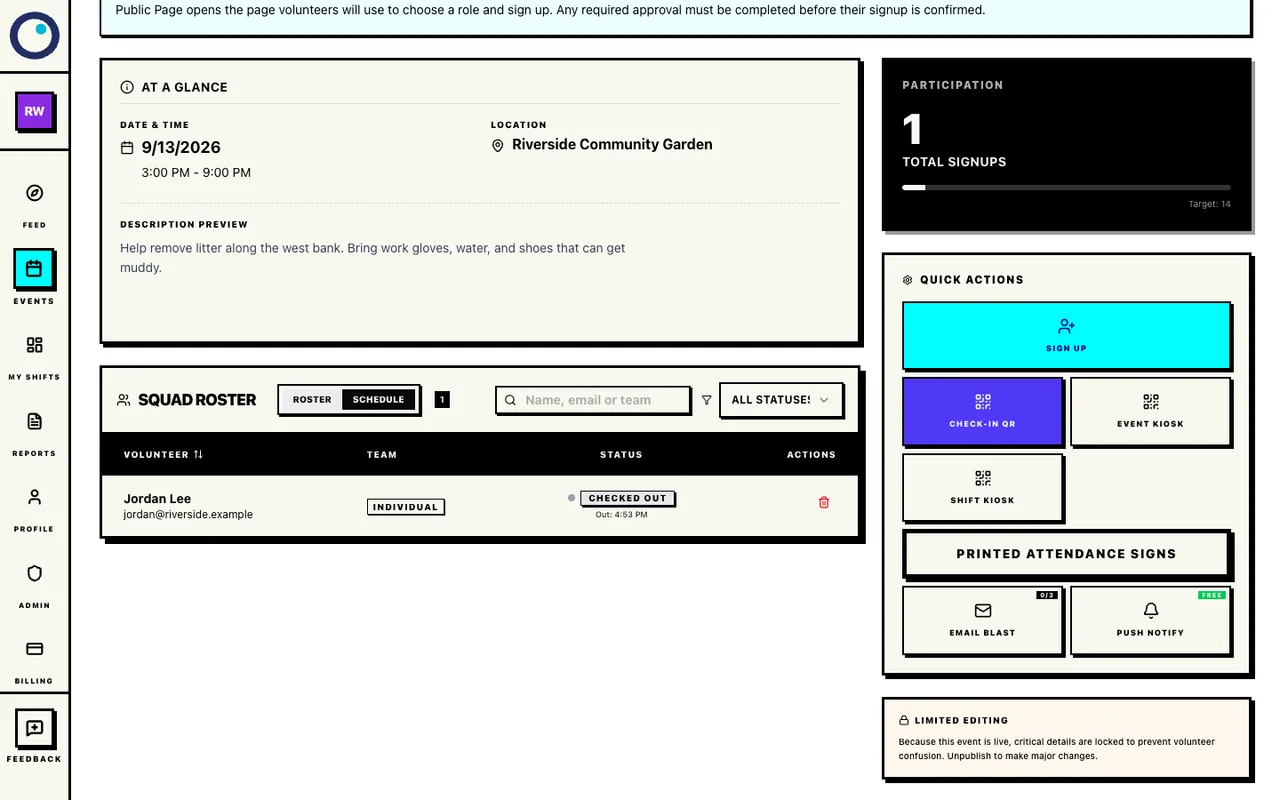
Share the event link and attendance signs. Participants still choose their role and complete their own signup, check-in and checkout. Your agent can read recorded attendance or revoke a sign.
Publish and run the event
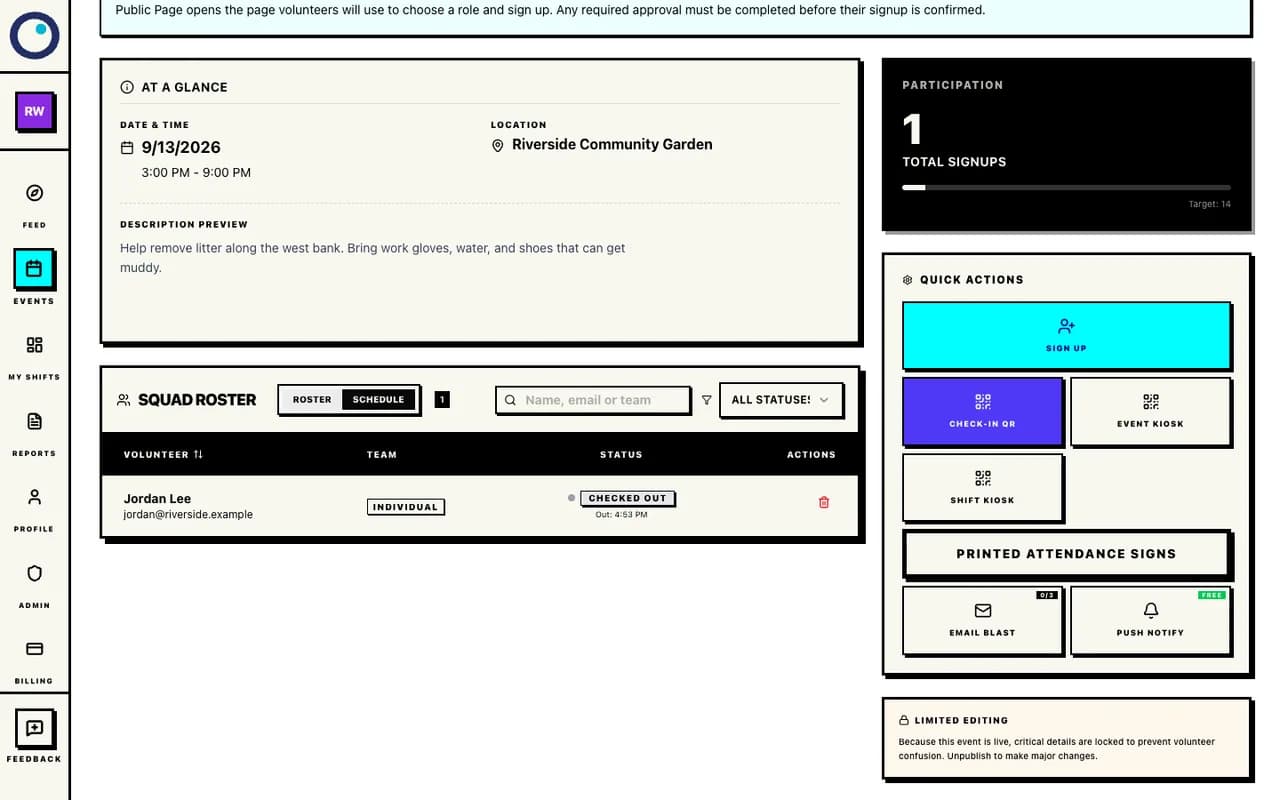
Use the roster to see who is coming and who has checked in.
You stay in control.
- Review the draft before publishing.
- Check assignments and any unfilled places.
- Keep people, availability, and team rules current.
- Approve publishing, email sends and attendance signs.
Participants keep control of their own signup and attendance. Direct Auto-Schedule on an existing draft saves assignments immediately; it has no separate Apply step.
Common AI event setup questions
Where do I manage billing?
Payment methods and billing details live in Billing. The event setup flow stays focused on the event and roster.
Can I start with a list of people?
Yes. Include an email list or pasted CSV text in the message to Proximatic. Review the import before applying it. Verified accounts can be added; new people receive invitations and must accept and verify their email before scheduling. In the web app, use Invite Members to paste a list or upload a CSV.
Who gets assigned?
Proximatic uses approved organization members who are eligible for the shift and available for its full time. It checks capacity and supported rules too. It does not invent people or availability. AI setup creates one event date, not an automatic recurring series.
What happens after I describe the event?
The setup prepares the event, shifts and roster, then opens the draft with the schedule applied. Publishing and each email send need their own approval.
What if coverage is incomplete?
Check the unfilled shifts and your volunteers' availability. You may need more approved volunteers or different shift times. After creating the draft, you can adjust assignments before publishing.
Does the Create box handle the whole message?
In the web app, Create starts with an event brief. Proximatic uses people already set up in your organization; it does not import a people list from that box. Proximatic handles the wider flow through separate proposals and confirmations. One message starts that work; it does not approve every change at once.
Can I use any external AI client?
Proximatic must be connected and signed in to your organization as an owner or admin. Public setup for external AI clients is not yet verified. Pending applications still need review in the web admin Invitations view. The agent cannot confirm a signup or attendance as someone else.
Start with the event you already have in mind.
See See it in action before starting your event.