Multi-Day Volunteer Scheduling: One Event or Separate Dates?
For multi-day volunteer scheduling, keep related dates in one event when you want one shared signup and roster. Use separate dated events when each occurrence needs its own link, plan and attendance review. Proximatic automatically assigns your prepared team to the dated shifts using their availability and staffing rules.
A pantry running daily for two weeks and a pantry opening on two Tuesdays need different event setups. Once the dates and shifts are ready, Proximatic handles the assignment work. For a future draft with custom shifts, Pro can collect replies by email and prepare the roster from people’s availability for that event.
What repeats: the event, the shifts or availability?
- A multi-day event is one operation containing shifts on several dates, such as a two-week pantry service.
- A volunteer event series is a set of separate dated events, such as a pantry opening each Tuesday. Each date has its own event link and roster.
- Recurring availability says when a person is usually free, such as Tuesdays, 7am–2pm. It helps match them to dated work.
- Automatic recurrence would create future events or shifts for you. The examples here use specific dates you create and review; weekly availability alone does not create an event or book a volunteer.
Recurring volunteer shifts still need a date, time, place count and assigned people. Decide whether volunteers should choose dates through one event or receive a separate signup for each occurrence.
One operation: keep the dates together
A pantry runs October 5–18, with Breakfast 7–10am, Lunch 11am–2pm and Dinner 4–7pm every day. Fourteen days with three shifts a day gives 42 shifts; three people per shift gives 126 places across the fortnight.
Create a dated draft, extend its start and end dates in event management, and add the meal shifts to the days they run. Then run Auto-Schedule to build the roster from your team's availability and saved rules.
Review the pantry roster across two weeks
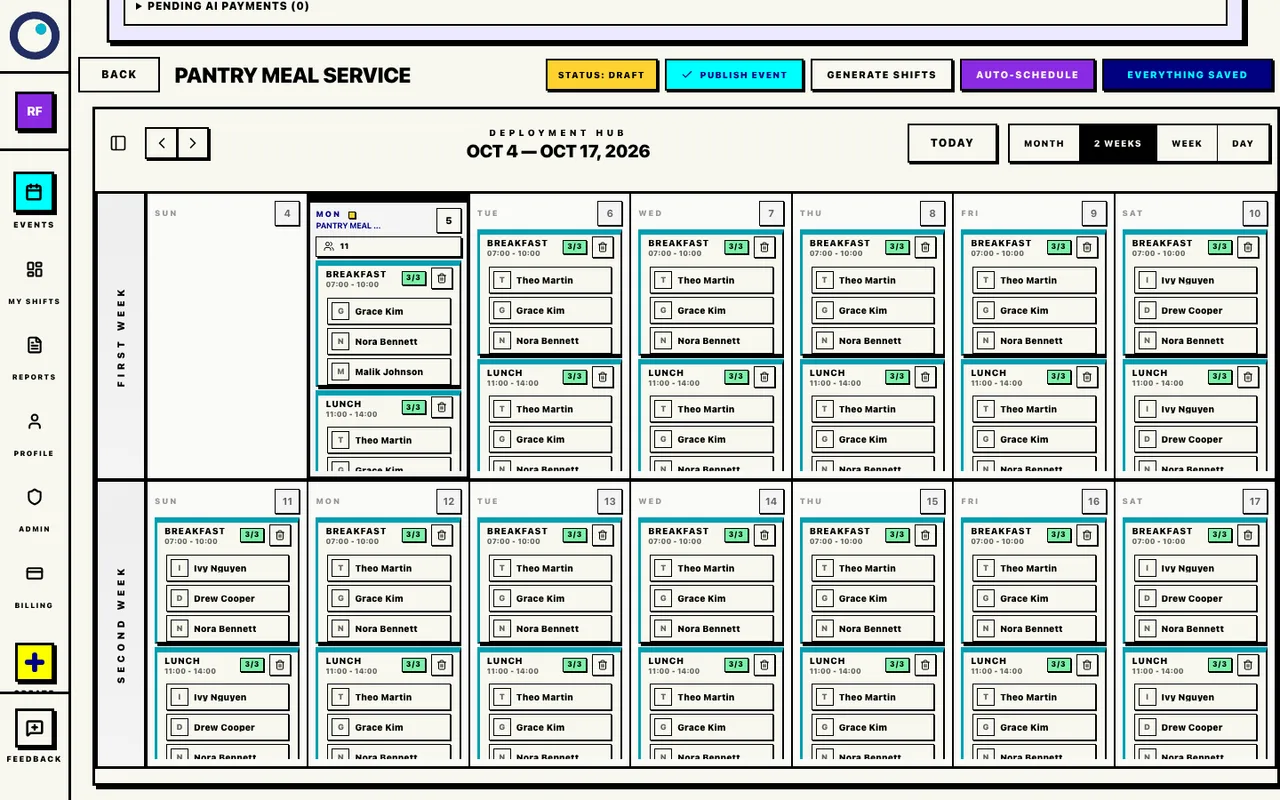
Move through the calendar to review the dates and any open places. This multi-week volunteer schedule stays together under one event link. When reviewing attendance for the operation, check the dated shifts within that event.
Separate Tuesdays: create two dated events
If the pantry opens only on October 6 and October 13, create one event for each Tuesday. Each has Breakfast, Lunch and Dinner: six shifts and eighteen places across the two events.
Describe each event in one textbox to create its draft with shifts and assignments from a prepared team. If using manual Create, choose One day for each date; the Multi-day picker includes every day in its range.
Review each roster and share that event's dated link. An assignment on the first Tuesday is a commitment to that occurrence.
If someone asks about October 13, open the October 13 event, rather than the October 6 roster. Keep the date in each event's name so signup links, assignments and attendance are easy to identify.
Confirm a change for one date
Weekly availability such as Tuesdays, 7am–2pm can help Proximatic fill Breakfast and Lunch. The Dinner shift needs someone available 4–7pm.
If Blair cannot work October 13, confirm whether that is a change to every Tuesday or only this occurrence.
For a future draft using Pro email requests, Blair can reply “I’m unavailable for the October 13 event.” Proximatic uses that event-specific answer for the draft while keeping Blair’s usual profile hours. Review coverage before you publish.
If using profile availability, check both the weekly availability and any one-date entries that cover October 13 before scheduling. A dated entry adds available time; it does not cancel a weekly window.
For these two pantry dates, the profile option is to remove the weekly Tuesday window and keep October 6, 7am–2pm under One-time availability. Check any other Tuesday commitments before changing the weekly record, and keep dated windows for the dates Blair can still attend.
If Blair is already assigned on October 13, review that commitment and arrange cover in the October 13 roster. Changing availability alone does not replace a saved assignment.
Availability describes when a person can work. The dated event and saved assignment identify the actual commitment.
Choose the setup that fits
- One lead reviewing one operation: keep its dates and shifts in one event.
- Each date needs its own signup and roster: create separate events.
- One place becomes vacant: use Find cover to check replacements for that shift.
The pantry walkthrough shows the complete multi-day roster in Proximatic.