Can AI Create a Volunteer Schedule? See How It Works
By Proximatic
Yes—Proximatic can create a volunteer schedule from one event description. Tell it what needs doing, when and how many people each job needs. It creates the event, shifts and assignments using your approved volunteers' saved availability. You review the roster and open places before publishing. With Pro, volunteers can also reply by email with their available hours and let those replies prepare a draft roster.
Here’s what that looks like for a food pantry with 20 volunteers covering breakfast, lunch and dinner. The most useful part is easy to spot: a dinner shift needs one more person, and the organizer can see exactly what to do next.
1. Describe the work in ordinary language
Give AI the same instructions you would give a co-organizer. Start with a pantry day:
Staff Riverside Community Kitchen on October 5, 2026. Breakfast 7–10am, lunch 11am–2pm, dinner 4–7pm. Three volunteers per shift. Use our approved volunteers and their saved availability. Leave unfilled places open for signup.
Replace the example's date with your upcoming pantry day and include its place, jobs, full shift times and number of people needed. “Help me organize our pantry” leaves too much for you to fill in later. For several days, use the separate multi-day schedule workflow.
In Proximatic, Create with AI starts from your event description.
Describe your event textbox with a cleanup's jobs, times, staffing counts and saved availability
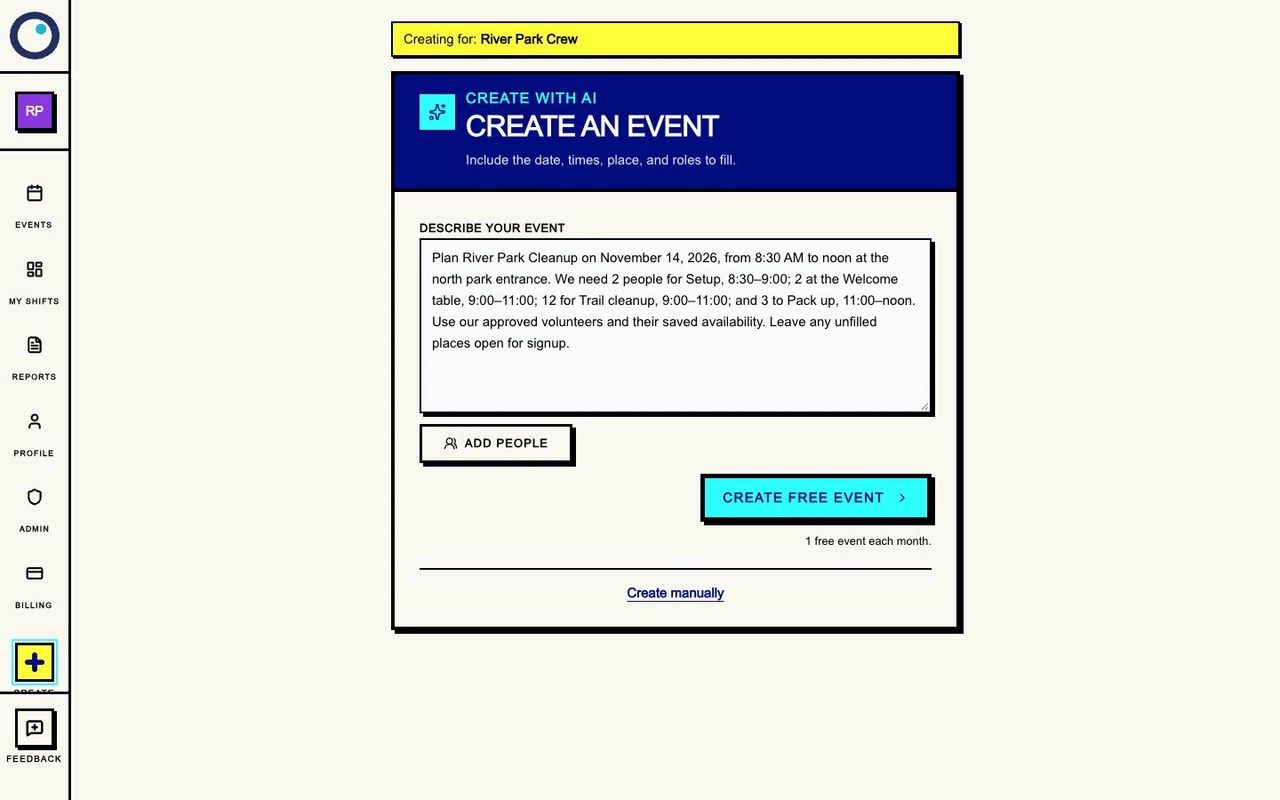
Submit the description to create a saved draft, then review its dates, shifts and staffing. Publishing is a separate step. The AI event setup guide walks you through the process.
2. Give your team a clear staffing rule
A new volunteer should have experienced people alongside them. For this pantry, that means at most one new volunteer in a three-person shift.
Build the rule visually on the canvas. Choose New volunteers, set At most to 1, and connect the cards. Drag them into place, then save your rule and apply it to the meal shifts. Check the saved rule before scheduling; writing the preference in the event description is the starting brief.
Build your staffing rule on the canvas
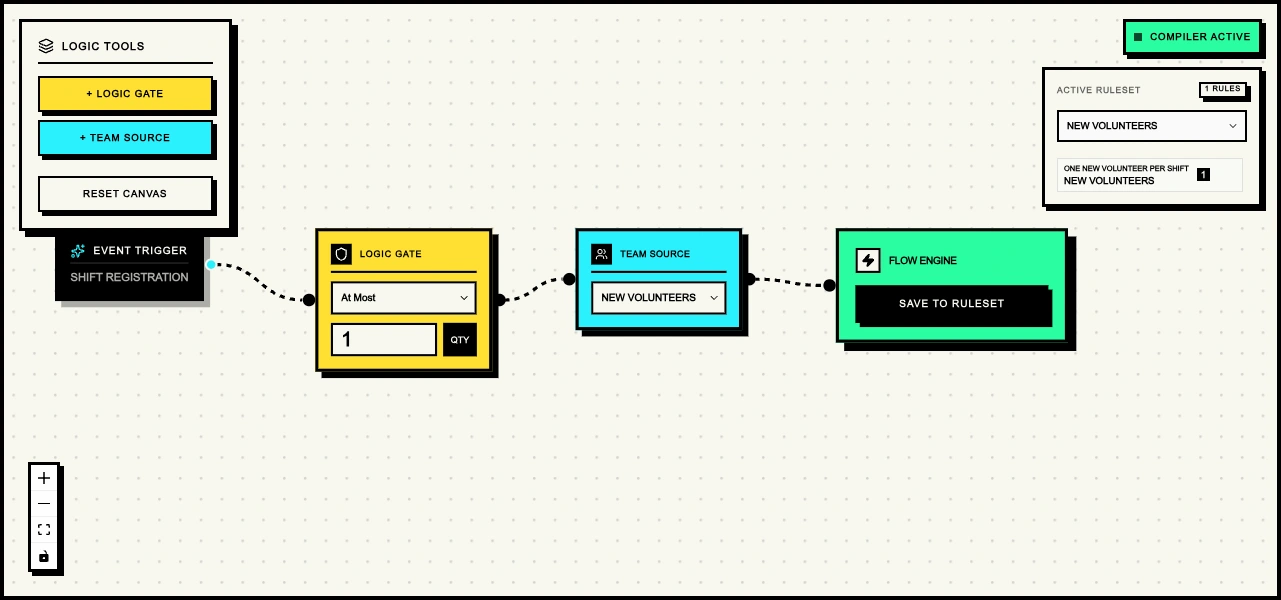
Keep the team list and available times up to date too. A rule about experience cannot tell you whether someone is free for dinner. See scheduling rules for other requirements you can set.
3. Look for the shift that still needs help
Once the shifts, people and saved rule are ready, Auto-Schedule puts available volunteers onto the roster. Open a day to see each shift’s times, assigned names and filled places.
In this pantry schedule, dinner runs from 4–7pm and needs three people. Avery and Jordan can cover it. The other available volunteers finish earlier, so one place stays open.
Dinner has one open place: 2/3 filled
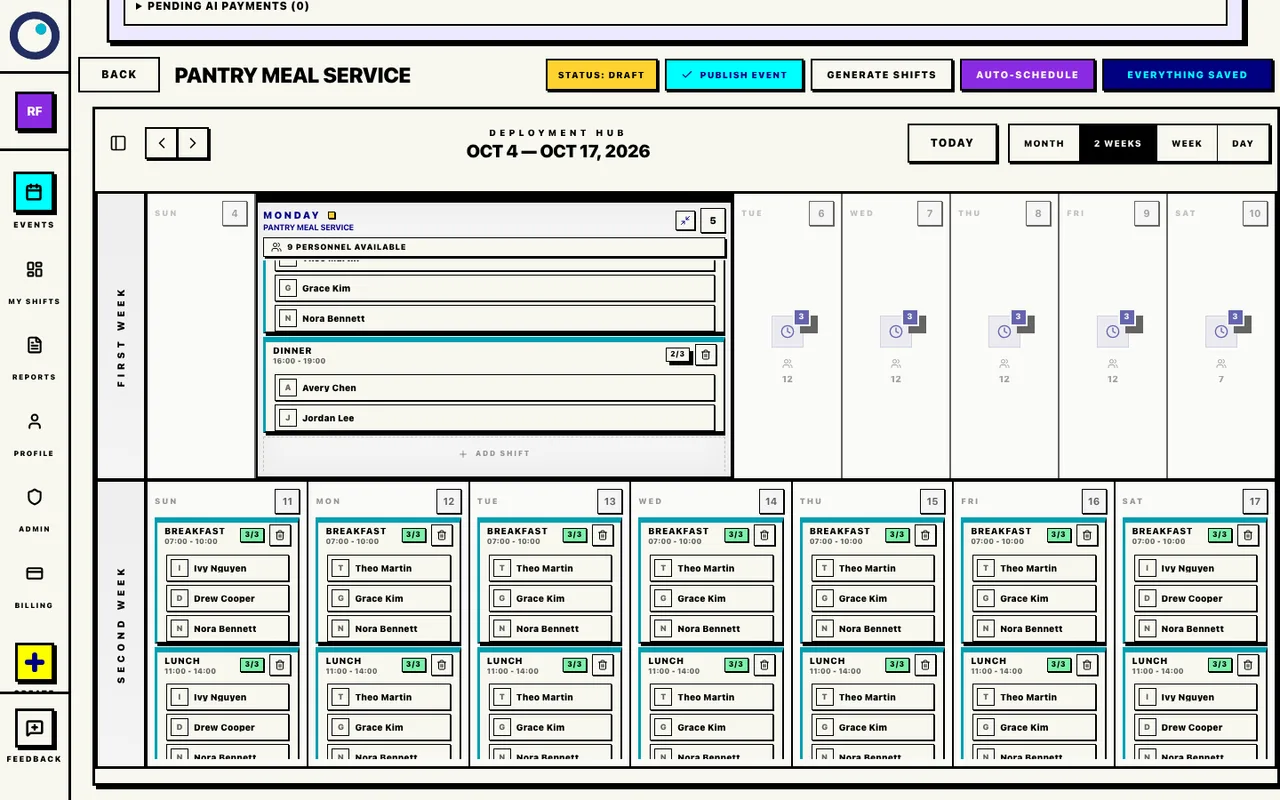
That gives the organizer a clear next step: find one person who can cover the whole dinner shift. Ask the team or confirm a volunteer's changed availability for the complete 4–7pm commitment.
4. Confirm the change and review the updated schedule
Sam confirms that they can stay until 7pm on Monday. Their available time is updated, and the organizer runs Auto-Schedule again. That is a change to available hours; accepting an assigned dinner shift is a separate commitment.
Dinner is covered: 3/3 filled
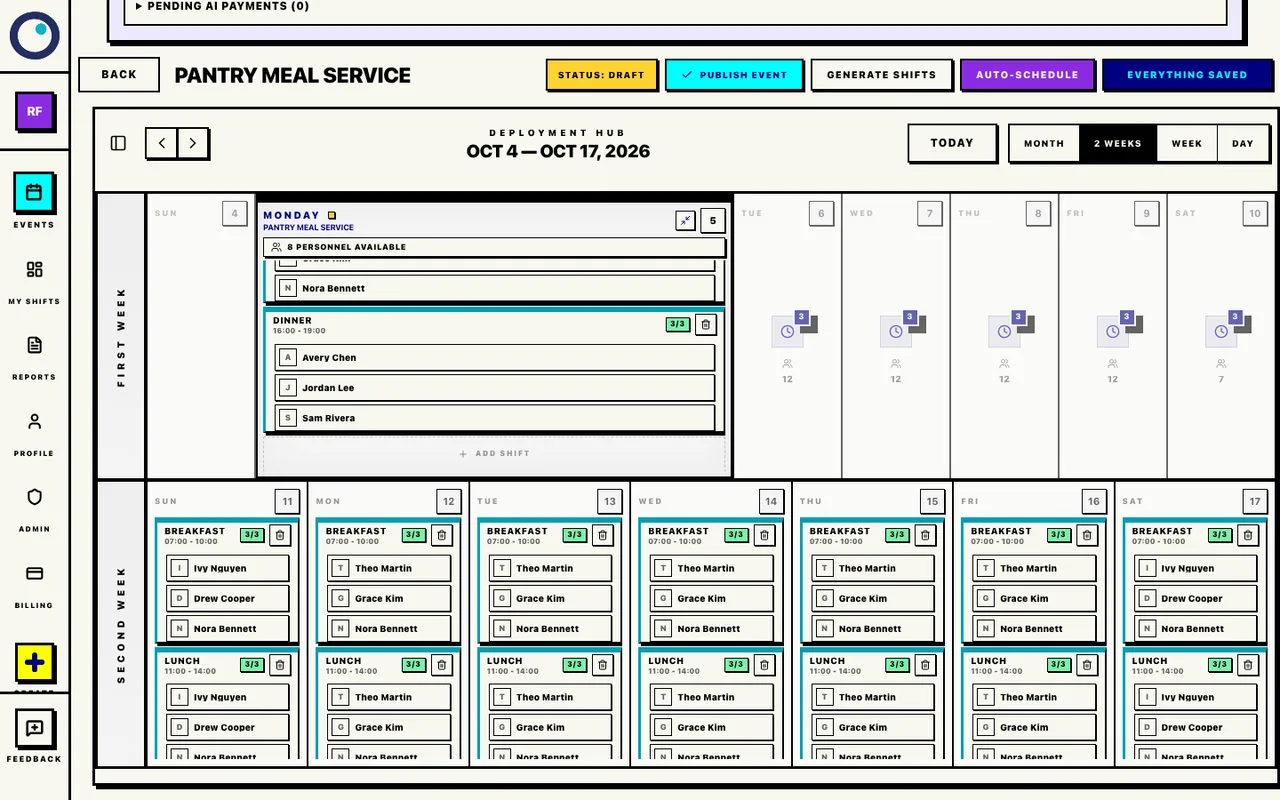
Review the rest of the schedule after a new run, because other assignments can change too. Auto-Schedule saves the new assignments immediately. Before publishing, check three things:
- Coverage: does every shift have the people it needs?
- Commitments: can each person cover their whole shift, including any handover?
- Workload: are the hours reasonable for the people assigned? A full schedule can still ask too much of a few volunteers.
You make those decisions with your team. Proximatic gives you the schedule to work from.
Let email replies prepare your next pantry roster
For an upcoming draft with custom shifts, choose Request availability with Pro. Check the recipient teams, then select Send request. Volunteers can reply with their date and full available hours. Proximatic reads scheduling replies, asks about unclear answers and prepares the private draft roster.
A Proximatic email asking volunteers for their available hours
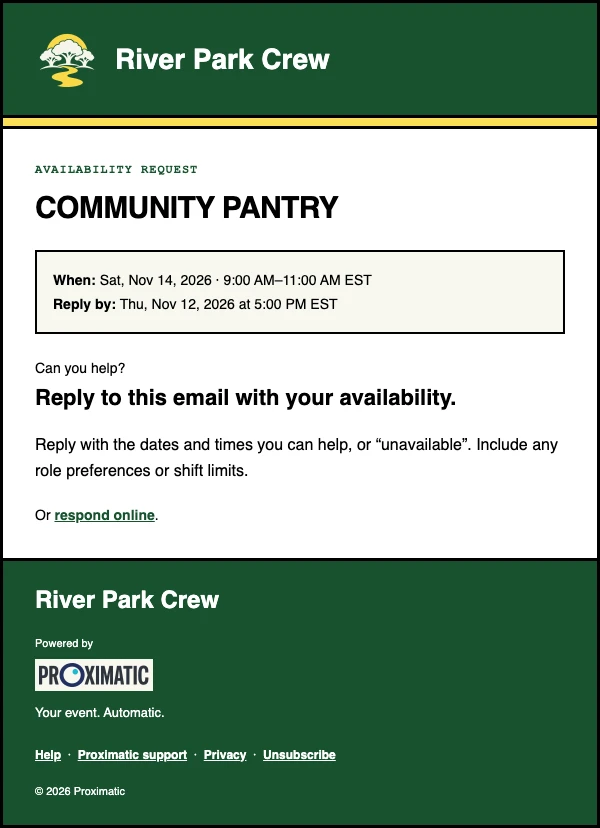
If you need availability before AI setup, prepare the event and custom shifts first, then send that request. Newly saved Pro AI drafts start outreach to their approved roster teams automatically. Review the processed replies, assignments and open places before publishing. Proximatic then asks assigned volunteers to confirm their shifts.
The worked email example shows how ordinary replies become a draft schedule.
Put the schedule to work on event day
When the roster is ready, publish the event and make sure volunteers know their role, time and meeting point. On the day, check-in and check-out help you see who arrived and record their time.
You can explore the full food pantry example for more detail. To start with your own event, see how AI rostering works, then describe the jobs and shifts your team needs to cover.