Volunteer Scheduling for Roles and Skills: Get the Mix Right
To schedule volunteers by roles and skills, define the mix each shift needs, confirm who is approved for those jobs, and check their full available times. Proximatic automatically matches those people to the work using your saved staffing rules. The visual canvas makes the requirements easy to set and review. With Pro, collect availability by email and let volunteers’ replies help prepare the draft roster before you publish it.
Three available volunteers may still leave a shift uncovered if it needs a host and all three are helpers. Role-based volunteer scheduling reserves places for the people who can do each part of the job.
Start with the work each shift needs
For Community Welcome, Registration runs 9–11am and 11am–1pm. Each shift needs one host and two helpers: three people, with one person responsible for welcoming arrivals and leading the desk.
A volunteer skills matrix answers a basic question: who is ready to do which job? In Proximatic, approved teams such as Hosts and Helpers make that answer available to the scheduler. Your organization decides when someone is ready for the role; confirm any training or experience the work requires before approving them.
Use three checks before assigning someone:
- Role: are they approved for the job that needs filling?
- Time: can they attend the whole shift, including the stated arrival time?
- Commitment: are they free from another assignment at that time?
For this host/helper setup, give each person one approved role. If someone belongs to both teams, resolve that overlap before scheduling; one person cannot fill both places. Clear role descriptions help people understand what they are agreeing to do.
Set the required mix on the canvas
Turn “one host and two helpers” into volunteer team scheduling rules that Proximatic can apply to both Registration shifts:
- Set each shift's capacity to three and allow Hosts and Helpers.
- On the canvas, connect Exactly 1 to Hosts, then save the rule.
- Add a rule for up to two Helpers, and apply both rules to both Registration shifts.
Build the host requirement on the canvas
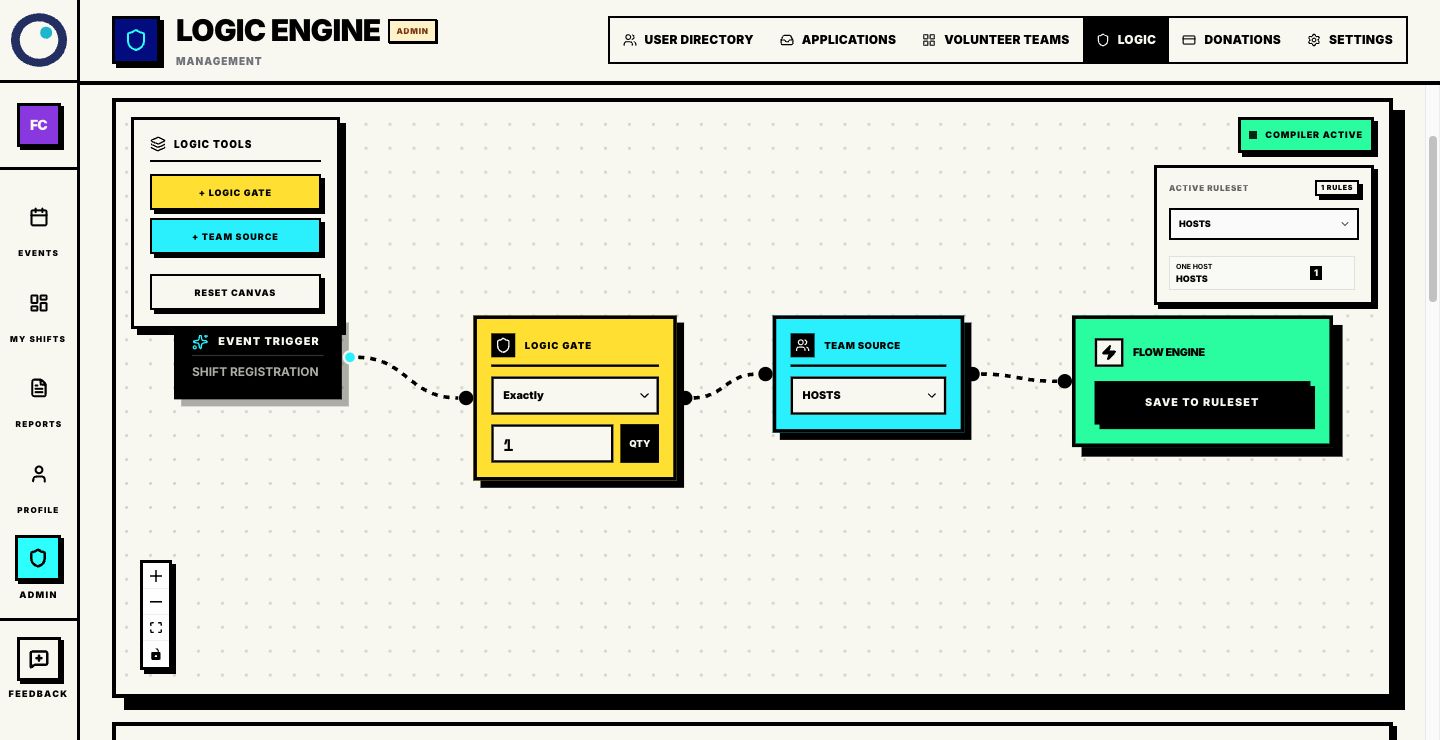
The capacity and rules work together: a full three-person shift has one host and two helpers. After changing a saved rule, update it on each shift that should use the change. The rules canvas keeps that requirement visible while Proximatic handles the matching.
Let Proximatic match the people
With availability ready, run Auto-Schedule on the draft. Proximatic checks who can cover each full shift and meet its rules.
Blair is available until 11am, so Blair hosts the morning with Indigo and Jules. Gray hosts the afternoon with Indigo and Kai. Kai arrives at 10am, so the later commitment fits.
Both shifts have three of three places filled, with the required host/helper mix. Review the saved roster before publishing: the names, full times and role mix should all fit the work.
See the role that is missing
If Gray can no longer attend and the other hosts finish at 11am, the afternoon cannot meet its host requirement. Available helpers alone cannot fill that job.
The missing host leaves the afternoon open
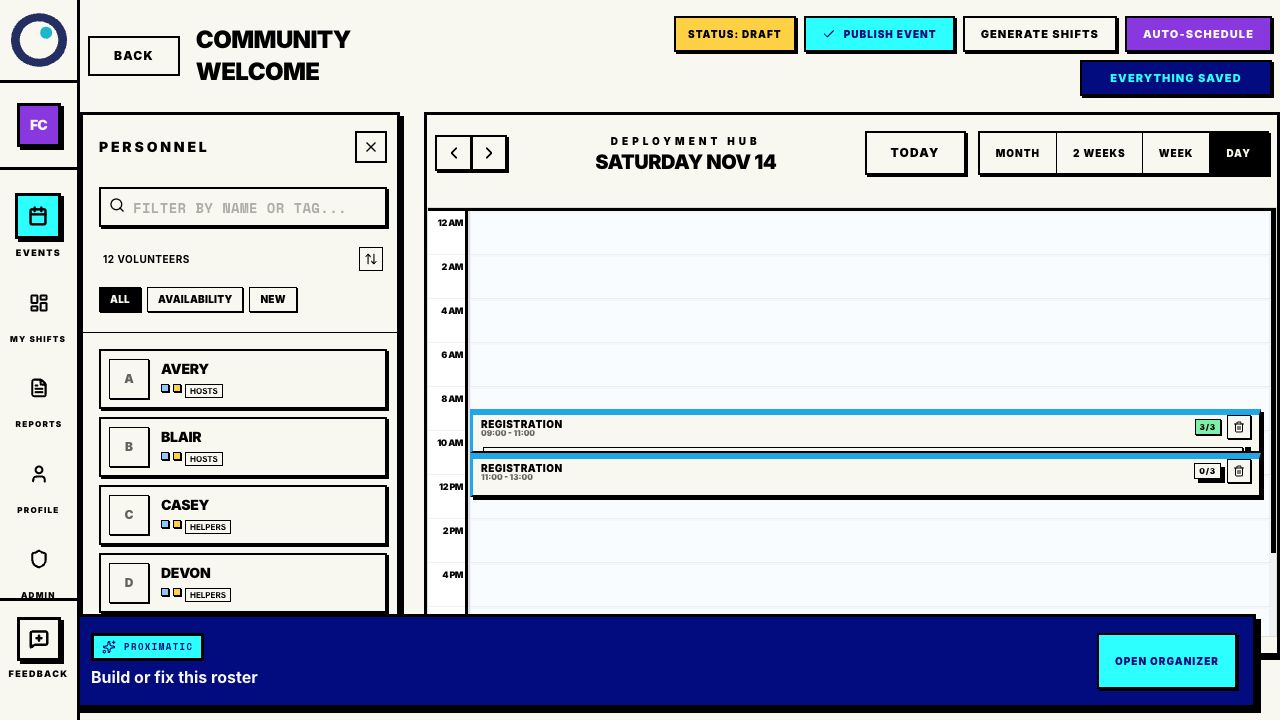
The roster shows 3/3 in the morning and 0/3 in the afternoon. Start by checking the host's approval, full afternoon availability and the rule applied to that shift. If a record is out of date, correct it. If the available hosts really cannot attend, the useful next request is specific: “We need an approved host for Registration, 11am–1pm.”
Keep the host requirement when the job still needs it. Once an approved host confirms the time, update their profile hours or get a new event-specific email reply, according to how you collected availability, then rebuild the draft with Auto-Schedule. It saves a replacement roster, so review both shifts before publishing.
For a single vacancy in an otherwise suitable roster, Find cover checks eligible replacements without rebuilding the rest. For several gaps, use the coverage checklist to identify the jobs and times that still need people.