A signup isn't attendance. Make check-in count.
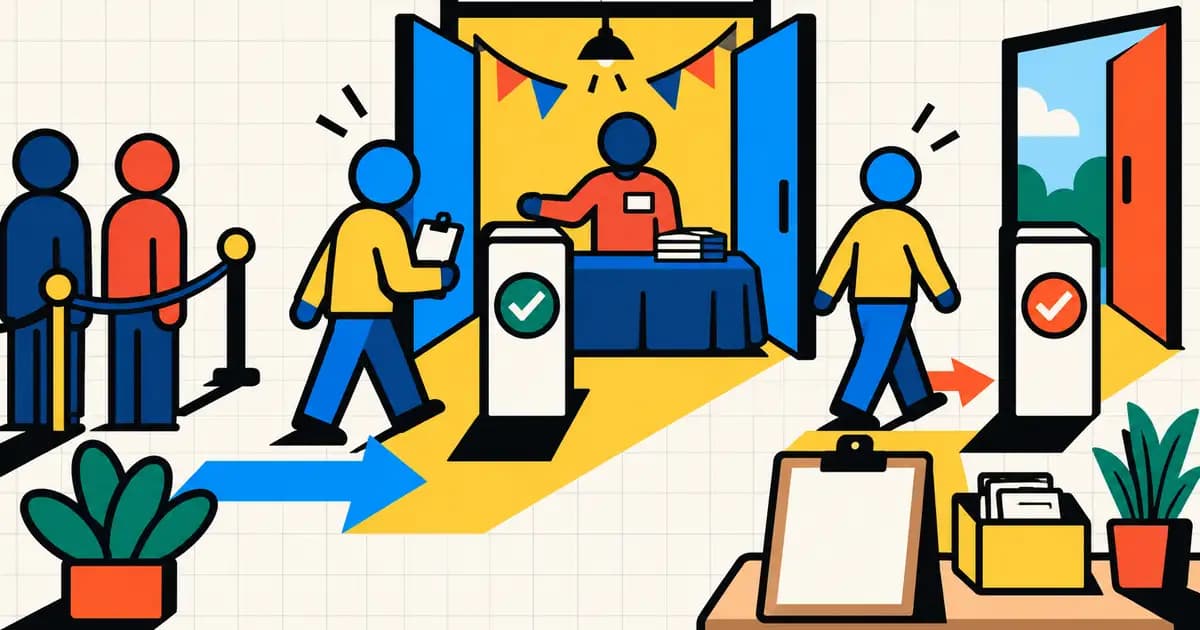
Your signup sheet says twelve people are coming. At 9:05, nine people are moving boxes, someone is looking for parking, and two haven't arrived.
Twelve is still useful. It tells you what you planned around. It doesn't tell the welcome-table volunteer who is already inside, or give you the hours people actually stayed.
This gap came up plainly in a public discussion about a volunteer-run soccer club. The organizer already used SignUpGenius for concession shifts and was considering a QR-linked Google Form to record arrivals. Replies raised a practical concern: some volunteers might arrive without a smartphone, and the location had connectivity constraints.
That's a useful brief for an attendance process. Record the arrival, keep it tied to the right shift, and make room for the person whose phone isn't helping today.
Decide what you're recording
Keep three moments distinct:
- Confirmed signup: the person has a place in a particular role or shift.
- Check-in: an arrival action has been recorded for that assignment.
- Checkout: a departure action has been recorded after check-in.
If you only need an attendance count for a workshop, arrival may answer your question. If you need time served, Proximatic pairs the arrival with an early checkout when someone leaves before the scheduled end, or completes the departure at the scheduled shift or event end.
That keeps the normal event-day path simple without hiding the unusual cases. If a historical record has an unexpected time, the report calls it out for a quick review before you share it.
Give the welcome table a small, specific job
Pick the person responsible for arrivals before the event. Give them the current roster, the correct check-in route, and the name of someone who can resolve a missing registration.
Their greeting can be simple: “Morning! Which shift are you here for? Check in here, and I'll show you where to go.”
The QR belongs in that interaction. Put it where people actually enter, with the event and role visible. If two shifts use the same entrance, make the choice obvious. Keep checkout available where people leave, too; a code buried at the bottom of an email is easy to miss when someone is carrying the last box out.
Use the right kind of QR code
Proximatic supports a supervised tablet display and reusable printed attendance signs. They have different jobs.
For a tablet, an authorized organizer selects the role and Check In or Check Out. The displayed code changes after use or expiry. A screenshot of that display is unsuitable as a reusable paper sign.
For paper, use Print attendance signs from the published Standard event. A whole-event sign lets the person select an eligible role; a fixed-role sign applies to that role. Signs are for registered volunteers by default. An organizer can explicitly enable walk-ins where the event and role allow them, subject to the same capacity and eligibility checks.
Changing event details or the covered schedule can invalidate a printed sign. Generate and replace the affected copies after changes, then check the new link. You want the sign at the door to match the event you're actually running.
Let a volunteer finish the action
For the rolling kiosk flow, the signed code already carries the event, role, and action. A signed-in volunteer scans once and the arrival is recorded immediately. A new volunteer completes a short Google sign-in or email verification handoff, then returns to that same action. When someone leaves early, they scan the checkout code; anyone who stays through the scheduled shift or event end is checked out automatically.
The reusable printed-sign flow is intentionally more explicit: a whole-event sign can cover several roles, so the volunteer chooses the eligible role and action before confirming.
Before the event, try that path with someone who isn't already signed in. Tell participants to finish their signup and email verification ahead of arrival. That gives them time to find the email while they aren't standing in a doorway.
Attendance is self-reported. A shared QR link can be forwarded; it doesn't prove someone's physical location. The organizer's greeting and on-site process still matter.
Make the entrance connection part of setup
Proximatic records QR attendance live. The connection lets the signed code verify the event and write the roster immediately, so a signed-in volunteer scans once and gets a clear result. Put the kiosk or entrance device where Wi-Fi or mobile data is strongest and test it at the place people will actually arrive.
The current attendance flow does not queue a scan while a device is completely offline. Check that connection before the event and make it part of the entrance setup, just like the sign, the selected role, and the person welcoming volunteers.
Finish the event in the records, too
After the shift, refresh the roster and review arrivals, departures, and roles. Proximatic closes open attendance at the scheduled end and provides attendance history plus downloadable reports; give any unusual time record a quick organizer review before sharing the export.
Track the work, not just the person
Name, organization, task, check-in, and checkout are easy to lose in separate spreadsheets. When the event runs in Proximatic, those details stay together on each assignment. The completed event report shows how much work each group contributed to each task inside Proximatic; a CSV is only an optional export.
For example, this is the team-and-task report for a community festival with Lions Club, Optimists, and Rotary volunteers:
| Group | Task | Observed checkout hours | Scheduled-end fallback hours | Total hours |
|---|---|---|---|---|
| Lions Club | Beer Tent | 17.5 | 0.0 | 17.5 |
| Lions Club | Garbage | 4.0 | 0.0 | 4.0 |
| Optimists | Food Booth | 3.5 | 0.0 | 3.5 |
| Optimists | Garbage | 4.0 | 0.0 | 4.0 |
| Rotary | Food Booth | 4.0 | 4.0 | 8.0 |
The report keeps each check-in and end time in the detail rows. It labels a real checkout as Observed checkout and an end time filled in at the scheduled shift or event end as Scheduled-end fallback. A walk-in can still appear in the same task report; if no team is recorded for that assignment, Proximatic shows Unassigned instead of guessing the outside group. A person who never checks out remains visibly identifiable as a fallback record rather than being presented as an observed departure.
For the complete setup, follow Proximatic's event signup and attendance guide, then use the QR attendance guide for the entrance flow. If the confusion starts with what people signed up to do, tighten the shift descriptions first.
The goal is a welcome table that can greet people, get them to their work, and leave you with a record you understand after everyone goes home.