For organizers · Roles & shifts
Cover every route and warehouse shift
Use one event to schedule drivers and warehouse crews, share one signup link, send a reminder, and see who checked in.
1 event
For each delivery day
2 teams
Drivers and warehouse
1 link
One public signup page
The use case
One event for one busy delivery day
A delivery day can have routes to drive and orders to load. You need the right people, the right times, and a quick way to follow up when someone misses a shift.
This guide shows how to set up that day in Proximatic. Drivers and warehouse staff sign up, get a reminder, and check in from their phones.
A good fit when you need to
- Fill routes before the day starts.
- Staff the warehouse for loading and prep.
- See who arrived and who needs a call.
The setup
What you need before you start
Have these four pieces ready. The steps below show where each one goes.
01 · Event
One Standard event for one delivery day.
02 · Teams
Truck Drivers and Warehouse, with approved members.
03 · Shifts
One shift per team, with times, spots, and notes.
04 · Link
A public signup page to share after you preview it.
Signup rule: Give both shifts the same start and end time for one signup button. Different times show a shift chooser. People still need the right team and an open spot.
Also have the date, location, shift times, spot counts, and reporting notes ready. Attendance is a check-in record—not GPS tracking.
Step by step
Set up and run the day
Follow these steps in order. Start with teams, then build the event, share the link, and manage attendance.
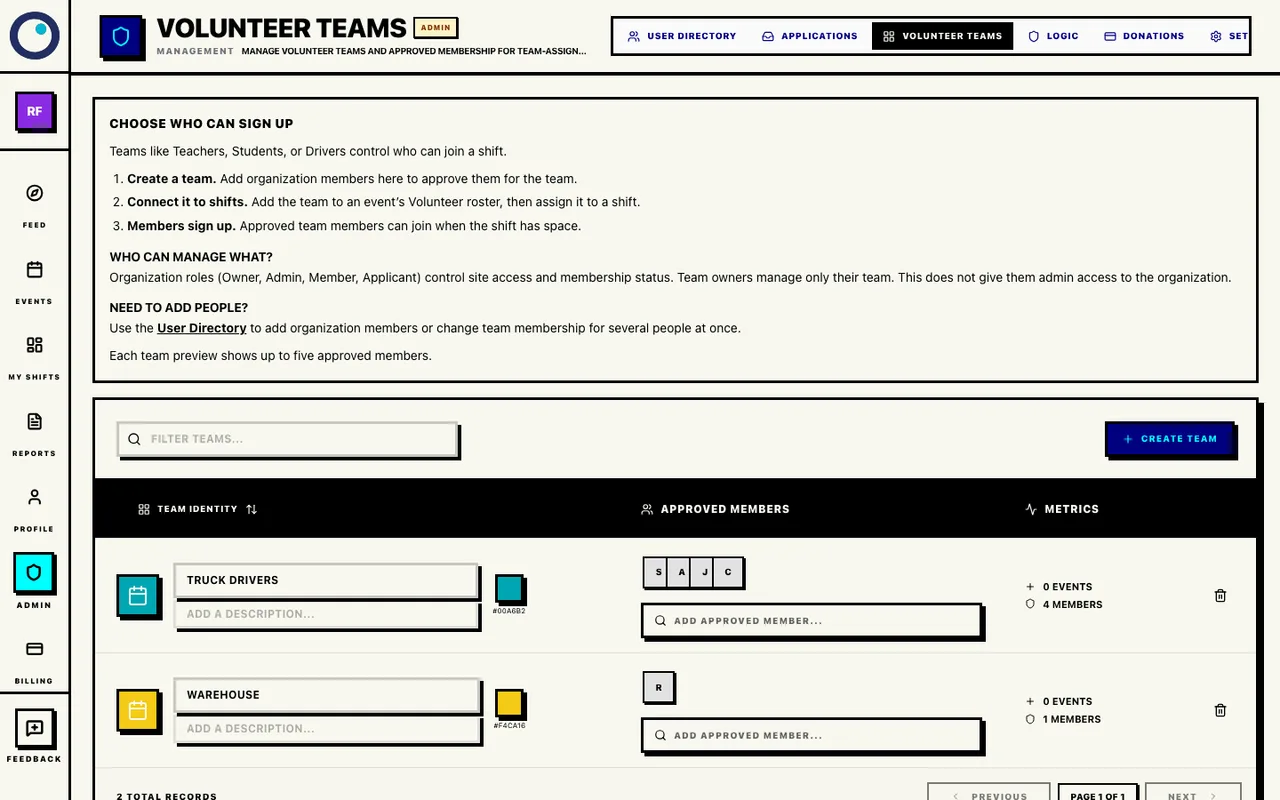
Open Admin → Volunteer teams. Create Truck Drivers and Warehouse. Add approved members to each team. If someone is not in the organization yet, open User Directory → Add Member first.
Drivers can sign up for driver shifts. Warehouse staff can sign up for warehouse shifts.
Truck Drivers and Warehouse teams
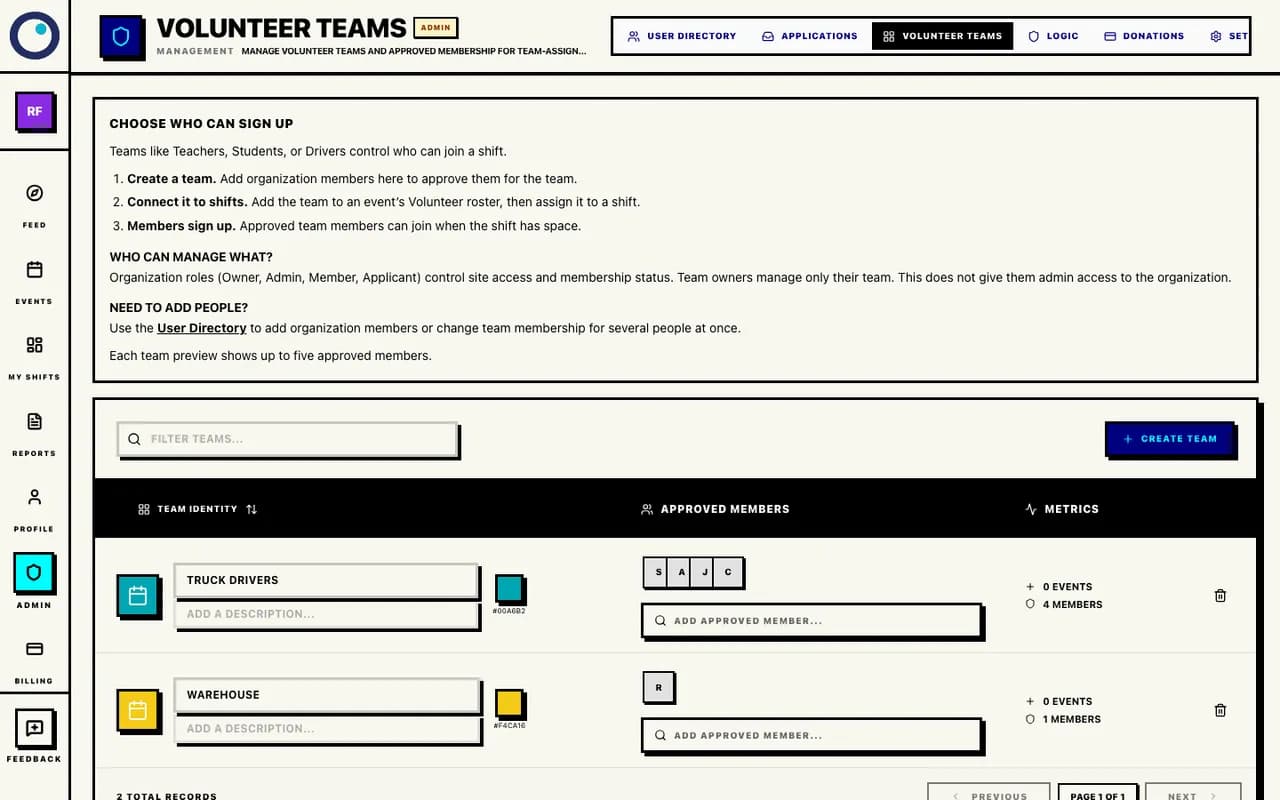
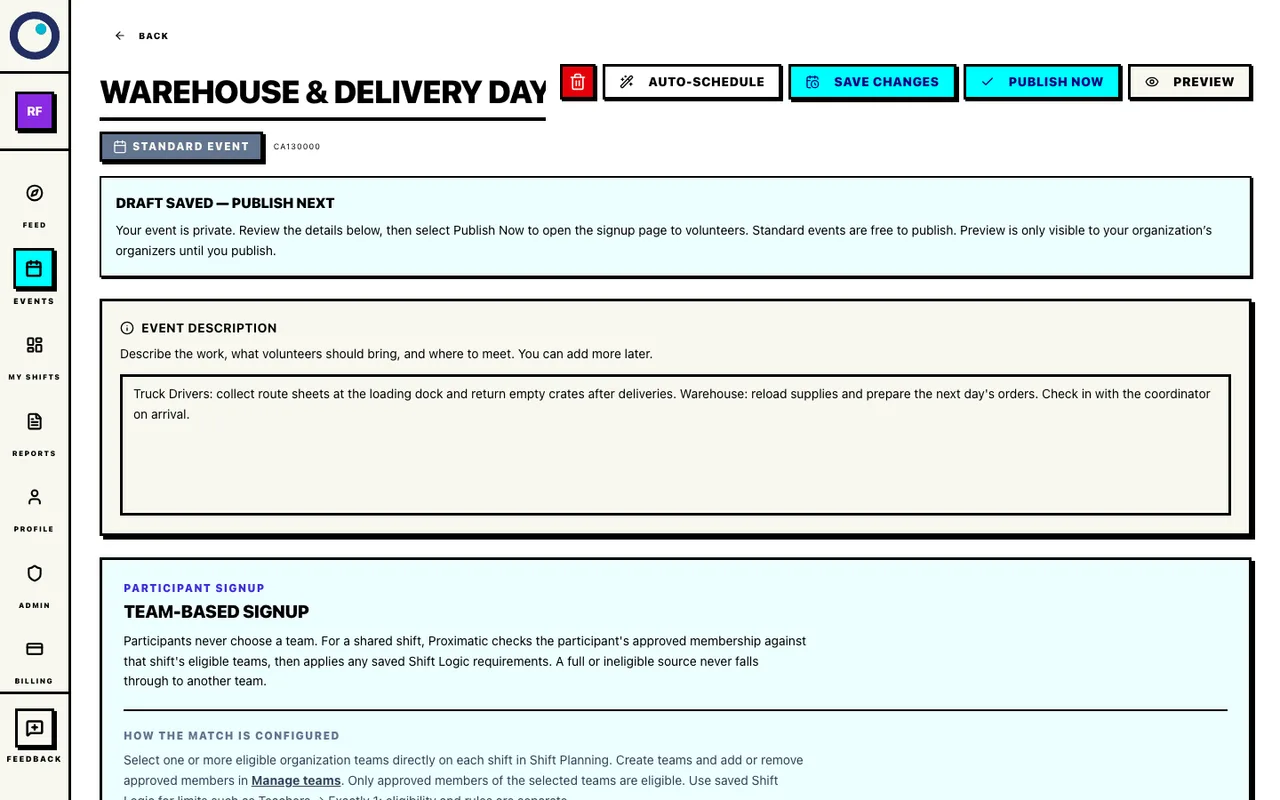
Review who is on each team before connecting that team to a shift. Open Create → Event and choose Standard. Add the date, place, description, and full operating window. Save the event as a draft.
Use this one event for shifts, signups, reminders, and attendance.
Saved Standard event draft
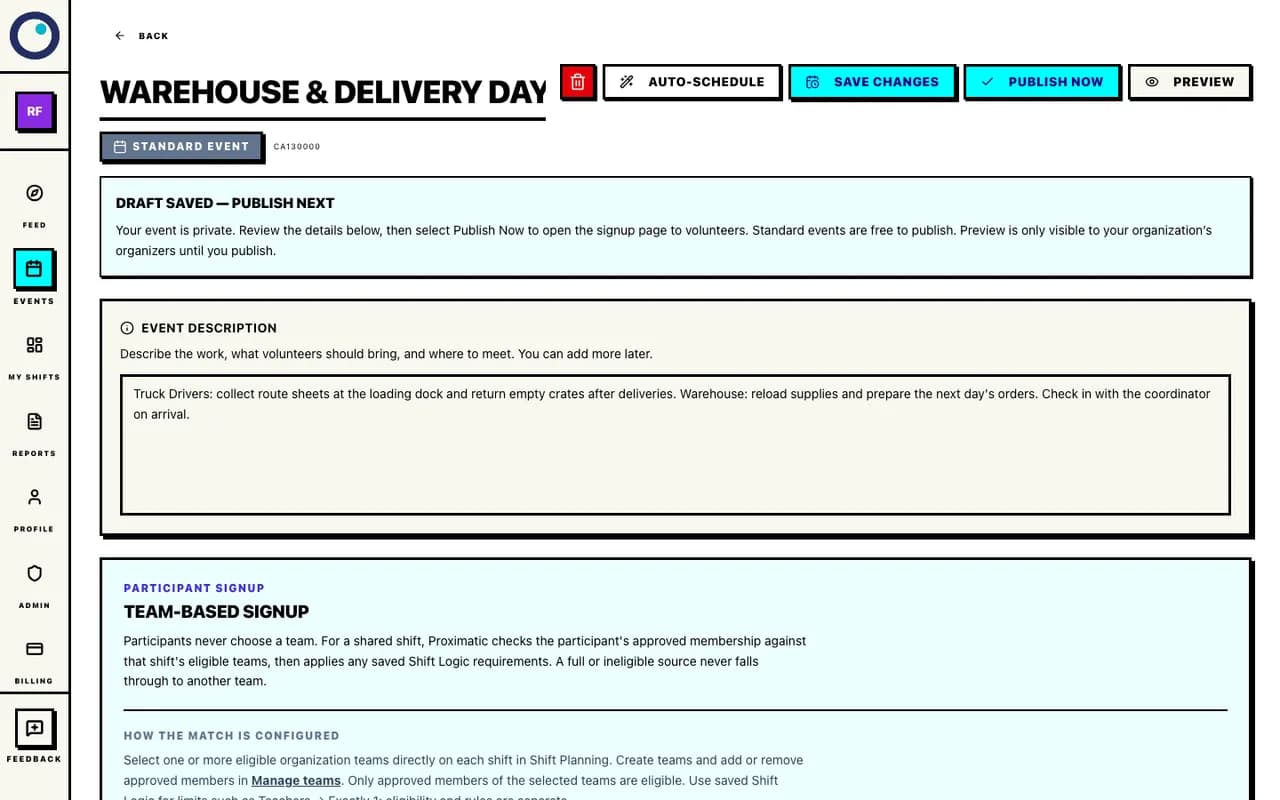
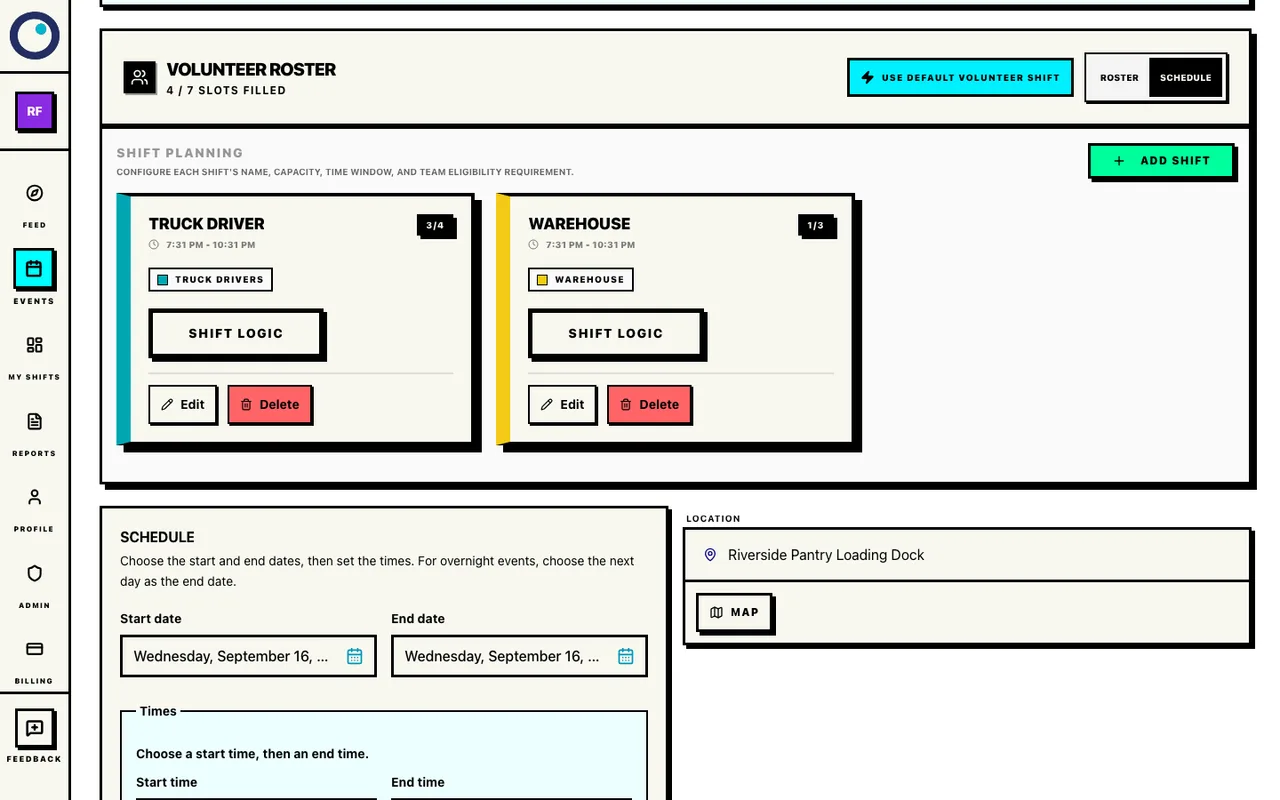
Saved draft for the delivery and warehouse shifts. Open Customize shifts → Shift Planning. Delete the default Volunteer shift if it is there. Add Truck Driver and connect it to Truck Drivers. Set the time, number of spots, and route notes. Add Warehouse and connect it to Warehouse. Set its time, spots, and reload notes. For one signup button, give both shifts the same start and end time. Remove any extra Public / General shift.
Each person sees the shift for their team. If the times differ, people choose the shift that fits them. A full shift does not send someone to another team.
Two team-linked shifts
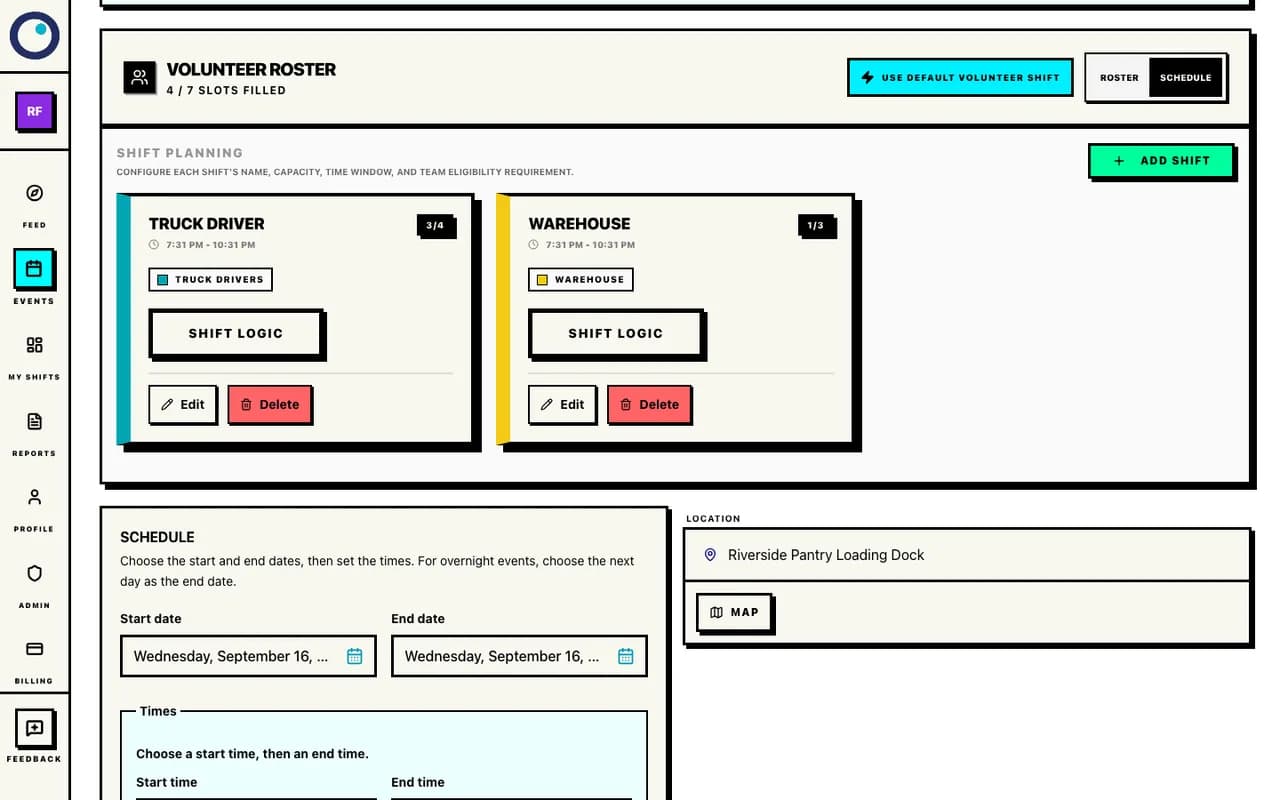
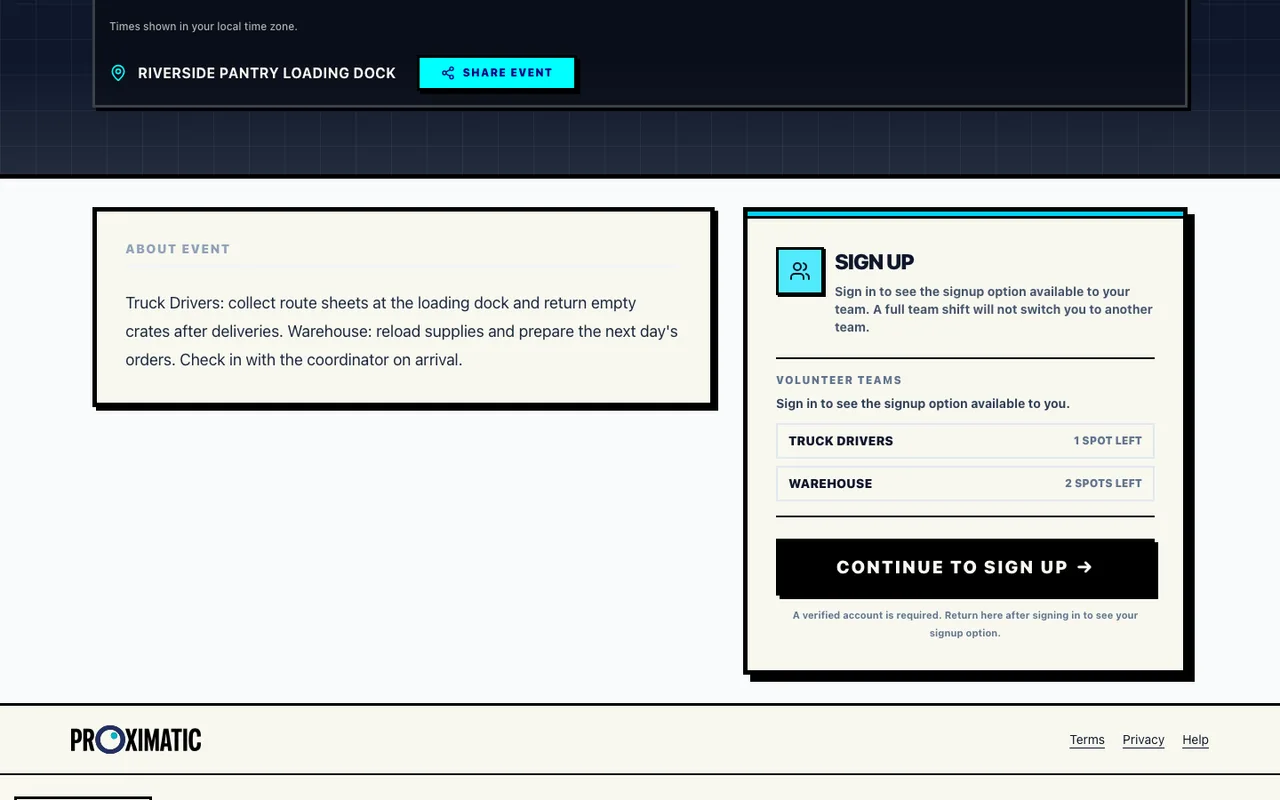
Use matching times when both teams should share one signup button. Check the roster and shift counts. Save changes, open Preview, then choose Publish Now. When the event is Live, open Public Page → Share Event and copy the /events/… link. Share that public link—not the management link.
Preview shows whether people will see one signup button or a shift chooser. Team membership and open spots control who can sign up.
One public signup button
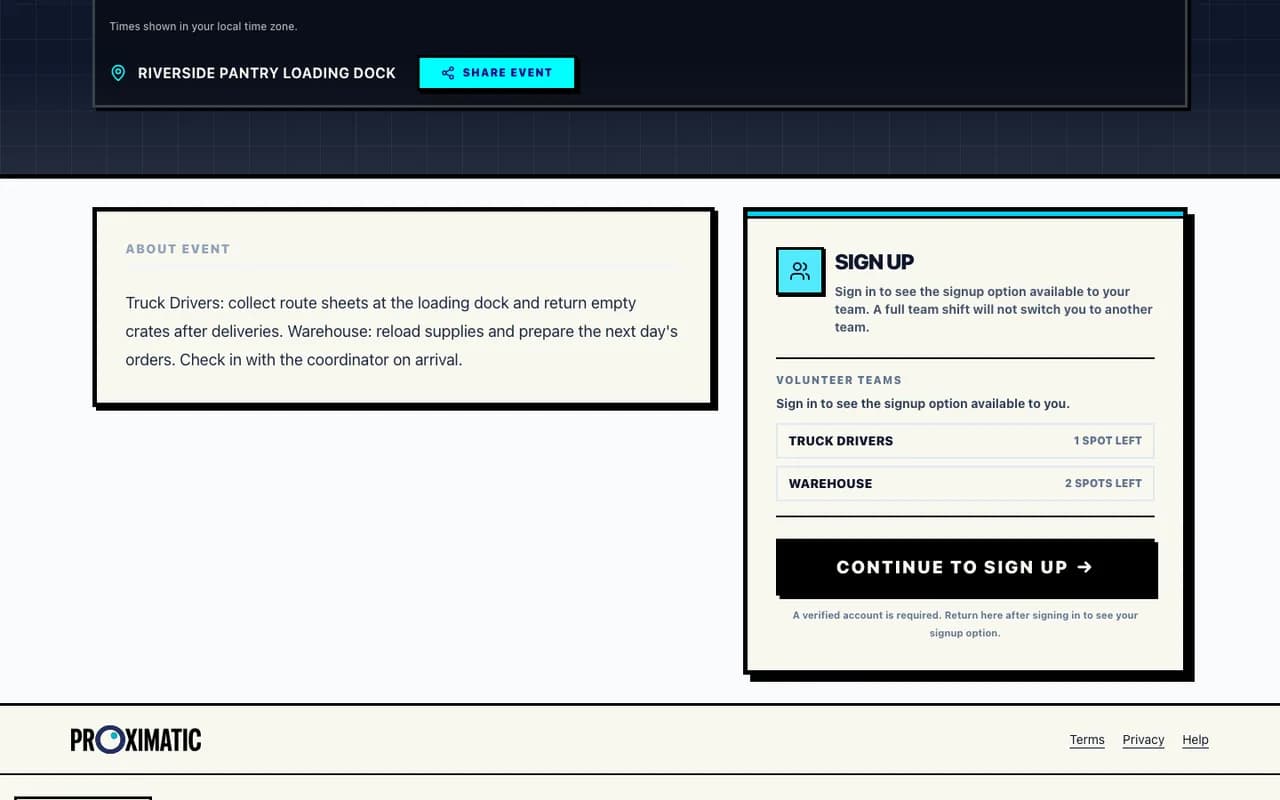
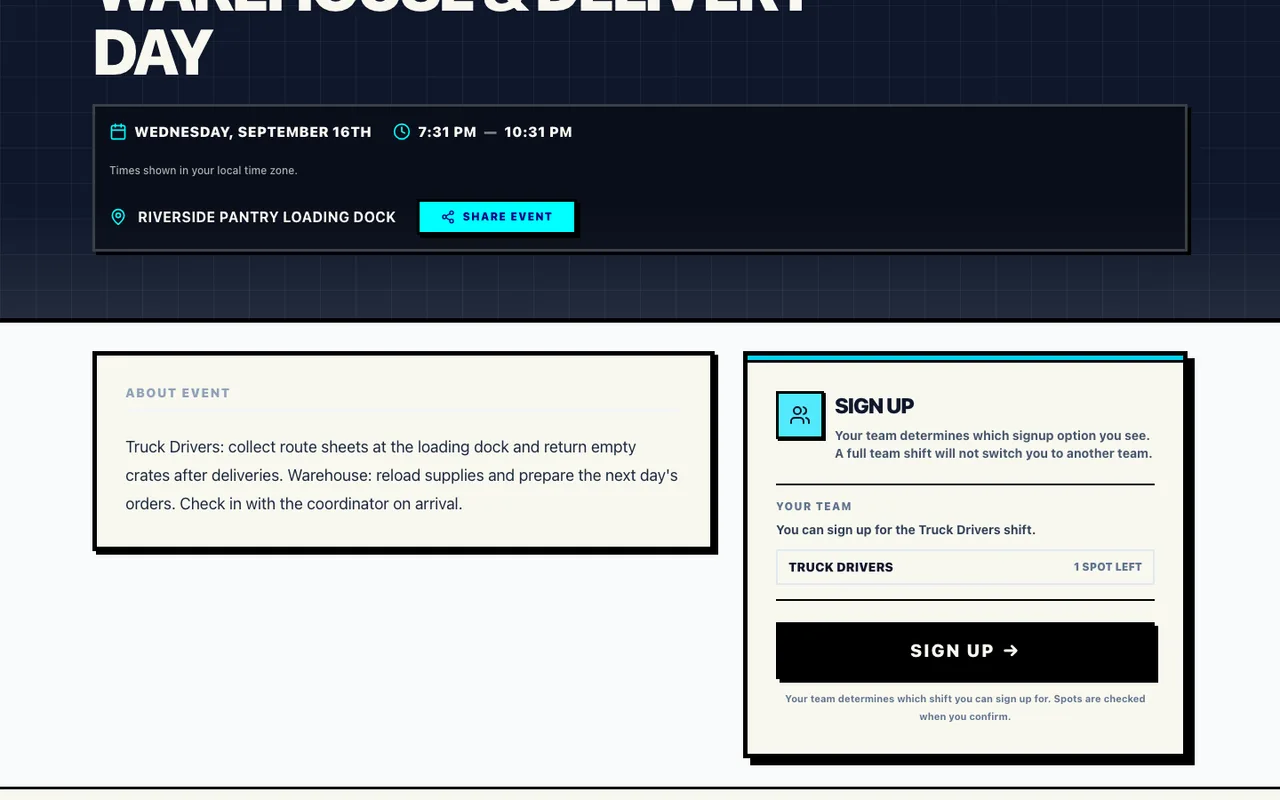
Both teams appear behind one signup button; membership determines the available shift. Approved driver signup
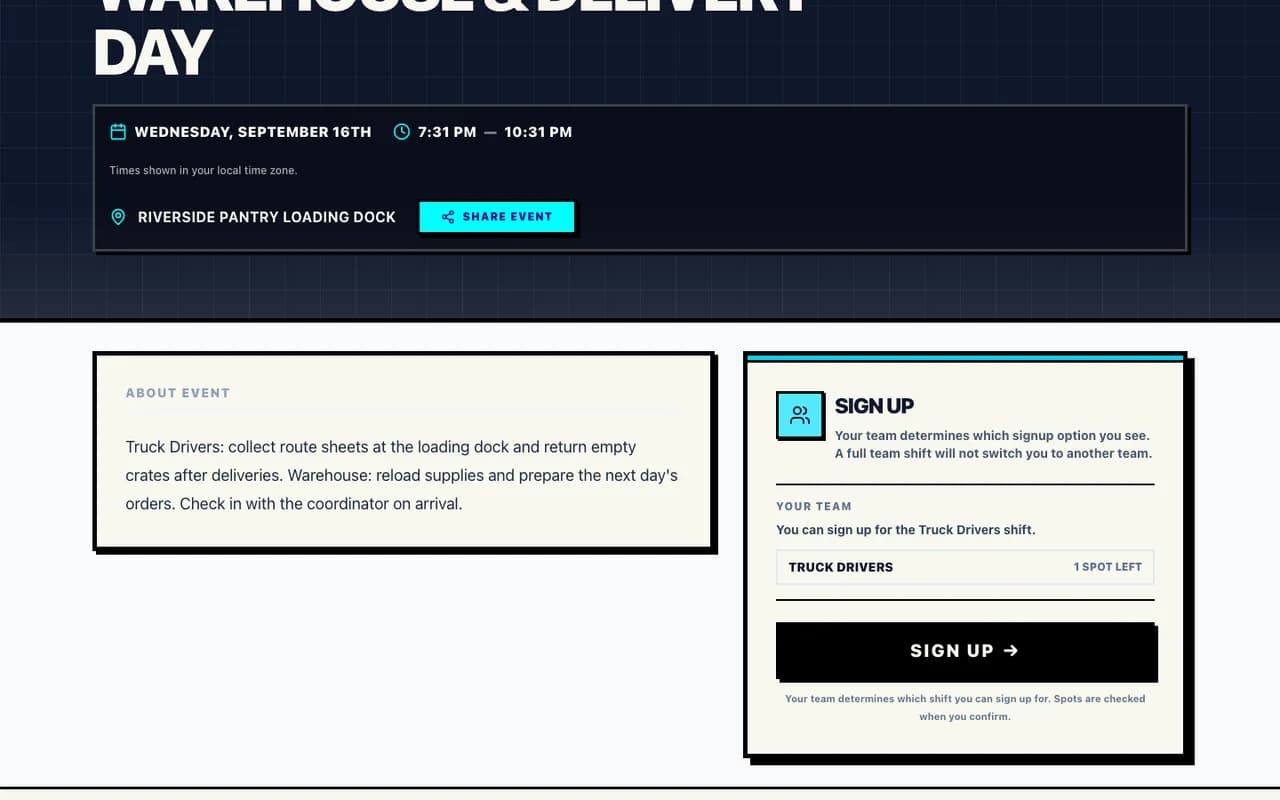
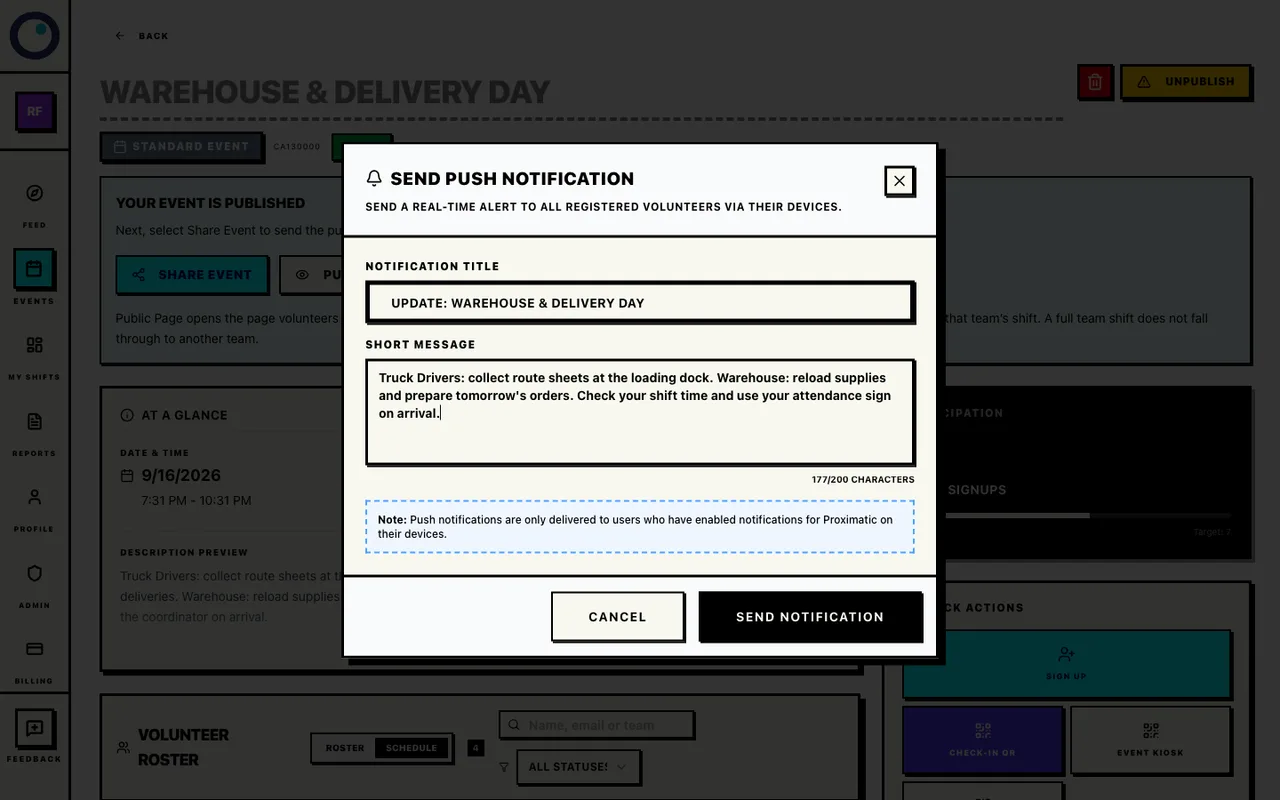
An approved driver sees the matching shift and one signup button. When the roster is set, open Quick Actions → Email Blast or Push Notify. Include the route time, warehouse time, reporting notes, and attendance link. Choose Send when ready; these messages go out right away.
Email and push go to assigned people. Push needs notifications turned on. Email uses the organization’s available allowance, including any event, Pro, or purchased credits that apply. To message only drivers, export the Truck Driver shift list.
Night-before message composer
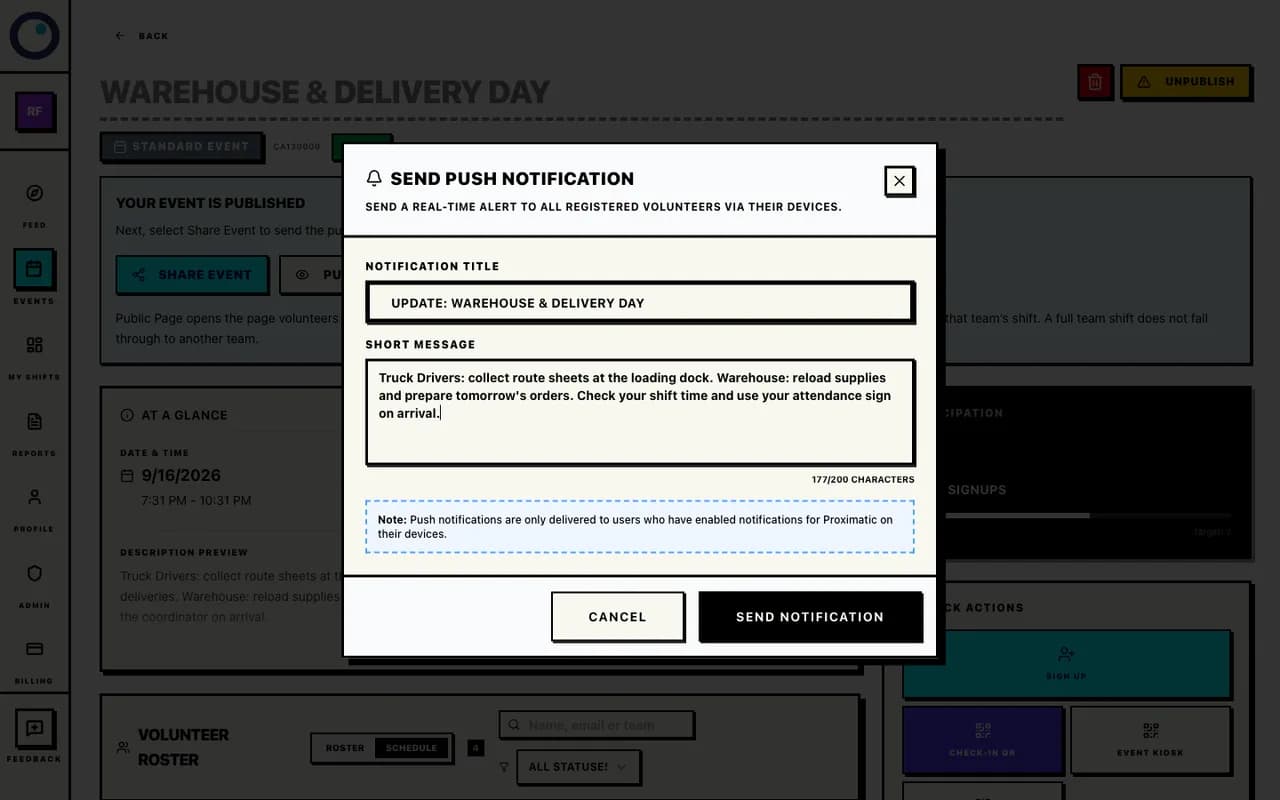
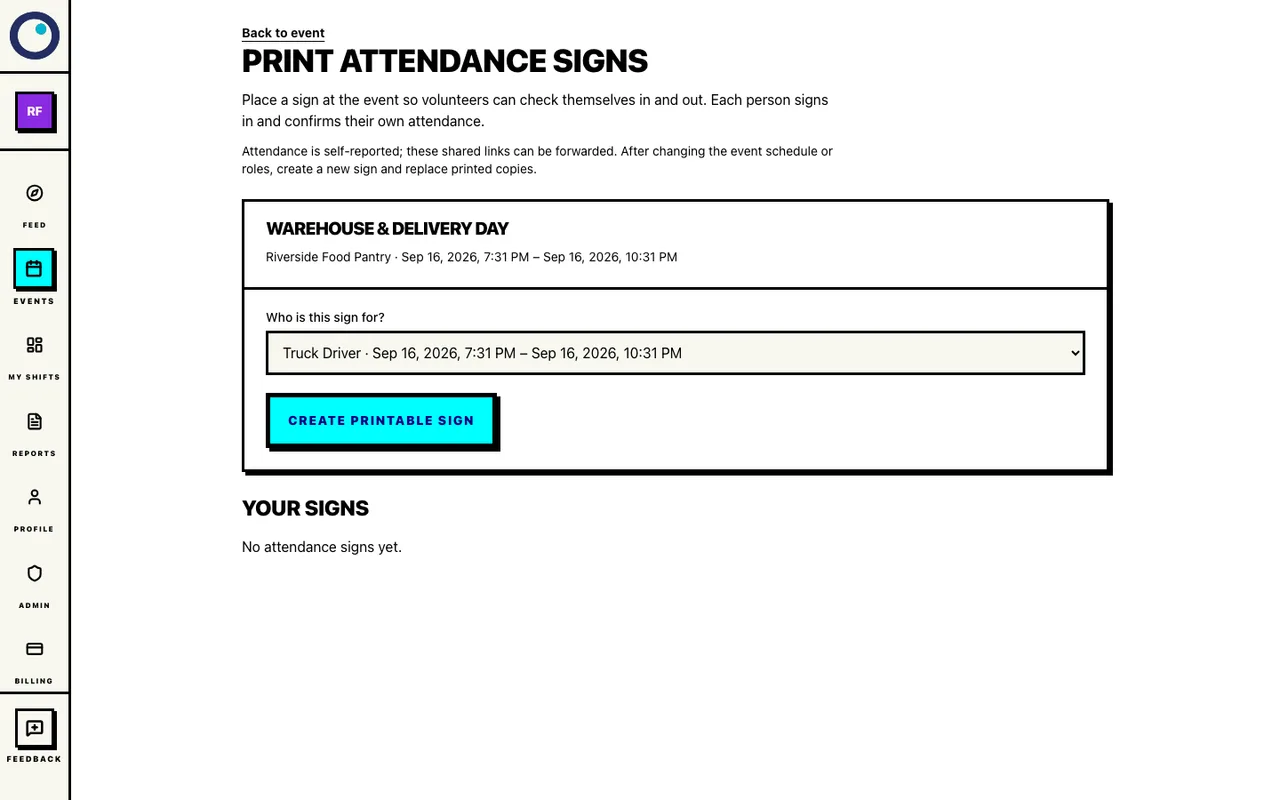
Review the message before sending; this draft has not been sent. From Quick Actions, open Printed Attendance Signs and create one sign for Truck Driver and one for Warehouse. On the day, each person opens the link or scans the sign, signs in with a verified email, and chooses Check in.
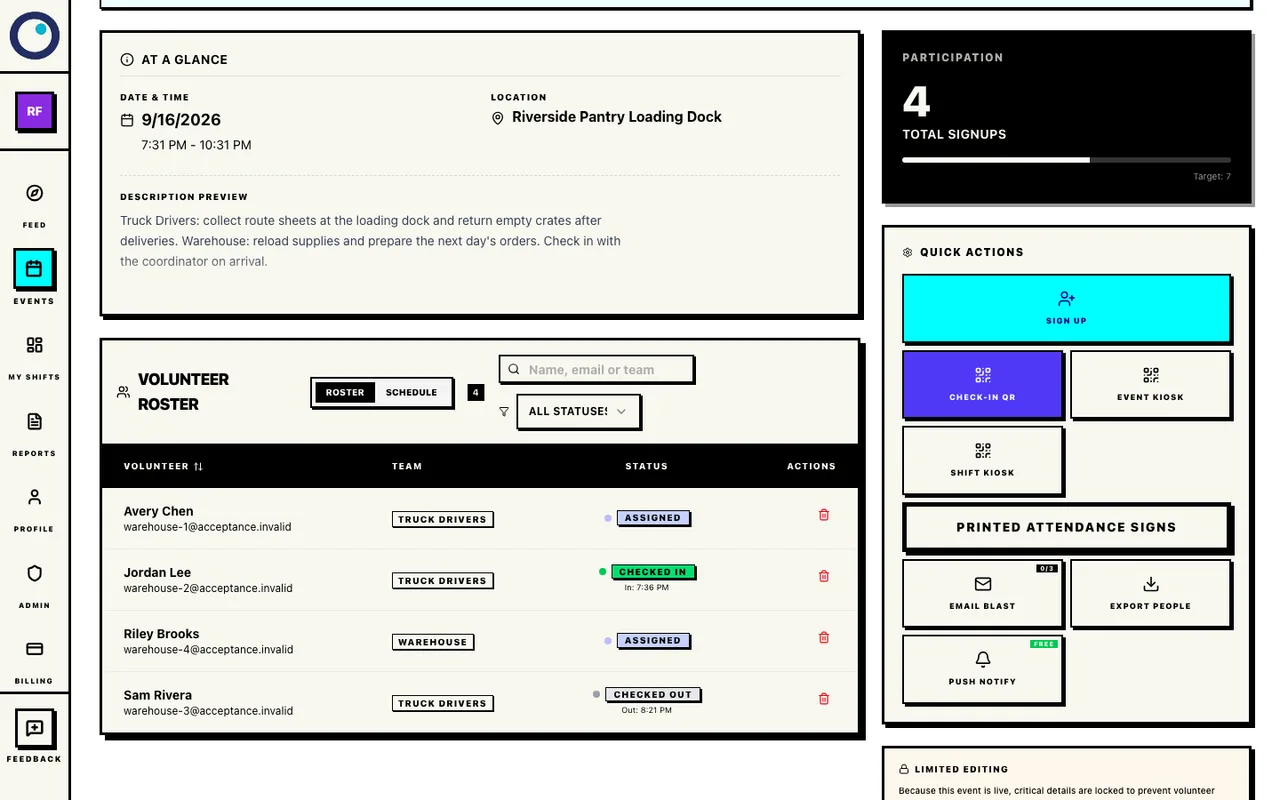
The roster shows Assigned, Checked In, or Checked Out. Assigned means no check-in is recorded yet; it is not an automatic no-show. Attendance is self-reported.
Choose a shift for a printed sign
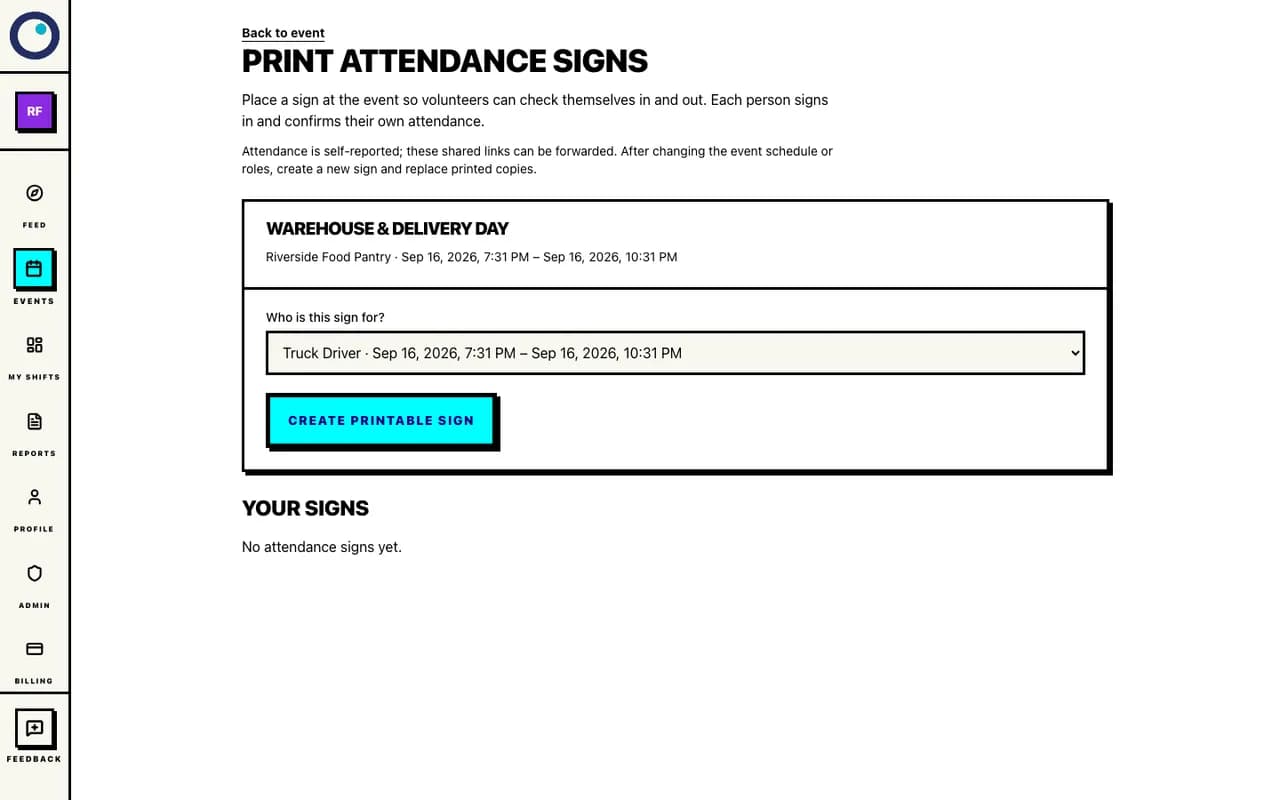
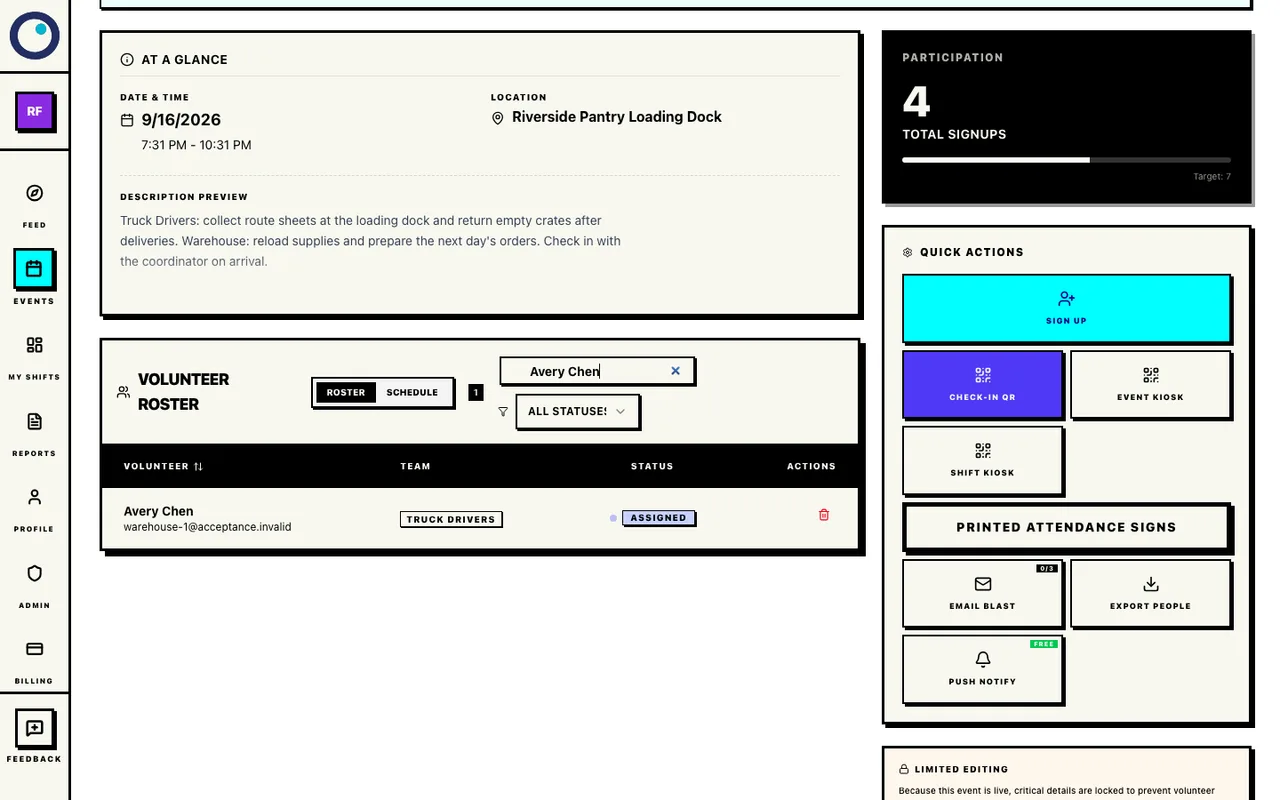
Create one attendance sign for Truck Driver and another for Warehouse. When check-in opens, look at Truck Driver rows marked Assigned. Call or message the driver first. If they will not come and have no attendance record, remove the assignment. Then ask an approved driver to sign up for the open spot.
Replacement is a human decision. Proximatic does not mark no-shows or fill spots on its own.
Review an unconfirmed driver
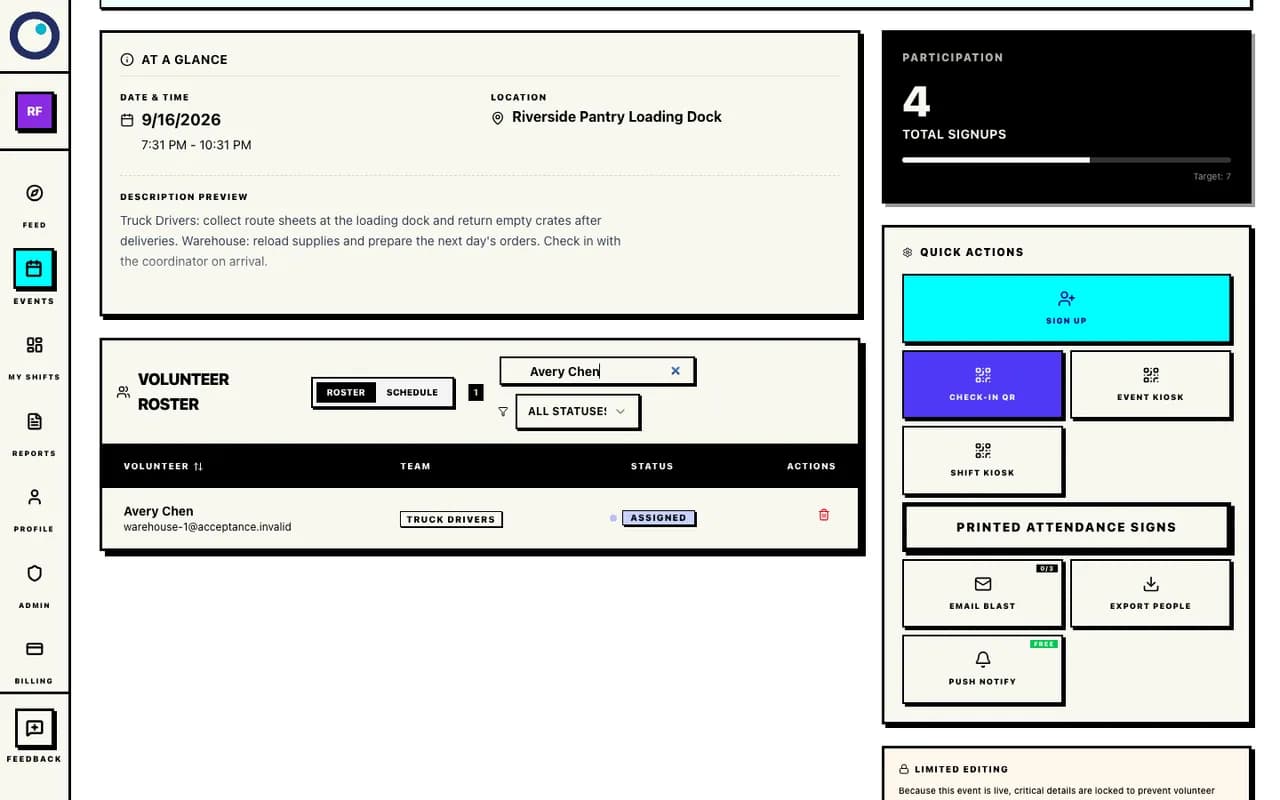
Assigned means no attendance is recorded; review the row before changing the roster. After a route, the driver opens the attendance link and chooses Check out. They must have checked in first. Warehouse staff can use the Warehouse sign.
Checkout is optional. A scheduled closeout is not proof that a person checked out.
Review attendance status
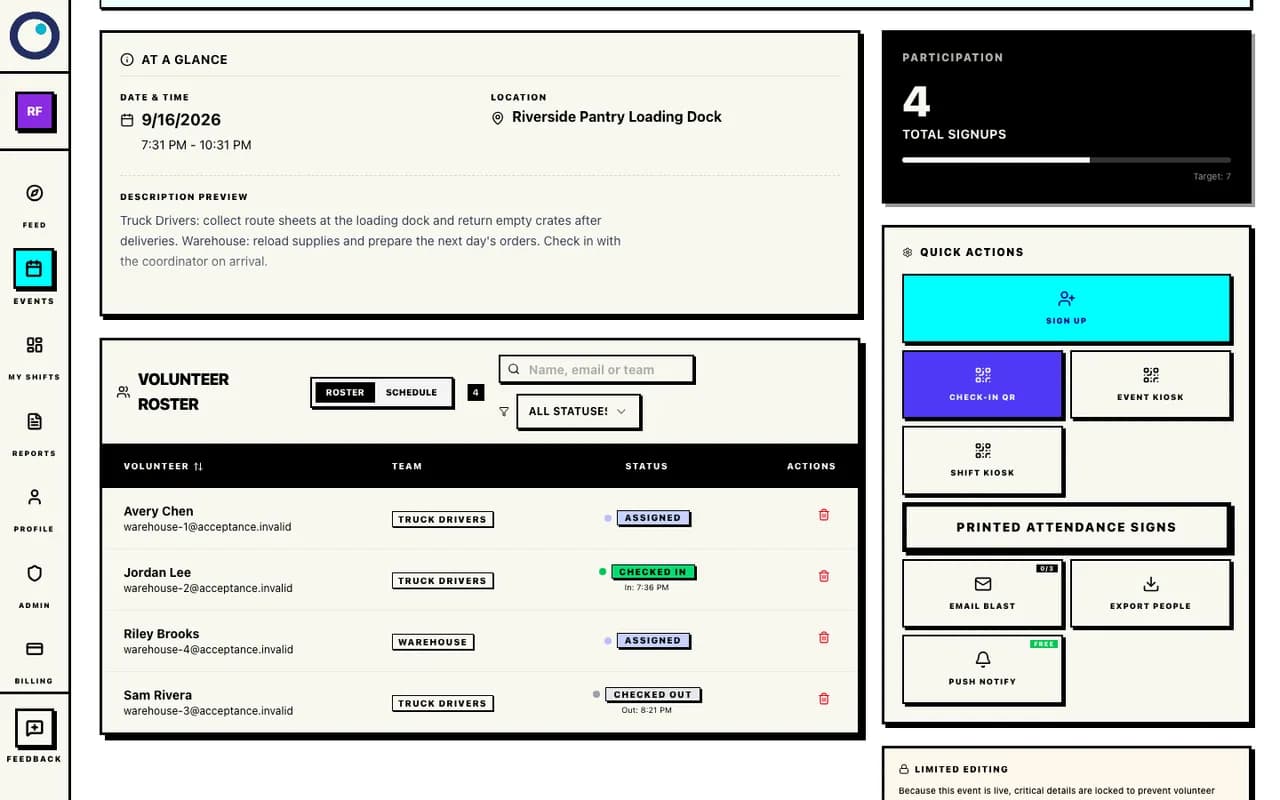
Compare each attendance status with what happened on the day.
What the coordinator sees in the roster
Use the event’s Volunteer roster as the daily source of truth. Search by name, email, or team, review each person’s assigned shift, and use Quick Actions → Export People when you need a shift-scoped driver list.
- Assigned
- The person signed up but no attendance has been recorded yet. It is unconfirmed, not an automatic no-show.
- Checked In
- The person has recorded a check-in for that assignment.
- Checked Out
- A checkout timestamp exists. Interpret it with the route timeline because it may be manual or scheduled closeout.
- Pending
- The person is not a confirmed assignment. Do not count a pending participant as a staffed route or warehouse slot.
What is automatic and what stays with the coordinator
| What the signup page handles | Coordinator action |
|---|---|
| Shows the signup option that fits the volunteer’s team. If more than one shift is available, it asks them to choose. | Creates the teams, connects each team to the intended shift, and checks shift names and capacities. |
| Checks whether space remains and records confirmed check-in and optional checkout actions. | Sends the night-before message, watches Assigned rows, and calls a driver who may have forgotten to check in. |
| Closes open attendance at the scheduled end when the attendance flow finalizes it. | Decides whether a driver is absent, removes an unconfirmed assignment, and asks an eligible backup to sign up. |
Troubleshooting
- A member does not see a signup button
- Check that the event is published, their email is verified, they are an organization member, and their request to join the correct team has been approved. A pending or rejected team request is not eligible.
- A member is offered the wrong team or shift
- Check that the shift is connected to the correct team and that the member belongs to it. For a one-button event, confirm there is one shift per team and both shifts have identical start and end times. For separate scheduled windows, volunteers should choose the shift that fits them.
- The default Volunteer shift is still present
- Open Volunteer roster → Customize shifts → Shift Planning, delete the default unlimited shift, and keep only Truck Driver and Warehouse. An extra Public / General shift would create an unsafe fallback and should not be used in this team-matched workflow.
- A driver did not receive the night-before message
- Push is delivered only to devices that enabled Proximatic notifications. Use Email Blast, or use Export People scoped to the Truck Driver shift and send the list through the email system you already use. Both built-in sends are manual and immediate.
- A driver is still Assigned
- Assigned means no attendance has been recorded. Contact the driver before replacing them. If they worked but forgot to scan, preserve the assignment and use the operational record.
- A replacement cannot sign up
- Confirm the backup is an approved member of Truck Drivers, the Truck Driver shift has capacity, and the event is still open. Remove the original only after confirming there is no attendance record; removal after check-in or checkout is blocked.
- Checkout is unavailable
- The driver must use a verified account and must have checked in first. If the scheduled shift or event end already finalized attendance, a later phone action cannot recreate a manual checkout timestamp.
Related guides
- Create a shared-shift signup for 1 Teacher and up to 20 Students when multiple source teams belong on one physical session.
- Set up Proximatic push notifications on each driver’s device.
- Check volunteers in and out with QR codes for attendance-sign and kiosk details.
- Open events to create or manage the next operating day.
Ready to configure the next operating day?
Create one Standard event, prepare the Truck Drivers and Warehouse teams, restrict each shift to its eligible team, and share the public link only after checking the roster counters and the actual signup controls in the public preview.
Open eventsThe next-day reminder is sent from Quick Actions when the coordinator chooses the time.