For organizers · Teams & Shift Logic
Teacher and Student Signup with Separate Capacity Limits
Keep one Teacher place and up to 20 Student places on one shared shift with separate capacity limits, a confirmed roster, and one public signup button.
Start with the problem: one session, two capacity limits
A class or workshop often needs one adult Teacher place and a larger Student pool on the same physical session. Two separate shifts split the roster and make the public choice harder; one unlimited shift lets one group consume the places intended for the other.
Scope boundary: this is a capacity and eligibility configuration. It is not a safeguarding policy, background-check workflow, attendance certification, or school-system integration. Keep those responsibilities in the school or organization process that owns them.
Sign in as an organization Owner or Admin. Have the event date, time window, meeting place, participant list, and short session description ready.
Volunteer teams control who can join a shift. Shift Logic adds a saved team-specific requirement to that shift. Keep participants as ordinary Members unless they need administrative access.
| Concept | What it controls | This setup |
|---|---|---|
| Volunteer team | Participation pool and source eligibility | Teachers and Students |
| Saved Shift Logic rule | Team-specific limit or requirement on a shift | Teachers Exactly 1 |
| Physical shift | Time, place, one reporting row, total capacity | Classroom session · 21 places |
The key composition: total capacity is 21, Eligible teams are Teachers + Students, and the only saved rule is Teachers → Exactly 1. The requirement is a readiness check and a hard ceiling. While no Teacher is assigned, the engine protects one place for the missing Teacher, so Students can fill at most 20 without a redundant Student rule.
No Event teams step is needed for this Standard flow. Create the teams in Admin → Volunteer teams, save only the Teacher requirement in Admin → Logic, then select both teams and attach the saved rule to the one shift from Volunteer roster → Schedule.
Set up and publish the shared roster
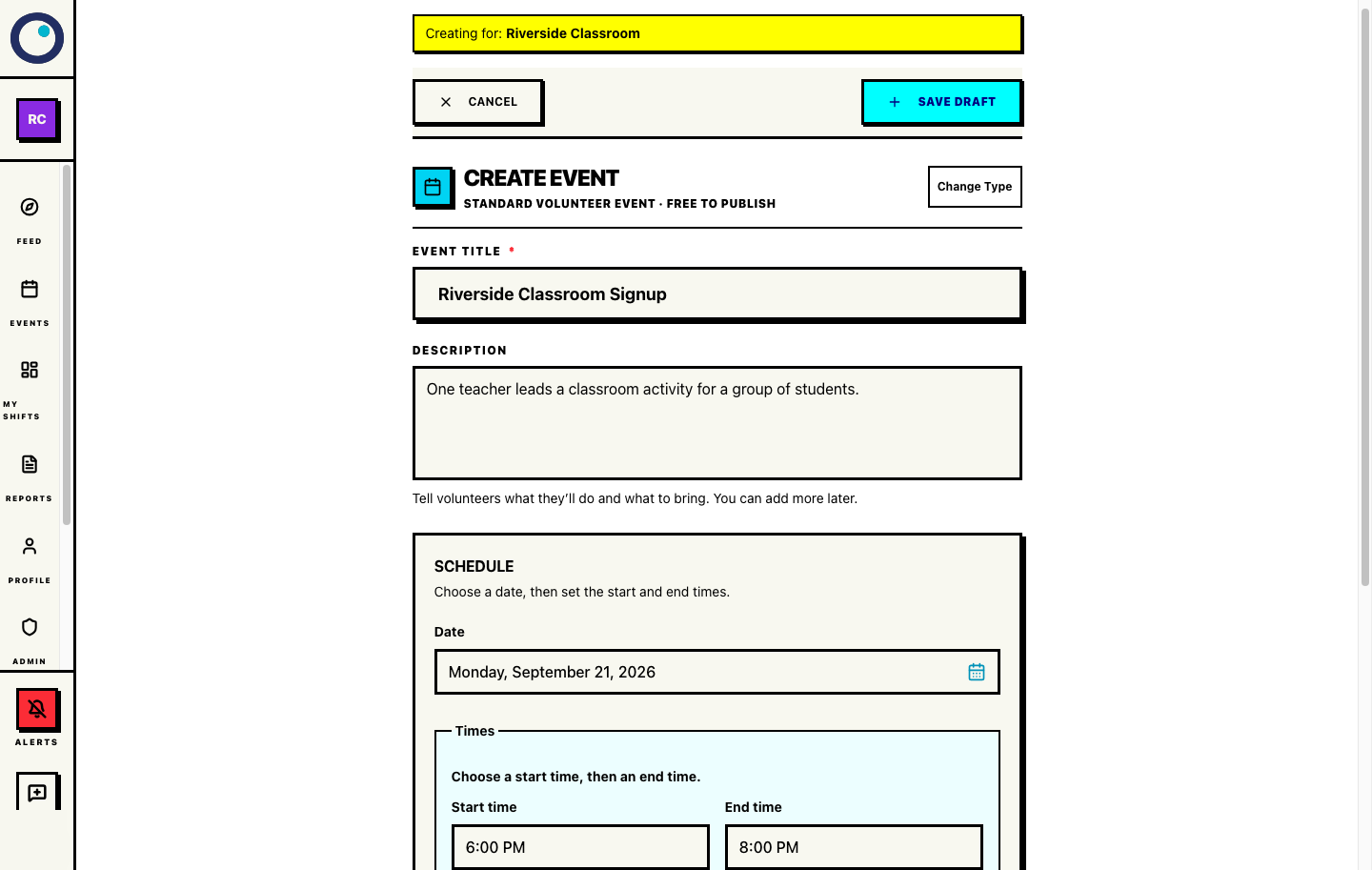
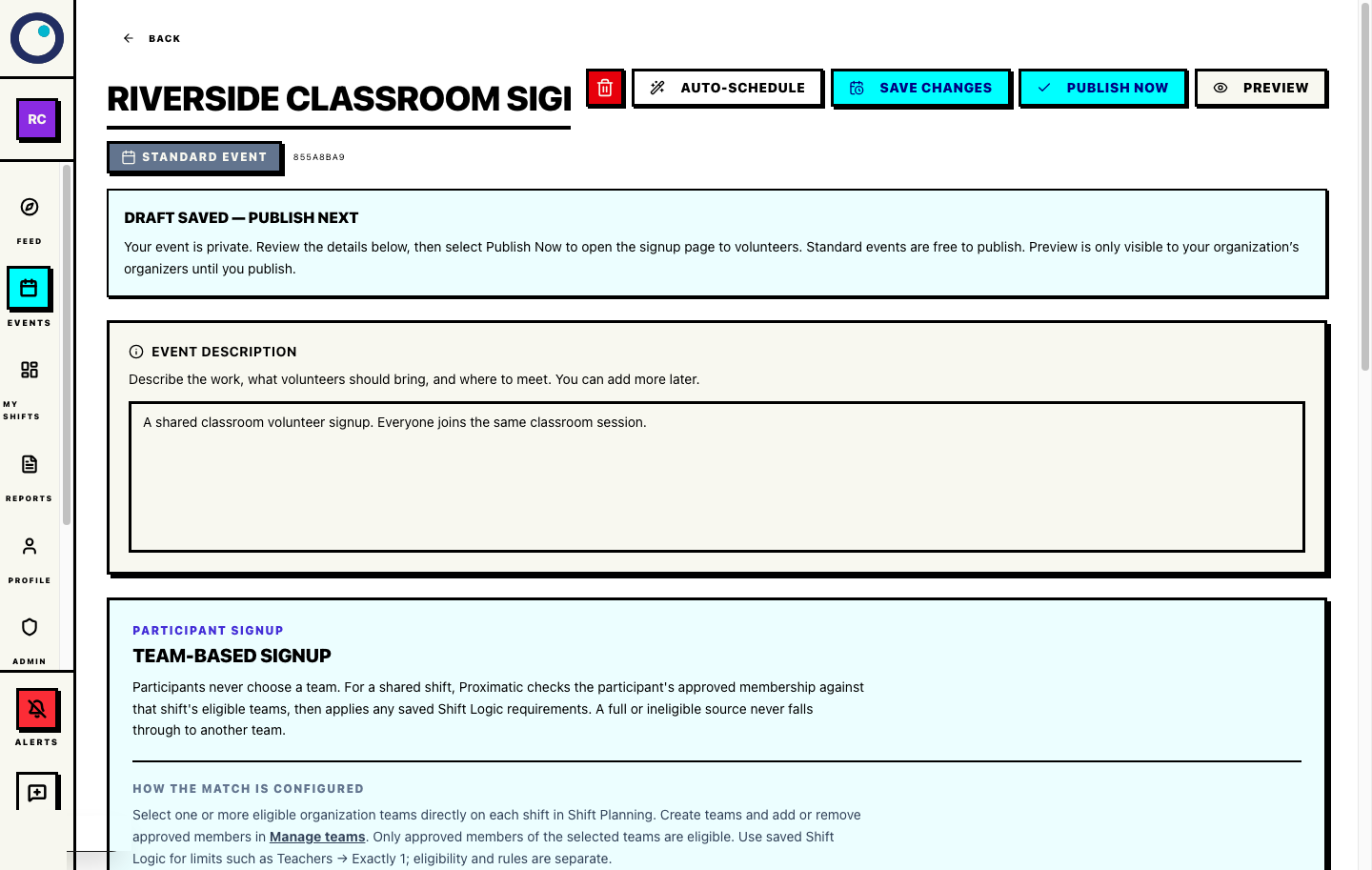
Open Create → Event and choose Standard. Enter the event name, description, meeting place, date, start time, and end time. Enable custom scheduling if it is not already enabled, then select Save Draft. Do not look for an Event teams selector on the create screen.
You now have one event with one physical time and place. Standard events keep the event-level form focused on event details; team eligibility is configured later from Volunteer roster and Shift Logic.
Standard event draft
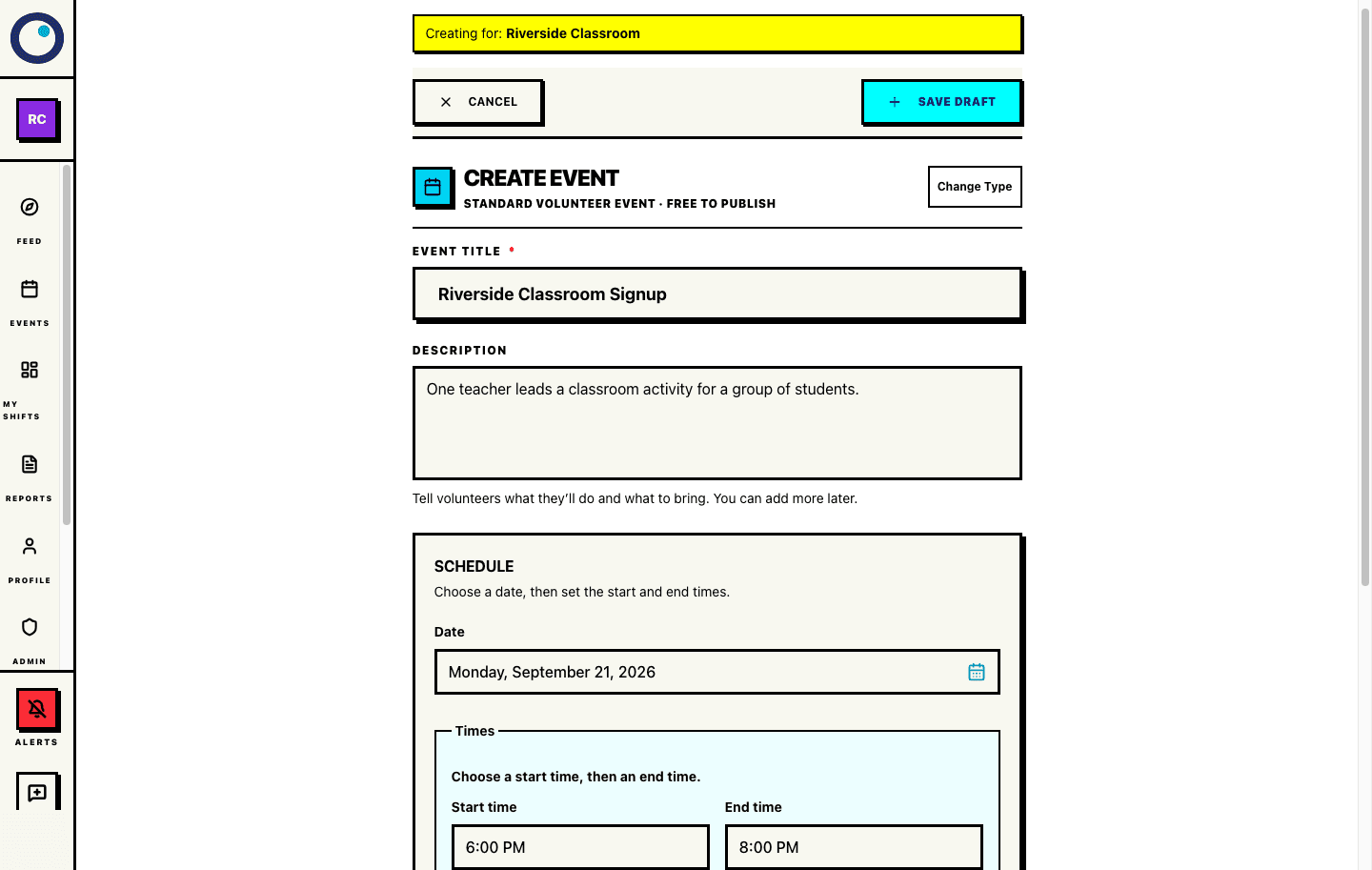
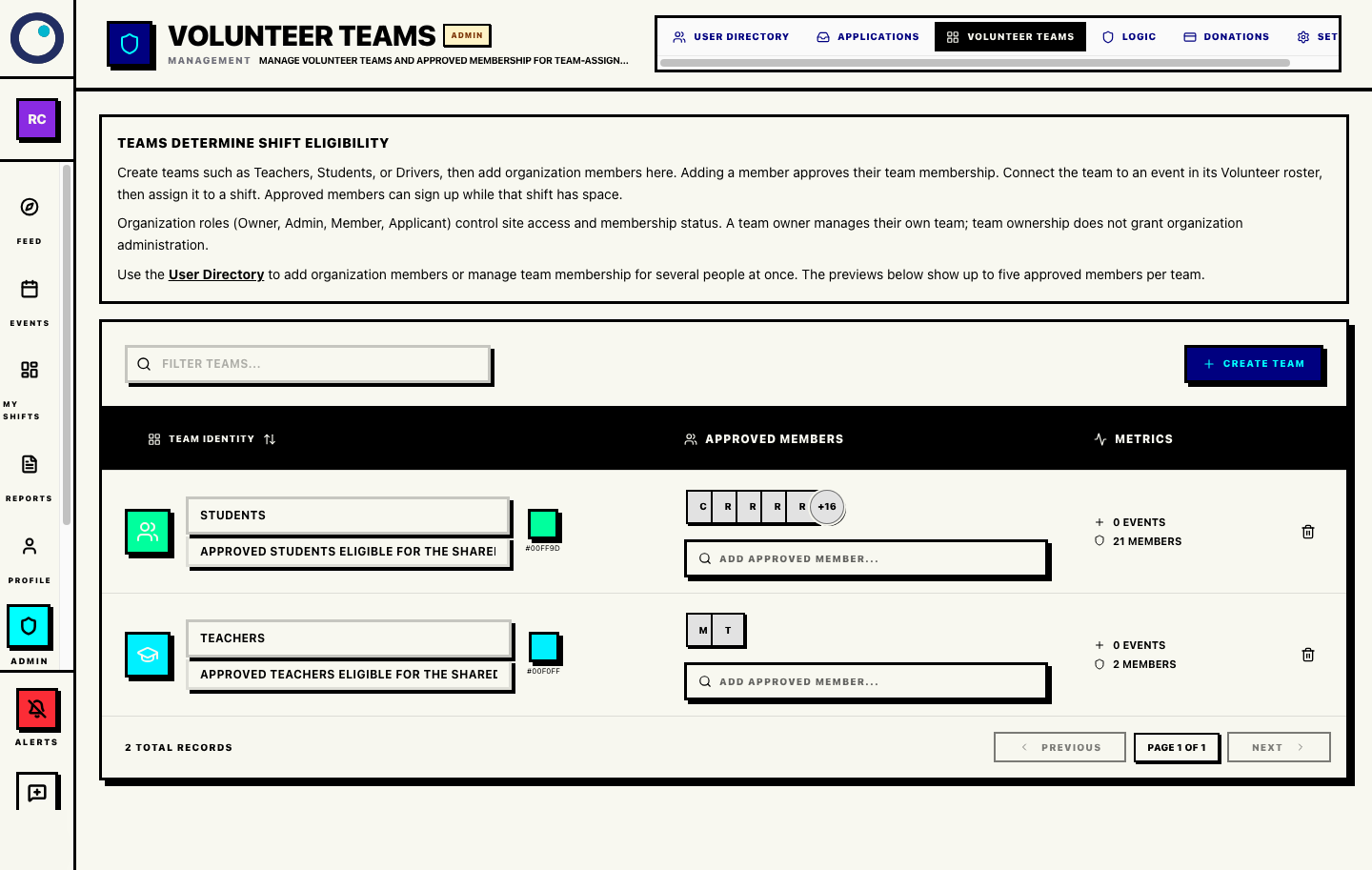
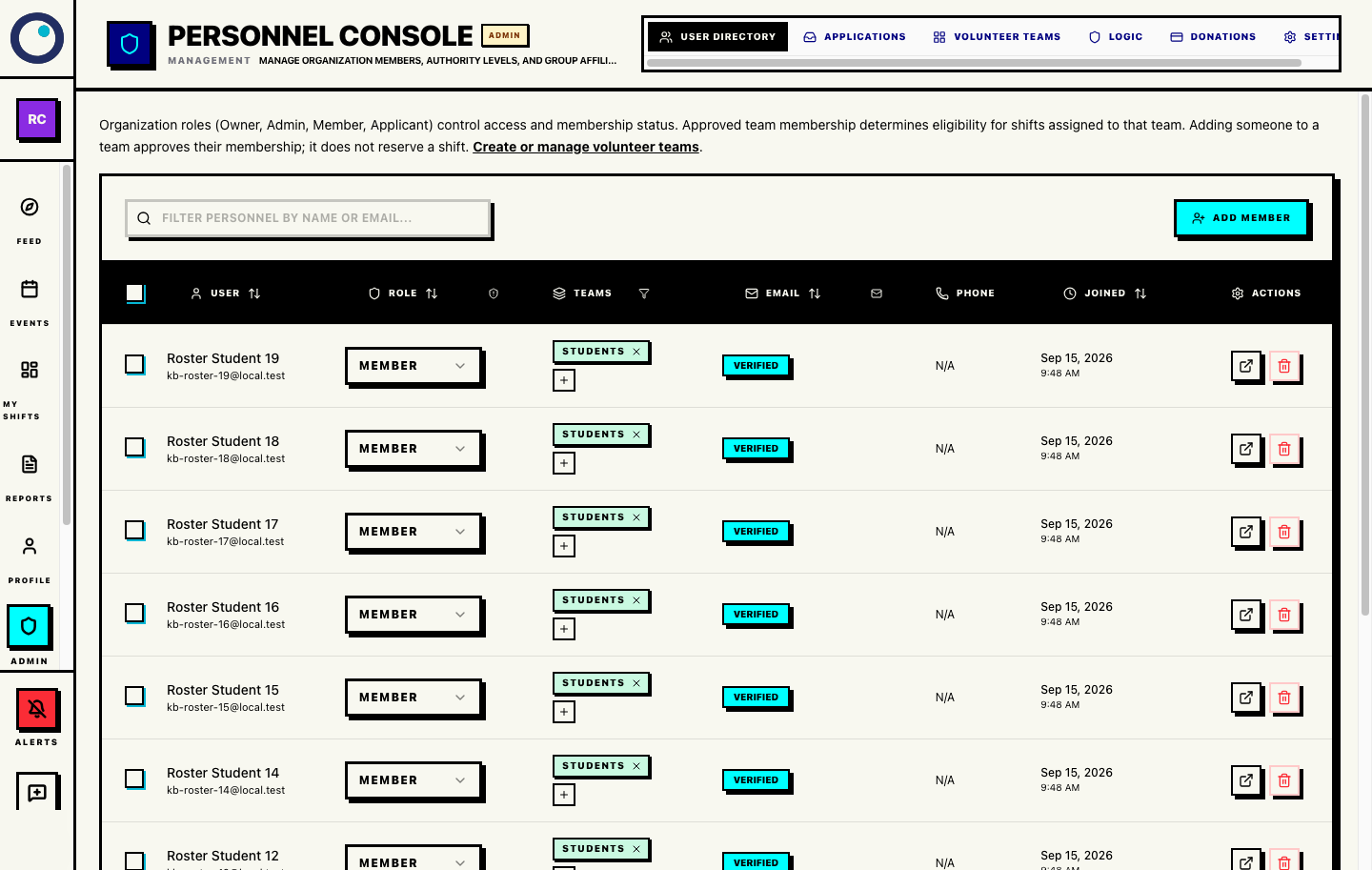
Standard event details and scheduling; no Event teams selector. Open Admin → Volunteer teams. Create two organization teams named Teachers and Students. Team names are unique within the organization. Add the teacher to Teachers and the eligible students to Students; the organizer can approve memberships here. If someone is not an organization member yet, open User Directory and add them first.
These teams are participation and eligibility pools. Keep people as ordinary organization Members unless their site permissions need to change. A team membership does not make someone an Admin or Owner and does not reserve a place on the event.
Teachers and Students teams
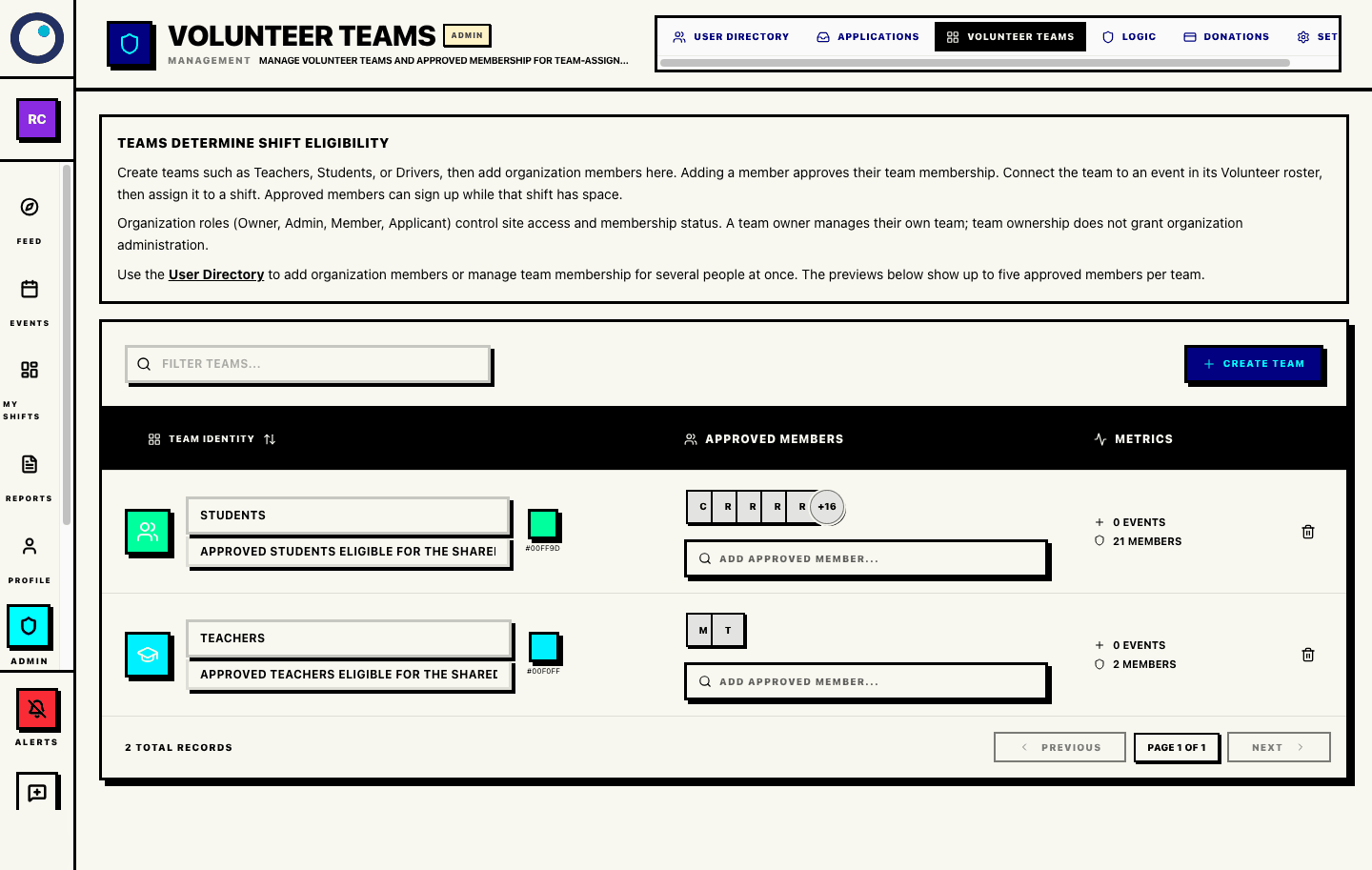
Create and manage the Teachers and Students teams here. Organization roles and team access
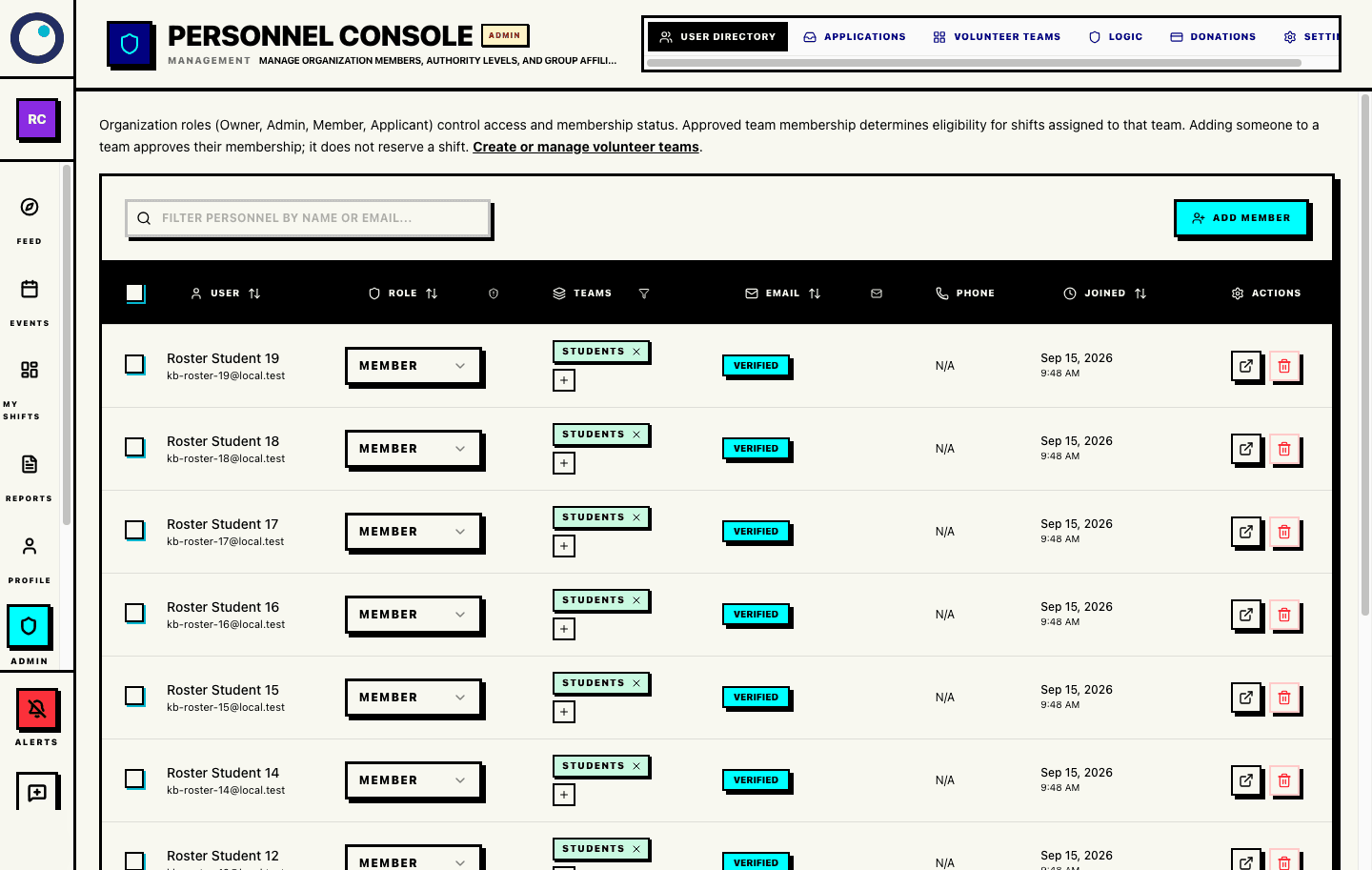
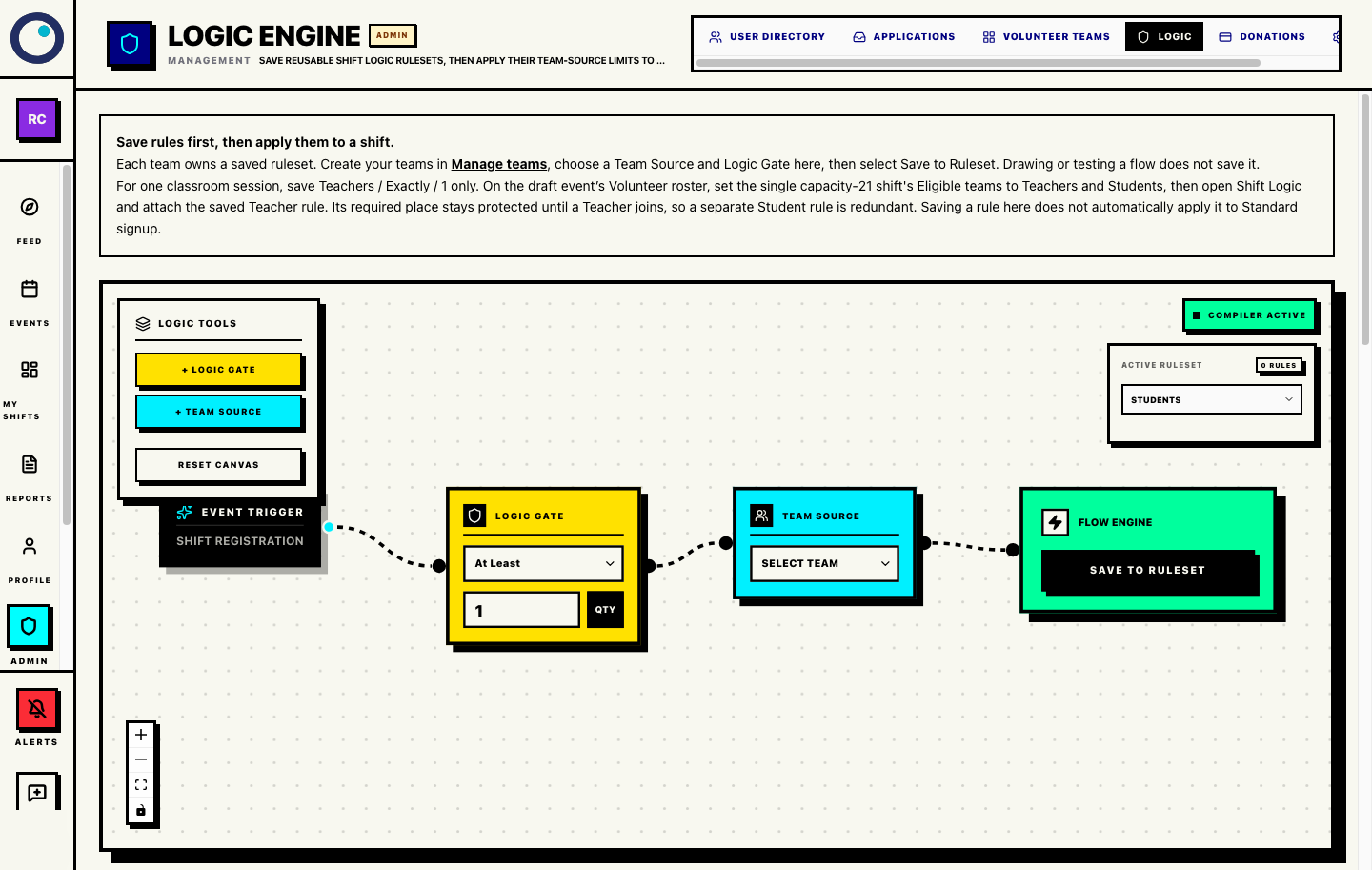
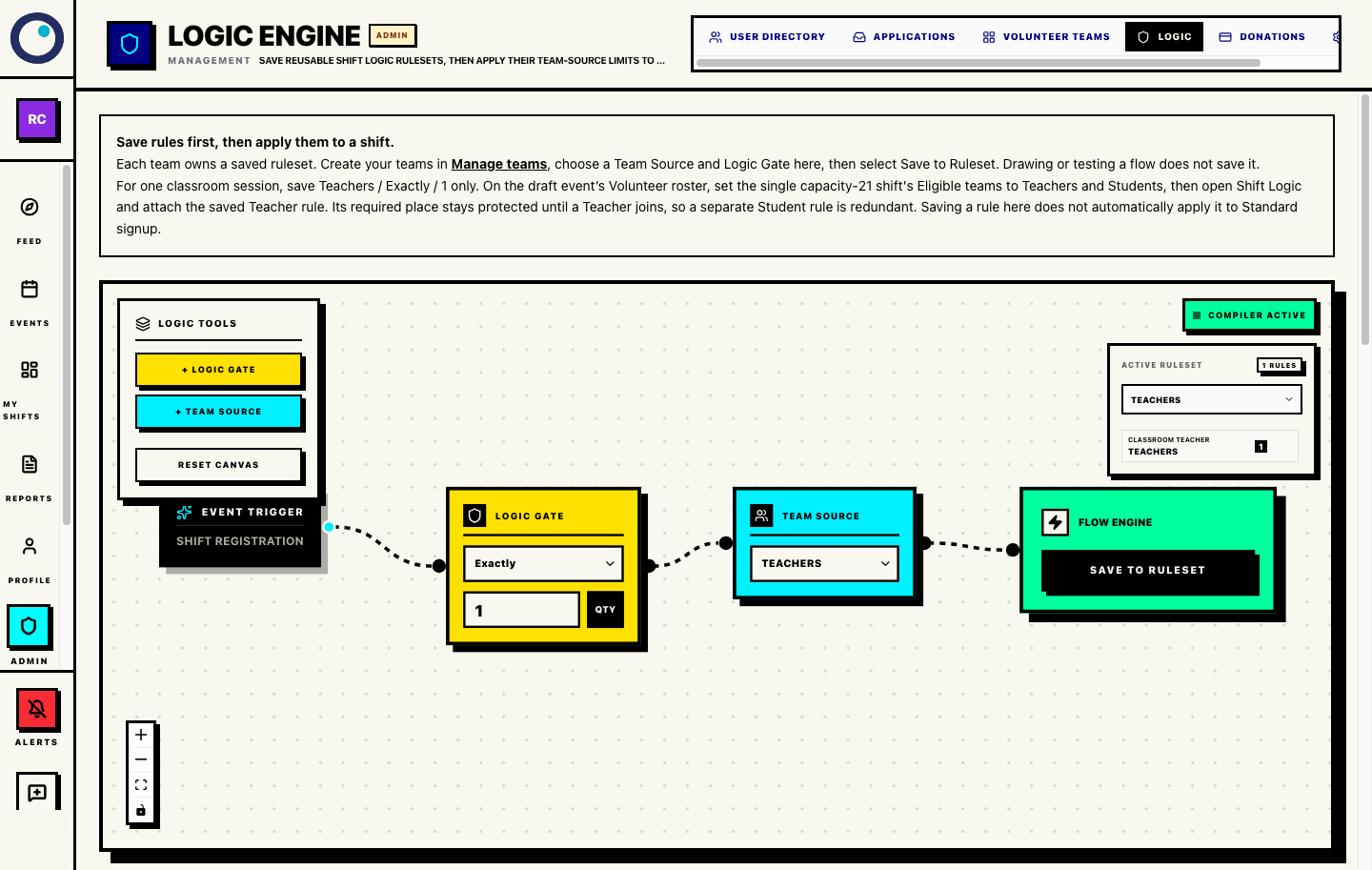
Team access is separate from organization access. Open Admin → Logic. Choose Teachers as the Team Source, set the gate to Exactly 1, select Save to Ruleset, and give it a clear name such as Classroom teacher. Do not add a separate Student rule; the 21-person shift and protected Teacher place leave room for twenty Students.
The saved Teachers rule limits the classroom session to one Teacher and reserves the remaining Teacher place while Students join. After saving it, attach the rule to the shared shift in the next step.
Logic editor and Students ruleset
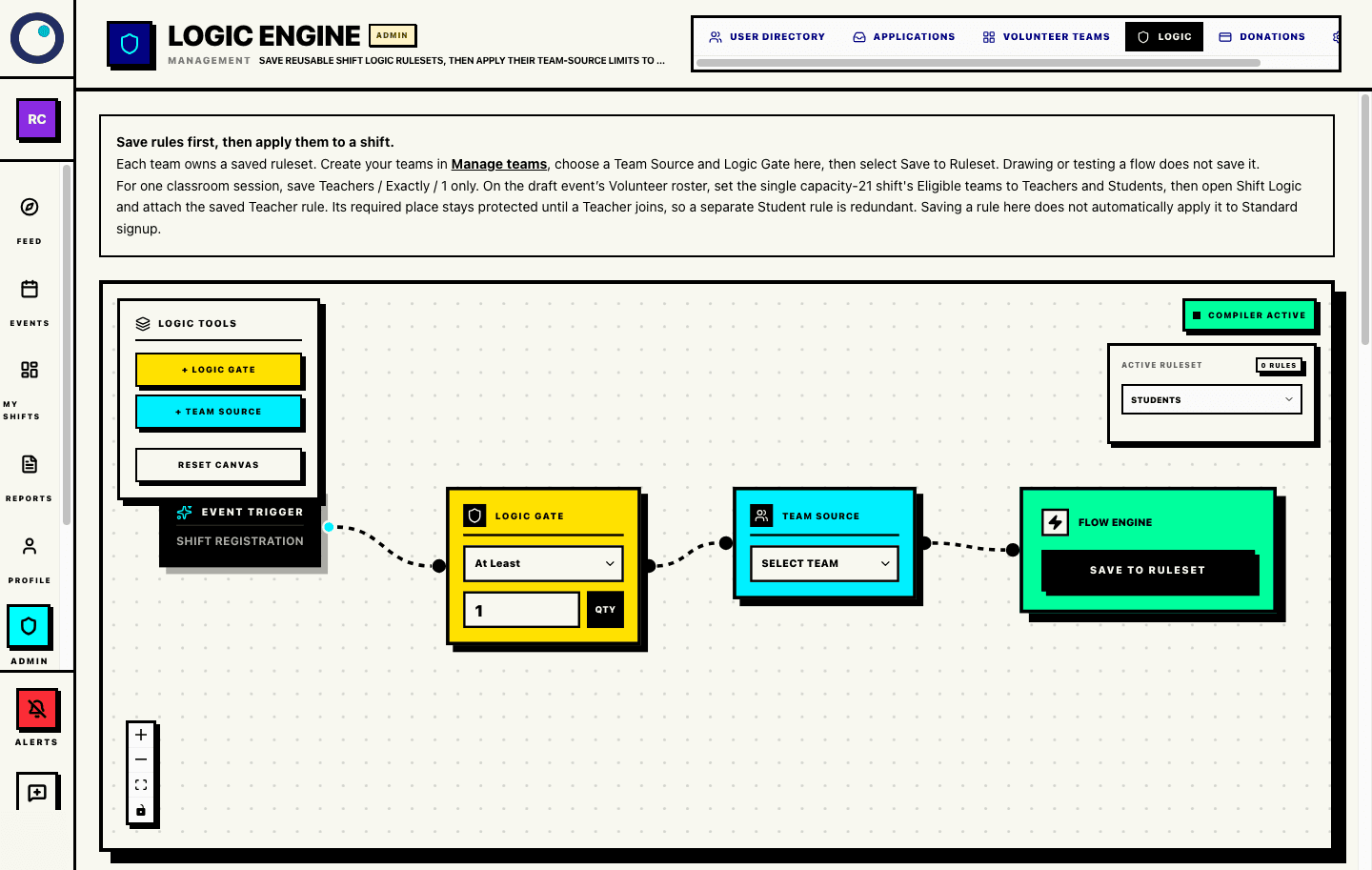
Select a Team Source and configure its saved rule here. Saved Teachers Exactly 1 rule
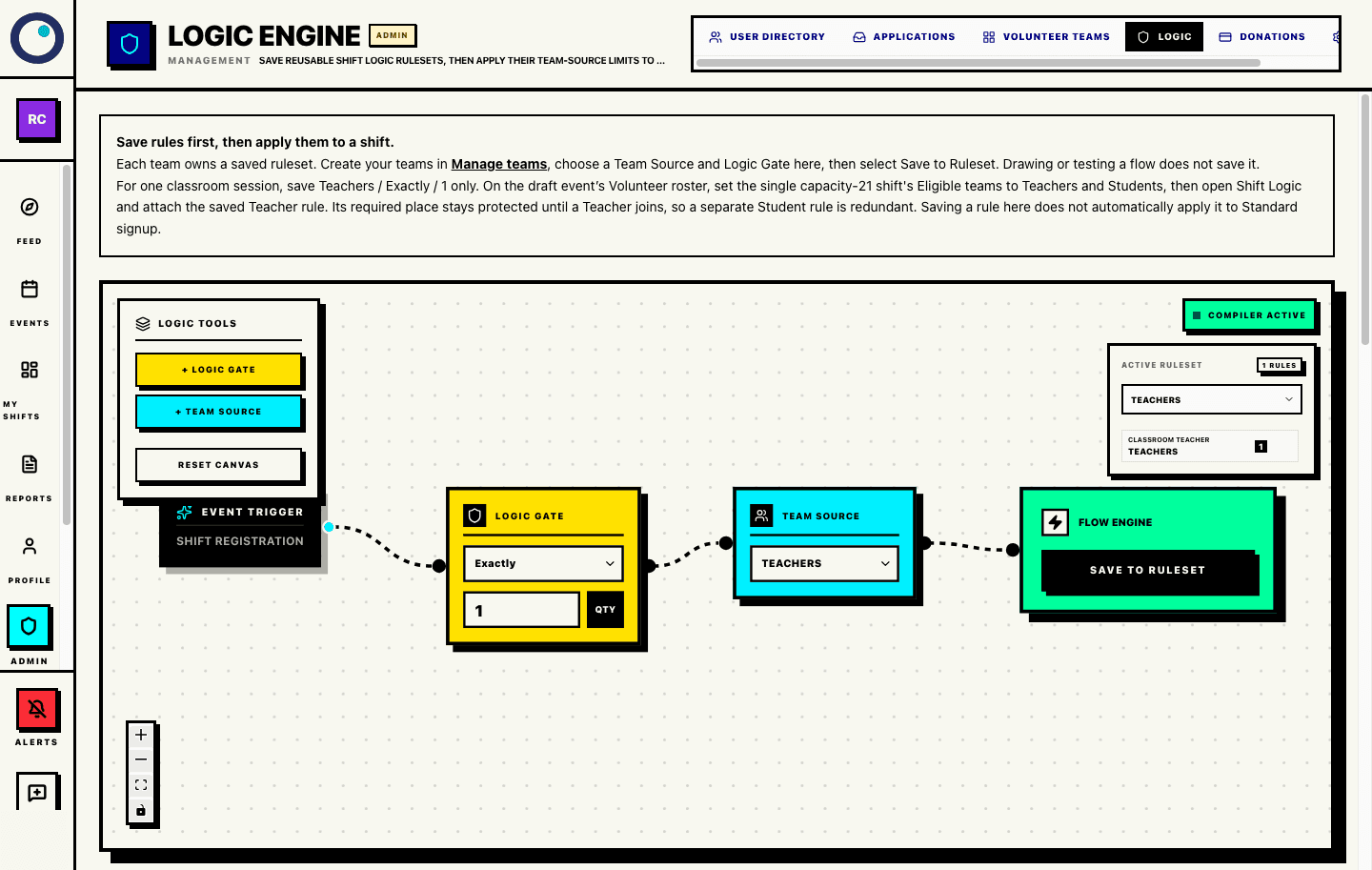
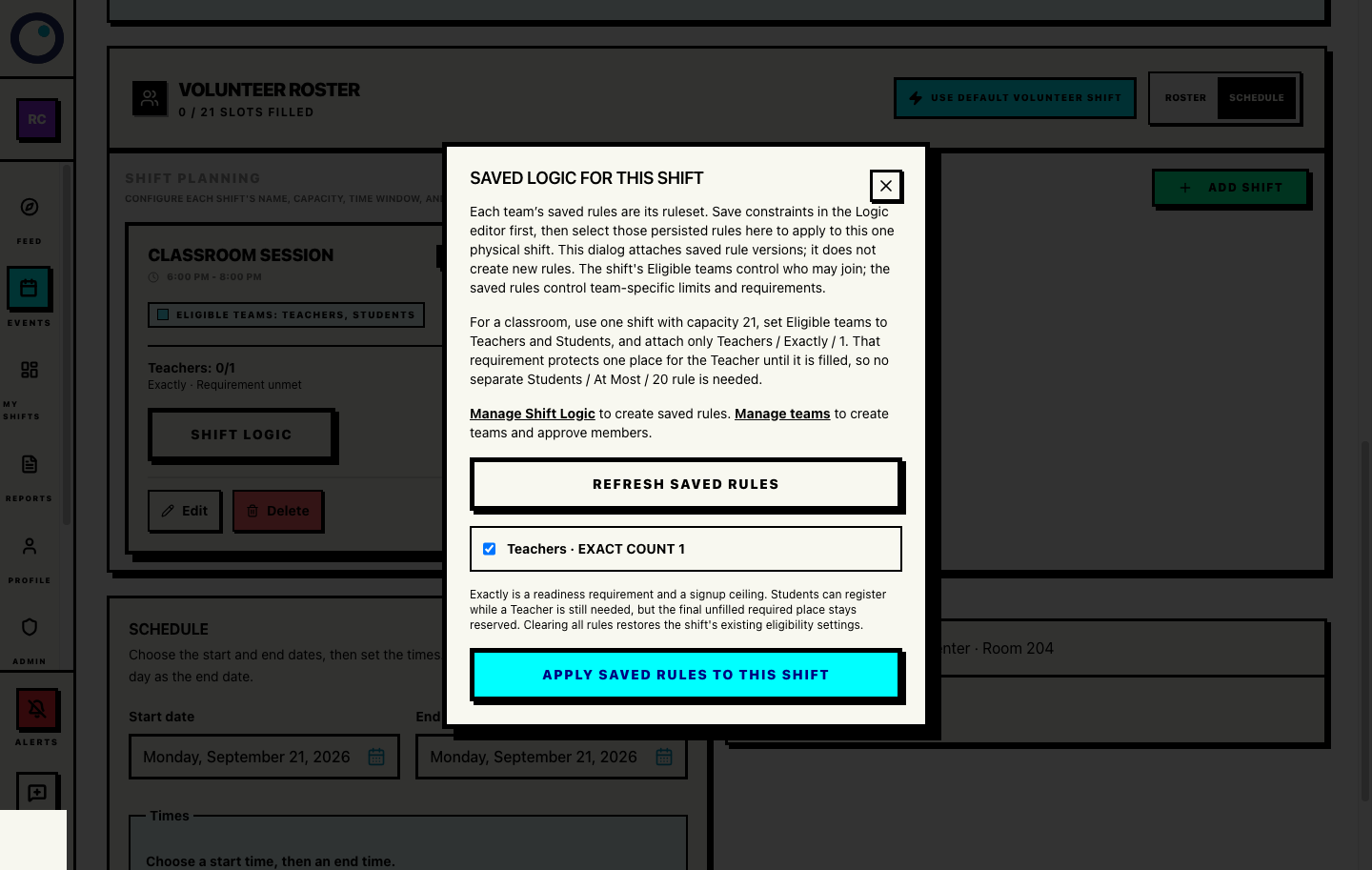
The saved Teachers → Exactly 1 rule is ready to attach to the shared shift. Return to the draft event and open Volunteer roster → Schedule. Create one shift named Classroom session, use the full event time window, and set Volunteer spots to 21. In Eligible teams, search for and select both Teachers and Students. Open Shift Logic on that shift, select the saved Teachers / Exactly 1 rule, then select Apply saved rules to this shift. Do not create separate Teacher and Student shifts at the same time and place.
The event has one physical/reporting row with a capacity of 21. Both teams may join that one row, while the saved Teacher requirement protects one place until a Teacher joins. The implied maximum is twenty Students; no Student rule is needed. Each approved member still receives a source team on their assignment, so reports can group by source team without splitting one classroom across duplicate shifts.
Draft event overview
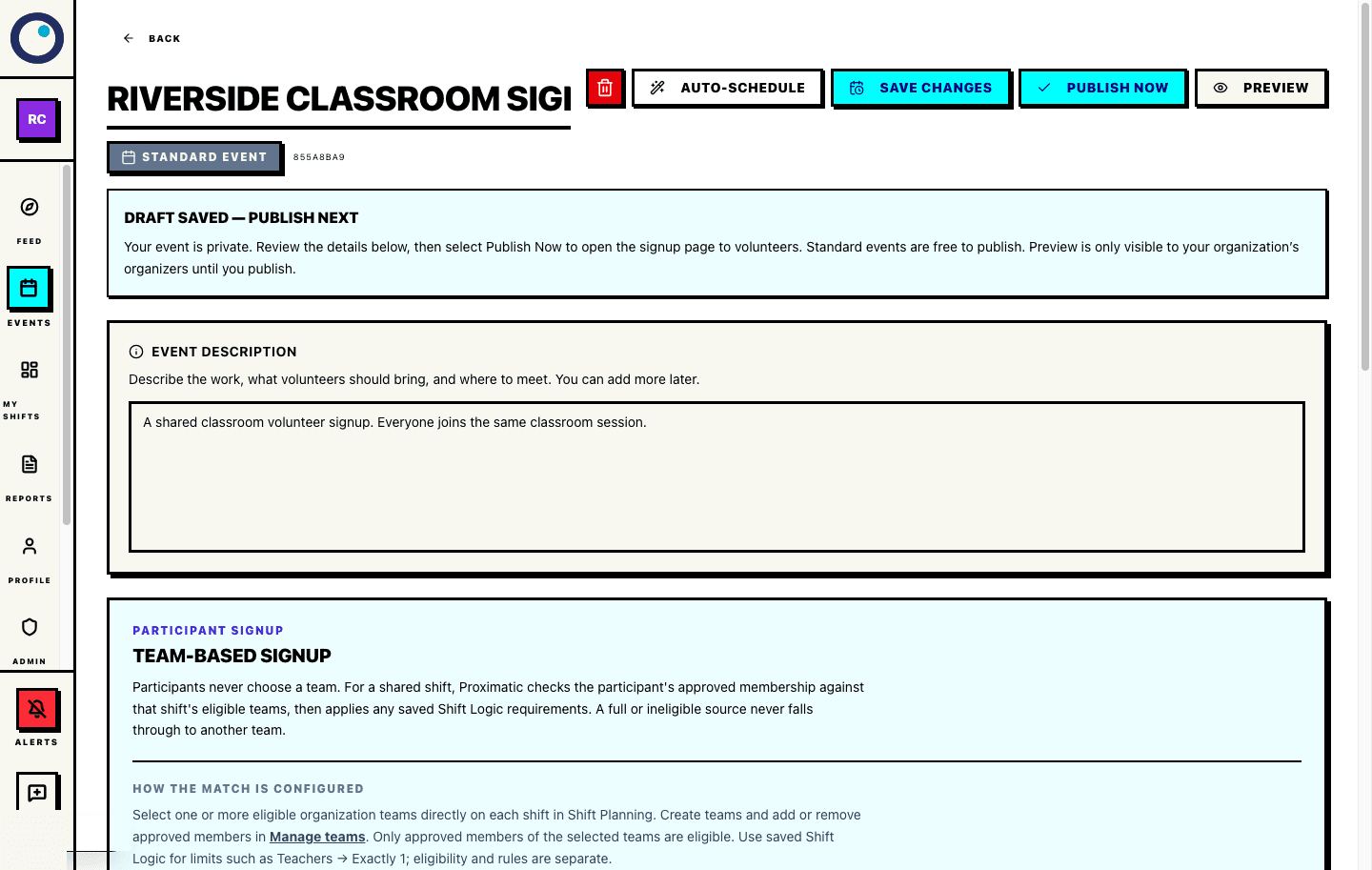
Open Volunteer roster → Schedule to configure the shared shift. Apply the saved Teacher rule
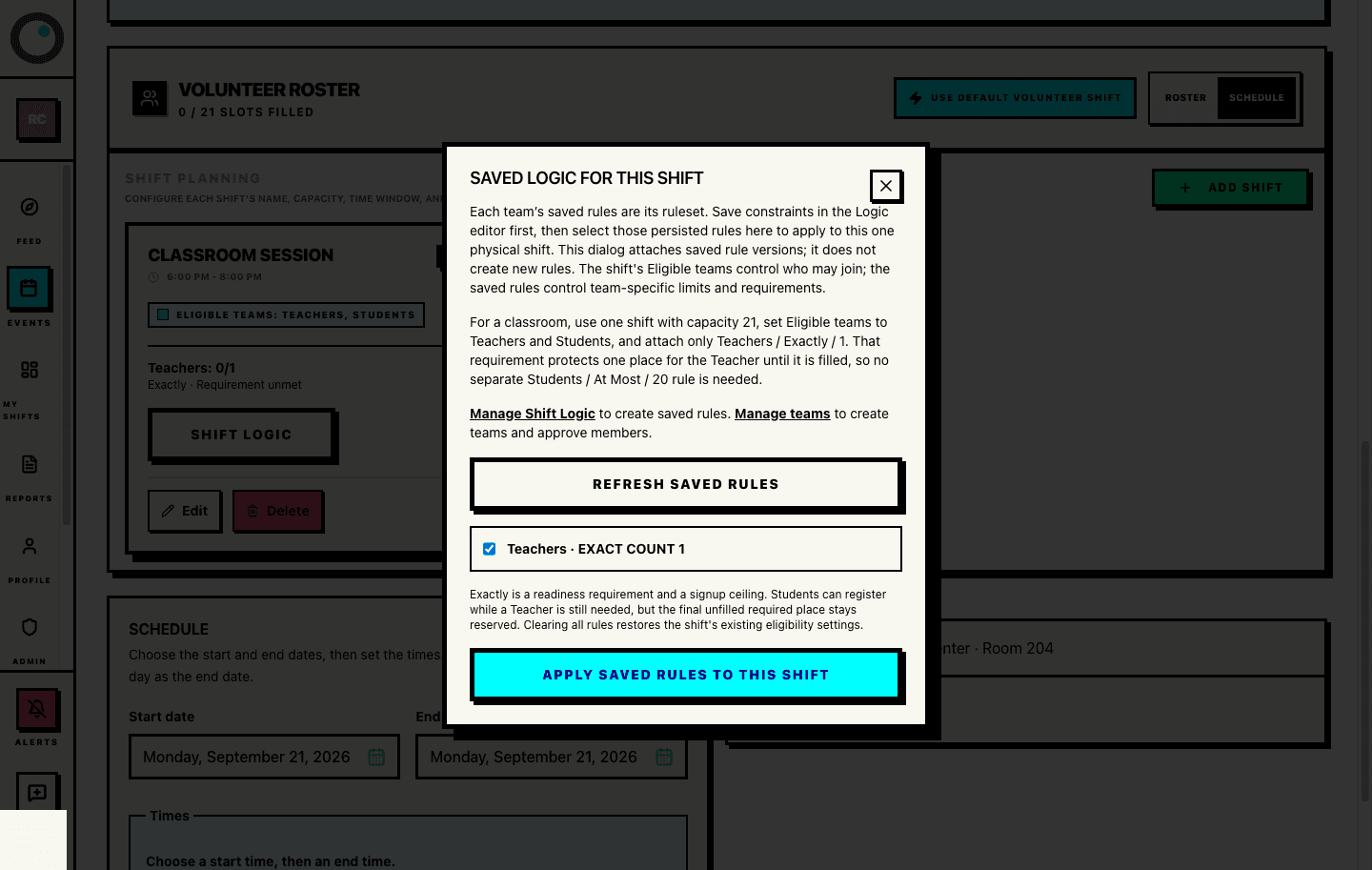
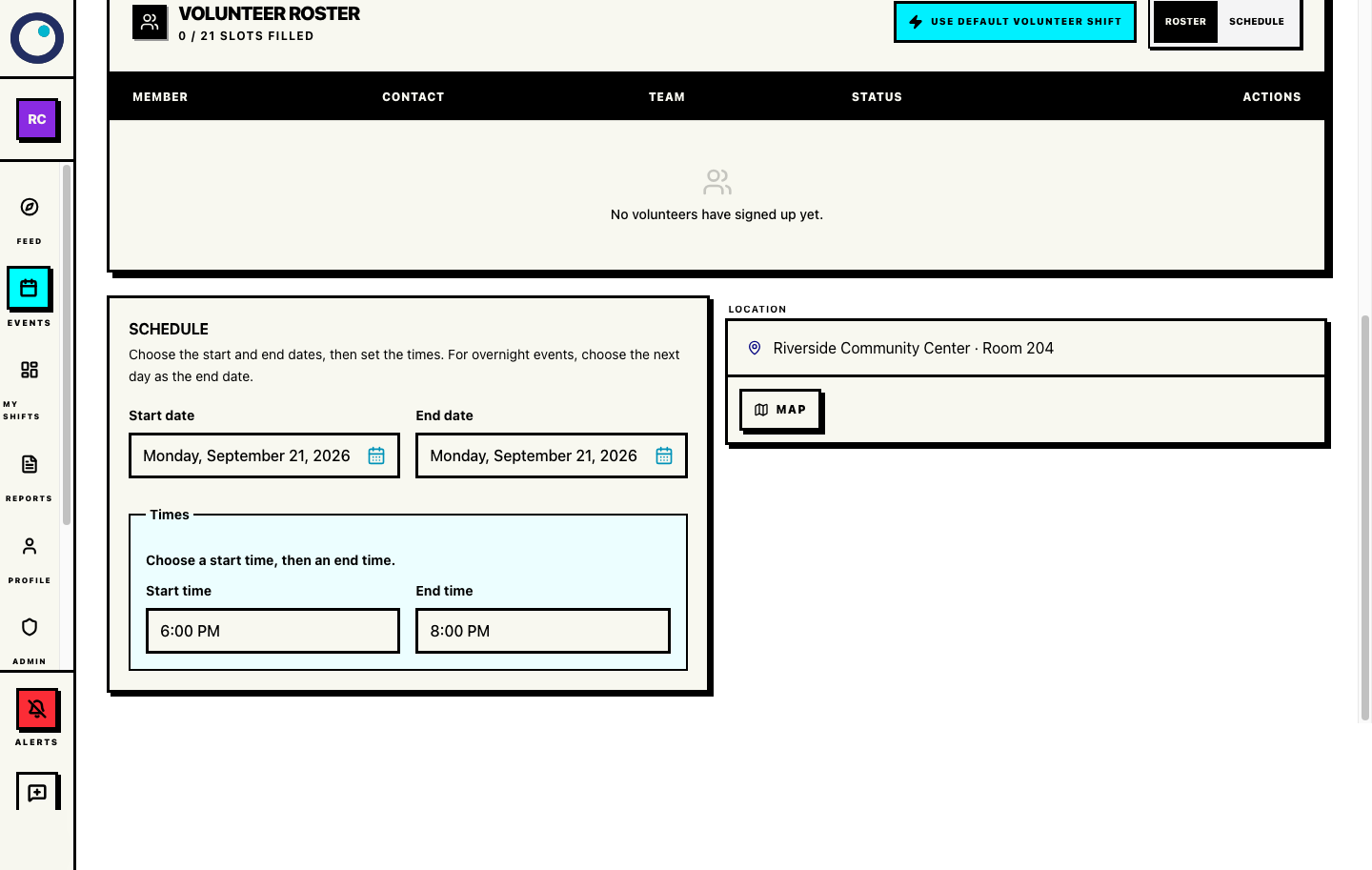
Attach the saved Teacher requirement to the physical shift here. Select Save Changes, then review Volunteer roster → Schedule and confirm the shared shift shows Teachers 0/1 and eligible teams Teachers + Students. Open Roster to check the current signups; an empty draft shows 0/21 slots filled. Select Preview, then Publish Now. After the event shows Live, use Public Page and share the public /events/… link rather than the management URL.
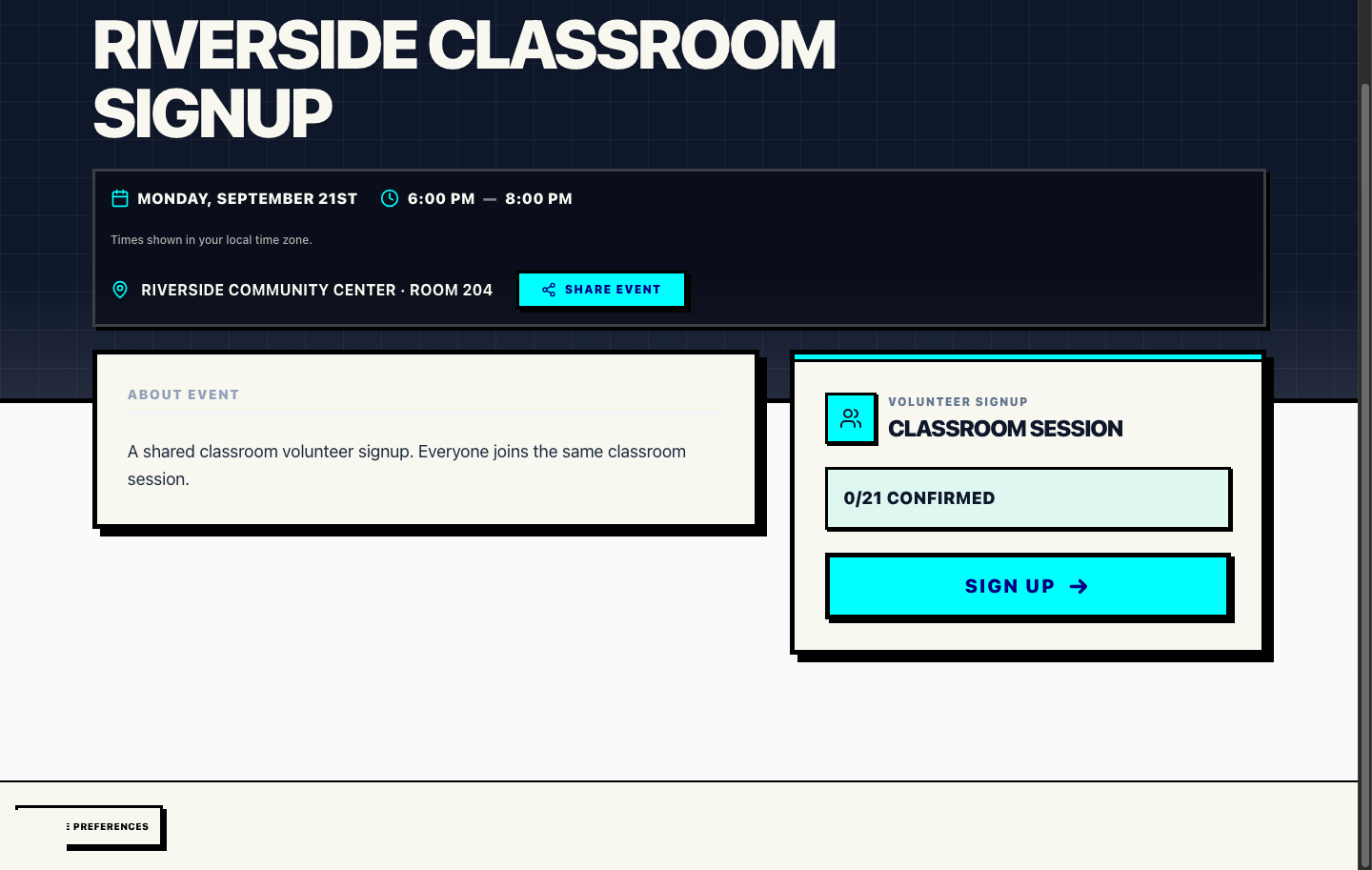
The public page has one signup button for the shared session. The participant never chooses Teacher, Student, a team, or a shift. Approved team membership, the saved rule, and available space determine the signup; the roster records one assignment on the shared shift.
Empty volunteer roster
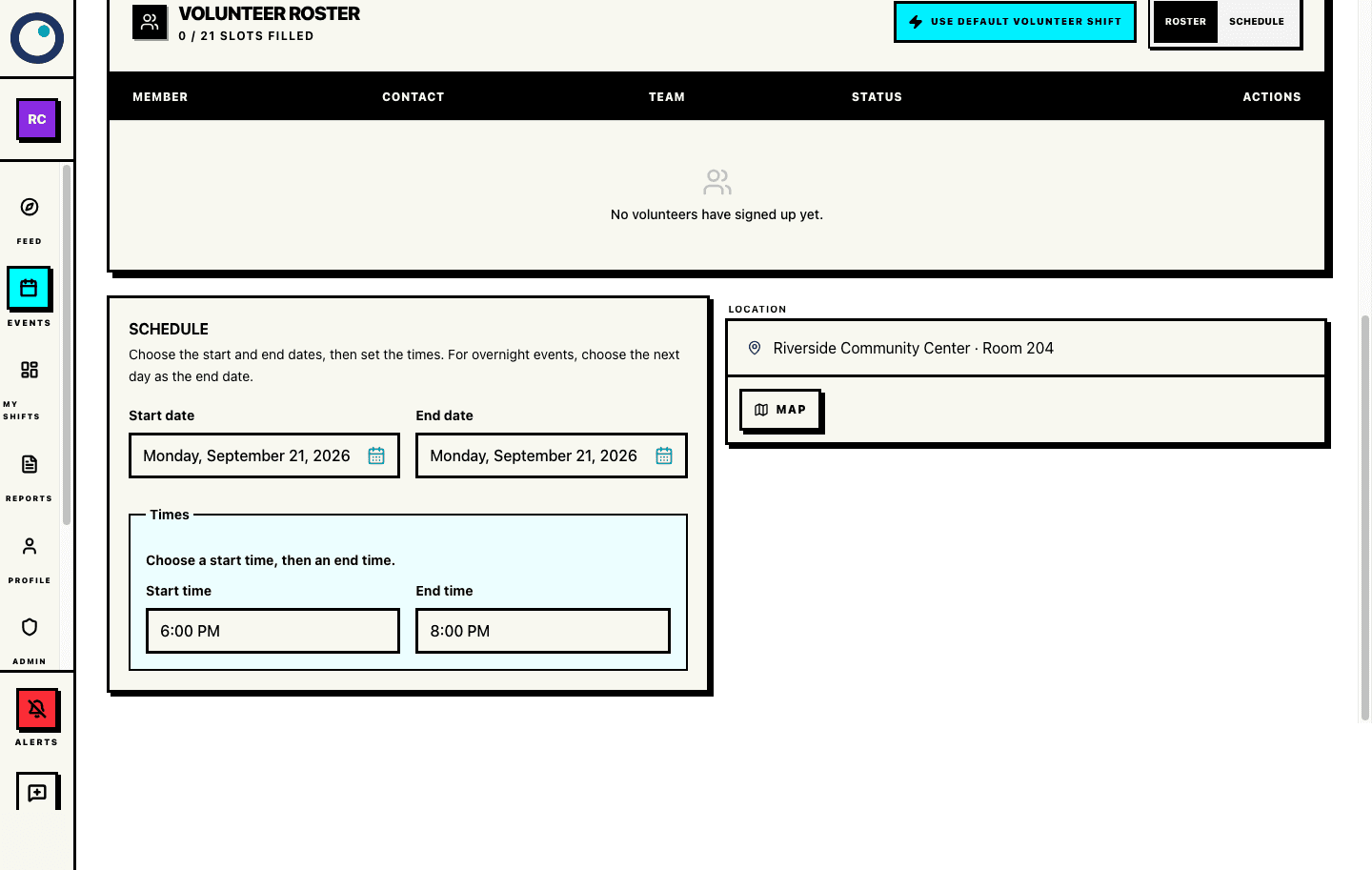
Confirm 0/21 slots before publishing.
What participants see: one signup button
- Send the public event link. Reading the event page does not require an account.
- Everyone sees the same classroom session and one Sign up button. There is no team, role, or shift selector.
- A signed-out visitor creates an account or signs in and verifies their email. Account creation and verification do not reserve a place.
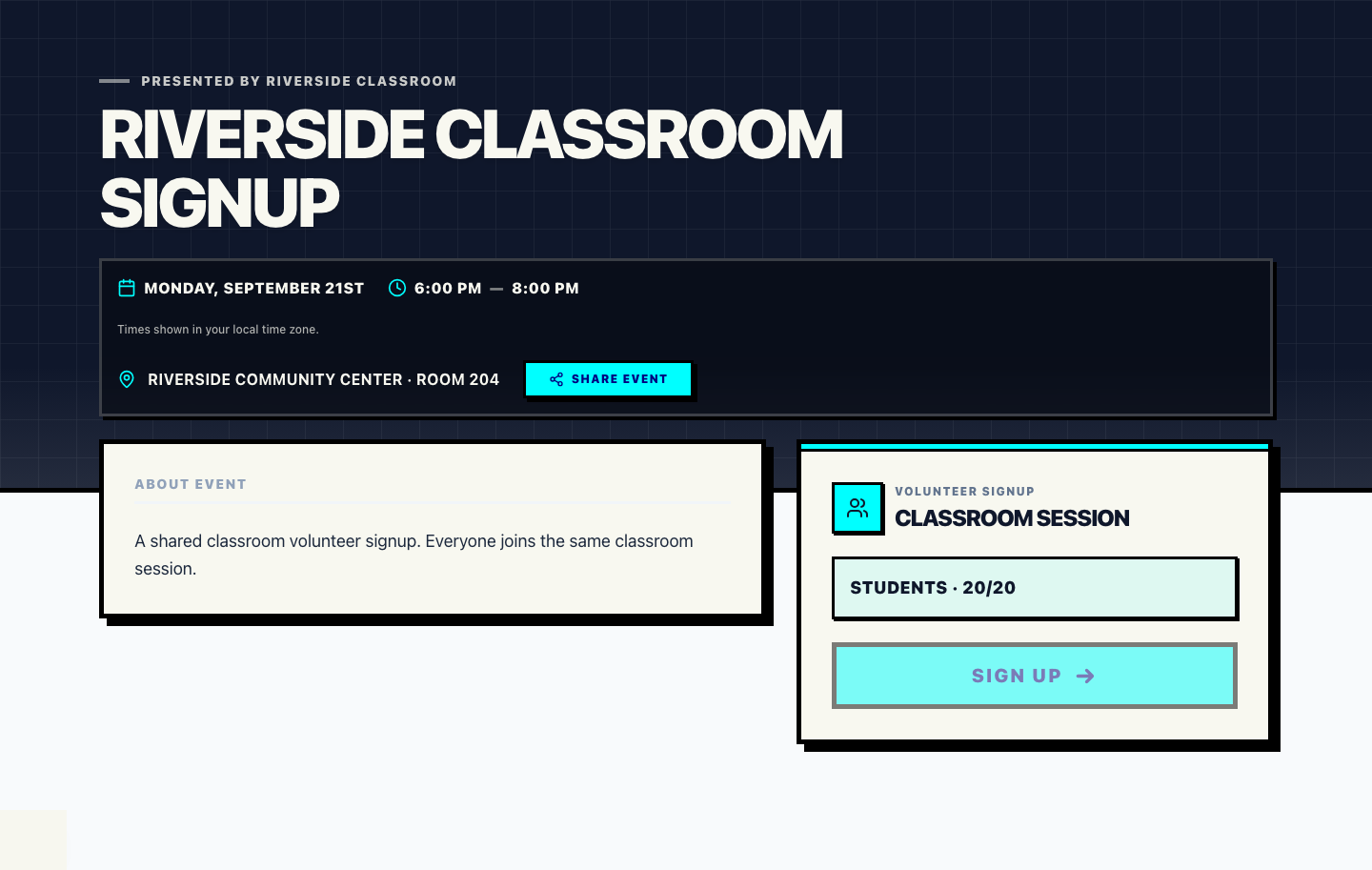
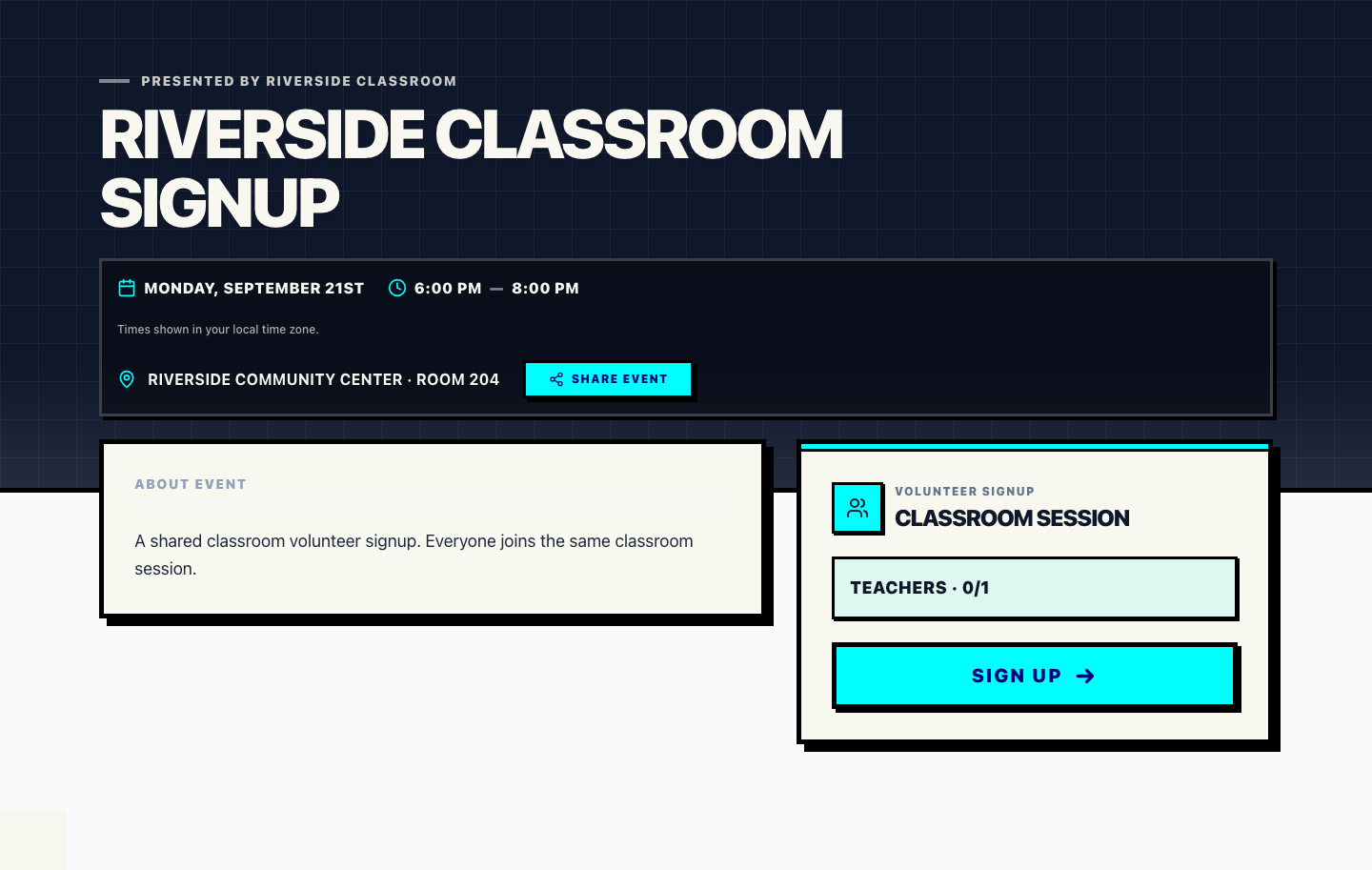
- After sign-in, the page shows the participant's team and only the places that apply to them: for this setup, a Student sees Students · x/20 and a Teacher sees Teachers · x/1. The Sign up button is active when a place is available and inactive when it is not.
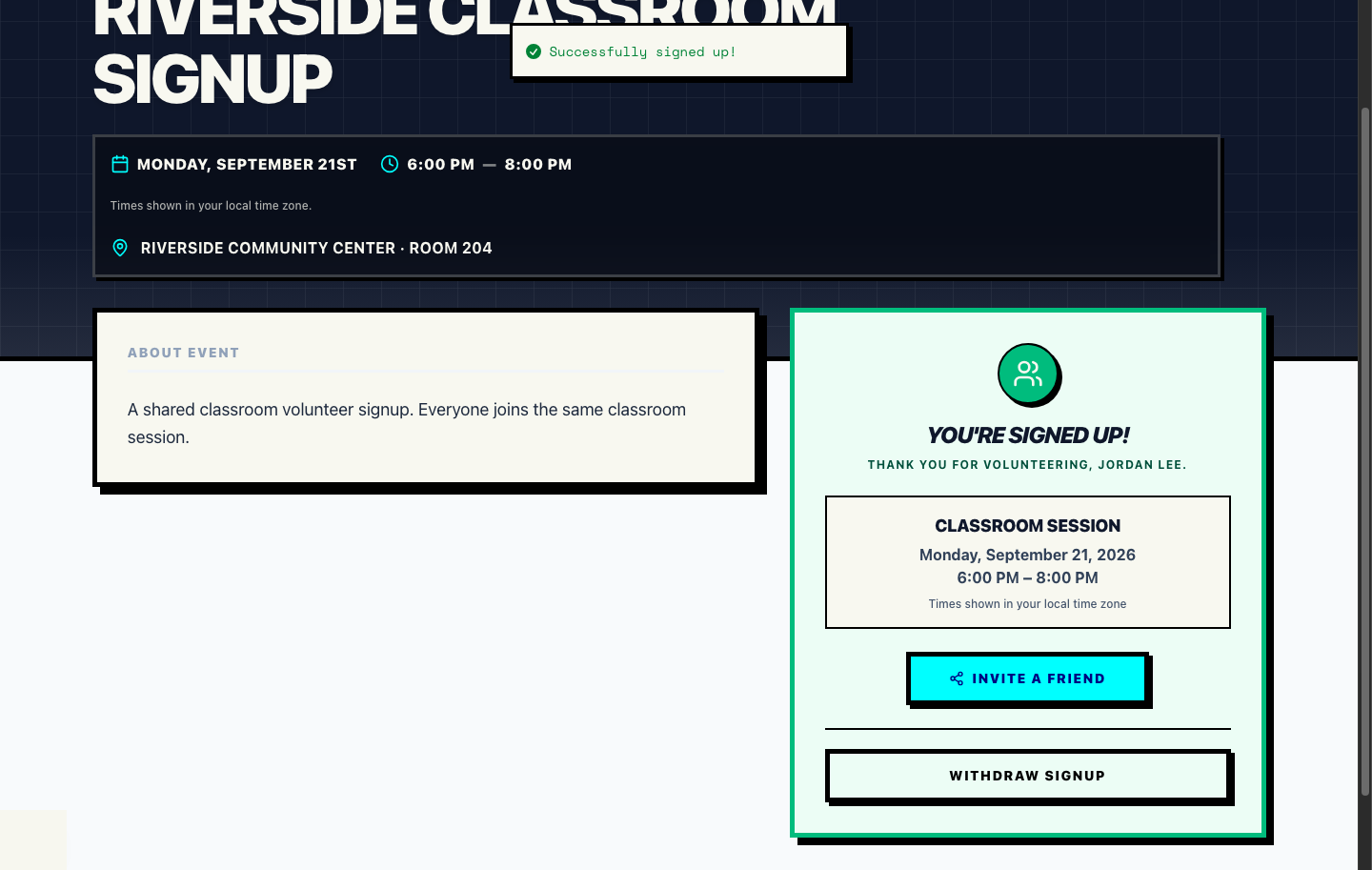
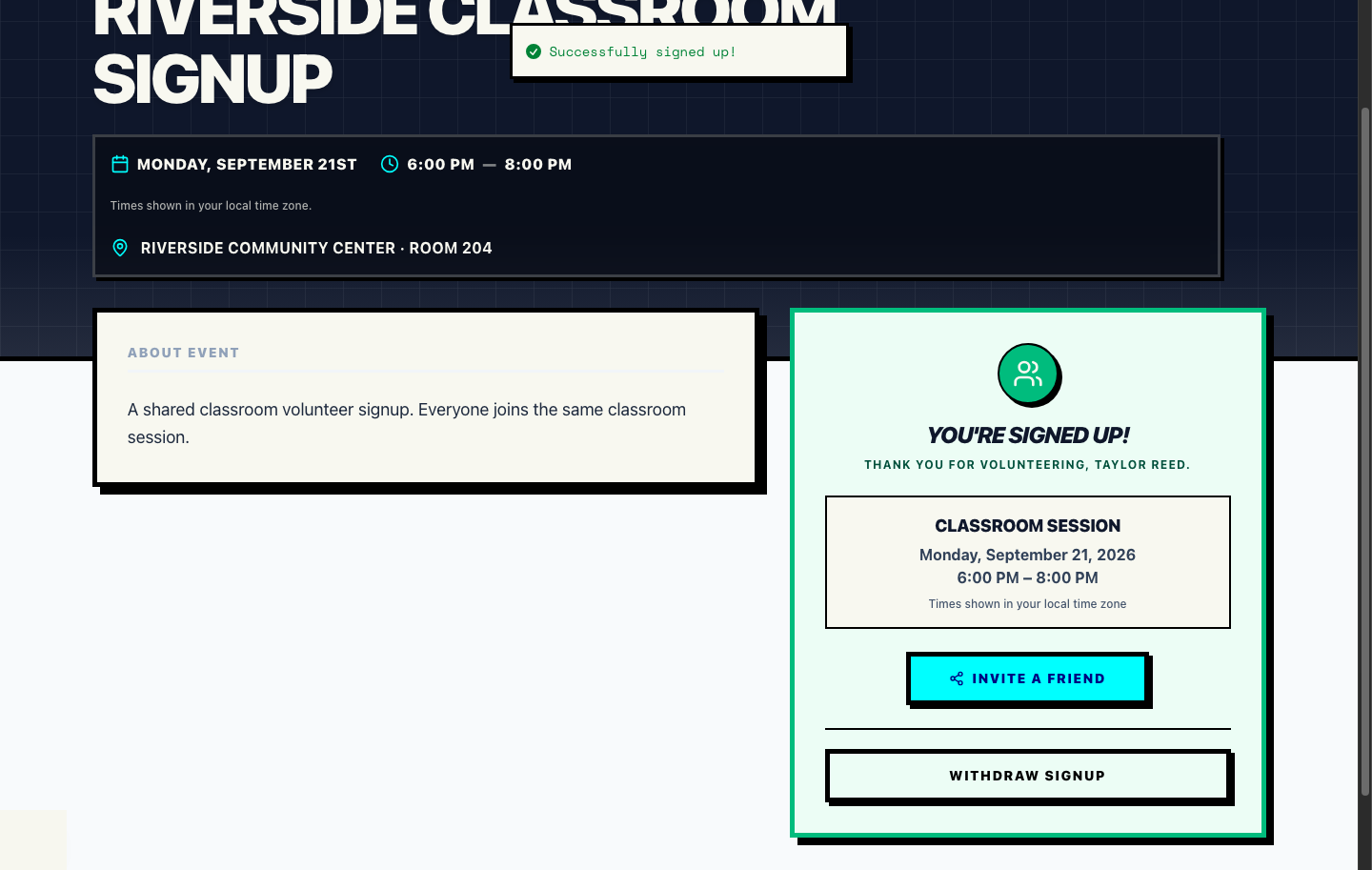
- Selecting Sign up confirms the assignment and shows You're signed up!. The organizer can see the recorded source team in Volunteer roster → Roster.
Keep the participant experience simple: the public page shows the participant's team, the applicable count, and one button. It does not show rule names, operators, protected places, or Shift Logic syntax. For this setup, that means Students · x/20 for a Student and Teachers · x/1 for a Teacher.
Student-first signup is valid: the organizer roster may show the Teacher readiness requirement as unmet while Students join. At 20 Students, a Student sees Students · 20/20 and an inactive button. A Teacher at that same point sees Teachers · 0/1 and an active button. Once the final event place is taken, the standard Event Full state replaces the signup control. The public page does not explain the rule behind the count; that configuration belongs in the organizer setup and roster.
Public shared-shift page
Student confirmation
Teacher confirmation
Proof that the protected place and full state hold
The public page keeps the rule details out of the participant experience. It shows the signed-in participant their team, the count that applies to them, and whether the single signup button is active. The organizer roster shows the detailed requirement progress. These captures show the two participant states, the second-Teacher rejection, and the final one-row roster:
- Second Teacher blocked: after one Teacher is assigned and space remains, the Teacher view shows Teachers · 1/1 with an inactive button. Proximatic blocks a second Teacher; it does not move that person into Students.
- 21st Student blocked before the shift is full: after twenty Students are assigned, the Student view shows Students · 20/20 with an inactive button even though the overall event is 20/21. A Teacher can still use the final place.
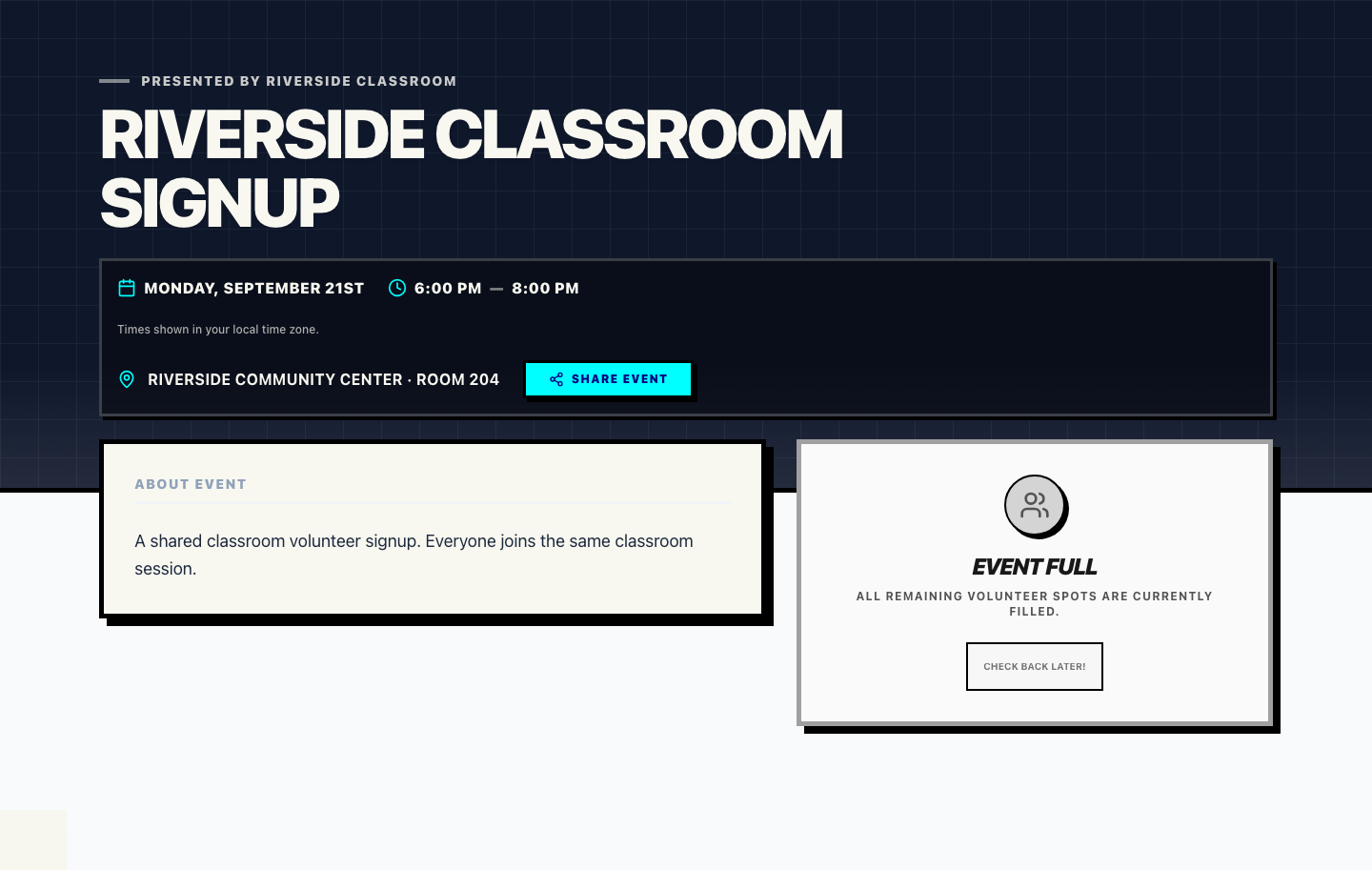
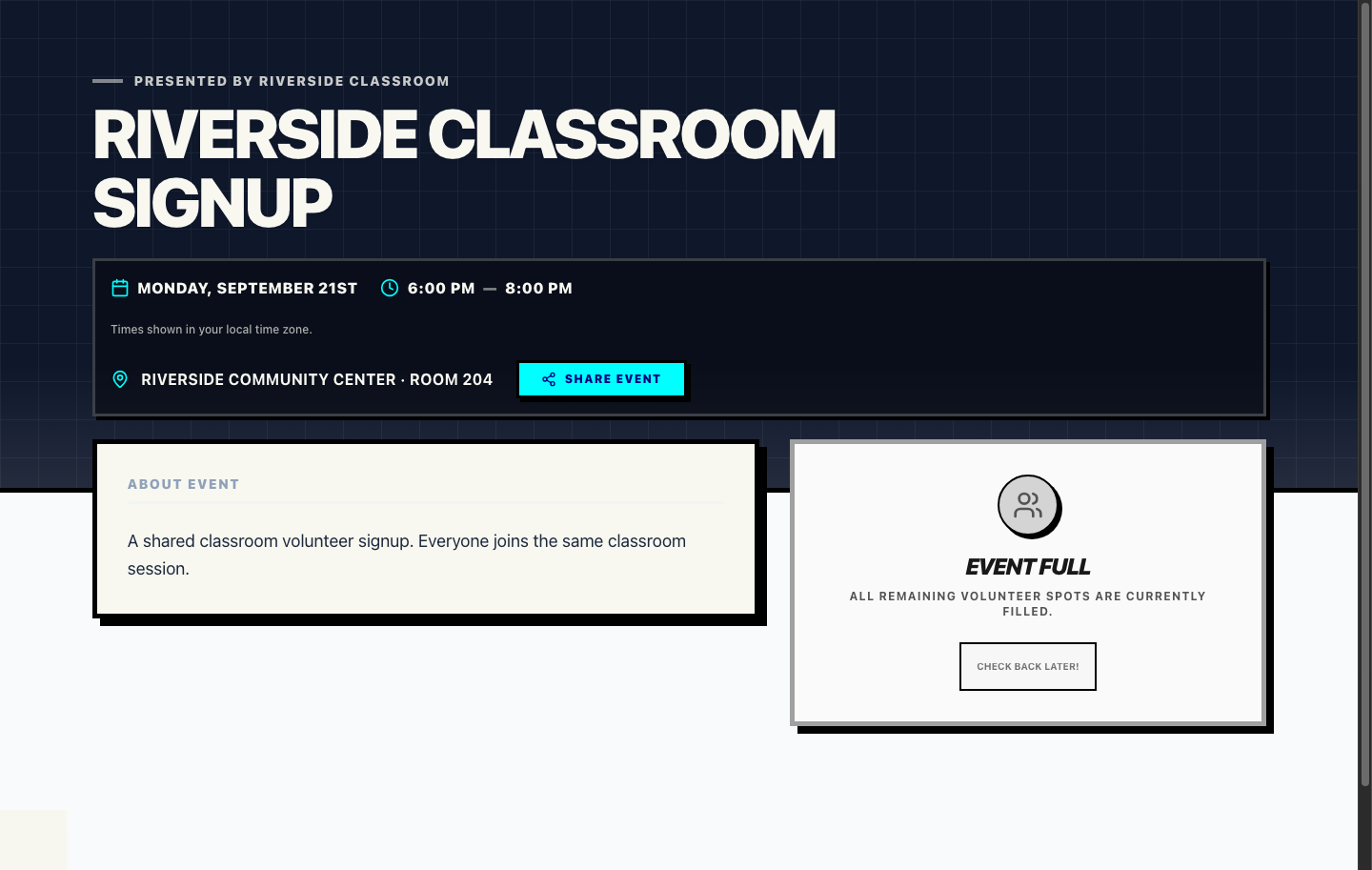
- Full state: after one Teacher and twenty Students are assigned, the shared shift is 21/21 and every new participant sees the standard Event Full graphic.
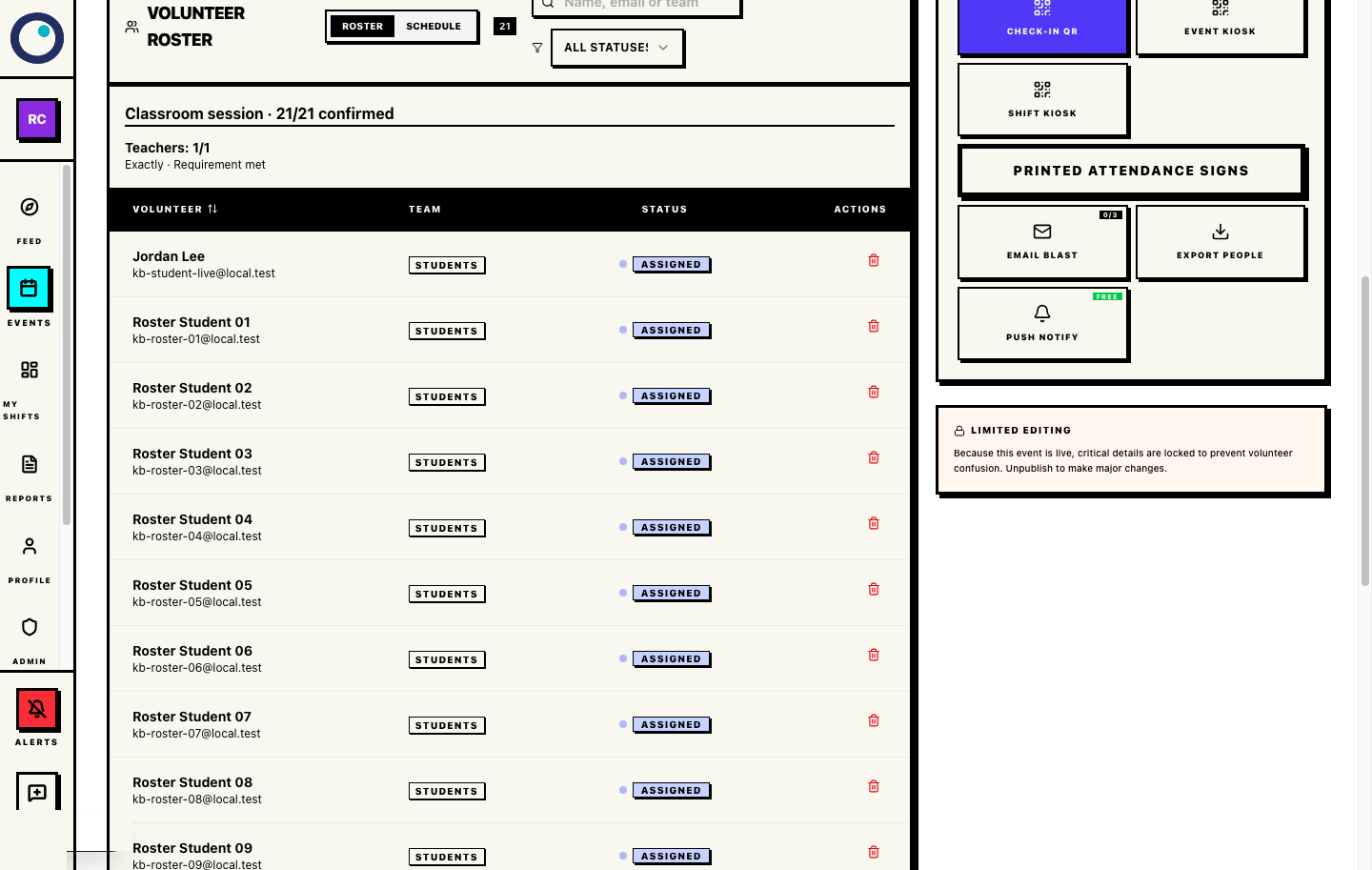
- One reporting row: the organizer roster shows one Classroom session containing 21 assignments, with Teacher and Student source-team labels on those assignments.
- Last-place protection: if two people try for the last place at once, only the allowed signup succeeds. The other participant sees the updated unavailable state without overbooking.
- Retries are safe: an already assigned participant does not consume another place. Withdrawing a confirmed signup frees that assignment and reopens the corresponding source limit.
Second Teacher blocked
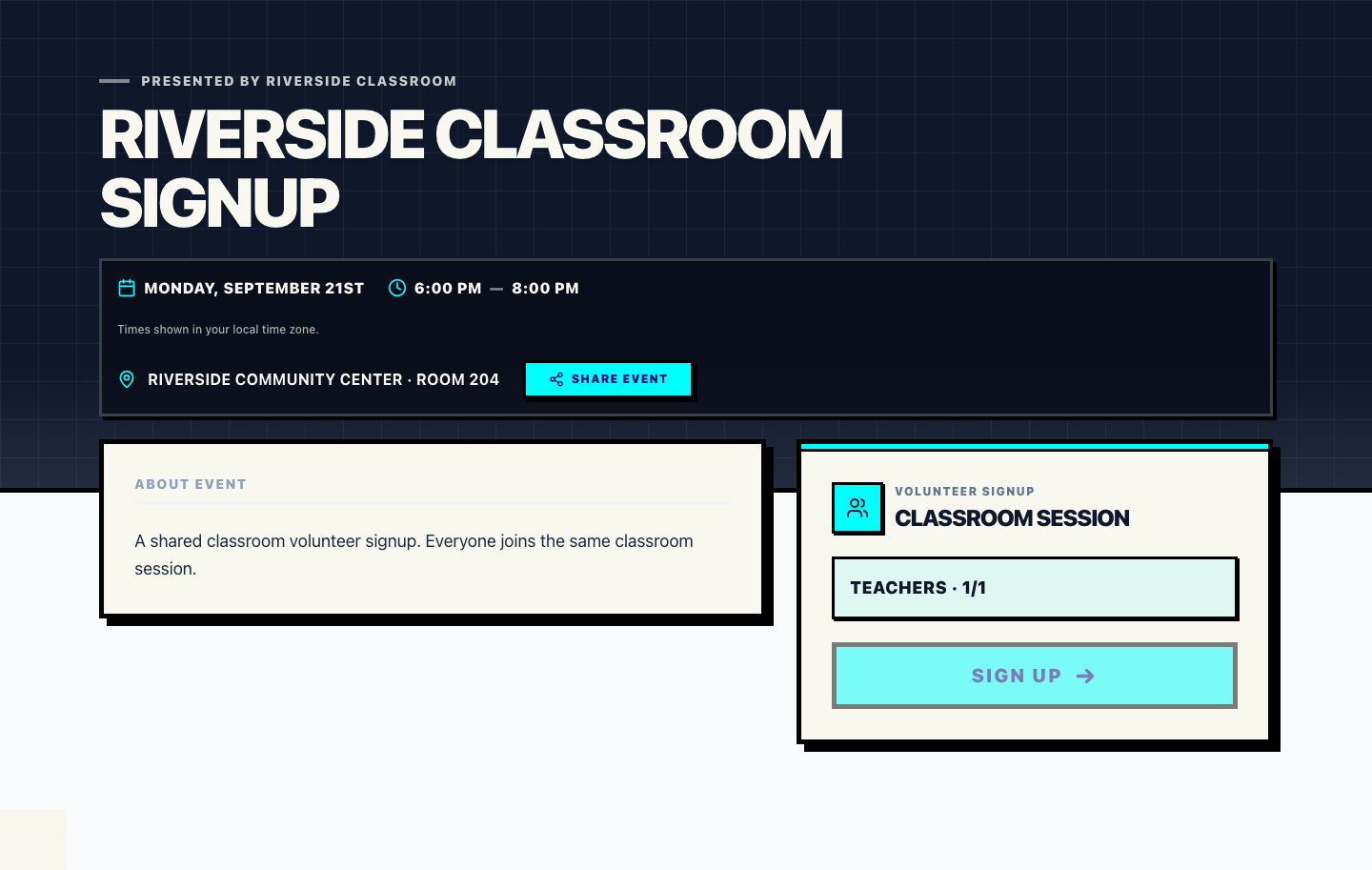
Student capacity protected
Teacher place available
Shared shift full for Students
Organizer roster full
Public shared shift full
How this relates to fundraiser and table teams
The same team records support several event experiences:
- Standard shared shift: an organizer creates the source teams, saves Shift Logic rules, and applies the rules to one physical shift. A team is the source pool for that shift.
- Team Fundraiser: a registered user can create a team for a polar bear plunge, walk/run, or similar peer-to-peer event. The creator is the team owner/Captain and can add or remove people through the team membership flow.
- Gala/table event: a table reservation creates the table team. The reserving user is the table owner and can share the table page so guests can request to join; the owner can approve or reject those requests.
A team owner or Captain manages that team's membership. Organization administration remains separate.
Troubleshooting
- I cannot find Event teams on Create Event
- That is expected for this Standard flow. Create the teams in Admin → Volunteer teams, save only the Teachers → Exactly 1 rule in Admin → Logic, select Teachers and Students in the shift's Eligible teams control, and attach the saved Teacher rule from the shared shift's Shift Logic dialog.
- The saved rule is not available when I attach Shift Logic
- Confirm you selected Save to Ruleset, the rule is active, and its Team Source uses the current team name.
- The shift says it already has an Eligible team
- The shared flow uses the shift's multi-select Eligible teams control. Clear the old single Eligible team value, select Teachers and Students, and save the shift before attaching the Teacher rule. A physical shift uses either one direct team restriction or a multi-team eligibility pool, not both.
- A participant sees no signup button or gets no eligible source
- Check that their email is verified, their organization membership exists, the shift lists the correct eligible teams, and exactly one of those teams has an APPROVED membership for them. Pending or rejected membership does not reserve a place. A member approved in both source teams must be disambiguated before signup.
- The Teacher is not signed up yet
- That is allowed. Exactly 1 is a readiness requirement plus a hard ceiling; Students can join while the Teacher count is 0/1. The organizer roster will show the unmet requirement until a Teacher joins.
- The second Teacher is blocked
- That is the intended result of Teachers → Exactly 1. Proximatic does not move a Teachers member into Students. Remove the confirmed Teacher assignment or change the saved rule only if the real staffing plan changes.
- The next Student is blocked before the shift is full
- That is the intended result when 20 Students are assigned and the Teacher requirement is still unmet. The capacity-21 shift protects its remaining place for a Teacher; no separate Student limit is needed. A Teacher can still use that final place.
- The event is full
- After one Teacher and twenty Students are assigned, the shared shift is 21/21 and all new signups are blocked by the standard Event Full state. A withdrawal or an organizer-approved capacity/team-plan change is required.
- The ruleset will not save or attach
- Use unique team names, choose supported count or percentage operators, keep the values valid, save the Teacher Team Source rule, include that team in the shift's Eligible teams, and resolve conflicting requirements. The shared shift must be a draft scheduleable Standard event when rules are attached.
- Reporting still shows multiple rows
- Remove the old same-time Teacher and Student shifts, keep one Classroom session, select both eligible teams on it, and attach the saved Teacher rule. The source team is stored on each assignment, so reports can still group Teachers and Students without splitting the physical session.
Create your shared-shift signup
Start a Standard draft, create or reuse the Teachers and Students teams, approve their members, save only Teachers → Exactly 1 in Admin → Logic, create one capacity-21 Classroom session with both teams eligible, attach the saved Teacher rule, and publish only after the one-row roster and protected-place/full-state checks look right.
Create an eventAlready signed in? Go directly to Create Event.