How to add a volunteer waiver form to event signup
By Proximatic
Your volunteer waiver form belongs where people choose their shift. In Proximatic, upload your organization's approved PDF, turn on Require acknowledgment, and participants review it before completing a new signup. You can then see who acknowledged which version and when.
That keeps the document, the participant's acknowledgment and the event signup connected. A returning signed-in volunteer who already acknowledged the current organization document can use that same acknowledgment for their next signup.
Put the document before the signup decision
A volunteer waiver form gives participants information and terms to review before joining the work. The practical setup needs three things: a readable current document, a deliberate acknowledgment, and a saved record tied to the person and document version.
Before you upload yours, check that the document names your organization and describes the activities it covers. Give it a recognizable title, such as River Park volunteer waiver, so someone choosing Cleanup can understand what they are opening. Make sure the PDF is readable on a phone and that people know how to ask you a question.
Have the wording and required method of consent reviewed for your program. Proximatic records a document acknowledgment; programs that need signatures or guardian consent should keep their separate signing process.
Add your volunteer waiver PDF in Proximatic
An organization owner or admin can set this up:
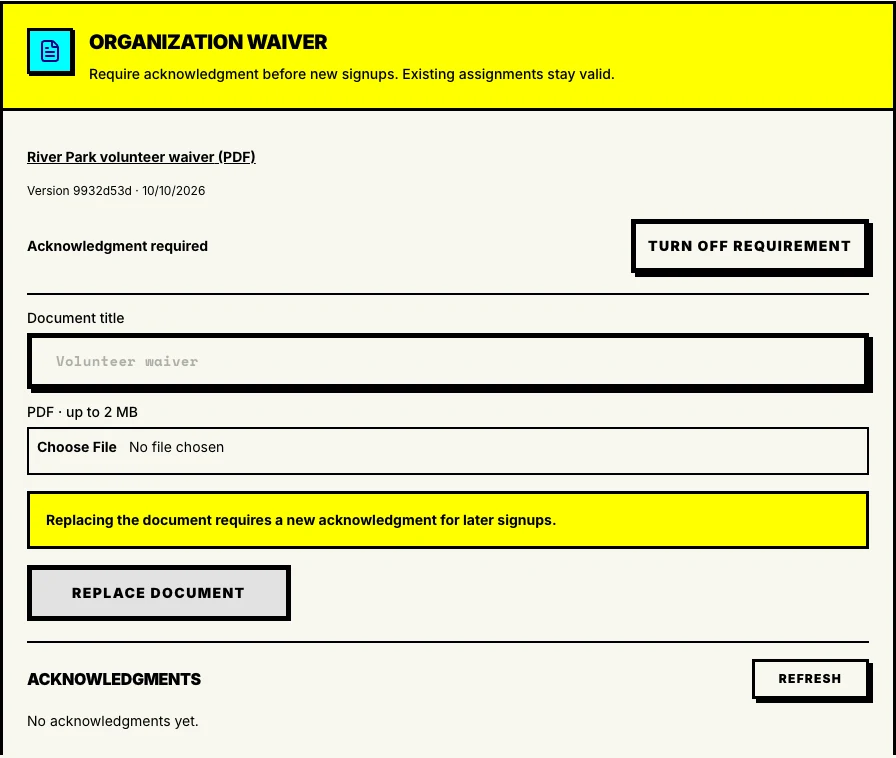
- Open Admin → Settings → Organization waiver.
- Enter the Document title and choose your PDF. The file can be up to 2 MB.
- Choose Upload document, then open the saved PDF to check it.
- Choose Require acknowledgment when you are ready to apply it to new participation.
The requirement starts off. Uploading the file prepares it; turning on the requirement is a separate action. This is an organization setting, so use a document that fits the activities your organization runs.
The Organization waiver settings in Proximatic with a saved PDF and the acknowledgment requirement enabled.
What a volunteer sees when signing up
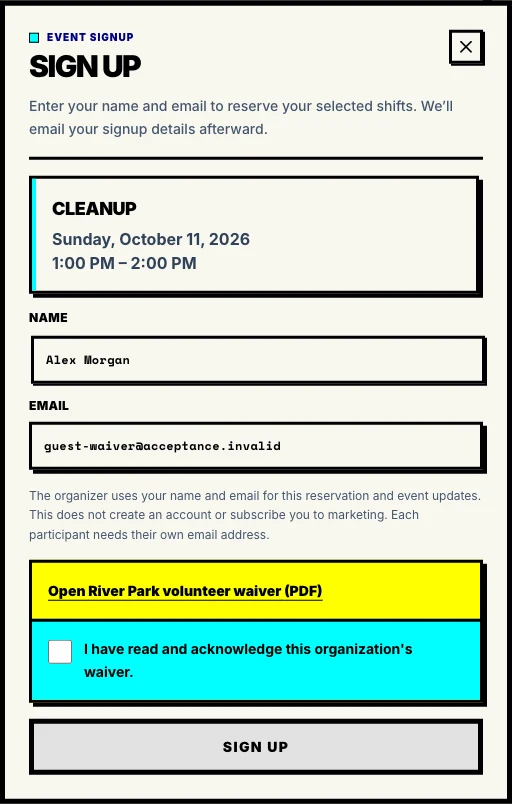
For a public, unrestricted Standard event, a newcomer still chooses a shift and enters their name and email. When your organization requires a waiver, the same signup shows the PDF link and an unchecked acknowledgment box.
The participant opens the document, reads it, and checks I have read and acknowledge this organization's waiver. The Sign up action then becomes available. Opening the document by itself does not check the box.
Proximatic's Cleanup signup with the River Park volunteer waiver PDF highlighted in yellow and an unchecked acknowledgment area in cyan.
Eligible guest signup continues without an account. Signed-in participants, new organization applicants and invited people also review the current document when they need to acknowledge it.
Work through a River Park Cleanup signup
River Park Crew is running a cleanup on Sunday, October 11. Setup has two places from 10–11 AM; Cleanup has one place from 1–2 PM. The organizer uploads River Park volunteer waiver and enables the requirement before sharing the event link.
Alex chooses the 1–2 PM Cleanup place. Alex enters their name and email, opens the PDF, reads it, and checks the acknowledgment box. Choosing Sign up reserves the available place. The organizer can review Alex's acknowledgment alongside the accepted document version and time.
If Alex leaves the box unchecked, the signup stays incomplete. If the organizer replaces the PDF while Alex is reviewing it, Alex needs to review the current version before the signup can finish. The document someone read and the version saved with their acknowledgment stay connected.
Use the same sequence to check your event: upload the approved document, enable the requirement, follow the public event link while signed out, and inspect the PDF link and unchecked box. Keep that check separate from your real participants' acknowledgments.
Review records and replace the document
Return to Organization waiver to review the participant history. The record identifies the person, accepted version and acknowledgment time, with the event context when recorded. You can open the version they actually acknowledged.
When your document changes, enter the new title, select the replacement PDF and choose Replace document. The earlier version and its acknowledgments stay available in history. Future participation uses the current document; people with an older acknowledgment review the replacement before a new signup or assignment.
Enabling the requirement or replacing the document keeps existing assignments in place. If your program needs everyone on an existing roster to review a change, arrange that review with those participants rather than assuming their earlier signup acknowledged the new wording.
Keep the signup clear
A good signup tells people what they will do, when they need to be there, and what they need to review. Give the waiver a clear title, put useful job instructions in the shift description, and share the event's signup link.
Prepare a free sign-up sheet with time slots, write clear volunteer shift descriptions, or explore volunteer signup in Proximatic.