Mobile Check-In for Community Service: Signups to Hours
By Proximatic
Suppose Avery books a place at your Saturday park cleanup from 9am to noon. They work from 9:20 to 11:50 and need a record for their community-service program. Their booking covers three hours; the record you give Avery needs to show the two and a half they worked.
You can use a QR code to open an attendance form on participants' phones, then review those responses yourself. Or you can use Proximatic to connect their signup, arrival and hours to the same event. Manual Standard event setup, participant signup and attendance are free, including the event hours report.
Use a form when you need a simple arrival record
If you already have a way to manage your community-service roster and hours, a form can give participants a quicker way to report arrival. Create a mobile-friendly form with the participant's name, the email or identifier your program uses, the service session and a choice of check-in or checkout. Use a form tool that records the submission time.
Copy the form's published responder link into a QR-code generator. Put the resulting code at the entrance with a short instruction to submit the form on arrival and again before leaving. A participant scans the code, fills in the details and submits. The form response records the action.
For hours, pair each person's check-in and checkout for that session. If someone submits twice or never submits a departure, follow up before treating the pair as a completed service record. The QR code makes the form easier to reach; you still manage those responses and their connection to the roster.
In Proximatic, attendance is recorded against the place the participant reserved, and the event report calculates hours from those records. Here's how to use that route for the cleanup.
Create the cleanup and share its signup page
Create a free Standard event. Set up your organizer account and organization, then enter the cleanup's date, location and description.
For the cleanup on Saturday, November 14, add a litter-collection shift with 12 places and a sorting shift with four places, both from 9am to noon. Include where participants should meet and any instructions they need before choosing a job. Keeping each job's capacity on its shift lets people reserve work you actually need covered.
Publish the event, then use Share Event to copy its public link into the email or group message you send participants. For open, unrestricted public shifts, a participant chooses a place, enters their name and email, and selects Sign up. Their place is reserved immediately, without creating an account or waiting for an email confirmation.
Proximatic sends a signup receipt with a link for managing that reservation. Tell participants in your event message where to check in when they arrive and whether you'll record their attendance or ask them to self-scan. Those are both free options.
Check people in at the welcome table
Keep an organizer with the roster at the entrance if you want people to remain account-free. For participants who prefer using their own phones, set up a printed attendance sign. You can use both at the same welcome table.
Organizer check-in for guests
Avery reserves a litter-collection place with their name and email. When Avery arrives, open Run the event → Roster, find their litter-collection assignment and select Attendance. Have Avery accept the check-in terms, mark Check-in terms accepted, then select Check in.
Their arrival is recorded against the place they reserved. Avery doesn't need to create an account or have a phone with them. Use the same assignment's Check out action when they leave.
A printed QR sign for self-check-in
On the published event, open Printed Attendance Signs. Choose a whole-event sign if participants should select their job, or a fixed-role sign for one job and time. Select Create printable sign, then Print sign. Signs are for registered volunteers by default.
Participants need a verified Proximatic account connected to their signup to check themselves in. If they originally signed up as guests, have them open the management link in Proximatic's receipt email, choose Link to account, and sign in or create an account using the same email address. After email verification, they complete Link my signup on the receipt. Doing this before the cleanup saves an account-linking step at the entrance.
At the event, a registered participant scans the attendance sign, signs in if needed, chooses Check in and their job, accepts the displayed terms, and selects Confirm check-in. The confirmation records arrival. At departure, they can use the same sign, choose Check out, select the job and confirm.
Participant check-in and checkout
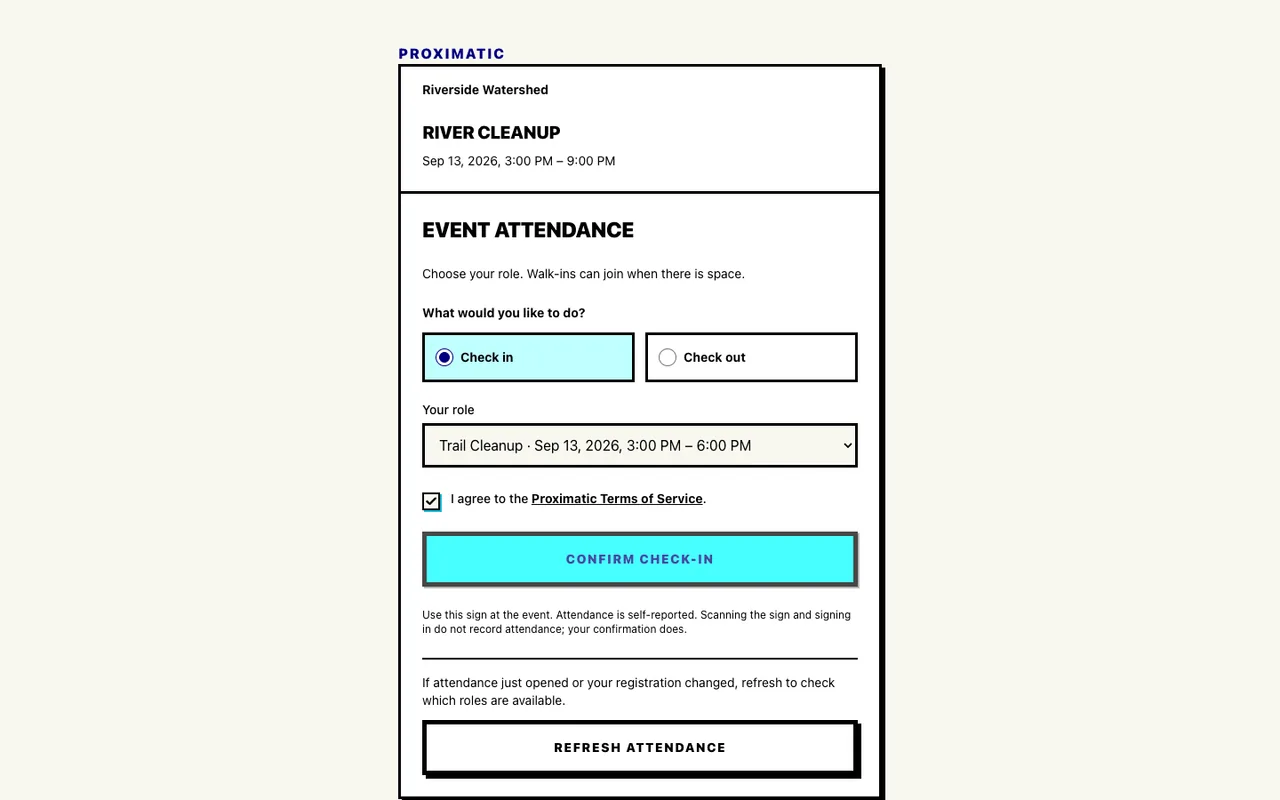
For an open event where you want to accept new arrivals, enable Allow walk-ins to join available roles when creating the sign. A walk-in can then complete the account and verification steps and join an unrestricted role that still has room.
Put the attendance link on your own poster
If your organization has a poster design, you can use an external QR-code generator with Proximatic. Create the attendance sign first, then copy the visible attendance URL beside its QR code into your generator. It opens the same attendee page and keeps the same sign-in, role and confirmation steps. Preview attendee page lets you check the destination; Print sign is the ready-made option if you don't need a separate design.
Use that printed sign's link for attendance. The public event link takes people to signup, while the rolling kiosk QR code expires or changes after use and isn't suitable for a paper poster. Replace your poster's code if you change the event schedule or roles, and check the sign's displayed expiry before using it again.
Keep Wi-Fi or mobile data available for QR scans and guest attendance. For registered participants at a venue with unreliable service, prepare the organizer's roster online before the event. Ready on this device confirms it can record their attendance offline and sync after reconnection.
Record when each participant finishes
If your program needs recorded departure times, tell participants to check out before they leave. Someone using the printed sign can scan it again; a guest such as Avery returns to the organizer, who records checkout on their assignment.
Avery returns to the organizer at 11:50am, and you record checkout against their litter-collection place. Proximatic calculates 2.5 hours from their 9:20 arrival. Jordan checked in at 9am and stayed until the noon finish. Without a separate checkout, their attendance closes at the scheduled shift or event end, whichever comes first. The report keeps the recorded checkout and scheduled-end closeout distinct.
Give Avery their own service-hours record
After the cleanup, Avery asks for their hours to send to the program coordinator. Open Event settings → Download CSV Report and find Avery's individual detail row. It identifies litter collection, the recorded arrival and departure, Observed checkout, and 2.5 total hours. Use that row to provide Avery's record rather than forwarding the whole volunteer roster.
You can reply from your organizer email with the details Avery needs:
Avery helped with litter collection at our park cleanup on November 14, from 9:20am to 11:50am, for 2.5 hours. We recorded their arrival and departure at the welcome table. Please contact me if you need details about the event.
The CSV uses UTC timestamps; use the event's local times in your message.
Jordan's record needs different wording because its end status is Scheduled-end fallback:
Jordan checked in for litter collection at 9am on November 14. Their record runs to the cleanup's scheduled noon finish, for 3 hours; we didn't record a separate checkout.
That gives the program the information it needs to decide what it accepts. If it requires recorded departure times, make checkout part of leaving the cleanup. You can keep the event report for the whole crew while giving each participant just their own attendance details.
With a QR form, you prepare these individual records from the paired responses. With Proximatic, the participant's place, attendance and calculated hours are already together in the event report.
Set up your community-service event free, share the signup link and use the roster or printed QR sign to record arrivals.