Change the roster. Undo the last change.
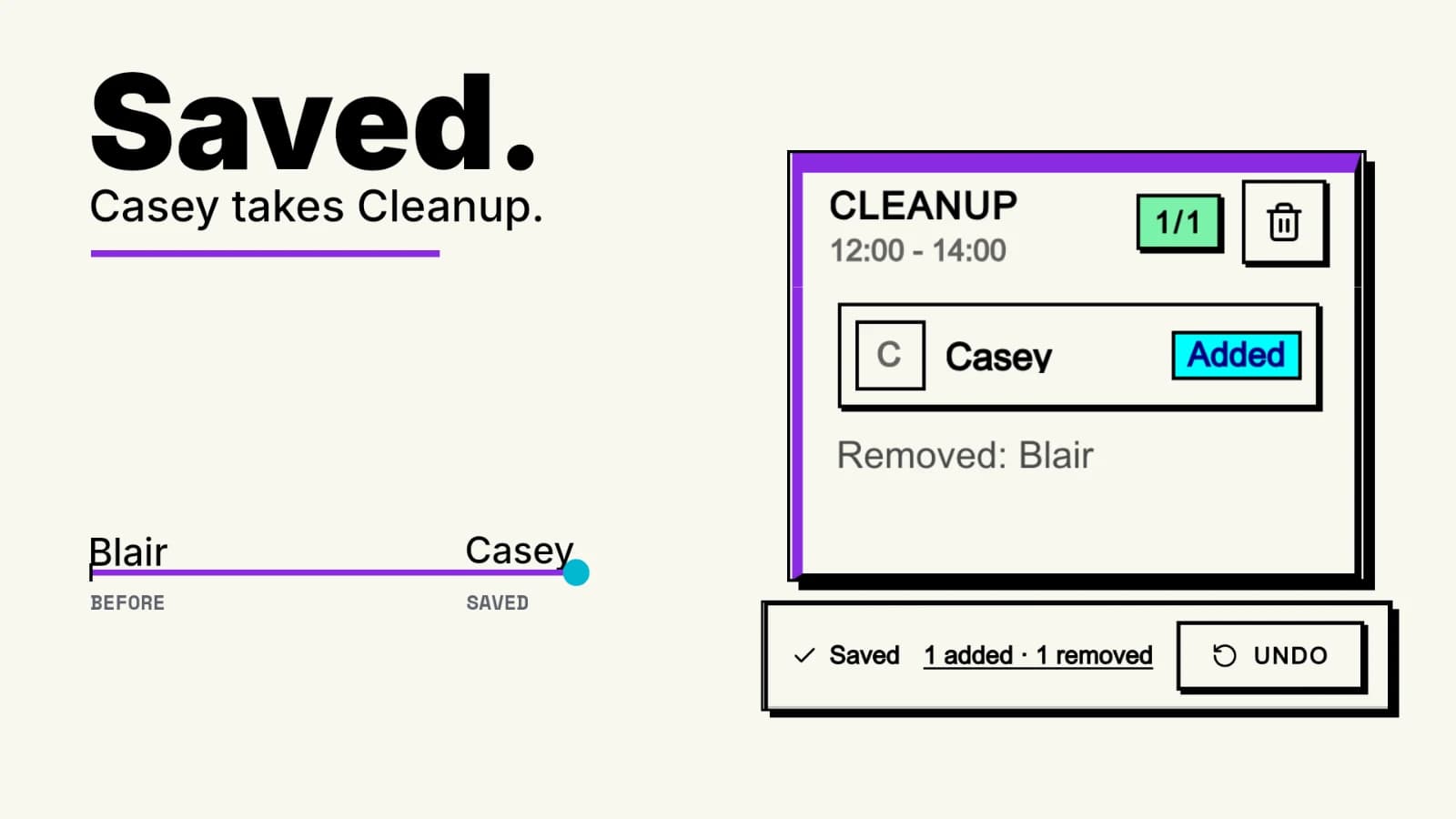
You build the cleanup roster, look at the names, and decide the previous version worked better. You want Blair on Cleanup after all.
Proximatic now saves roster changes automatically and gives you a clear way back. See what changed beside the roster, then use Undo to restore the previous saved assignments.
The same pattern carries through manual assignment edits, Auto-Schedule, AI Create and explicit roster commands in the web Organizer: make the change, check what was saved, and review the result.
See the change where you work
The save status sits beside the roster. Changes pending means your edits still need to save. Saving means that work is in progress. Saved confirms the saved result.
After a saved change, the roster identifies added people and the people removed from affected shifts. Open the change count to see their names, roles and times. A move shows both sides: where the person was removed and where they were added.
That makes a new roster easier to inspect. You can focus on the people who changed while checking the rest of the event for open places and workload.
Build, reopen, undo
Watch the product film. The short follows one change through:
- Blair is assigned to Cleanup, from noon to 2 PM.
- Auto-Schedule saves a new version with Casey on that shift. The roster shows Casey as added and Blair as removed.
- Reopening the page brings back that saved result and its Undo control.
- Undo restores Blair to Cleanup and saves the restoration. The status reads Restored · Saved.
Undo uses the earlier saved assignments. It does not ask AI to invent another version of the roster.
Manual assignment edits follow the same save pattern. Move or remove a person, then wait for Saved. Auto-Schedule saves its successful result. An explicit command such as “Build the roster” in the web Organizer also saves the resulting roster automatically. A question about the schedule stays a question; it does not start a roster replacement.
If a response is interrupted, check the latest saved roster and the recovery control before starting another request. Reopening a completed result recovers the saved work. Saved working text in Create and Organizer is also available when you return to the draft.
One clear boundary for Undo
Undo restores the last eligible saved roster batch. It is available for eligible Draft rosters for up to seven days, while that restoration is still valid.
Other changes can make an earlier roster unsuitable: a person may become unavailable, a shift may change, or attendance may have been recorded. When that happens, Undo becomes unavailable and the app asks you to load the latest roster. Review that current version before making another change.
After AI Create staffs a draft, Undo removes the new staffing assignments while keeping the draft event and its shifts. You can continue working with that structure. A structure-only draft has no staffing change to undo.
Undo is one restoration of a saved change. It is not a history browser or a redo button.
Review the roster, then publish
An automatically saved roster is still yours to review. Check the names, times, open places and each person's workload before publishing. A successful scheduling run can leave places unfilled.
Publication remains a separate step. Sending participant messages and approving a payment also keep their existing controls. Connected external agents continue to require confirmation of their exact saved proposals.
Open a Draft event's scheduler to try the flow, or follow the Auto-Schedule guide. For a new event, the AI setup guide explains the brief, prepared people and availability you need.