Volunteer Breaks: Keep the Desk Covered
Add a shift in Proximatic for the person covering breaks. See who's taking it before event day, so desk volunteers can step away without leaving it empty.
A break is easy to promise. The harder question is who covers the table while the volunteer takes it.
Suppose your community fair needs two people at the welcome desk from 9am–noon. A third person can cover their staggered half-hour breaks between 11am and noon. Give that relief hour its own signup place, so you can see who’s taking it before event day.
Your event starts here
Try this break-cover plan
Plan Community Fair next Saturday, 9am–noon, in New York time. Create Welcome desk: 2 people, 9am–noon; and Break cover: 1 person, 11am–noon. The desk must keep two people working. The relief volunteer covers the first desk volunteer's break from 11–11:30am, then the second volunteer's break from 11:30am–noon. Include only these two shifts and leave the places open for signup.
The prompt opens in the planner. Change it to suit your event, then choose Plan my event. No signup needed to preview.
1. Build the desk and its relief shift
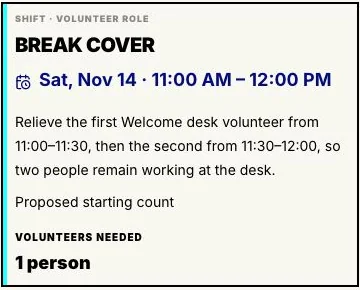
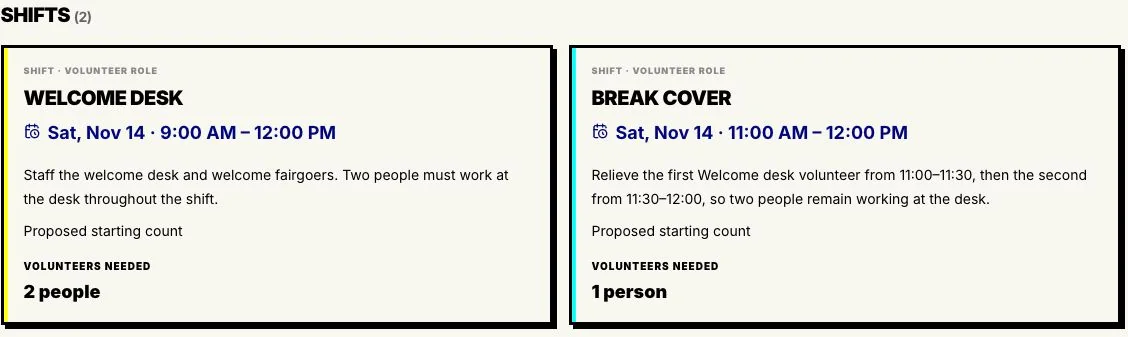
Choose Plan my event. Proximatic turns the description into two shifts: the desk’s two places and one Break cover place from 11am–noon. The relief volunteer can see the hour they’re committing to.
Community Fair’s AI preview gives Break cover its own hour and one place
2. Review the handover in your event
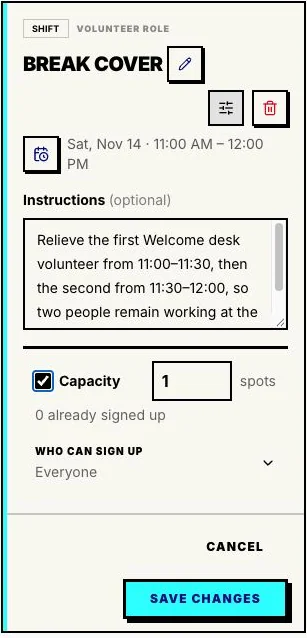
Choose Claim this event and continue with Google. Check the two shifts in the event editor. Keep the break instructions with Break cover: relieve the first person until 11:30, then the second until noon.
Set the audience to Public, leave the places open for signup, and publish.
The fair’s shift editor shows Break cover’s handover instructions and one open place
3. Fill the relief hour
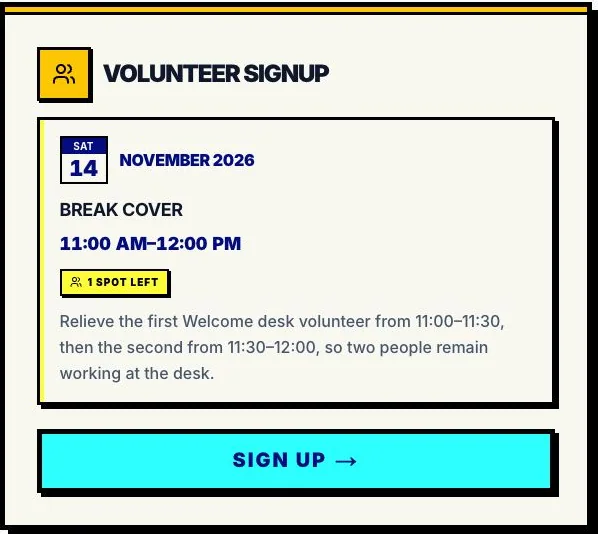
Copy the link from Share Event. Alex and Casey take the two Welcome desk places. Morgan chooses Break cover and selects Sign up. They enter their name and email, then choose Confirm signup. Their place is reserved immediately, and their name appears on your roster.
Recruiting for one hour is a clearer request than asking someone to float around all morning. If that place is still empty, you know which hour needs help.
The fair’s public signup offers the one-hour Break cover place
4. Check the relief person in
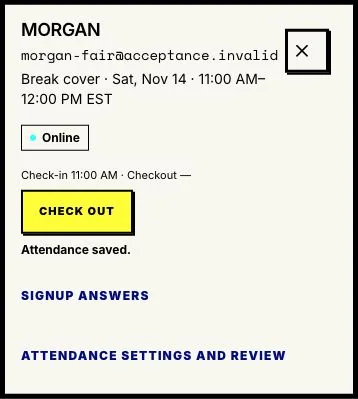
At 11am, open Run the event → Roster → Attendance. Confirm the check-in terms and select Check in for Morgan. You can see Morgan has arrived before the first break begins, then manage the two handovers.
Morgan appears on the fair’s Break cover attendance roster
5. Keep the attendance afterward
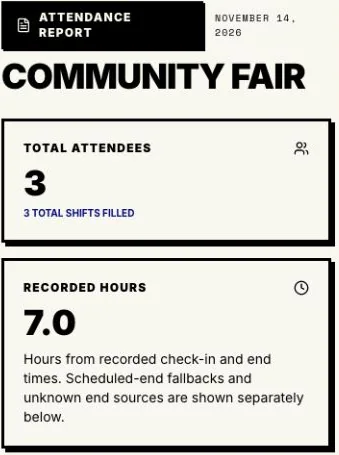
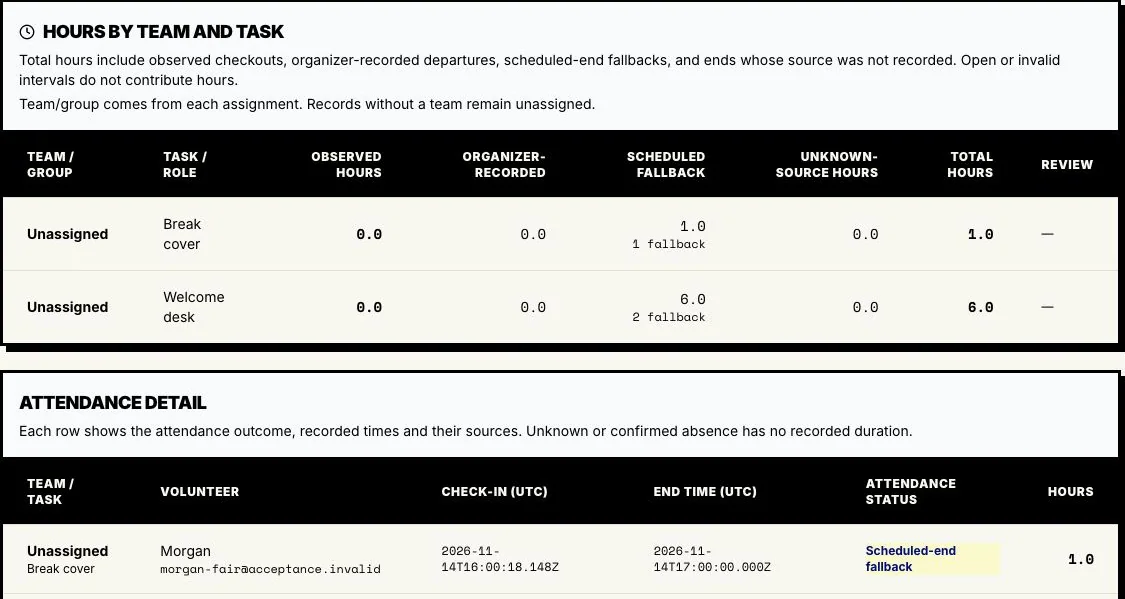
Record Morgan’s departure with Check out, or let the scheduled finish close open attendance. After the fair, Event settings → Event report shows the relief shift’s recorded hours alongside the desk crew. Download CSV Report takes the details with you. Attendance hours include the desk volunteers’ breaks.
Community Fair’s report shows three attendees and seven recorded hours