For organizers · Getting started
Race Volunteer Signup with Roles, Shifts and Attendance
Create a race volunteer signup with clear jobs, shift times, spot limits, a shared roster, and day-of attendance.
At a glance
One Standard event
Free publication for the volunteer crew.
Three jobs · 14 spots
Welcome, water station, and cleanup.
One working roster
Follow confirmed assignments through attendance.
Have your date, meeting place, job times, and spot limits ready. This fictional Harbor Run example covers volunteer staffing; keep runner registration and entry payments in your race registration system.
Choose the workflow by audience. Keep runner registration, entry payments, and race-participant operations in the race platform. Use a separate volunteer event when the staffing team needs named jobs, capacities, a confirmed crew, and attendance records. RunSignup documents its own volunteer task, reporting, and check-in capabilities in its official volunteer management overview; this page does not claim an integration or that every race needs another system.
If the race also sells admission or has a public ticketing audience, compare that requirement separately in the Eventbrite alternative for volunteer events. This walkthrough owns the volunteer staffing workflow.
The job-and-capacity pattern is inspired by the supplied SignupGenius example. It is a planning reference, not a Proximatic integration; the event, volunteer signup, roster, and attendance flow below happen in Proximatic.
These screenshots follow one fictional event through creation, shift setup, publication, account verification, and an explicitly confirmed signup. The organizer identity was prepared in a disposable database; the event and volunteer signup were created through the product UI. Verification mail stayed in a local synthetic mailbox. No image demonstrates a completed attendance action.
One event. Three jobs. Fourteen volunteer spots.
Use your own date and confirm the displayed local times. Each job below is a separate shift with its own capacity.
| Shift / job | Time | Spots |
|---|---|---|
| Volunteer welcome | 6–8 AM | 2 |
| Water station | 7–10 AM | 8 |
| Finish-area cleanup | 10 AM–noon | 4 |
From an empty event to race day
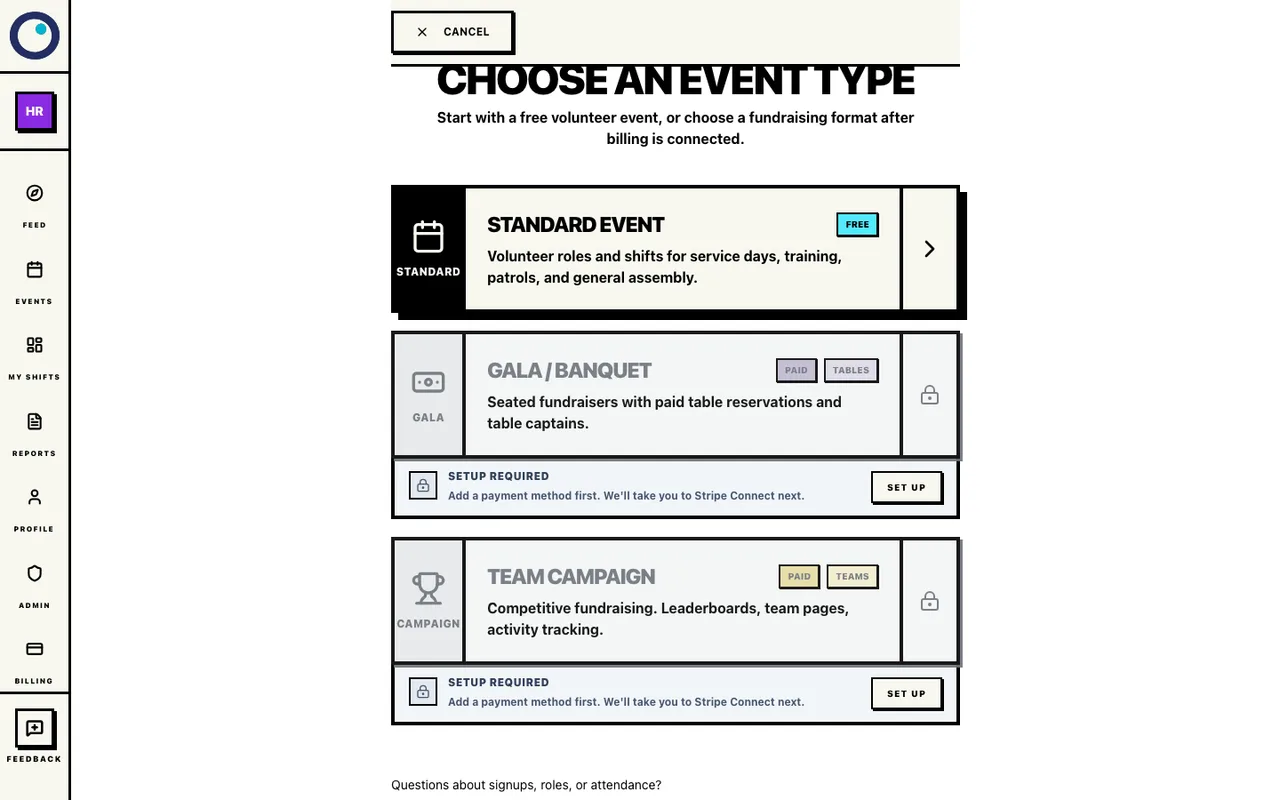
Sign in as an organization Owner or Admin and select the organization that will run the crew. Open Create → Event and choose Standard event. The direct Standard event link below opens that event type for you.
You are creating the volunteer staffing event. Keep runner registration and entry payments in your race registration system.
Choose the Standard event type
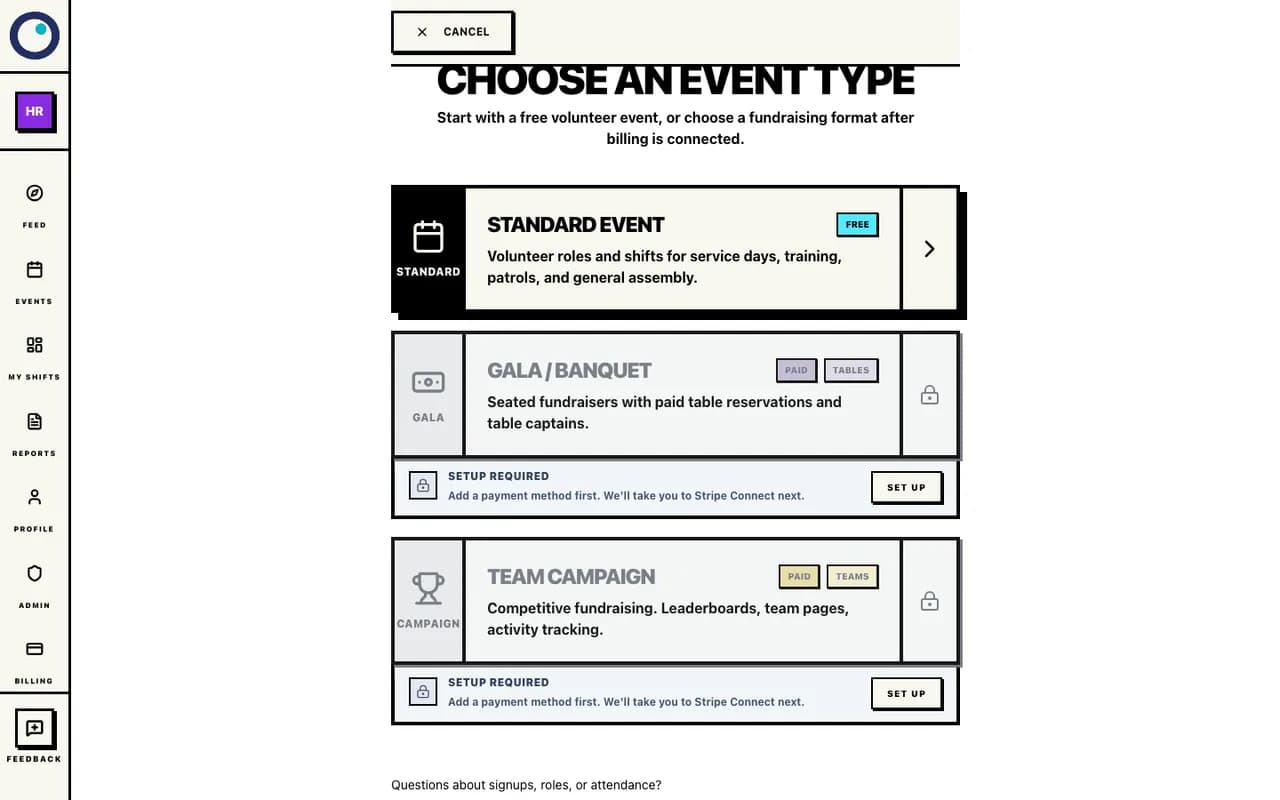
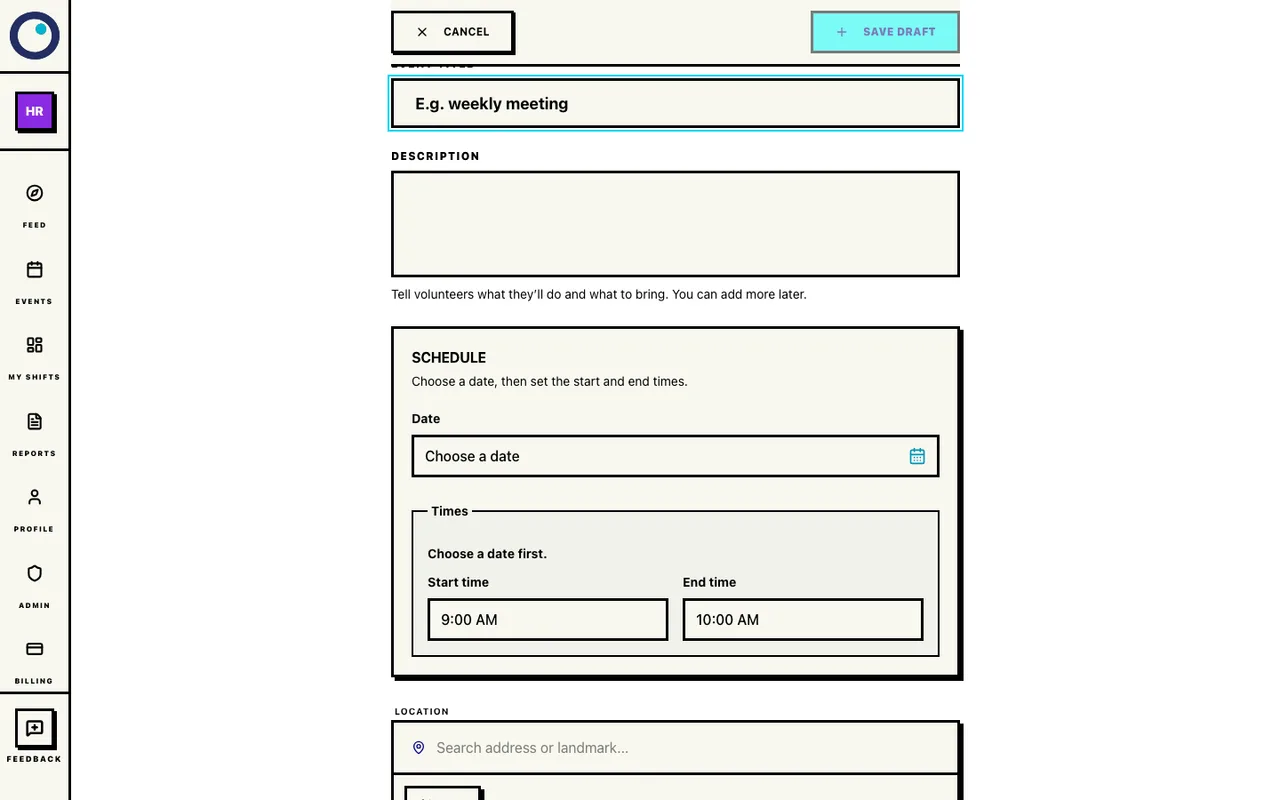
The organizer chooses Standard in the actual creation flow. Only the organization and organizer identity were seeded. The empty Standard event form
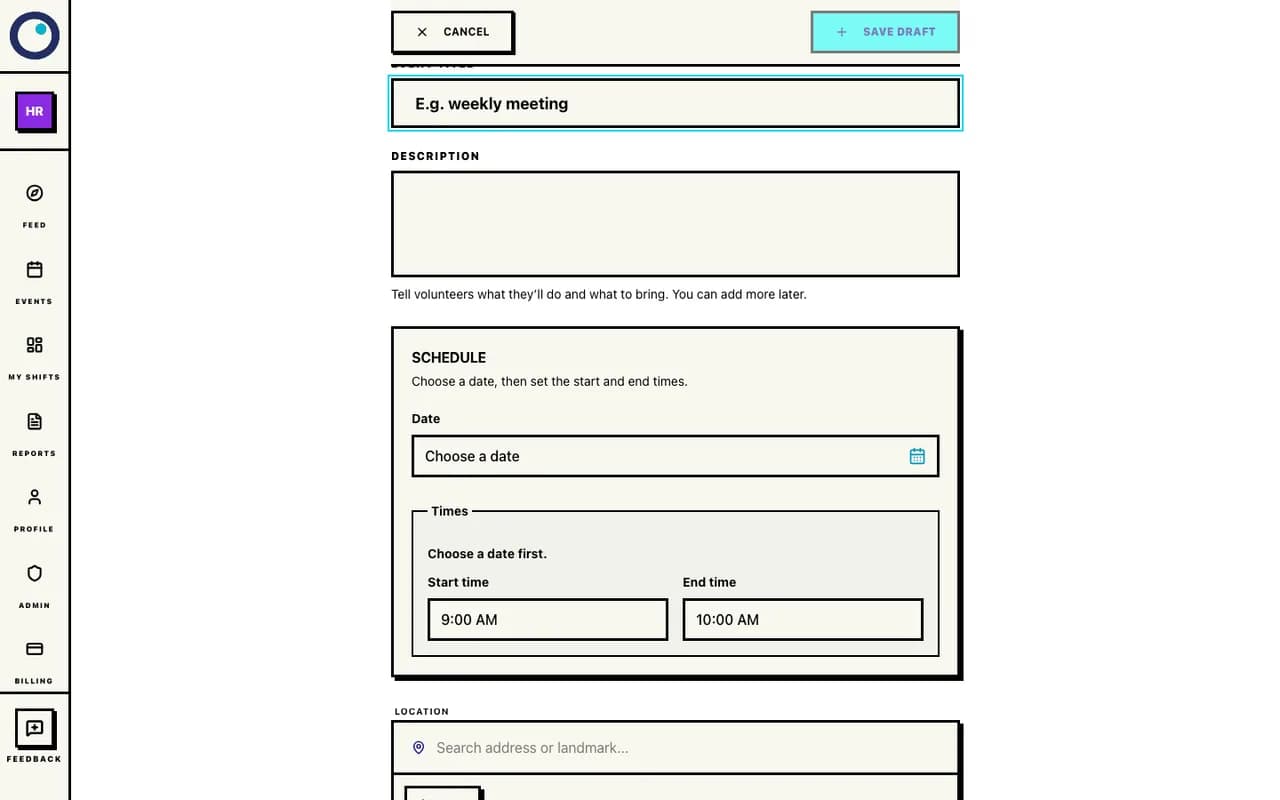
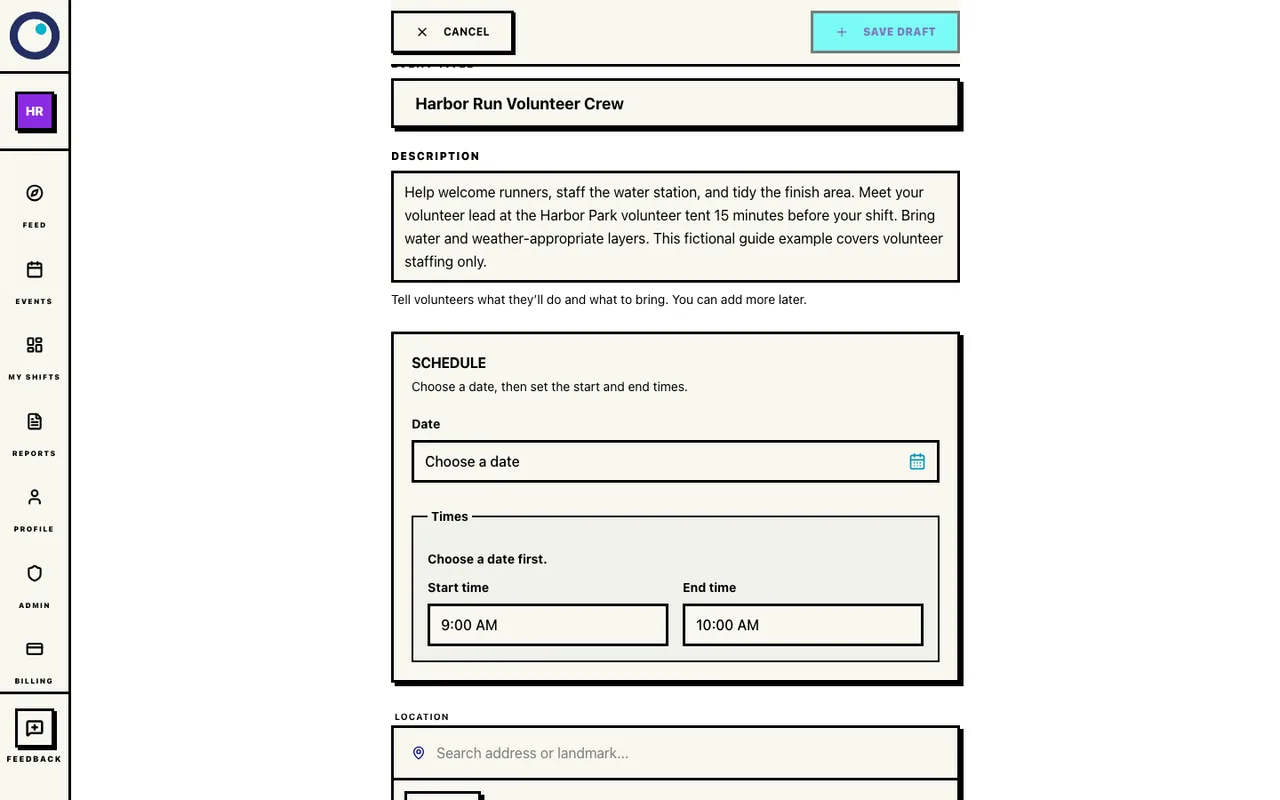
The empty Standard creation form before any event exists. Enter Harbor Run Volunteer Crew as the Event Title. In the description, explain the welcome desk, water station, and cleanup work. Tell volunteers to meet their lead at the Harbor Park volunteer tent 15 minutes before their shift and bring water and weather-appropriate layers.
Replace these fictional details with your own instructions. Make the meeting point specific enough for a first-time volunteer to find.
Event title and volunteer instructions
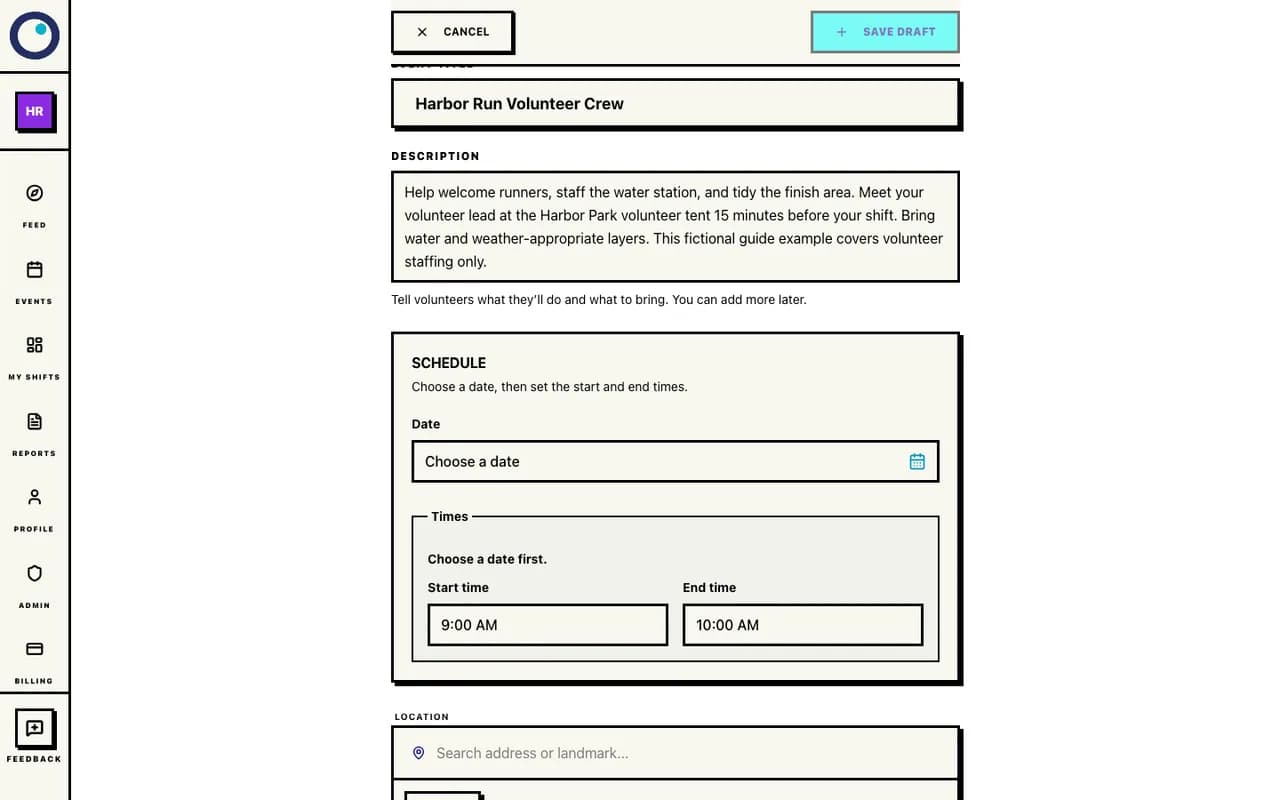
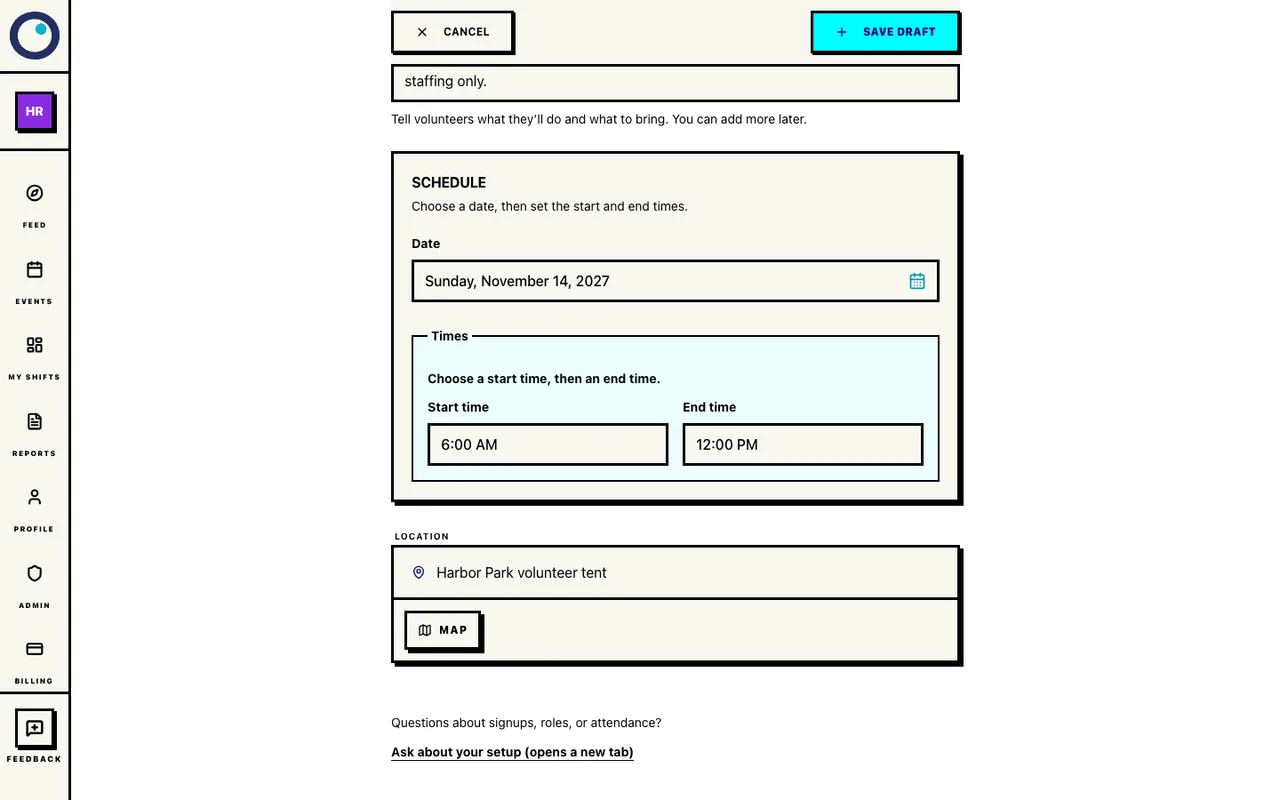
Title and arrival instructions entered into the creation form; nothing has been saved yet. Choose your event date, set the start time to 6 AM and the end time to noon, and enter Harbor Park volunteer tent as the location. Check the displayed date and times before saving; this example takes place on one day.
The event window contains all three volunteer shifts. The screenshots use November 14, 2027; choose your own confirmed date.
Date, hours, and meeting place
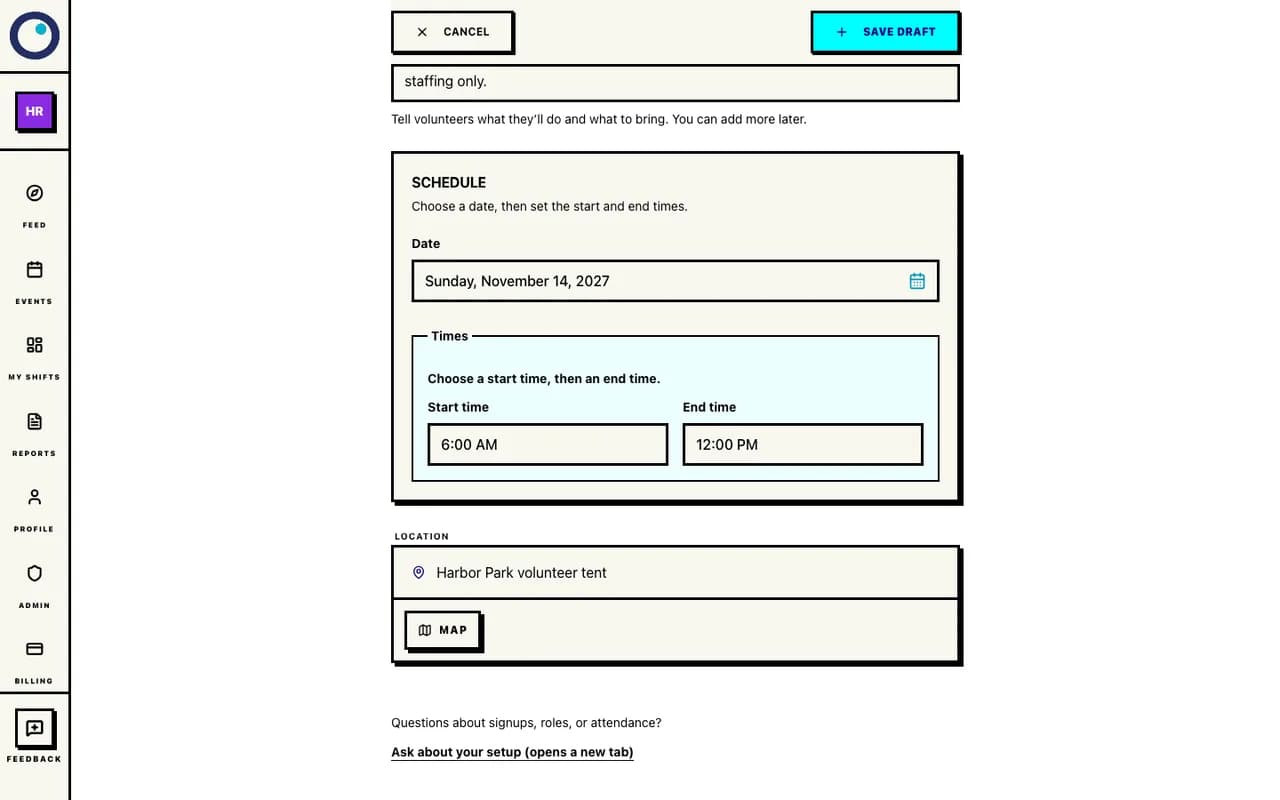
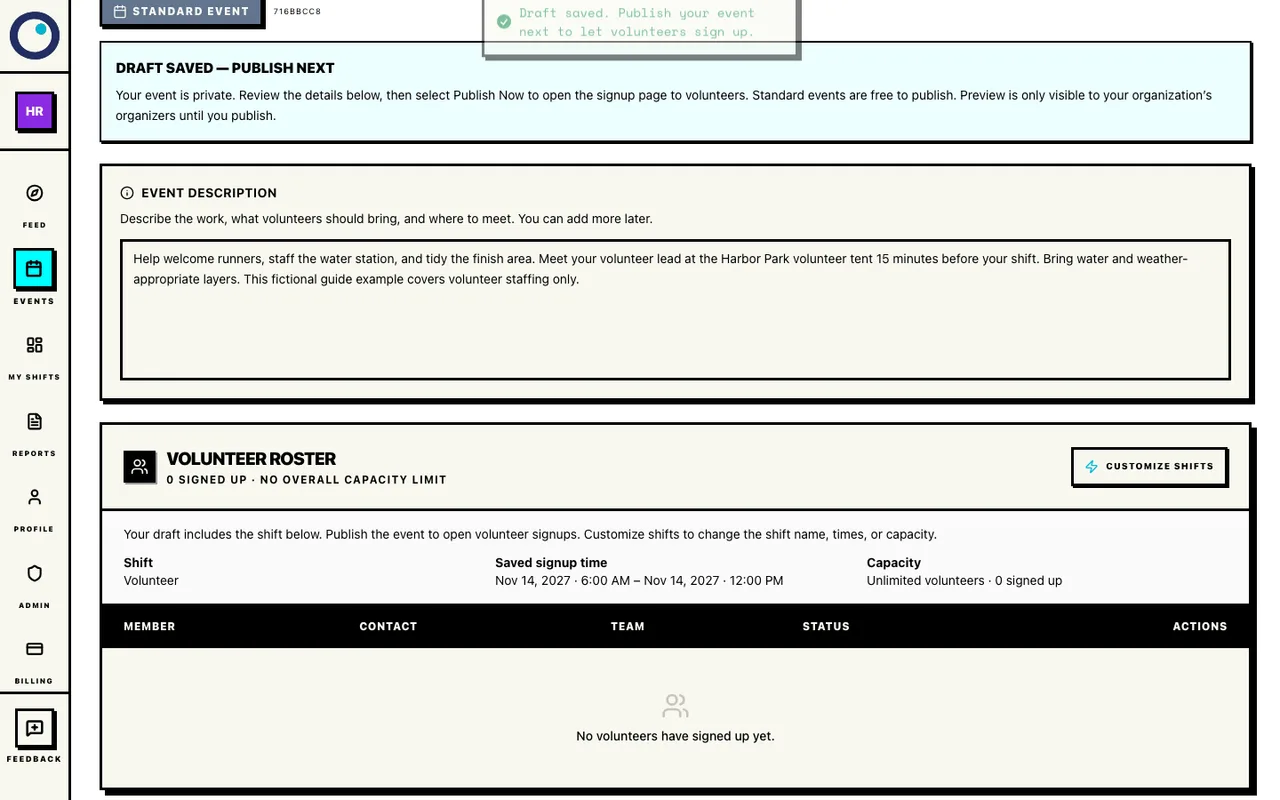
The 2027-11-14 event runs 6 AM–noon in America/New_York, with a typed meeting-place name and no map lookup. Select Save Draft. On the event management page, check that the event is still in Draft. Review the title, description, schedule, and location; use Save Changes after editing those details.
The event is saved for the organizer to finish. Saving a draft does not publish a public signup.
The saved draft
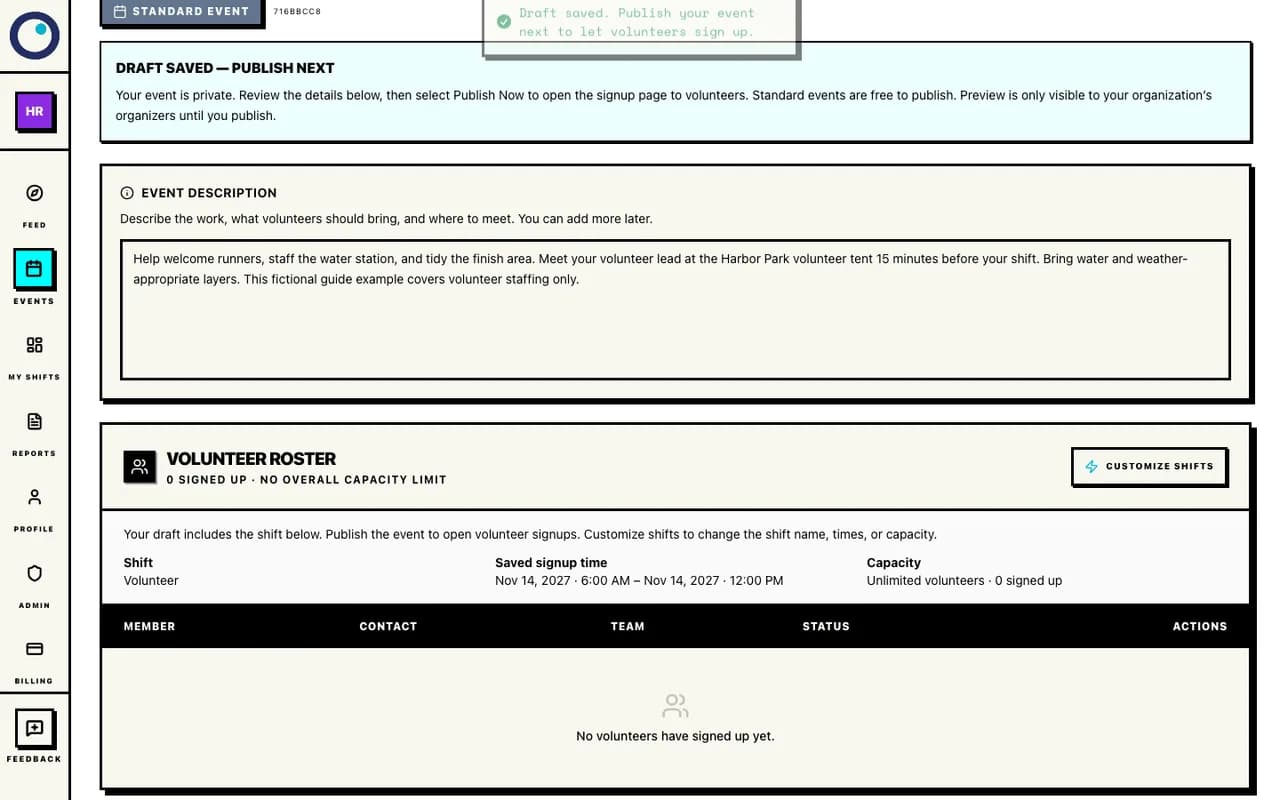
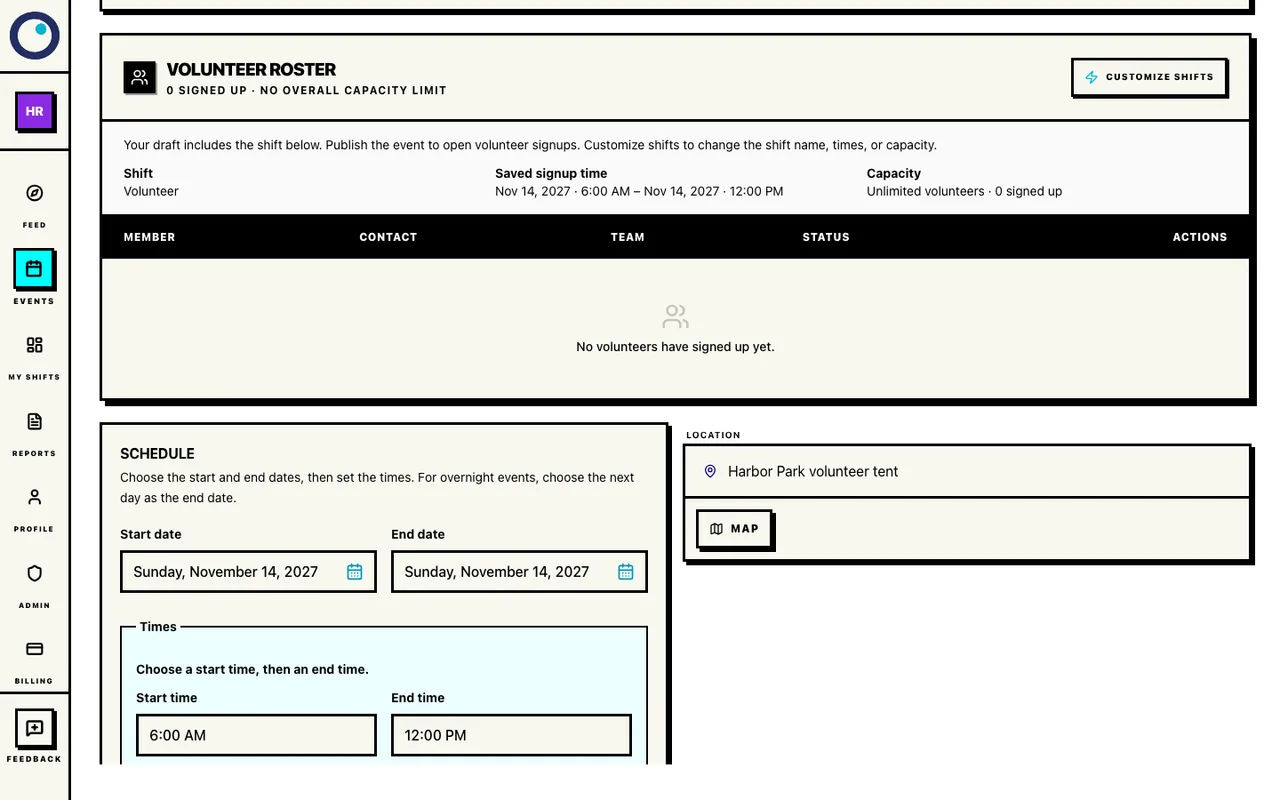
Save Draft created this Standard event through the application. The database confirms Draft status and the entered details. Scroll to Volunteer roster. A new Standard event starts with a Volunteer shift covering the event window and unlimited capacity. Check that default before building a plan with separate jobs.
For this walkthrough, replace the general shift so every signup belongs to a specific job with a spot limit.
The default unlimited Volunteer shift
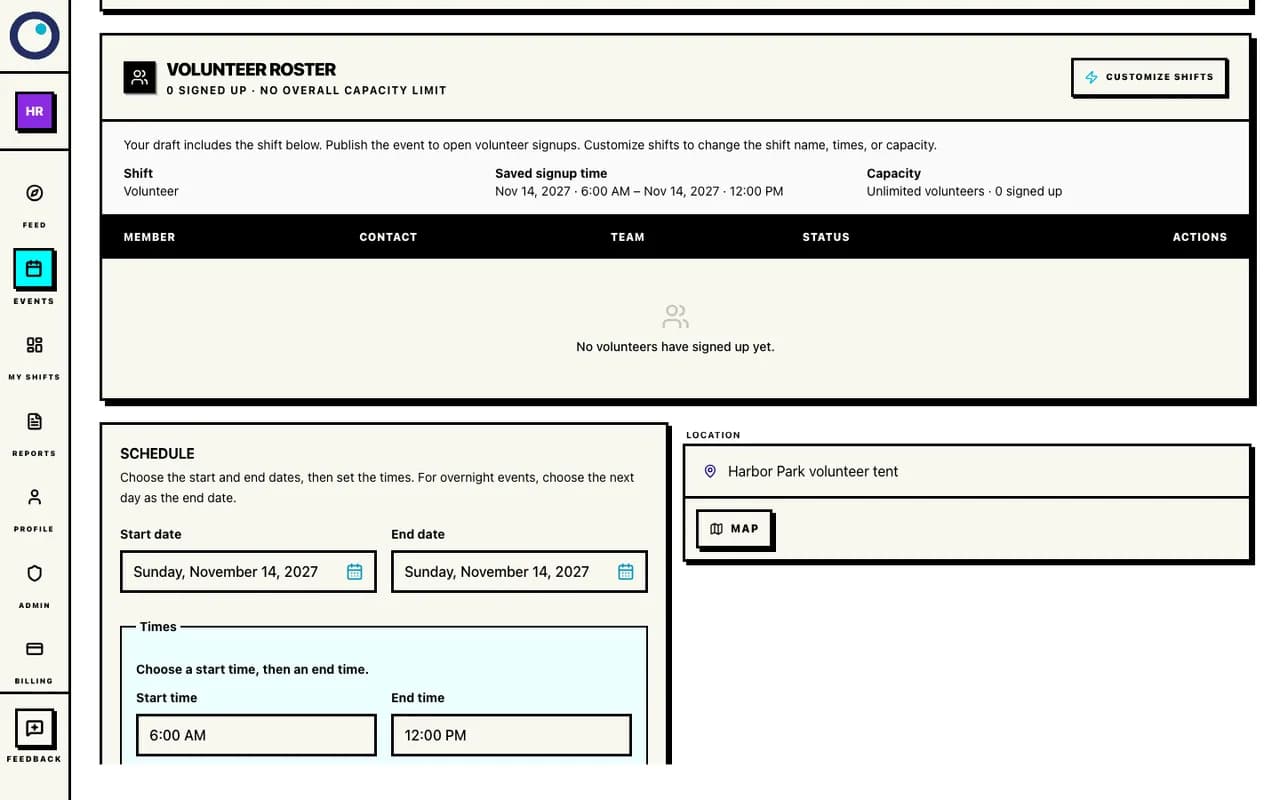
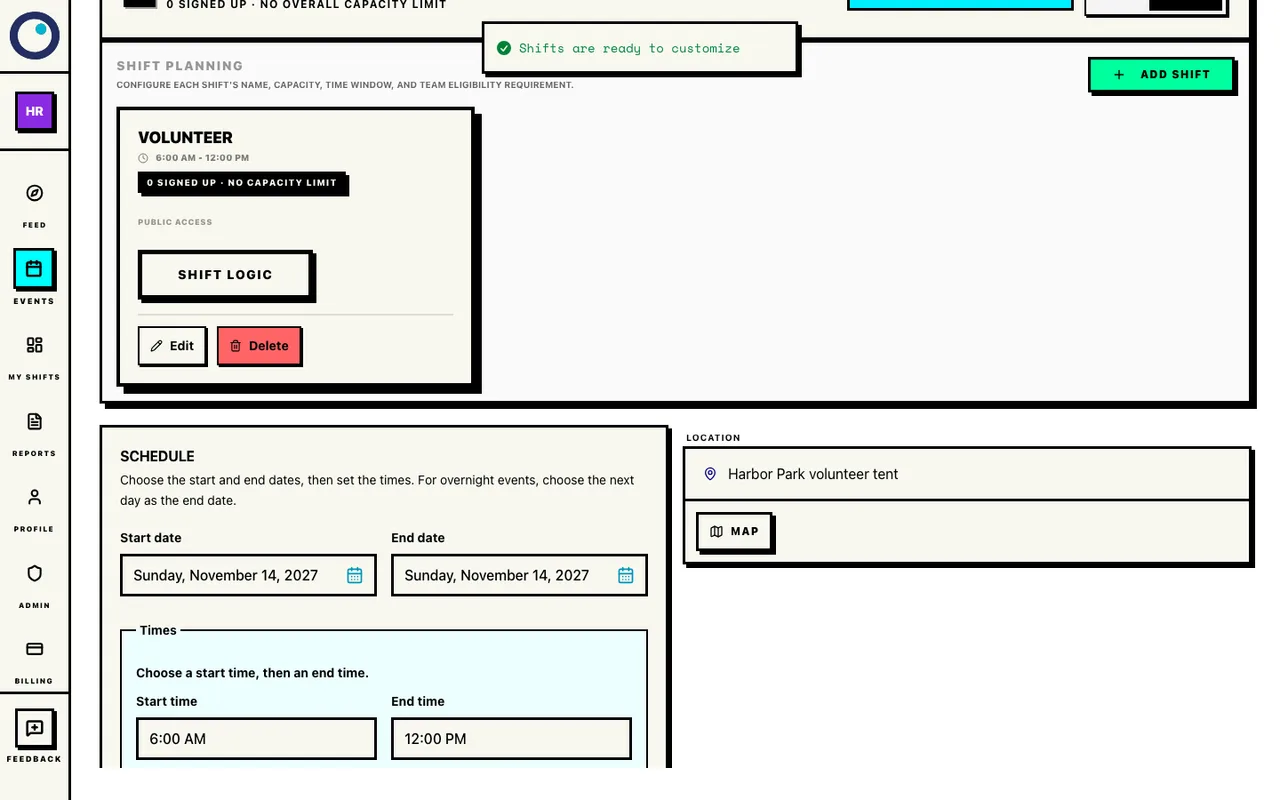
The application created one unlimited Volunteer shift when the draft was saved. It has no assignments. Select Customize shifts beside Volunteer roster. Open Schedule if needed to see Shift Planning. The default Volunteer shift remains until you remove it; enabling customization alone does not replace it.
Shift Planning gives you Add Shift and the edit and delete controls for each saved shift.
Customization retains the default shift
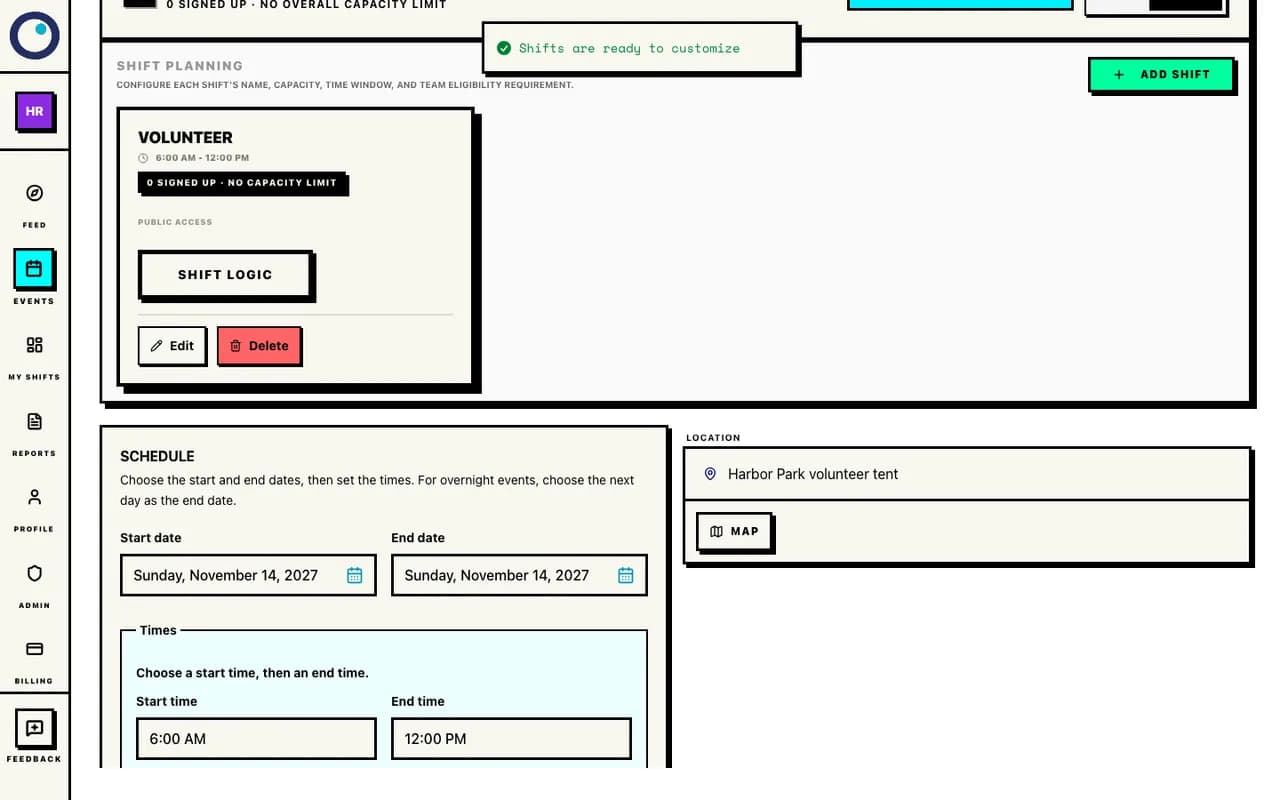
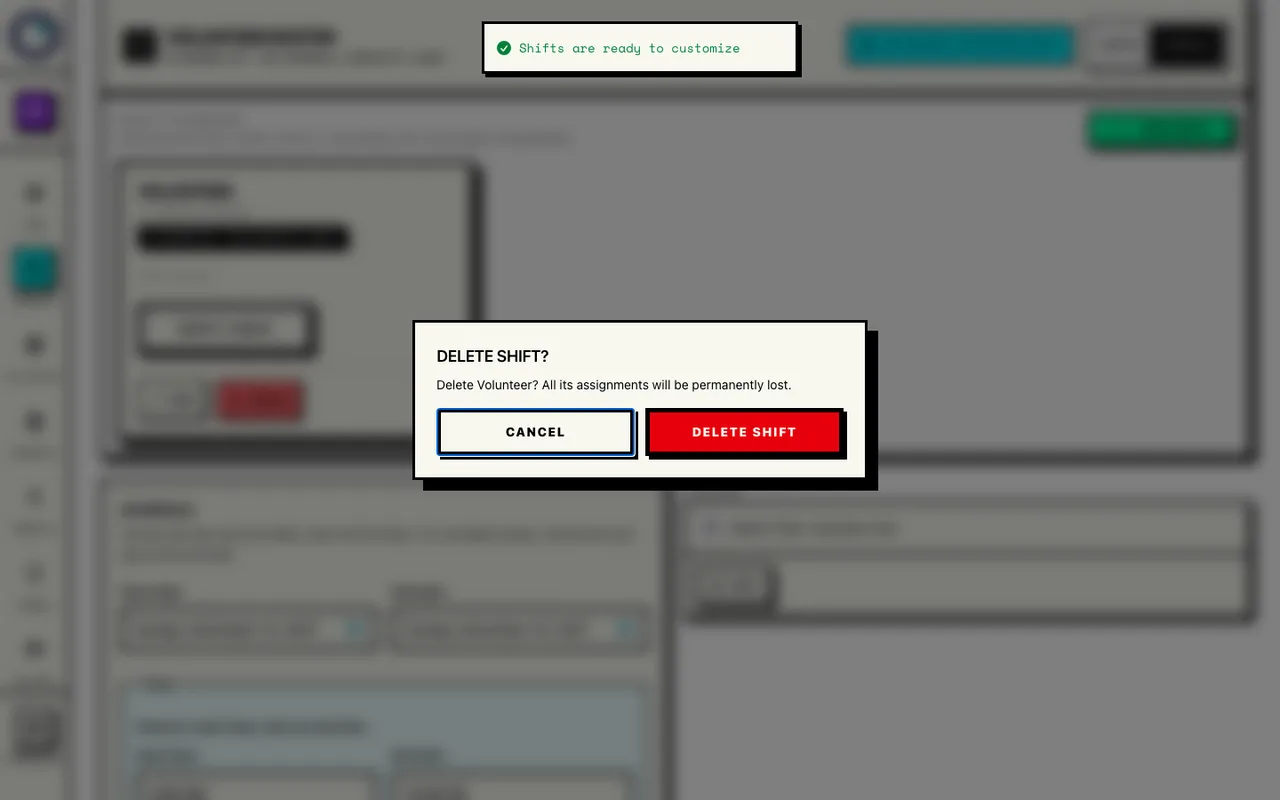
Customize shifts is enabled. The persisted default Volunteer shift remains until deletion. On the default Volunteer shift, select Delete. Read the Delete shift? dialog and select Delete Shift. This example starts with no volunteers assigned; do not delete a staffed shift just to follow the example.
The unlimited fallback is removed. You will add the three specific jobs next.
Confirm deletion of the empty default shift
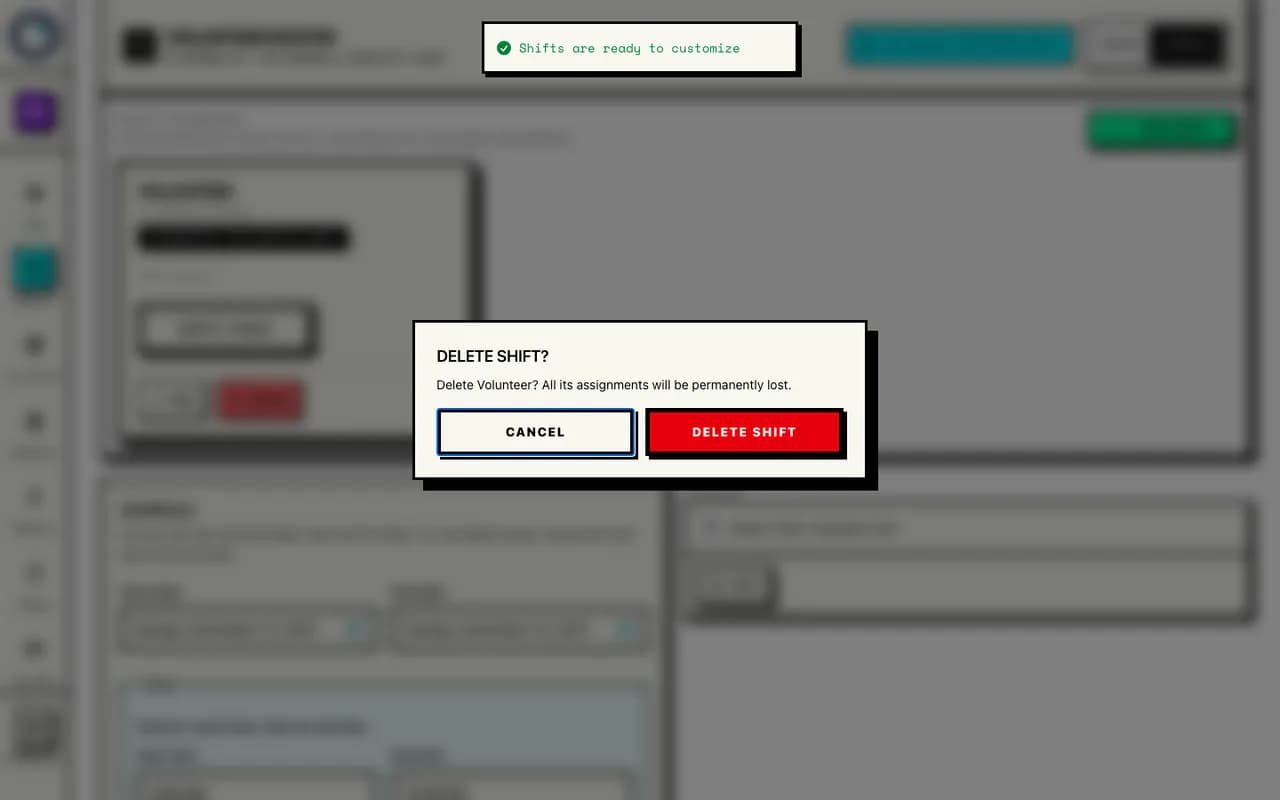
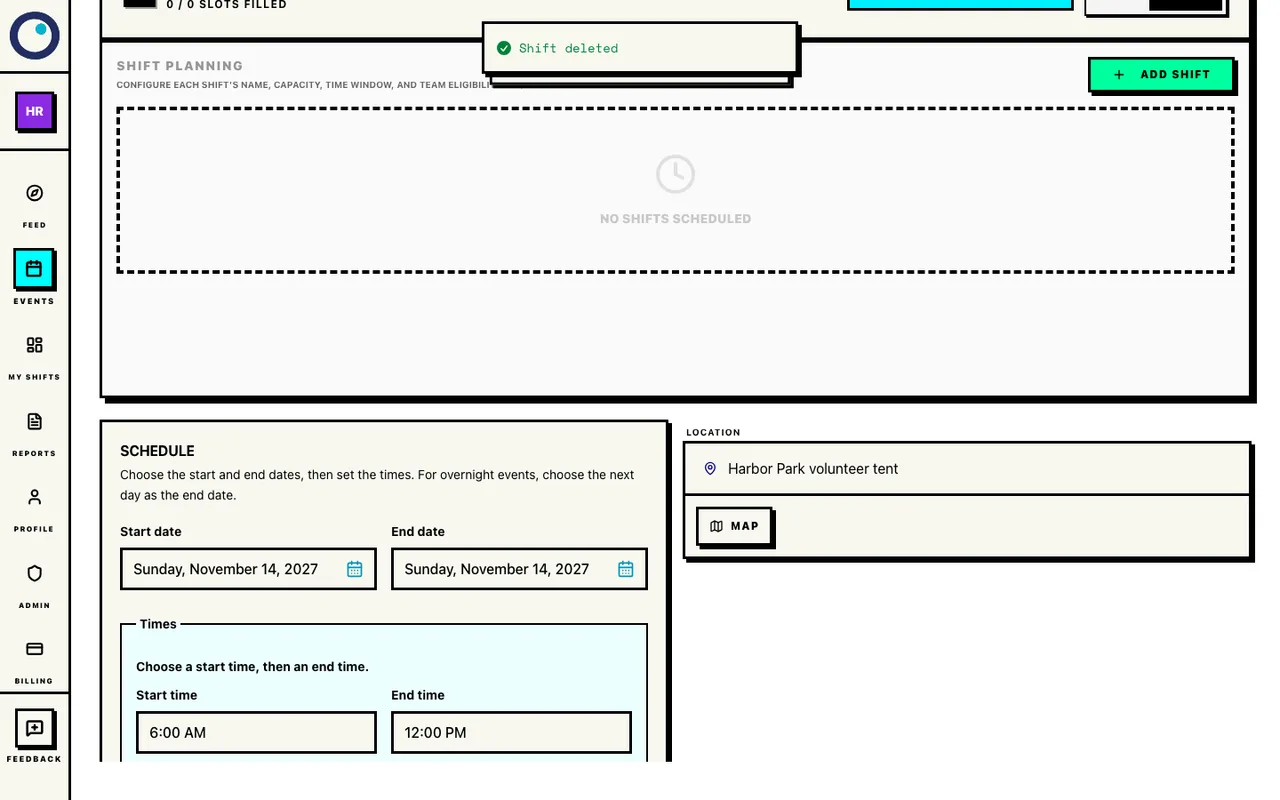
The actual deletion dialog is open for the empty default Volunteer shift. Deletion has not yet been confirmed. Check Shift Planning after deletion. There should be no remaining Volunteer shift or other jobs. Keep the event in Draft while you add the work people will choose.
An empty plan is only an intermediate setup state. Finish the shift plan before publishing.
The empty draft shift plan
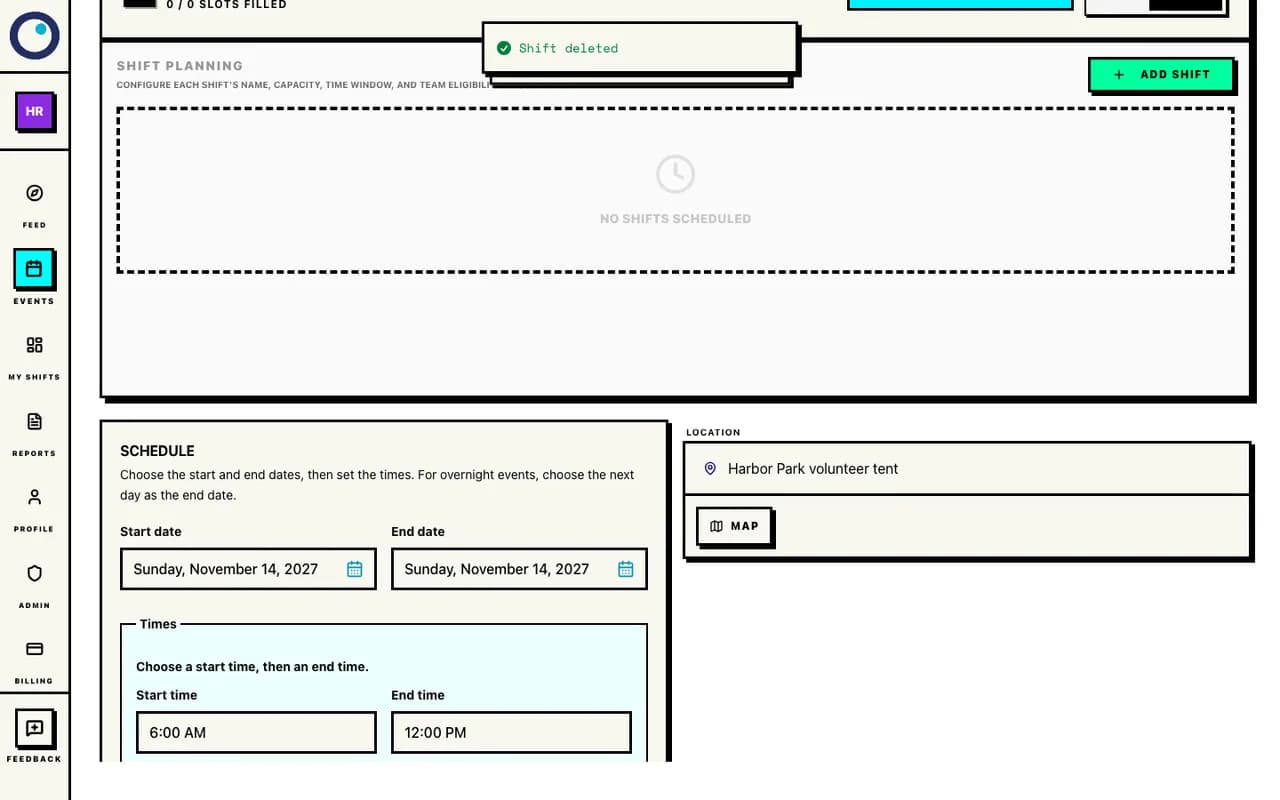
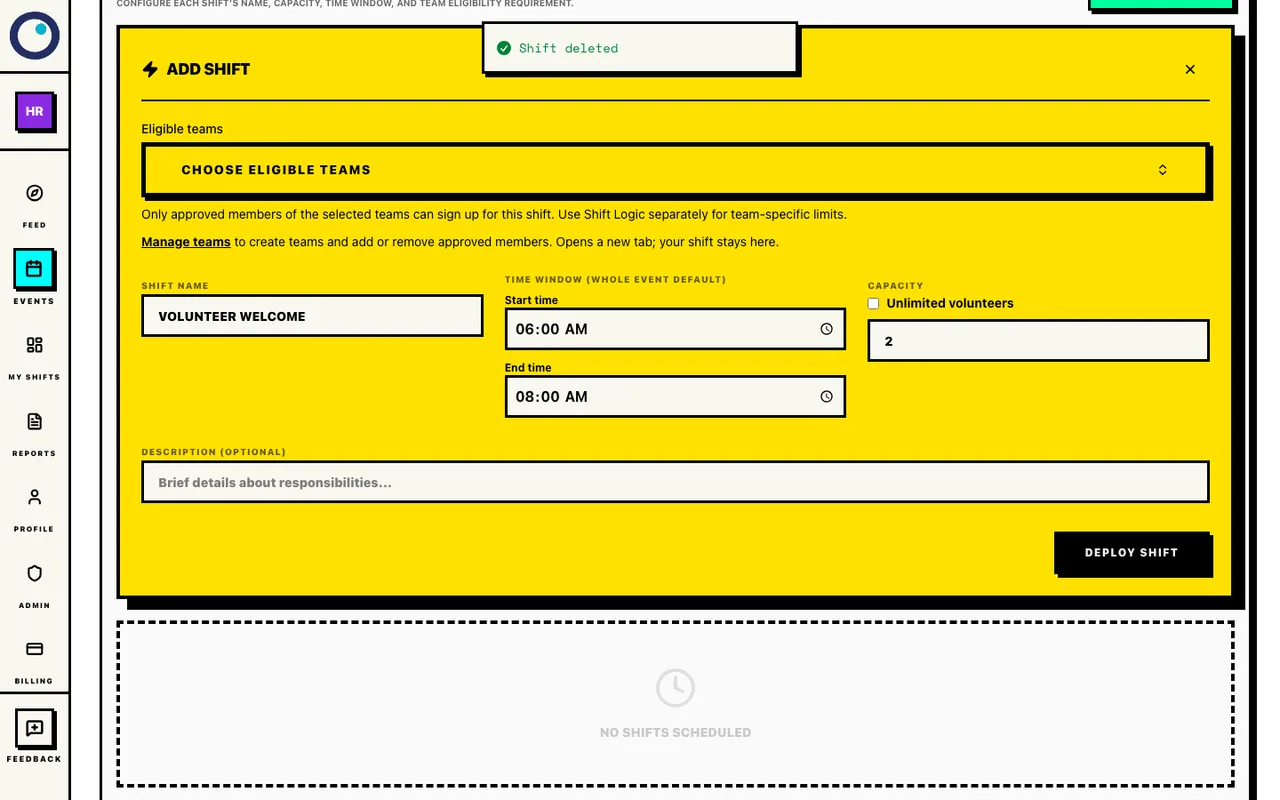
Deletion completed through the UI. PostgreSQL contains no shifts and the event remains a draft. Select Add Shift. Enter Volunteer welcome as the Shift name, 6 AM as Start time, and 8 AM as End time. Leave Unlimited volunteers unchecked and enter 2 in Volunteer spots. Leave eligible teams unrestricted, then select Deploy Shift.
Check that the saved welcome shift shows 6–8 AM and a capacity of 2. This job welcomes and directs the crew; recording attendance is a separate action later.
Enter the welcome job and two spots
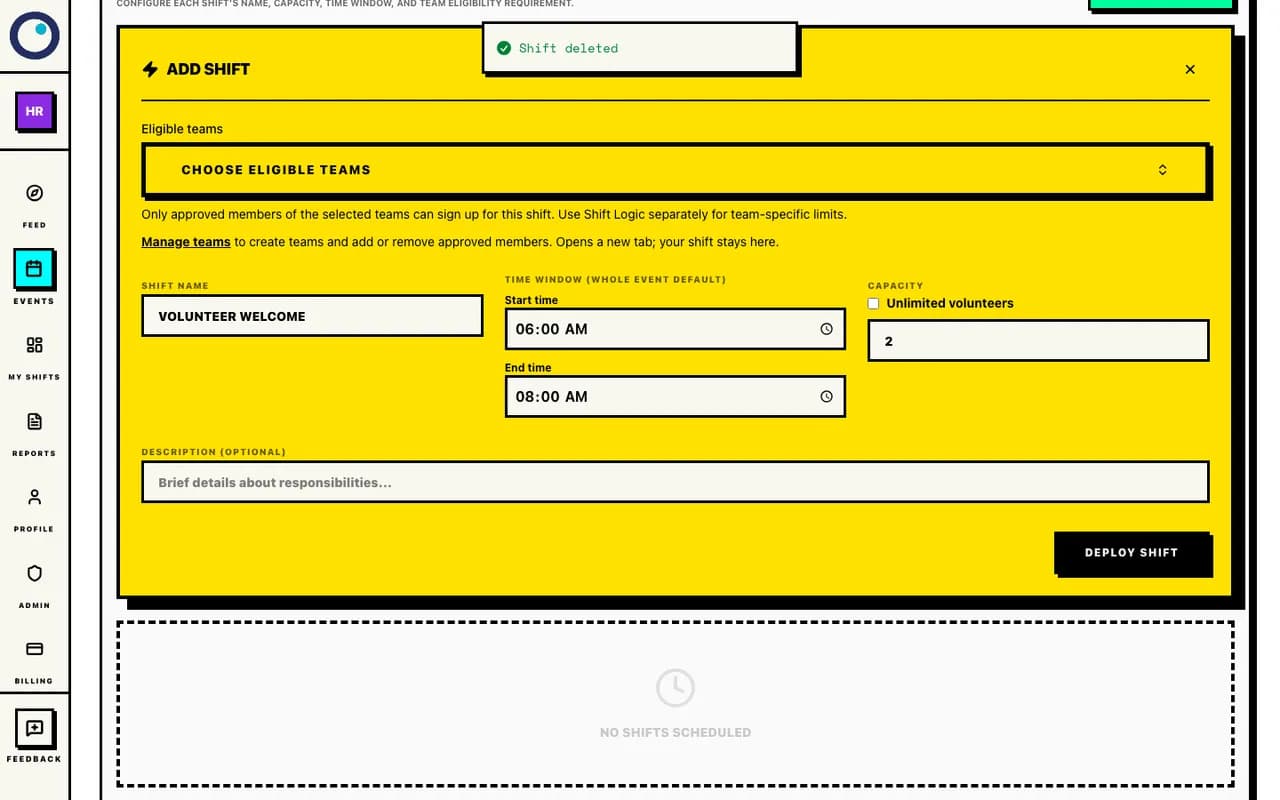
Volunteer welcome: 06:00–08:00, 2 spots, no eligible-team restriction. These form values are not saved until Deploy Shift. The saved welcome job
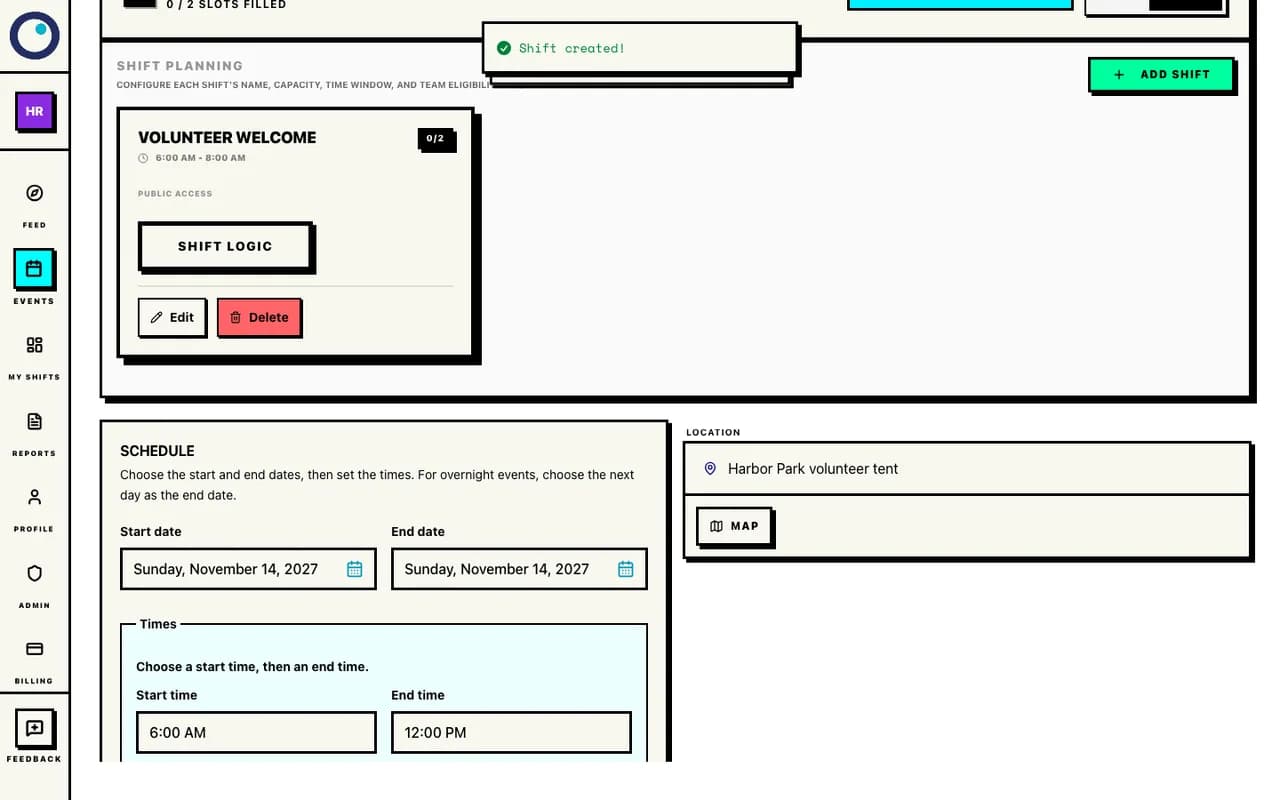
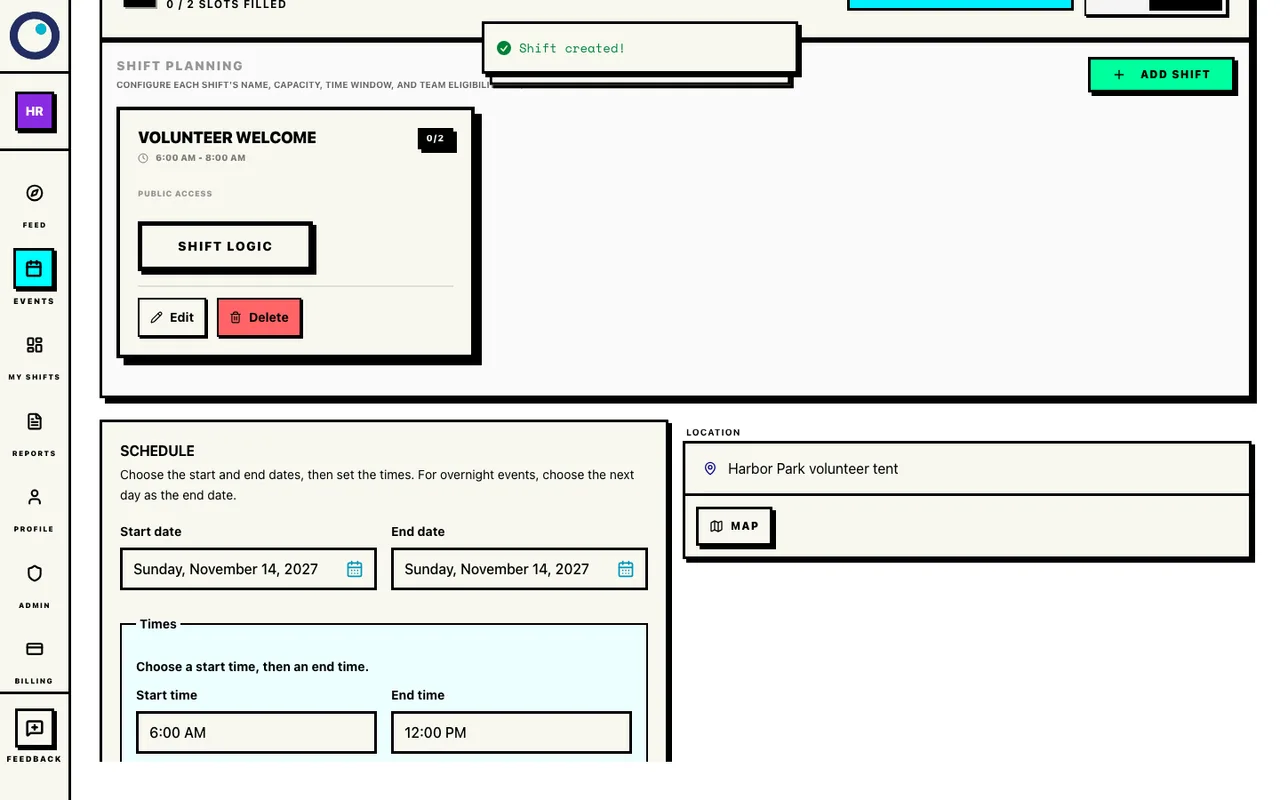
Volunteer welcome was saved through Deploy Shift. Its time window, 2 spots, and unrestricted eligibility are verified in PostgreSQL. Select Add Shift again. Enter Water station, set Start time to 7 AM and End time to 10 AM, leave Unlimited volunteers unchecked, and enter 8 in Volunteer spots. Keep the job unrestricted and select Deploy Shift.
The saved Water station shift has its own time window and eight places.
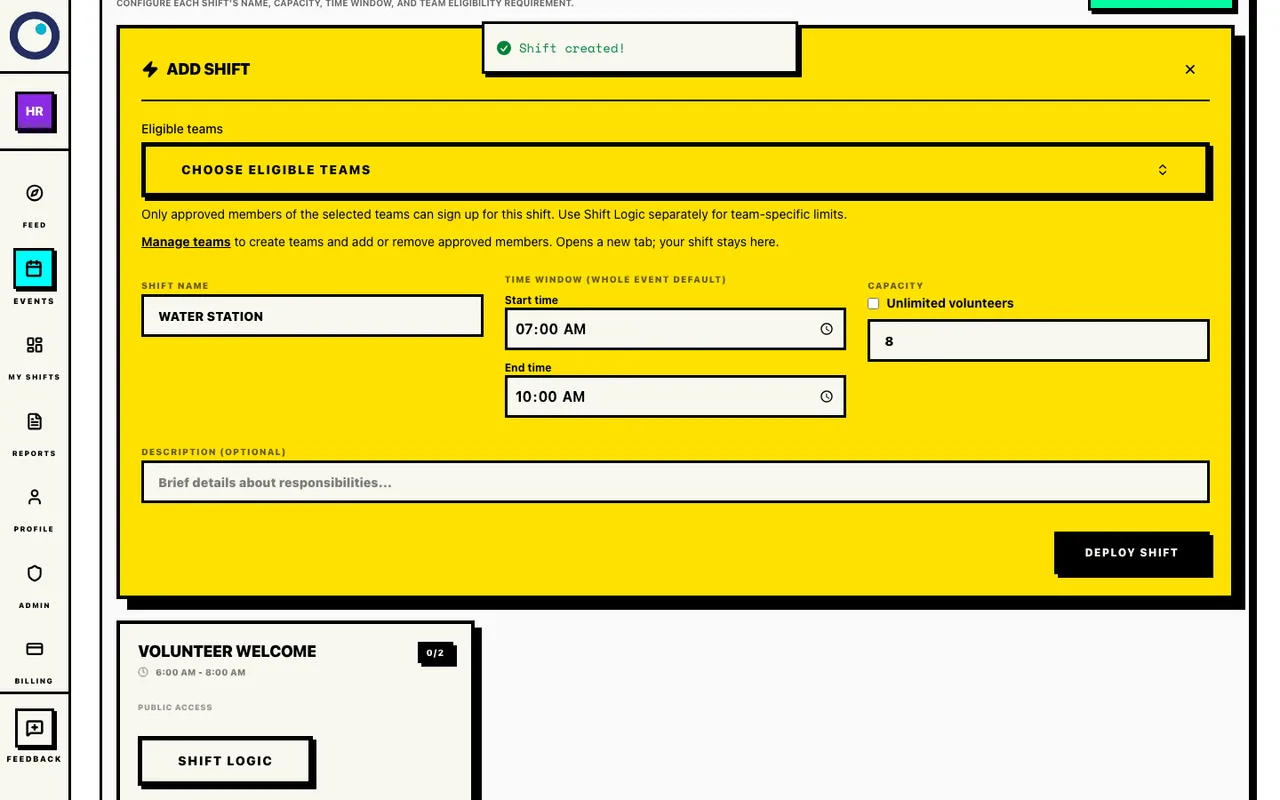
Enter Water station and eight spots
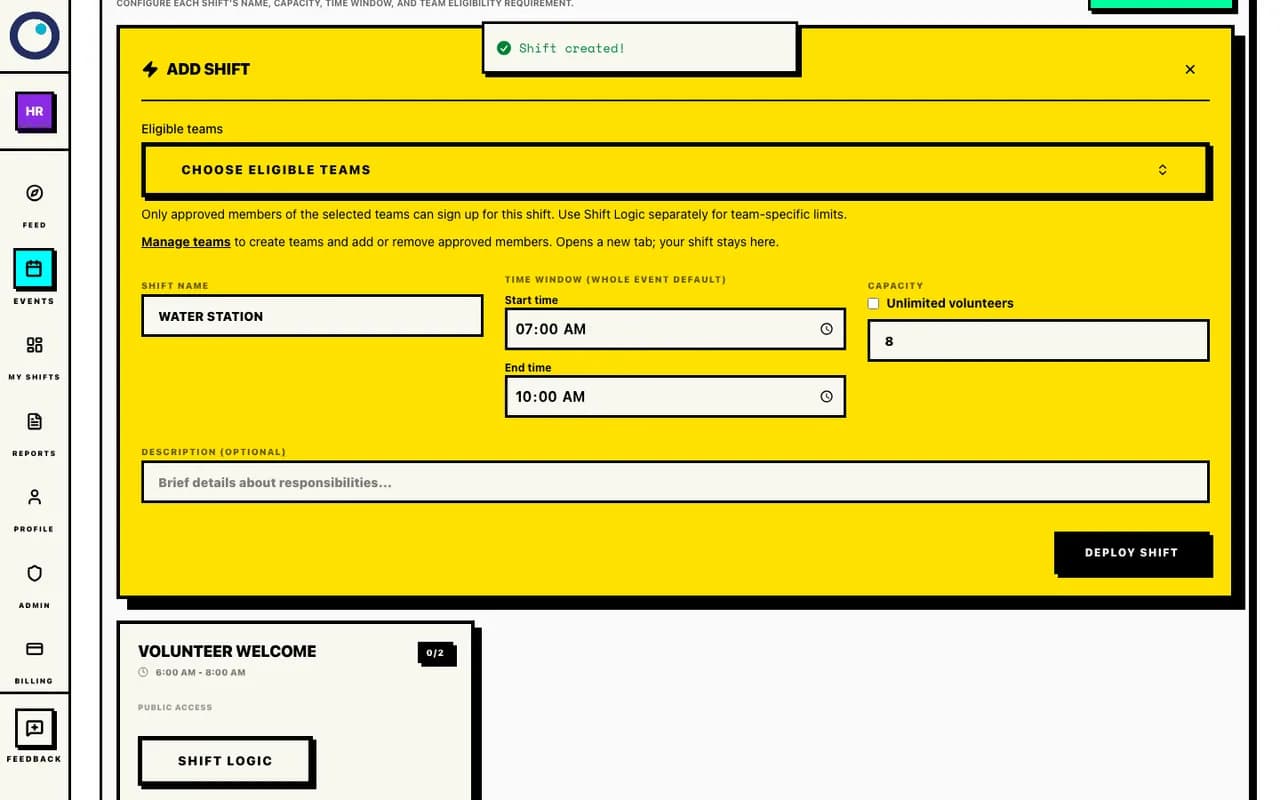
Water station: 07:00–10:00, 8 spots, no eligible-team restriction. These form values are not saved until Deploy Shift. The saved Water station job
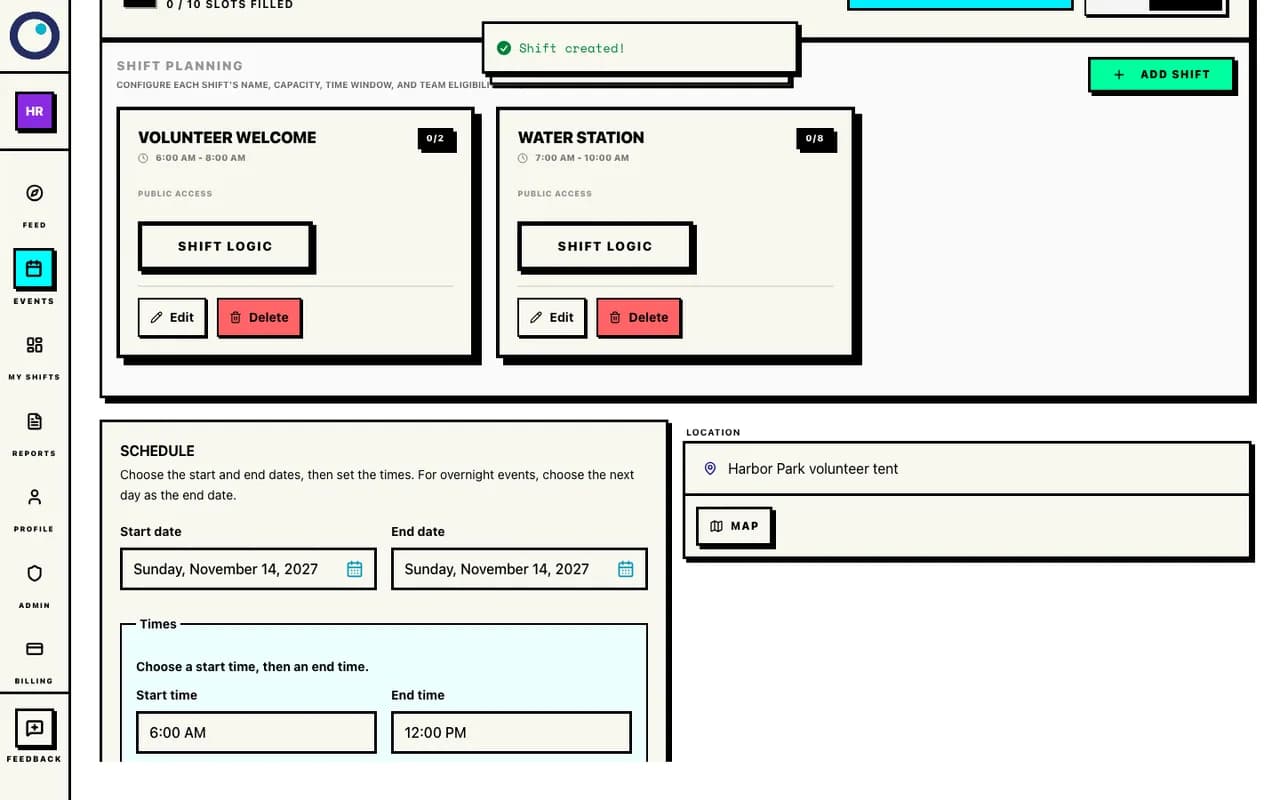
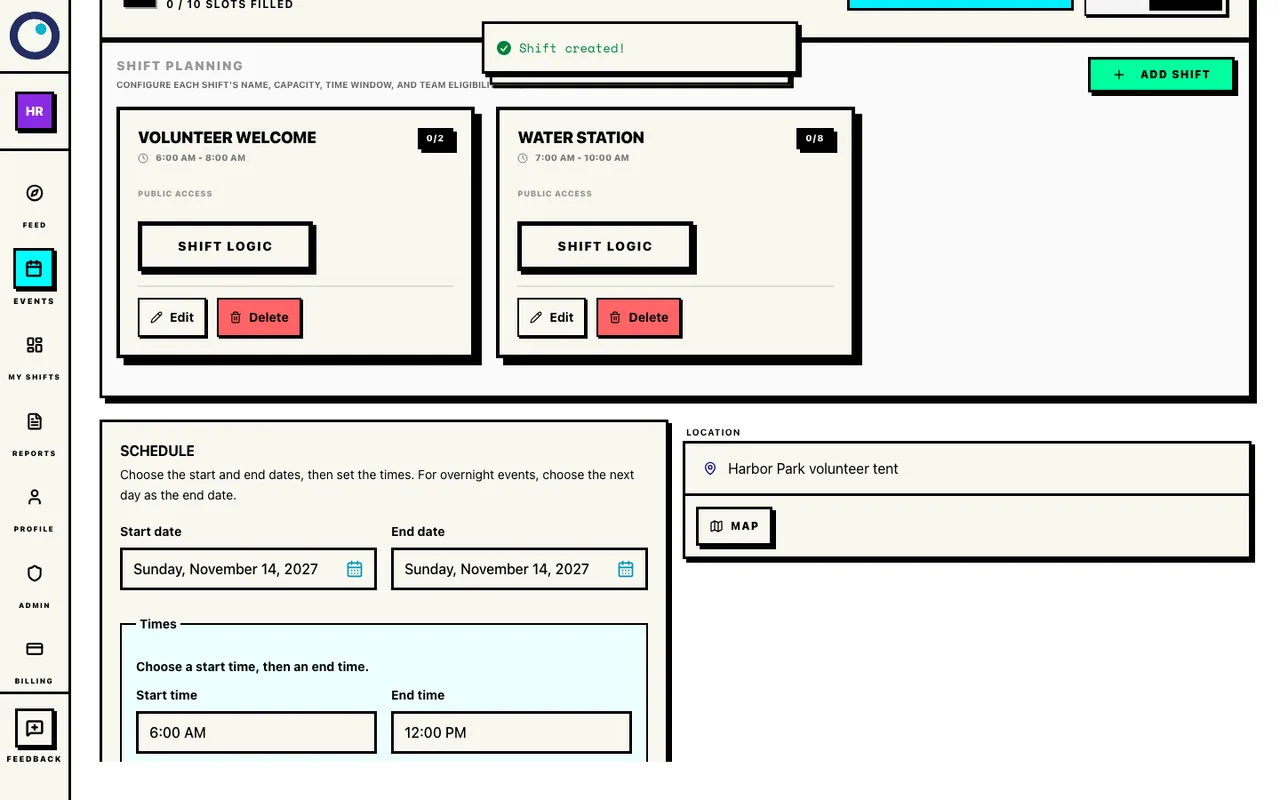
Water station was saved through Deploy Shift. Its time window, 8 spots, and unrestricted eligibility are verified in PostgreSQL. Select Add Shift once more. Enter Finish-area cleanup, set Start time to 10 AM and End time to noon, leave Unlimited volunteers unchecked, and enter 4 in Volunteer spots. Keep the job unrestricted and select Deploy Shift.
The cleanup job is saved with four places. Each Deploy Shift saves that individual shift.
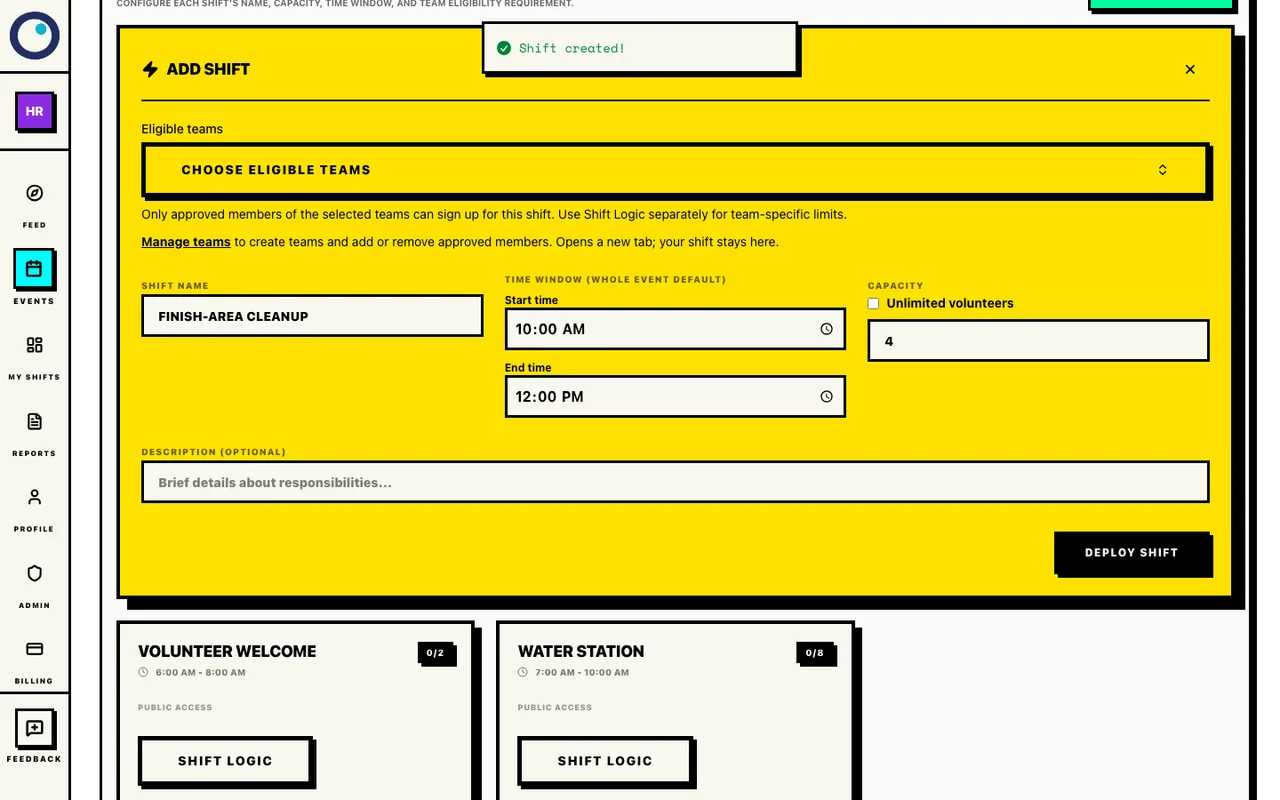
Enter cleanup and four spots
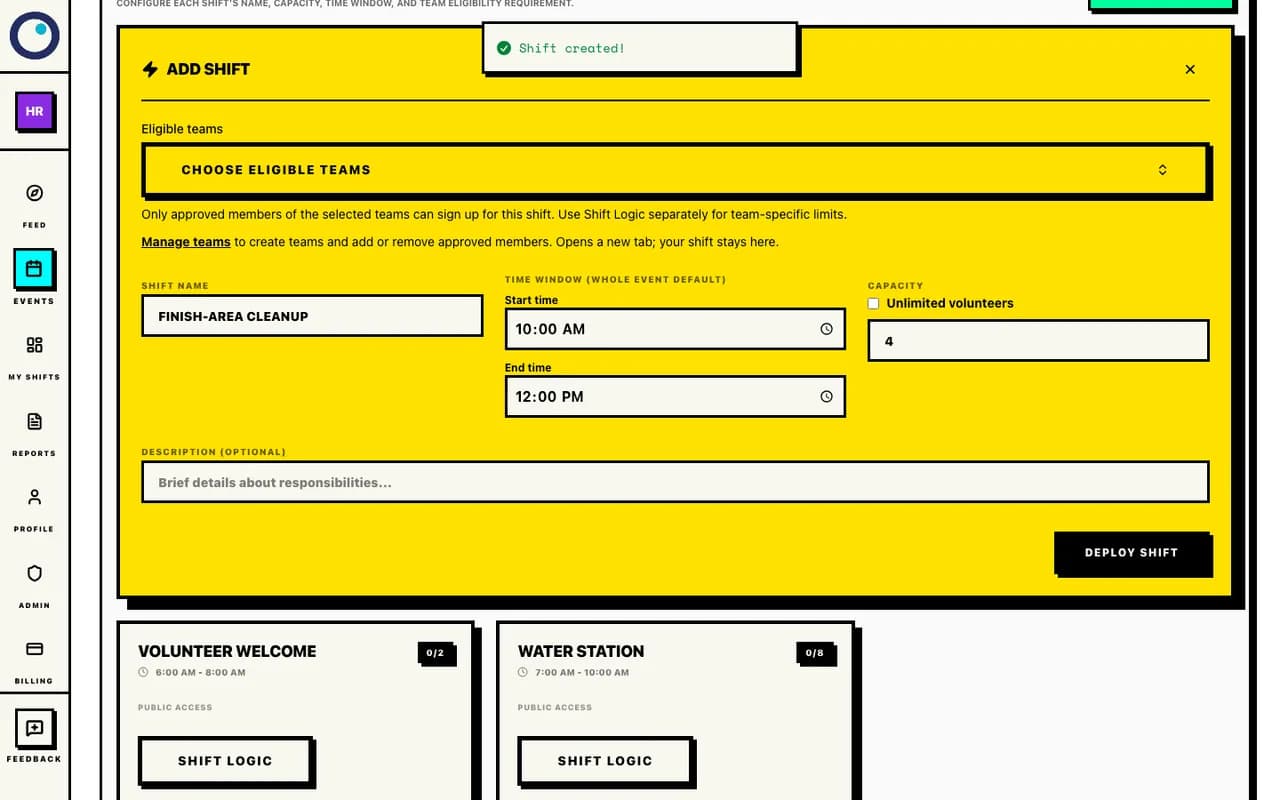
Finish-area cleanup: 10:00–12:00, 4 spots, no eligible-team restriction. These form values are not saved until Deploy Shift. The saved cleanup job
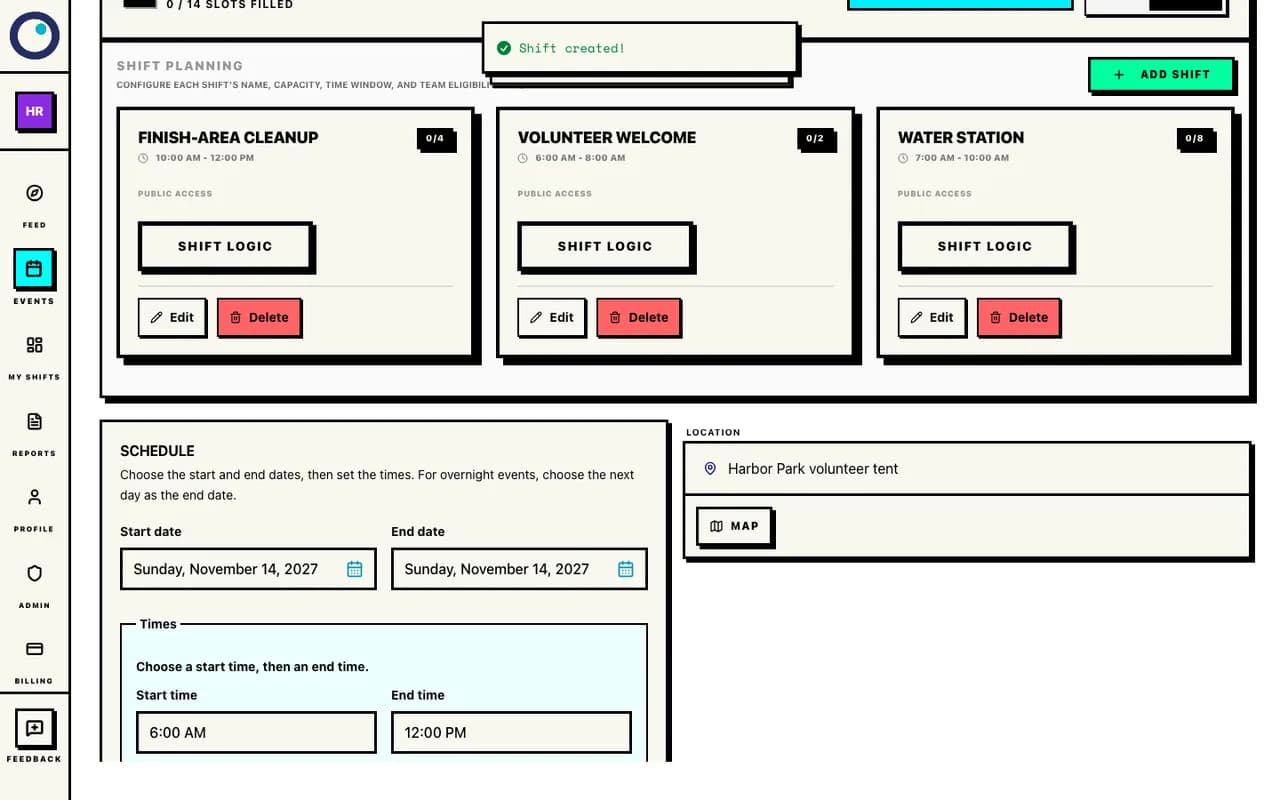
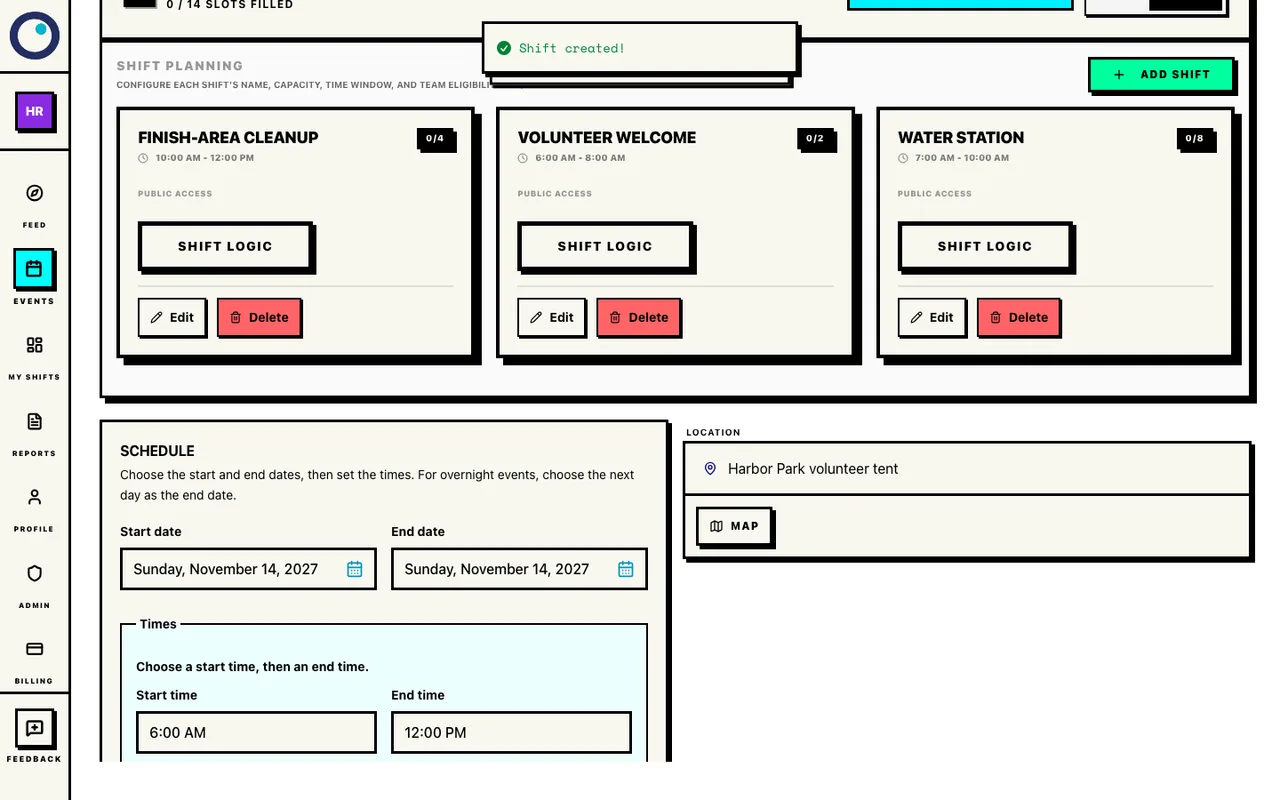
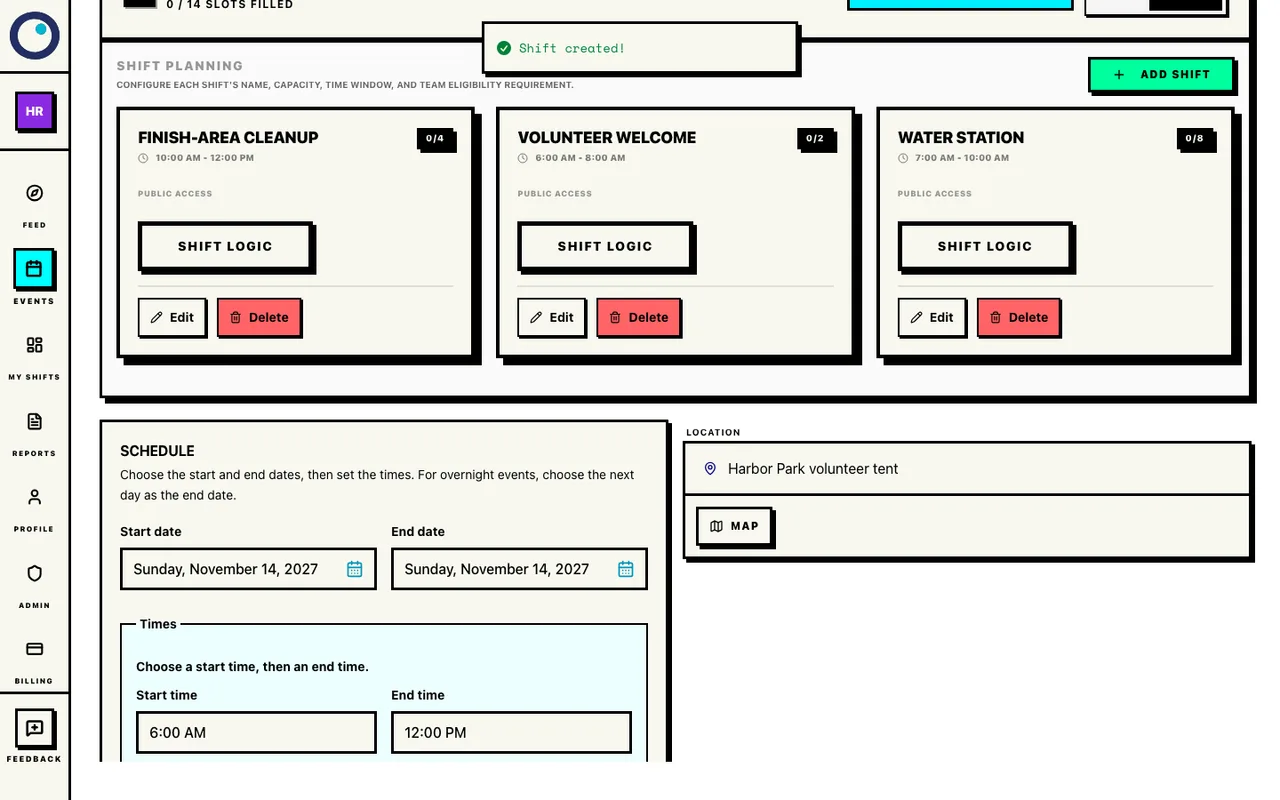
Finish-area cleanup was saved through Deploy Shift. Its time window, 4 spots, and unrestricted eligibility are verified in PostgreSQL. Check all three cards in Shift Planning: Volunteer welcome, 6–8 AM, 2 spots; Water station, 7–10 AM, 8 spots; Finish-area cleanup, 10 AM–noon, 4 spots. Use Edit to correct a name, time, or capacity.
You have fourteen places across three jobs and no unlimited Volunteer fallback. Choose eligible teams only when approved team membership should restrict signup.
Three saved unrestricted jobs
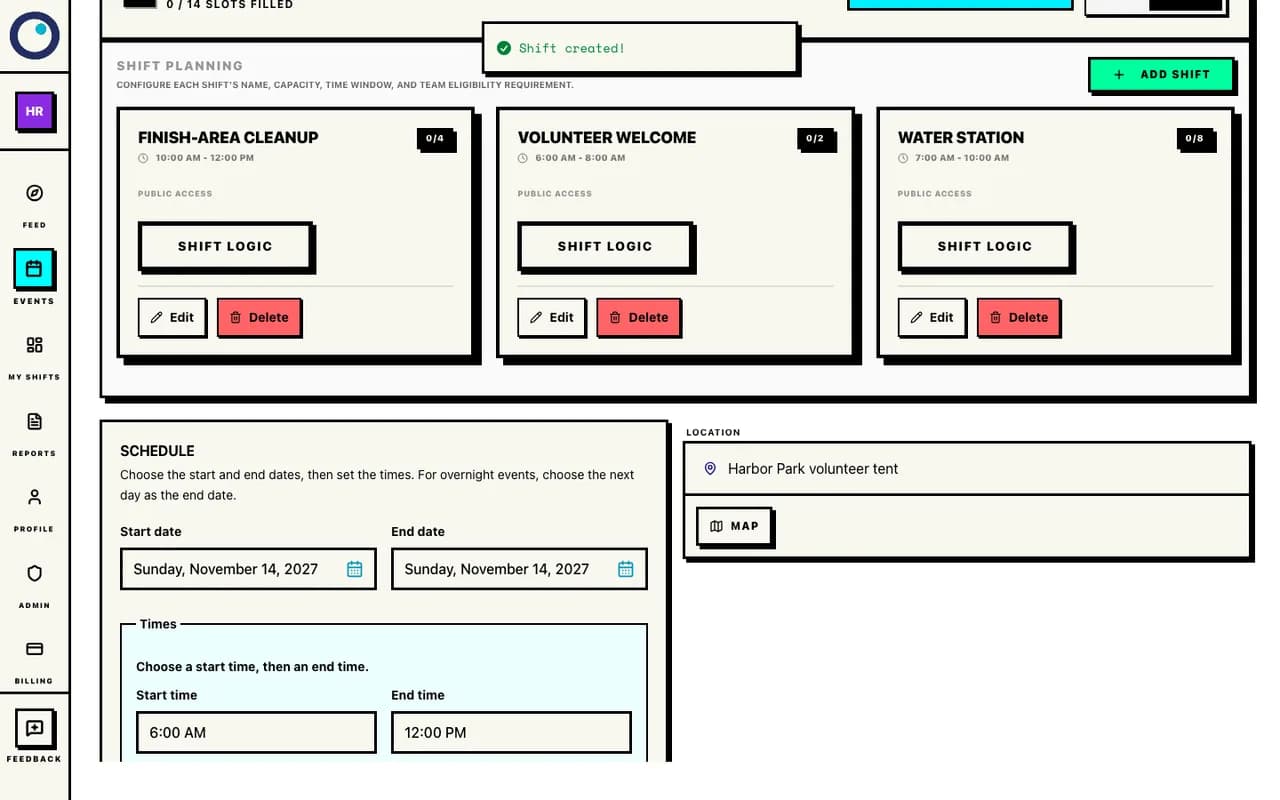
All three jobs are saved with capacities 2, 8, and 4. There is no unlimited fallback and no assignment. Save any event-detail changes, then open Preview. Read the event as a volunteer: check the meeting point, arrival instructions, date, shift times, and spot limits. Return to management to fix anything unclear.
Preview lets the organizer review the draft before making it public.
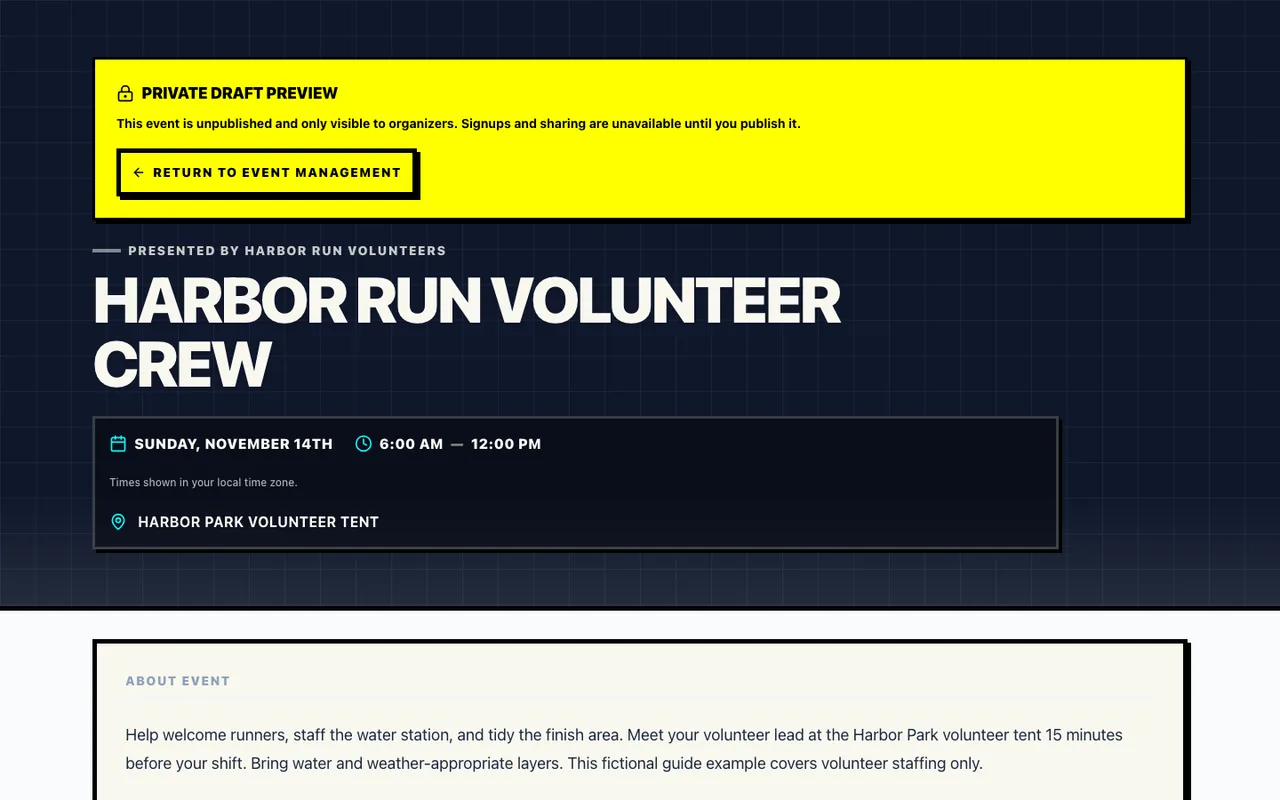
The private draft preview
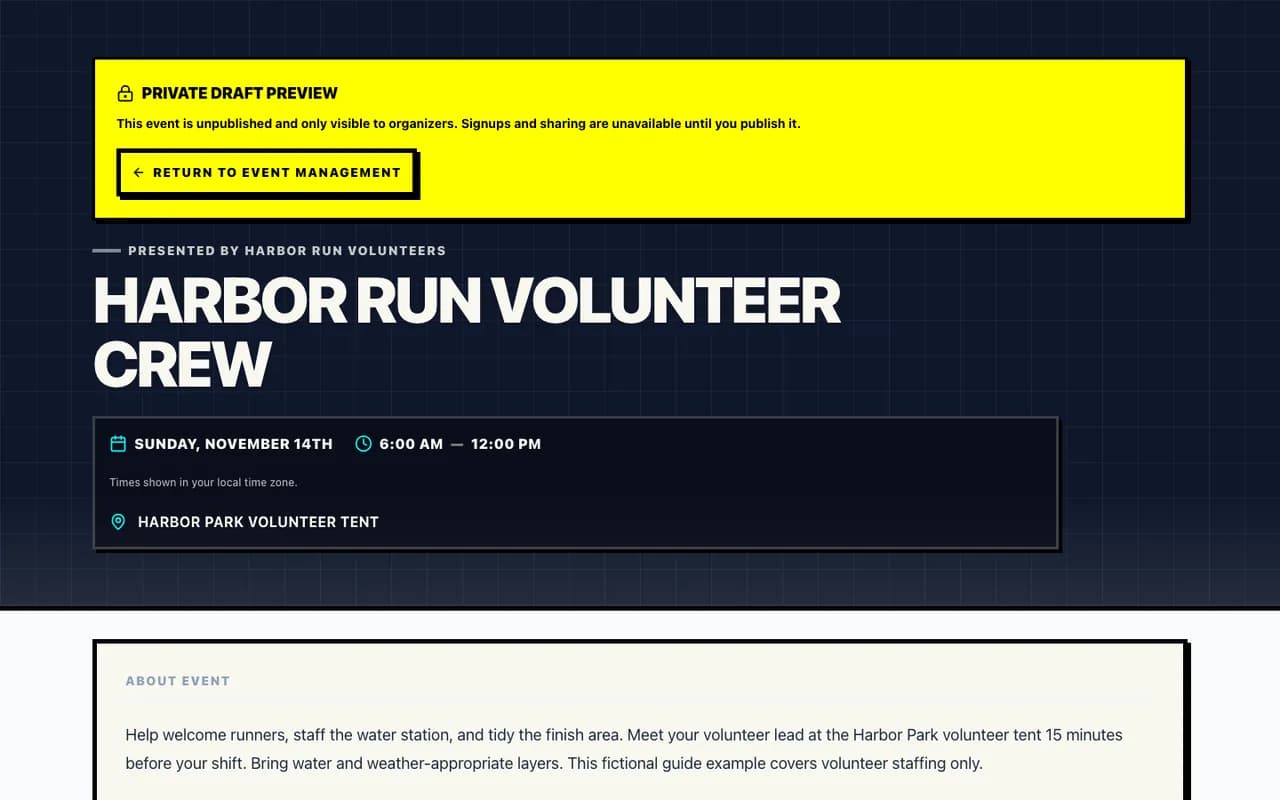
Actual private draft preview. The current product preview shows event details; it does not expose the volunteer shift chooser. Return to the event management page and select Publish Now. Wait for publication to succeed, then check that Public Page is available.
Standard event publication is free. The public page can now be read without an account.
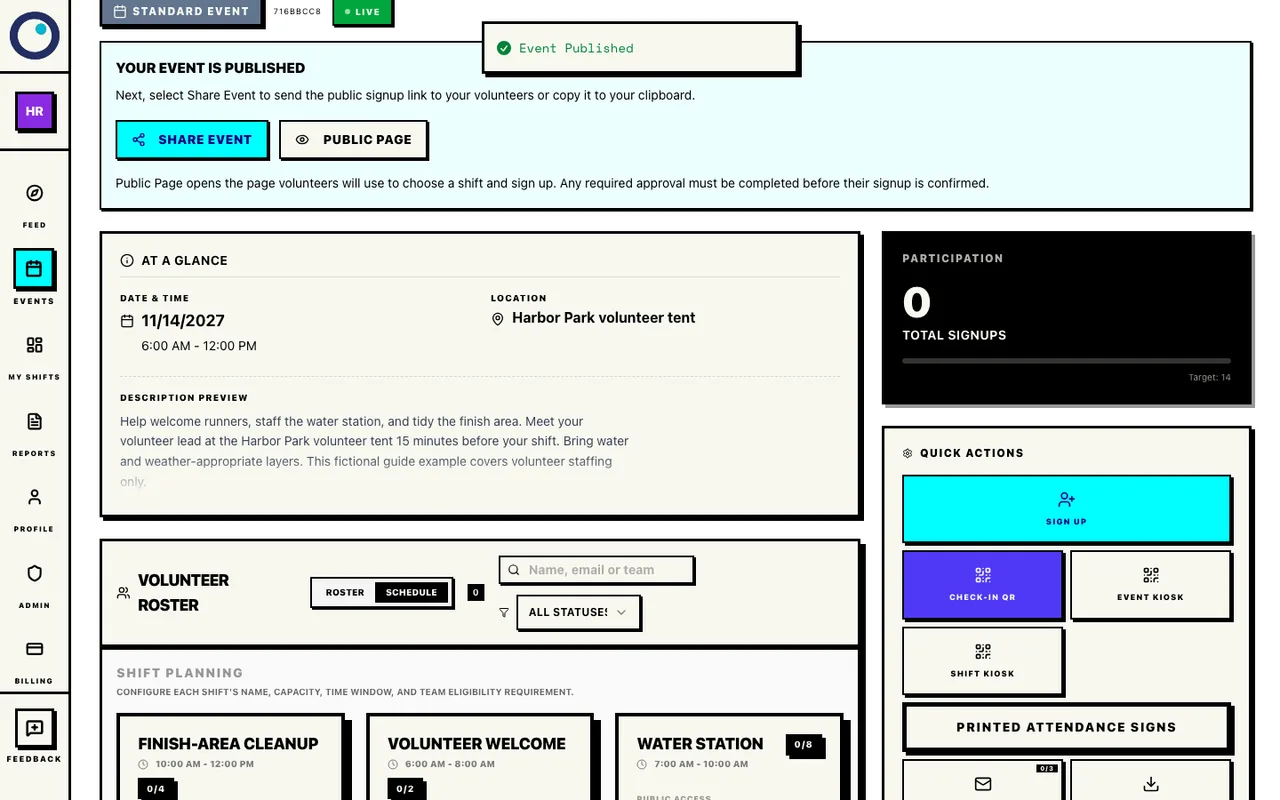
Successful Standard publication
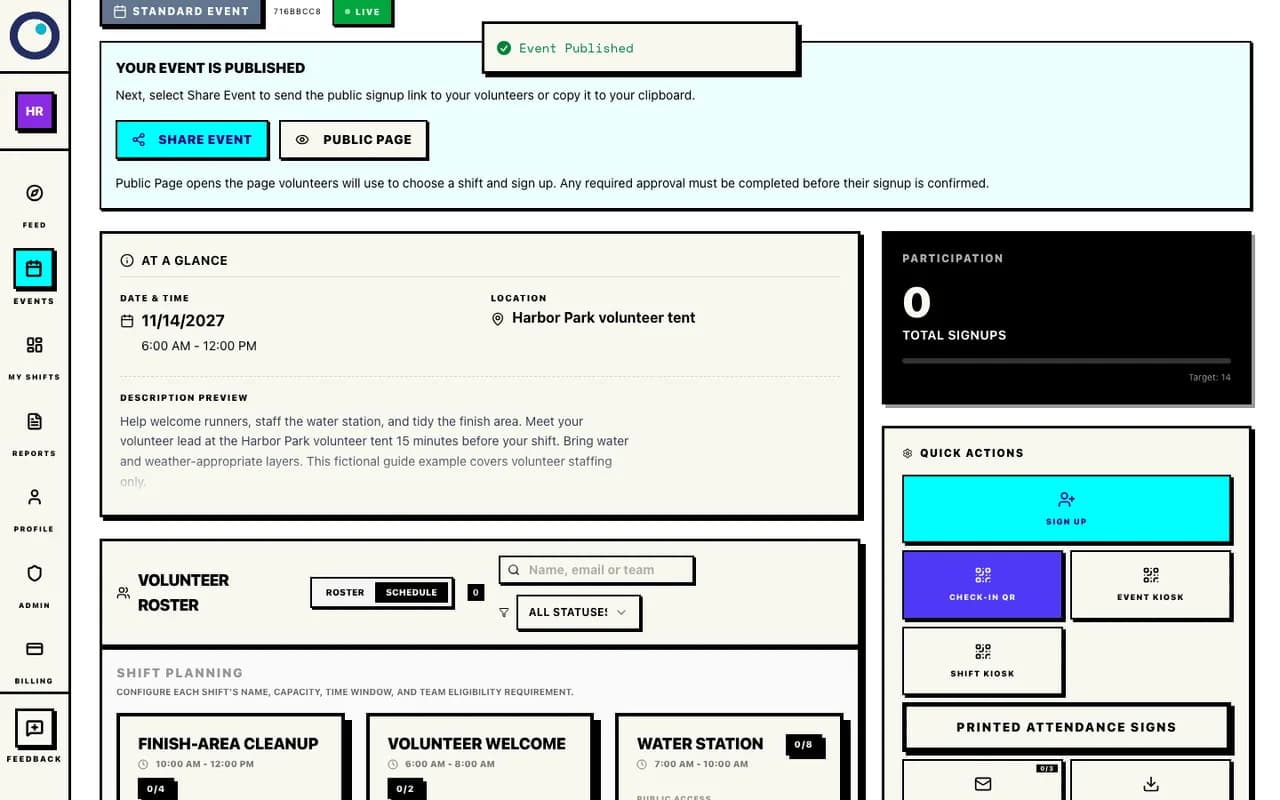
Publish Now succeeded for the free Standard event. PostgreSQL confirms Published status with no payments. Open Public Page and use Share Event to copy the volunteer-facing link. Put it in your race website, volunteer email, or group chat with a short invitation to choose a job and time.
Share the public event link rather than your organizer management or draft preview link.
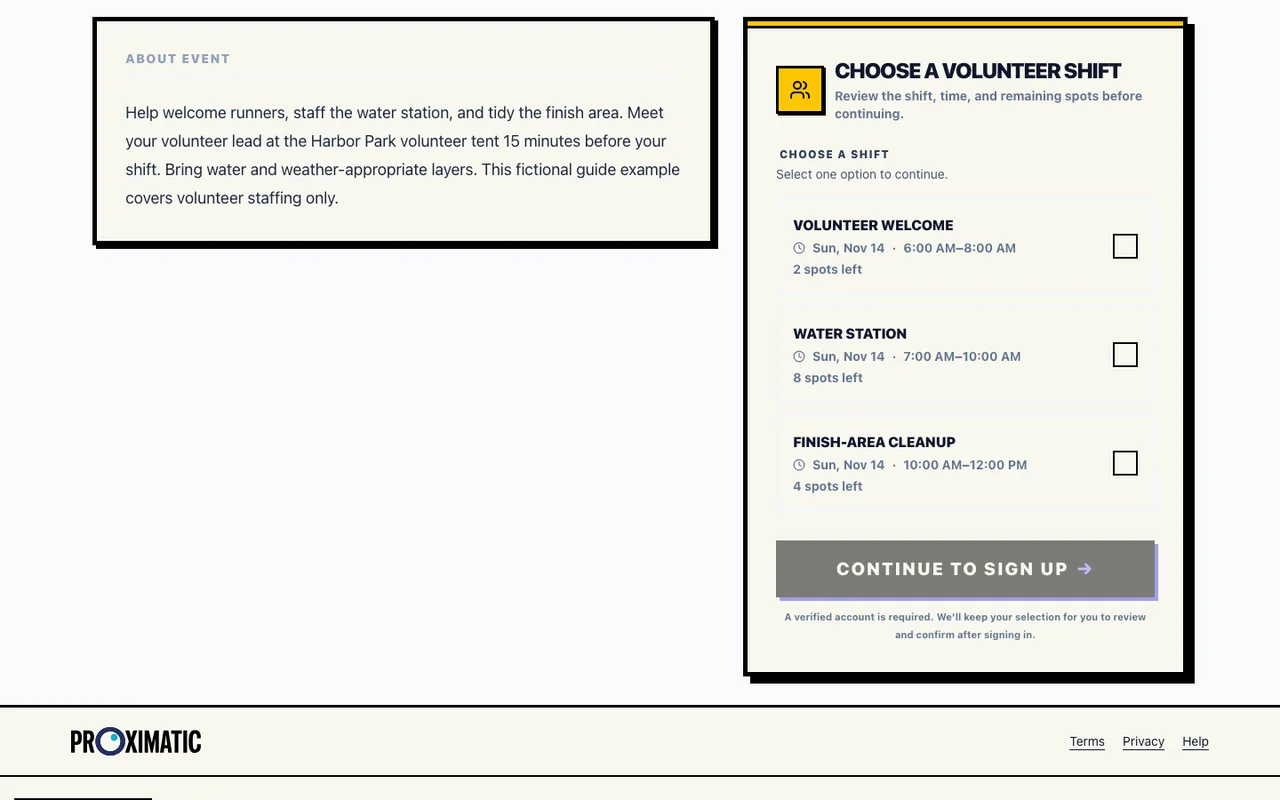
The anonymous public signup page
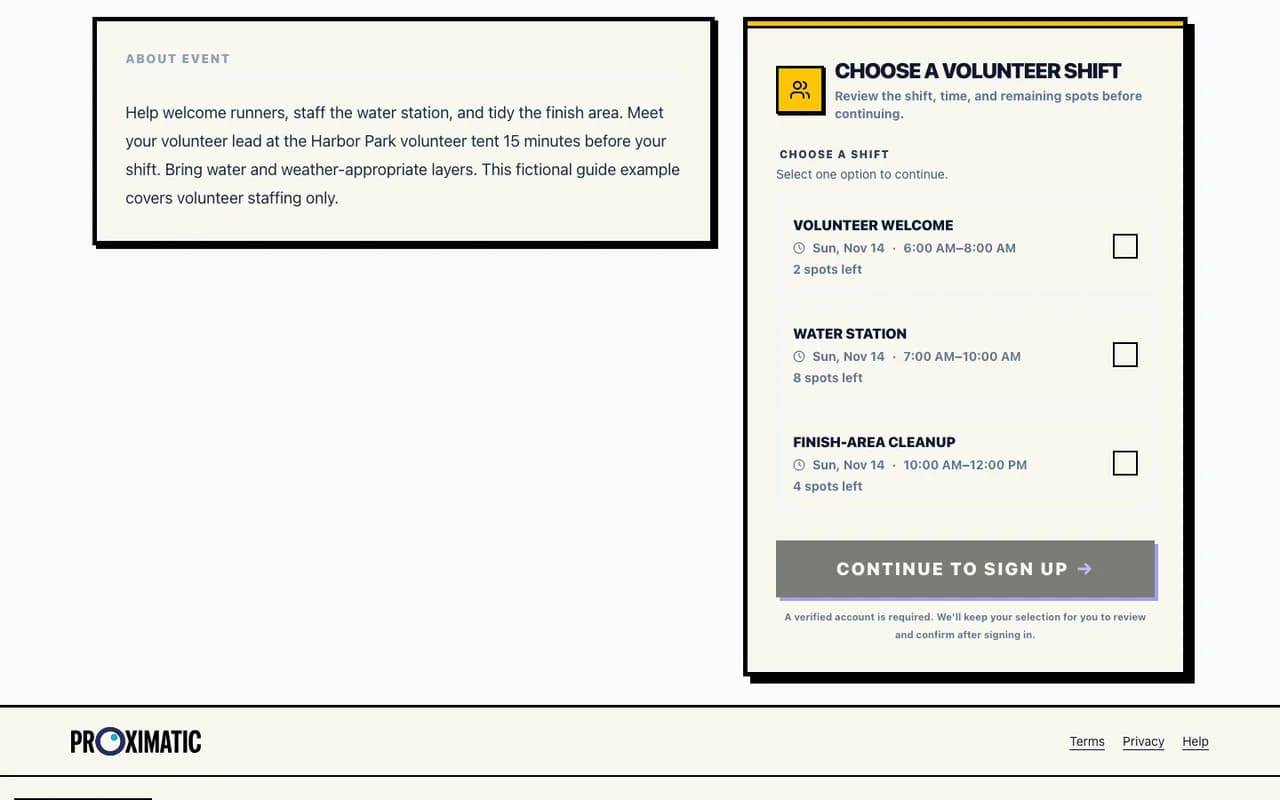
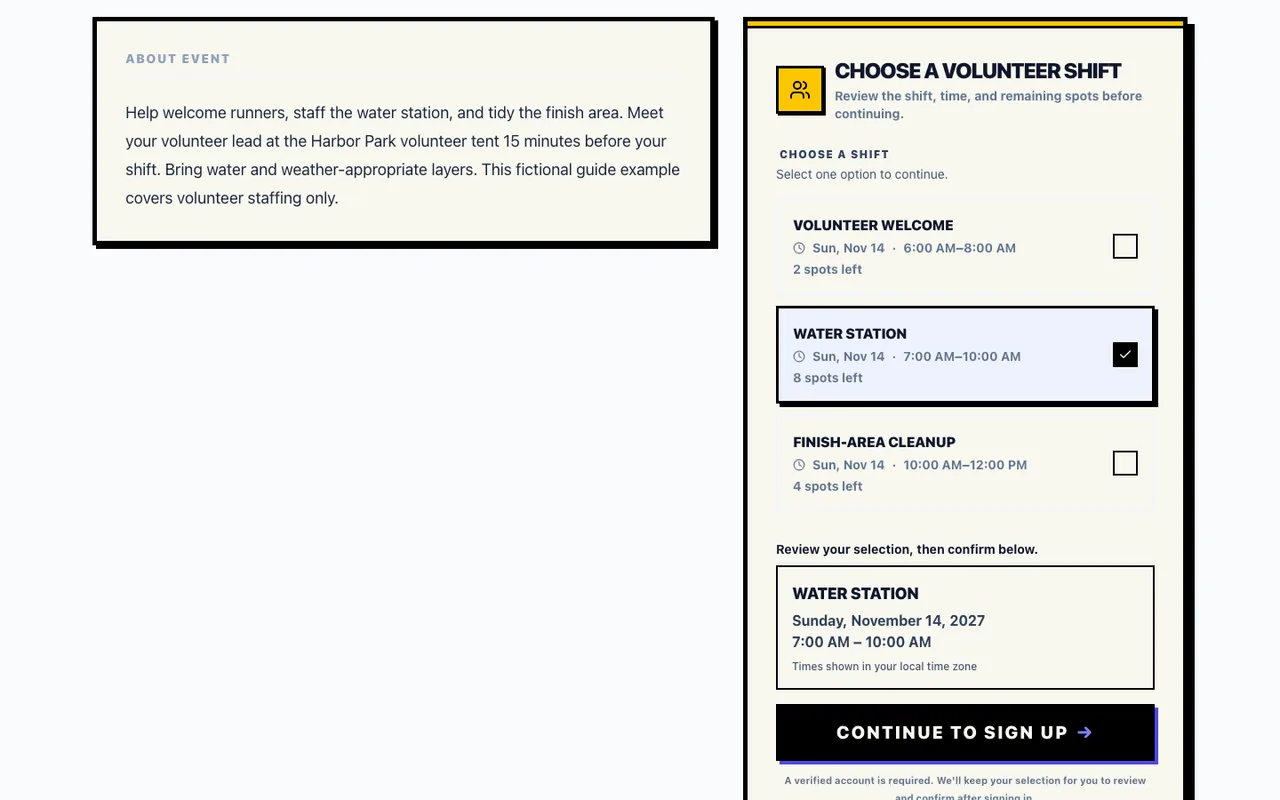
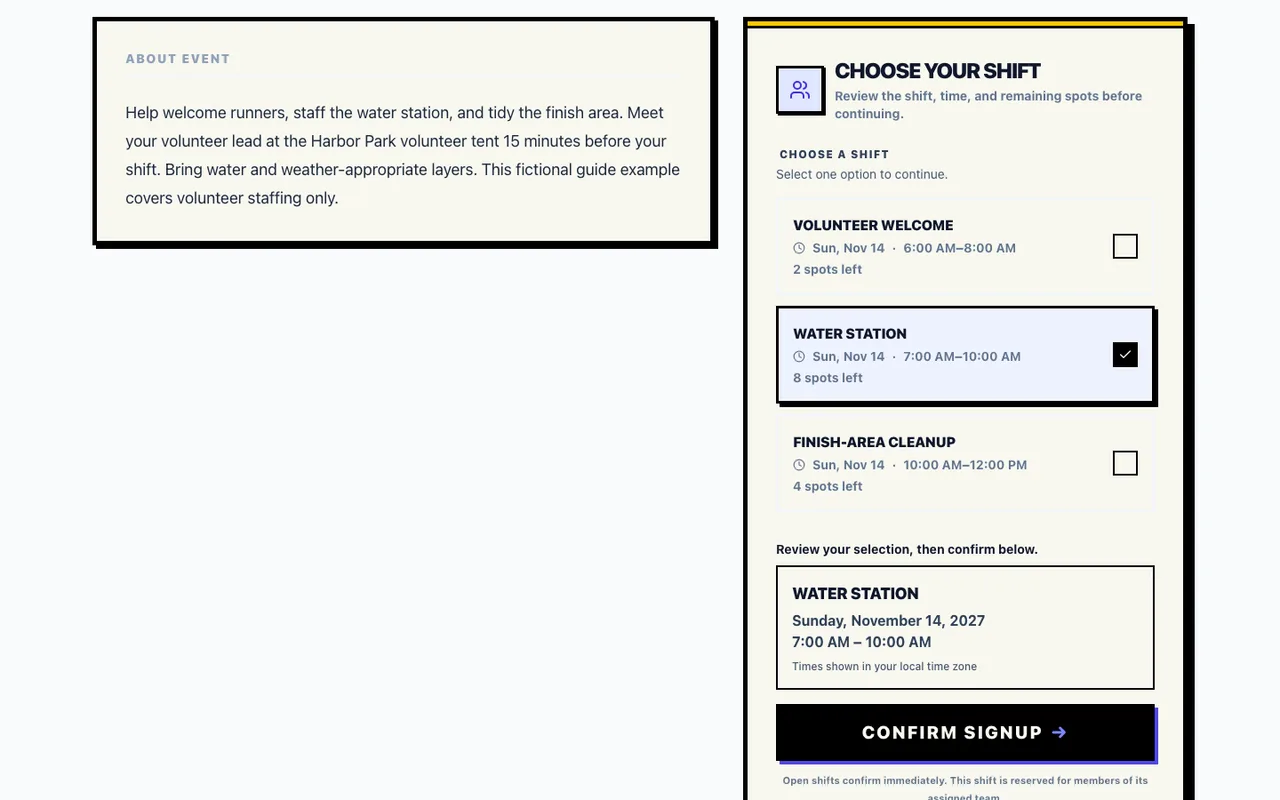
The published event opened without a session. All eight Water station spots are still available. As a volunteer, open the public link and read the instructions. Under Choose a volunteer shift, select Water station and check its time and remaining spots. Select Continue to Sign Up.
The chosen event and shift carry into the account handoff. Choosing a shift alone does not reserve a place.
Water station selected before account creation
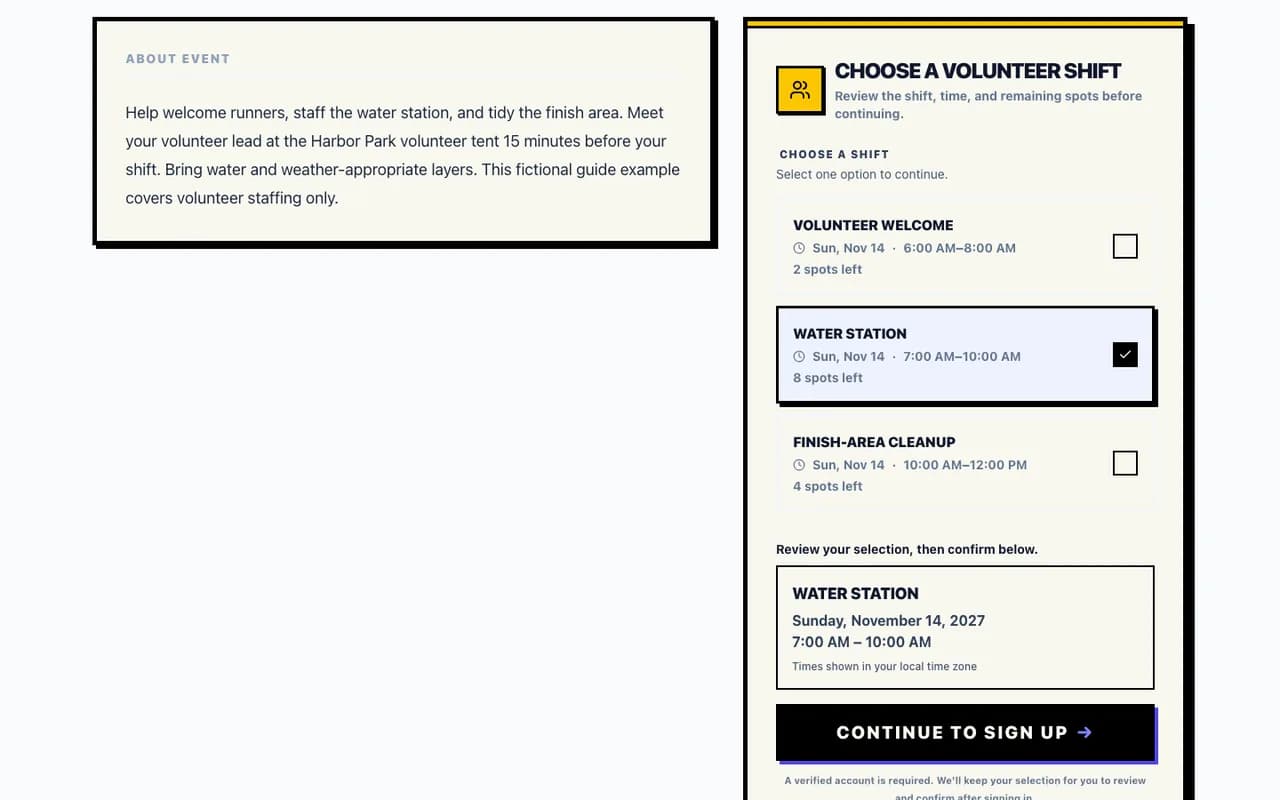
Water station selected in the public chooser. Selection alone has created no assignment. New volunteers enter their name, email, and password on Create your volunteer account, or use Google. Returning volunteers sign in. Check that the page still names Harbor Run Volunteer Crew and Water station.
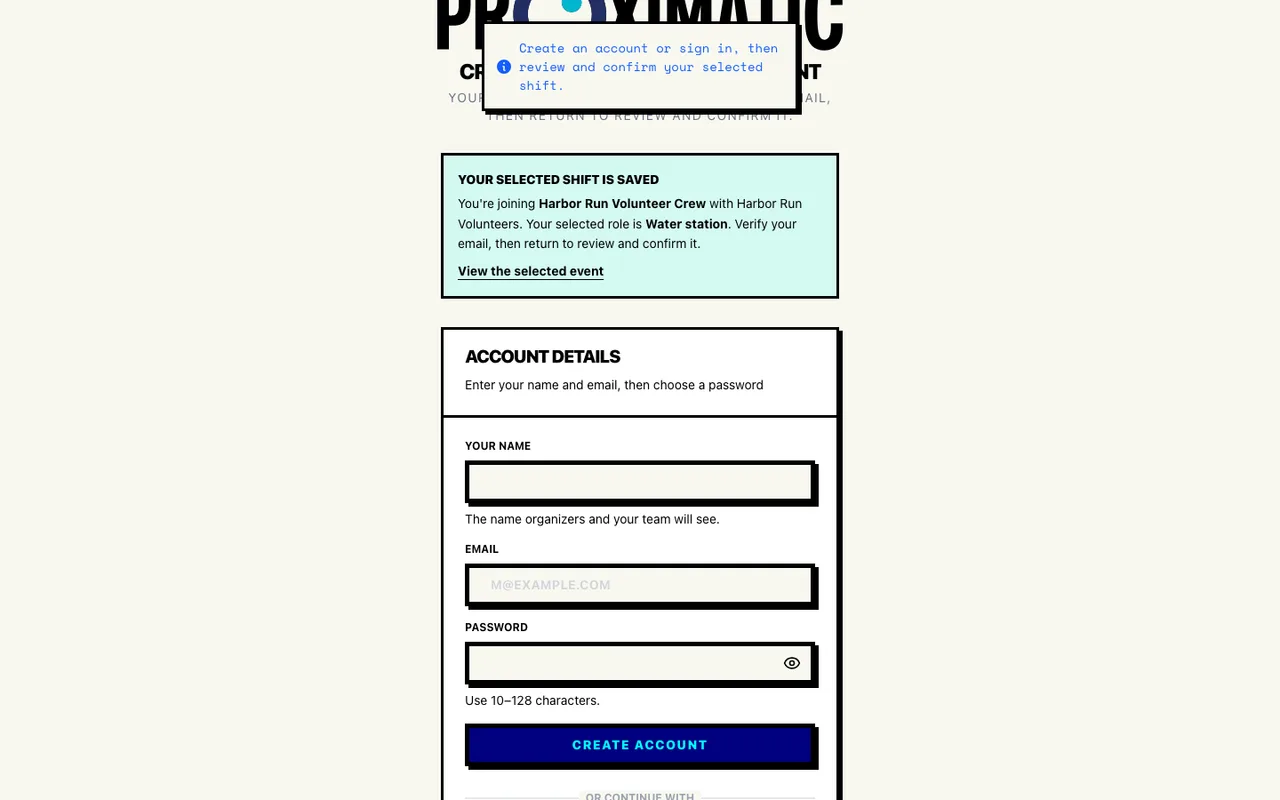
An account is required for this Standard signup flow. The selected shift is saved for review, but an account by itself is not a confirmed signup.
Account handoff retains Water station
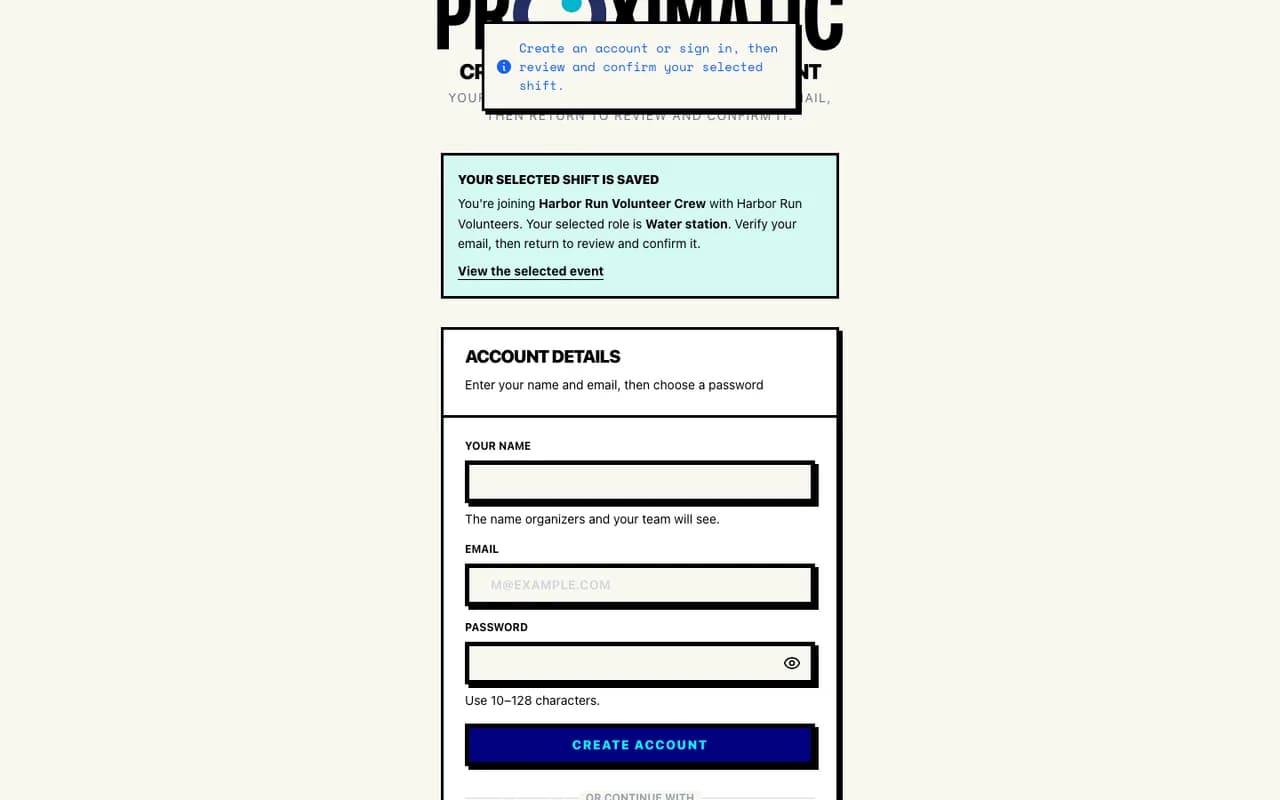
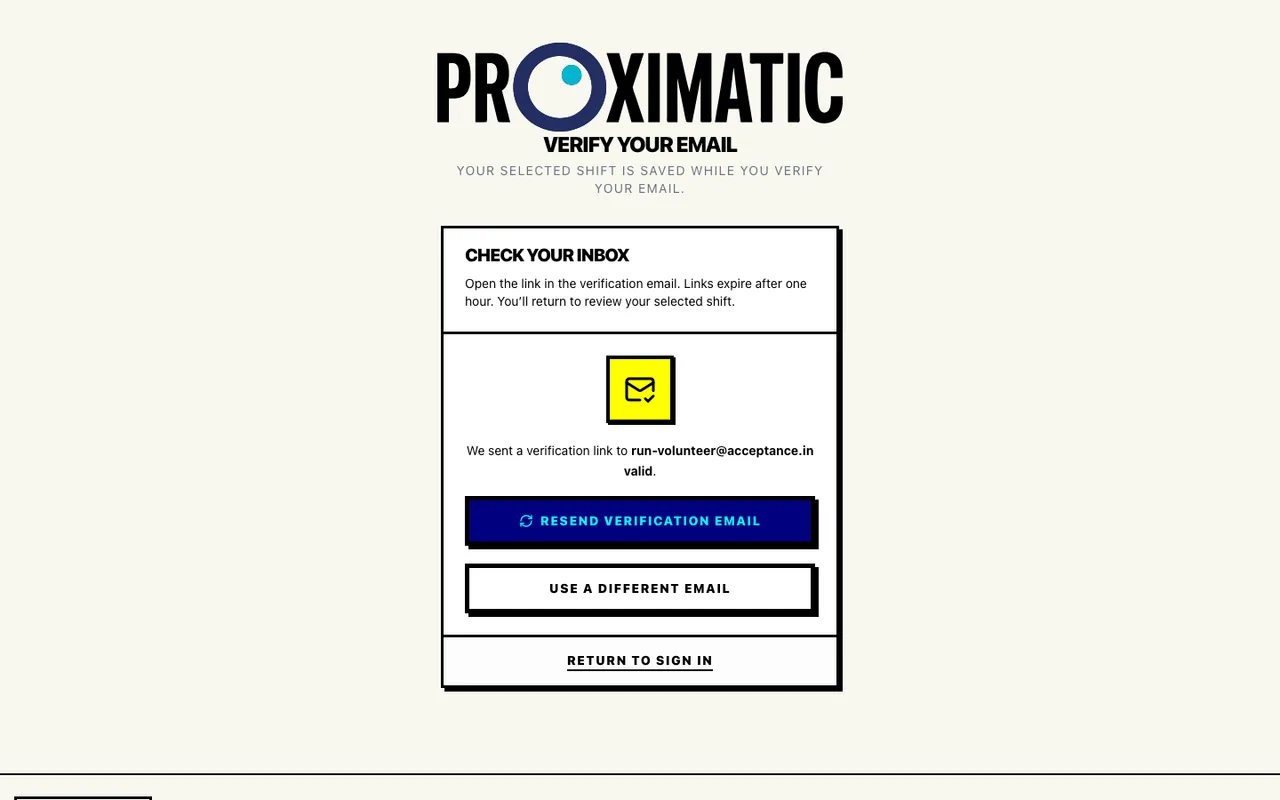
The account handoff retains the event and Water station. No volunteer account or assignment exists yet. If prompted to verify your email, open the verification message and follow its link. Return to the selected event after verification and sign in if requested.
Email verification is an identity step. You still need to review and confirm the shift; no place is booked just by verifying.
Verification required after account creation
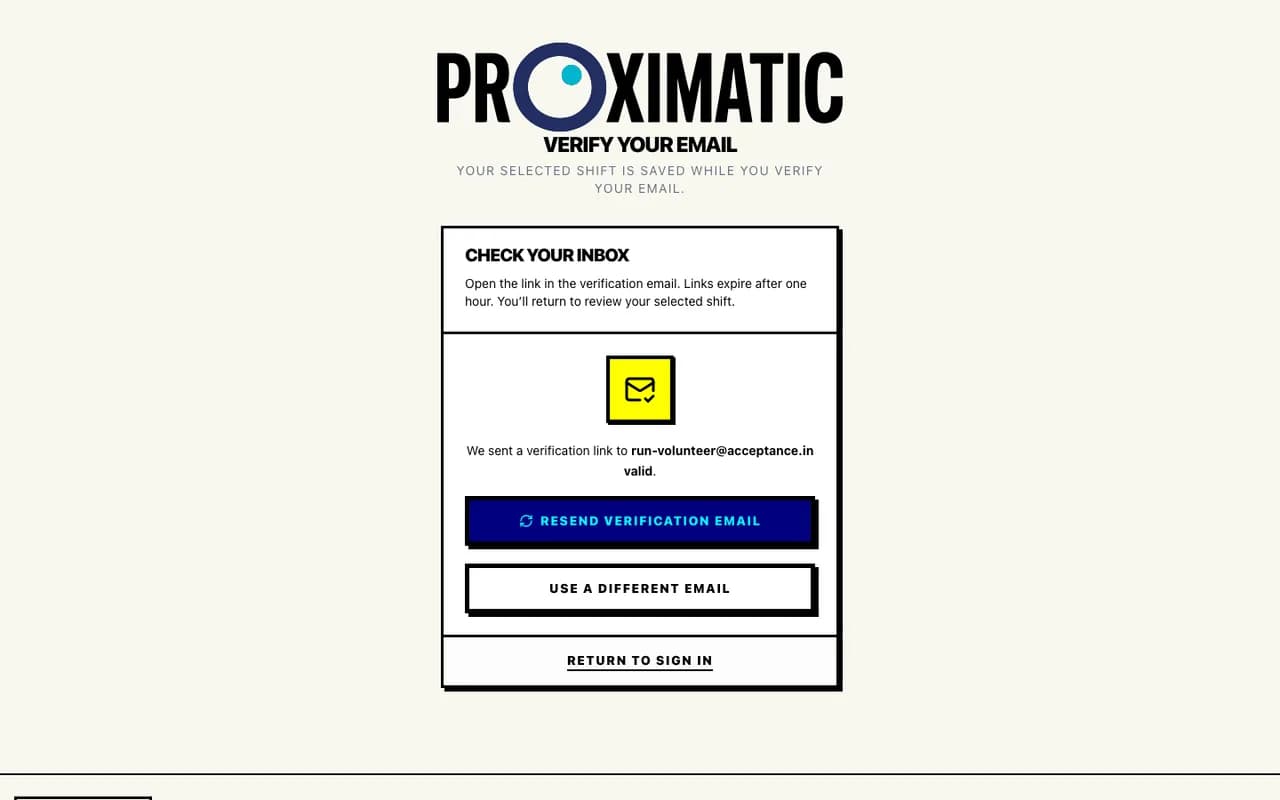
The application created Jordan's account and requested verification through the local synthetic mailbox. No spot is booked. On the event page, review Water station and its 7–10 AM time window, then select Confirm Signup. If the page reports that the role is full or unavailable, choose another eligible shift and review it before confirming.
The signup succeeds only if the event and shift checks pass. Where organization or team approval is required, follow the approval instructions; a pending request does not reserve a spot.
Verified volunteer reviews before confirming
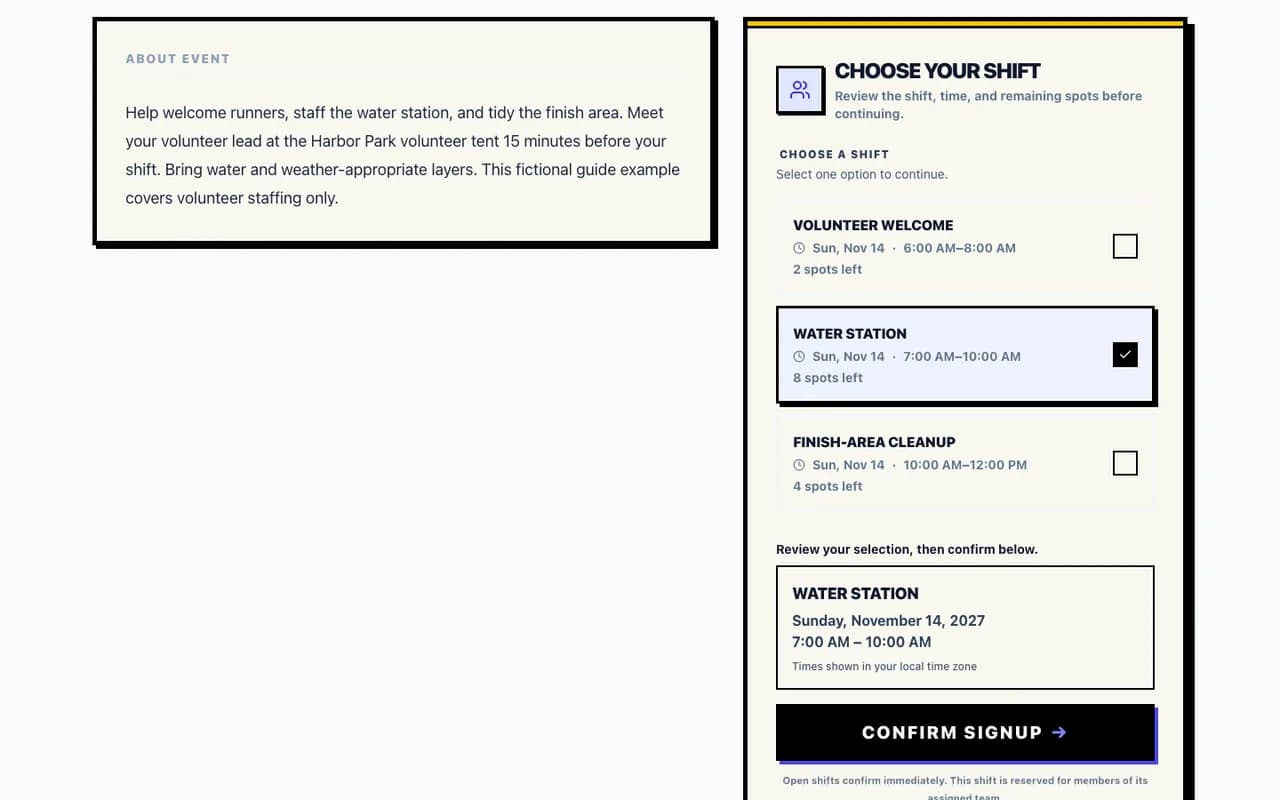
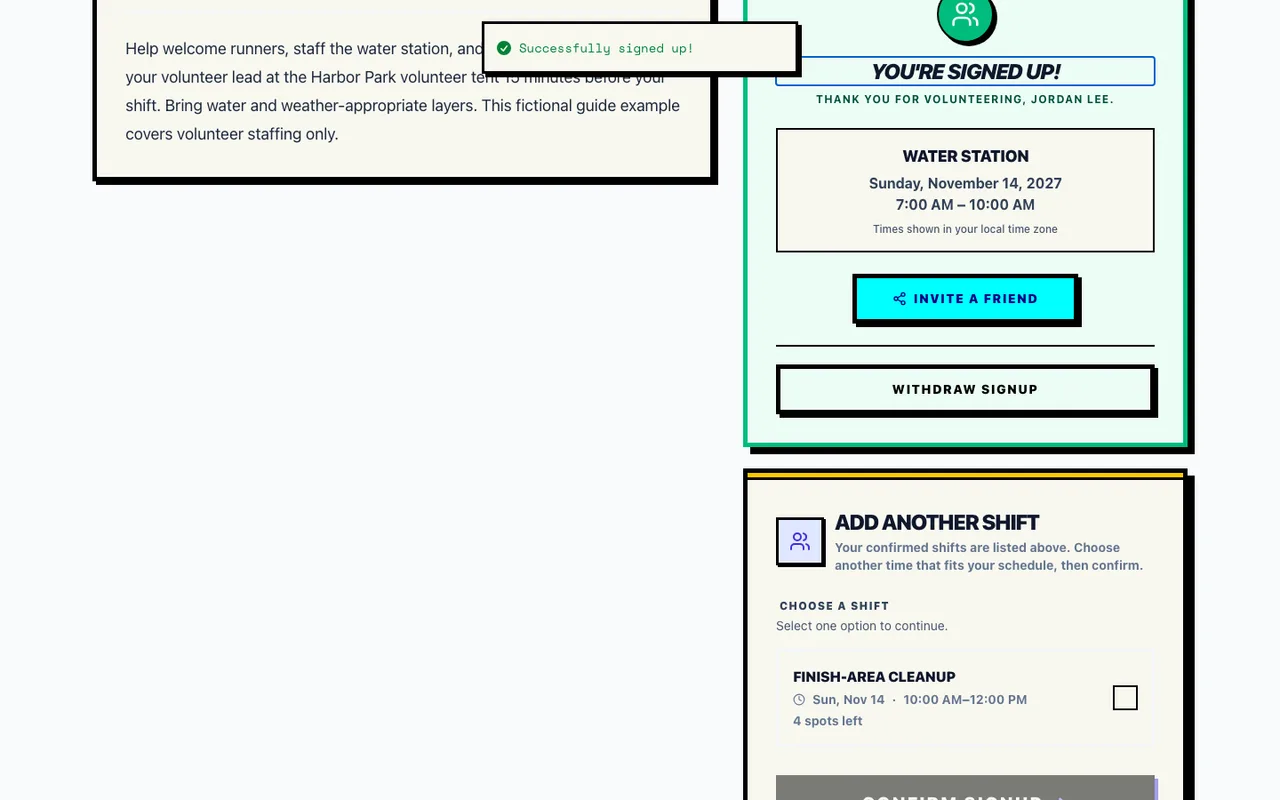
After following the real verification link delivered locally, Jordan reviews Water station. PostgreSQL still contains zero assignments. Look for You’re signed up! and check the confirmed job, date, and time. Keep the event link for the day and read the meeting instructions again before arriving.
The confirmation identifies a booked shift. It does not record arrival or attendance.
The confirmed Water station signup
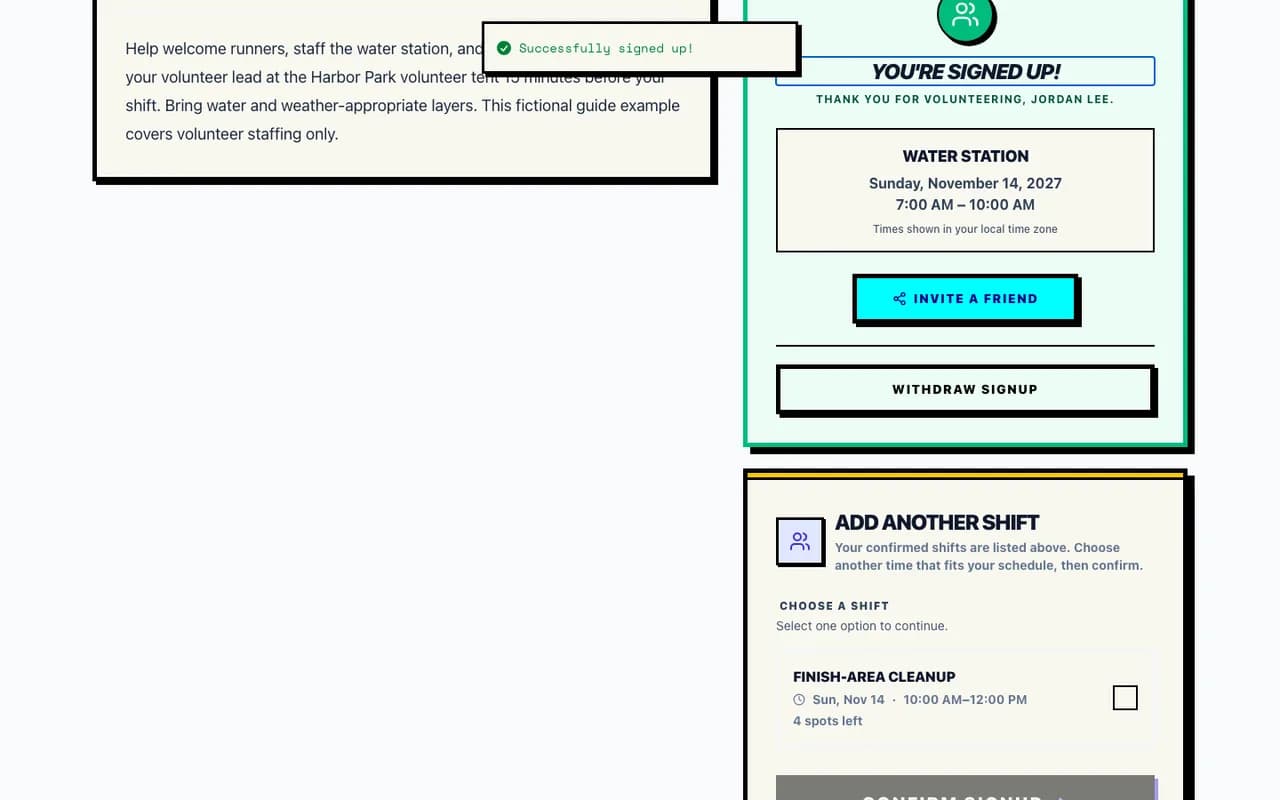
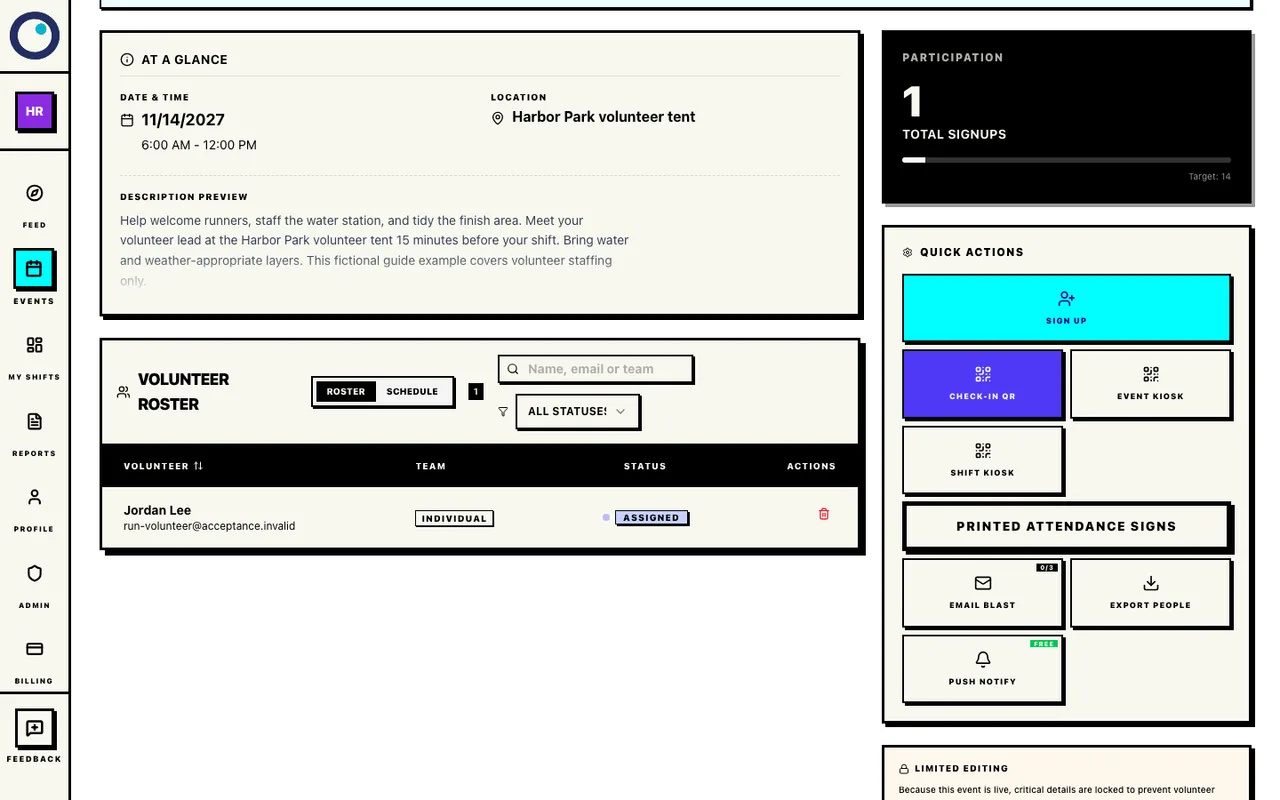
Confirm Signup created exactly one persisted Water station assignment and one registration confirmation. No attendance has been recorded. As the organizer, return to event management and select Roster under Volunteer roster. Search for the volunteer by name or email and review the assignment status.
Assigned means a place is booked. It does not mean the person has checked in.
Organizer roster after confirmation
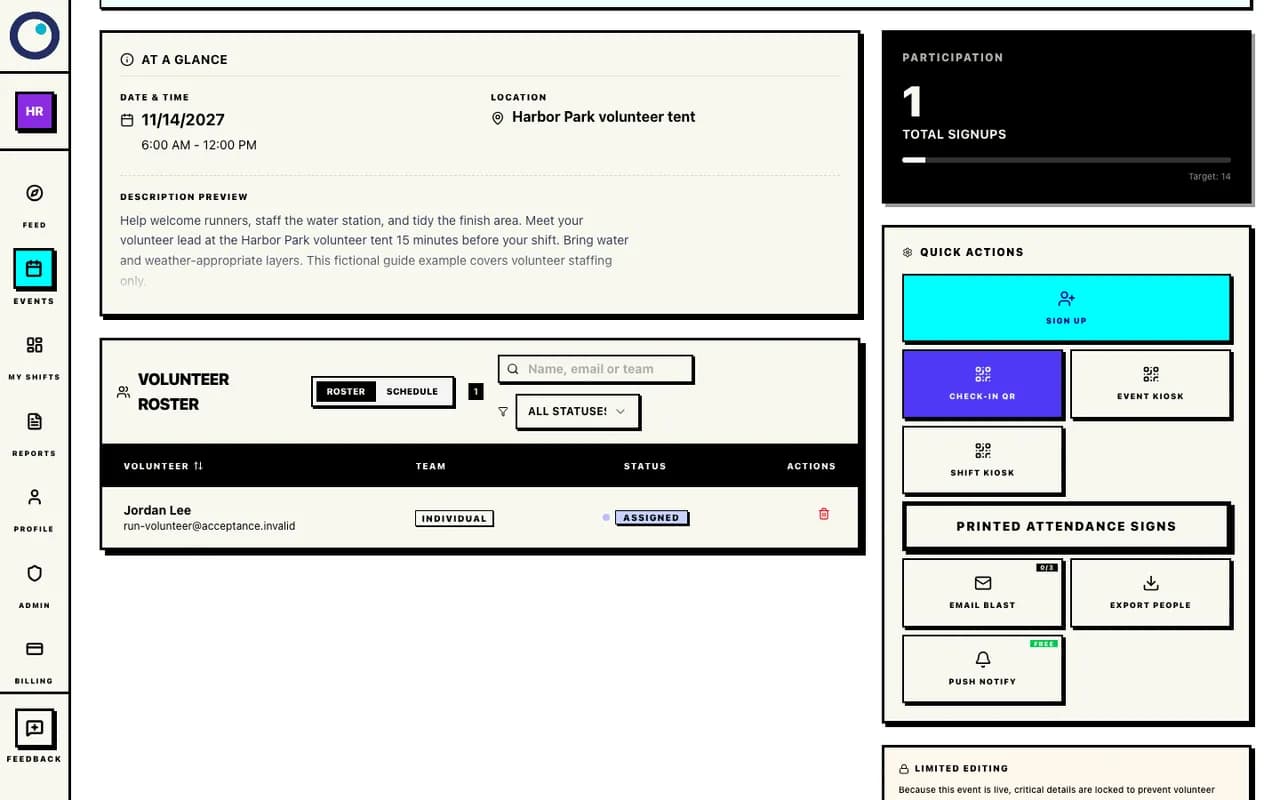
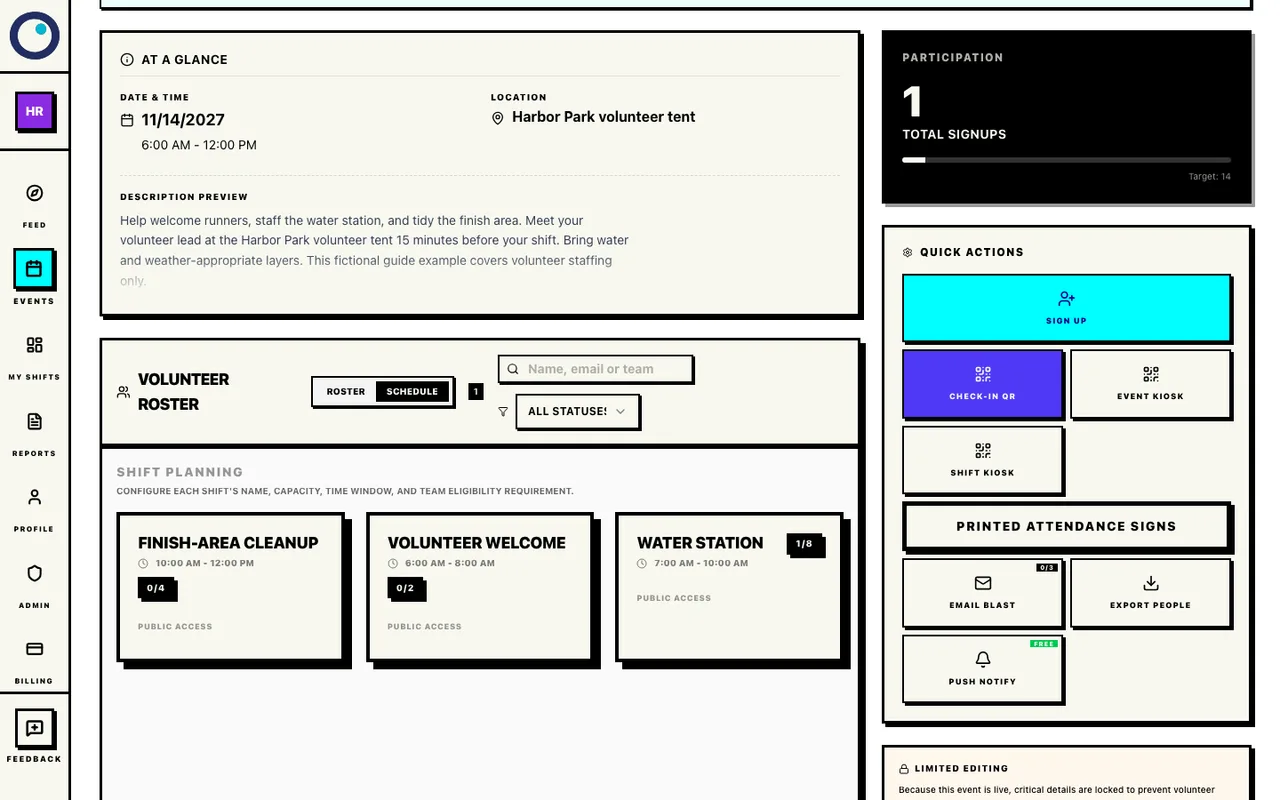
The organizer sees Jordan's UI-created assignment on the roster. Assigned does not mean checked in. Select Schedule to review the jobs, times, and filled places. In this example, one confirmed Water station signup means 1 of 8 water spots is filled; welcome and cleanup still need their crews.
Use the remaining gaps to decide where to ask for help. Review the plan again before sharing a reminder or changing staffing.
One of eight Water station spots filled
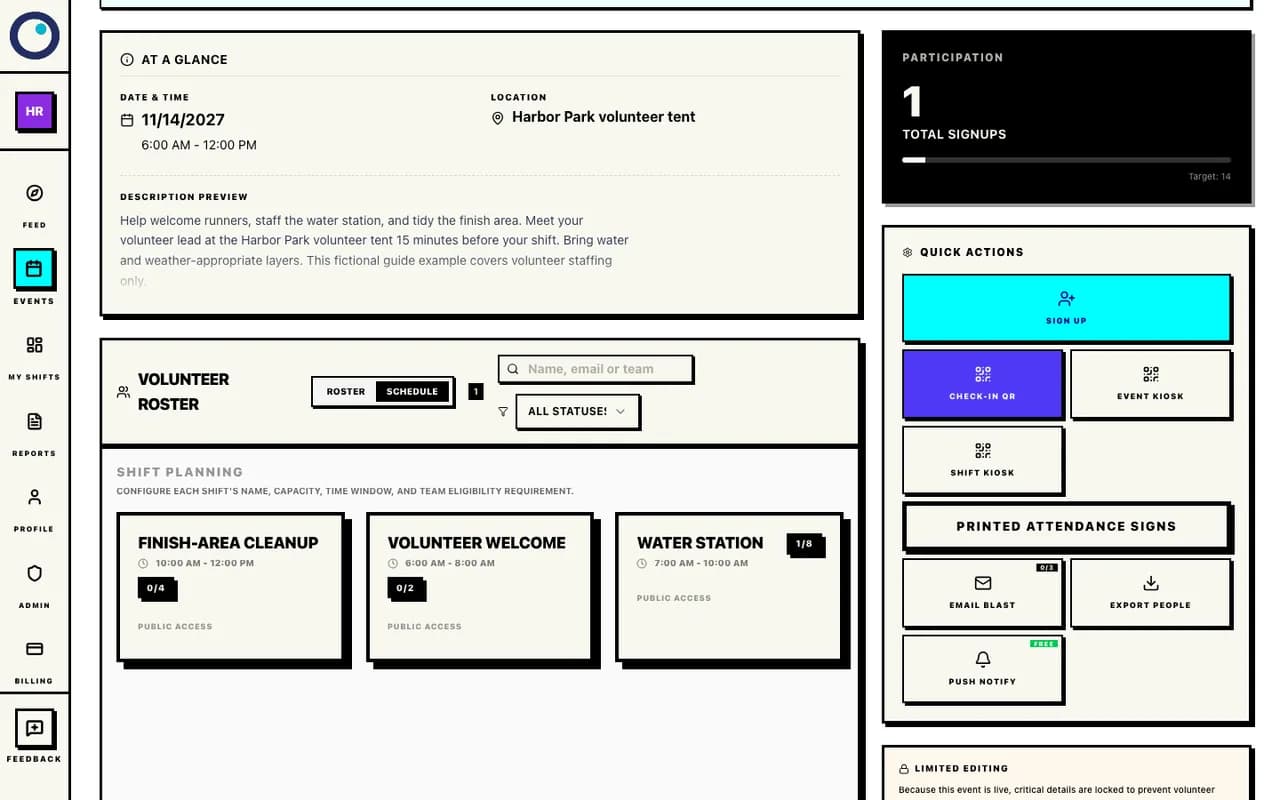
The saved schedule has one Water station assignment out of eight spots. Welcome and cleanup remain empty. Open Event Kiosk, choose the shift and Check In, and display the rolling QR code for volunteers already assigned to that shift. A signed-in assigned volunteer scans to record arrival immediately. Someone who is not signed in completes the short email-code handoff, then the action resumes.
Use Check Out for early departures and review attendance and hours afterward. The rolling kiosk requires an existing assignment; use the separate printed-sign workflow for a configured walk-in path.
Prepare for arrival and departure
There are no day-of race captures in this walkthrough. Follow the QR attendance guide for the rolling kiosk and reusable printed sign. The printed sign has its own role-selection and confirmation steps.
Build your own volunteer crew page
Start a free Standard event and add the jobs your event needs. For more context, read the complete volunteer signup guide.
Create an event